Event Categorization
The Event Categorization feature allows users to automatically classify audit events into predefined categories. Categorization rules help organize events for faster analysis, reporting, and dashboard visualization.
Overview
Event Categorization uses a rule-based system to assign one of five color-coded categories to incoming audit events. Each rule defines matching criteria that determine which category is applied. Once a matching rule is found, the event is categorized automatically within two minutes of being written to the database.
Managing Category Rules
Category rules are displayed in a list showing the rule name, description, assigned category, and order of application. The following actions are available:
- Enable or Disable – Toggle a rule on or off using the switch beside the rule name.
- Edit – Modify the name, description, or category by clicking the edit icon.
- Delete – Remove a rule from the list using the delete icon.
- Reorder – Use the up and down arrows to change the priority order of the rules.
Rules are applied from top to bottom in the list. Only the first matching rule is applied to each audit event, ensuring each event belongs to a single category.
Category Indicators
Category colors appear in the Audit Grid to the left of each event. This provides an immediate visual indicator of the event type and allows faster recognition of patterns or issues.
Dashboard Summary
A Dashboard pie chart summarizes the distribution of categorized events, providing an at-a-glance overview of event activity across all categories. This helps identify trends, dominant event types, and potential areas of concern.
Processing Timeline
Once a rule is created or modified, it is applied automatically to new events. Categorization occurs within approximately two minutes of the time an event is written to the database.
Example
The example below shows three active rules with assigned categories and color indicators:
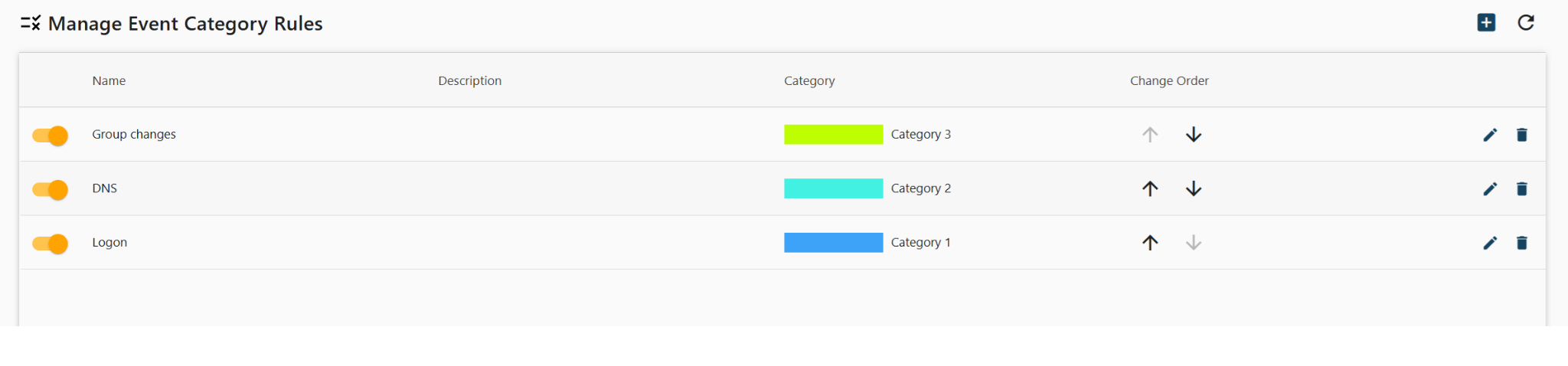
- Group changes – Assigned to Category 3 (lime green)
- DNS – Assigned to Category 2 (cyan)
- Logon – Assigned to Category 1 (blue)
In this example, events are evaluated in order from top to bottom. If a DNS-related event matches the second rule, it will be categorized as Category 2 and no further rules will be evaluated.
