System Settings
System settings control product-wide behavior such as the units used for display, how often background jobs run, and how much detail each component writes to its log. These settings apply to Cygna Auditor as a whole, not to an individual audit source.
To review or change these settings, navigate to Configuration / System / System Settings.
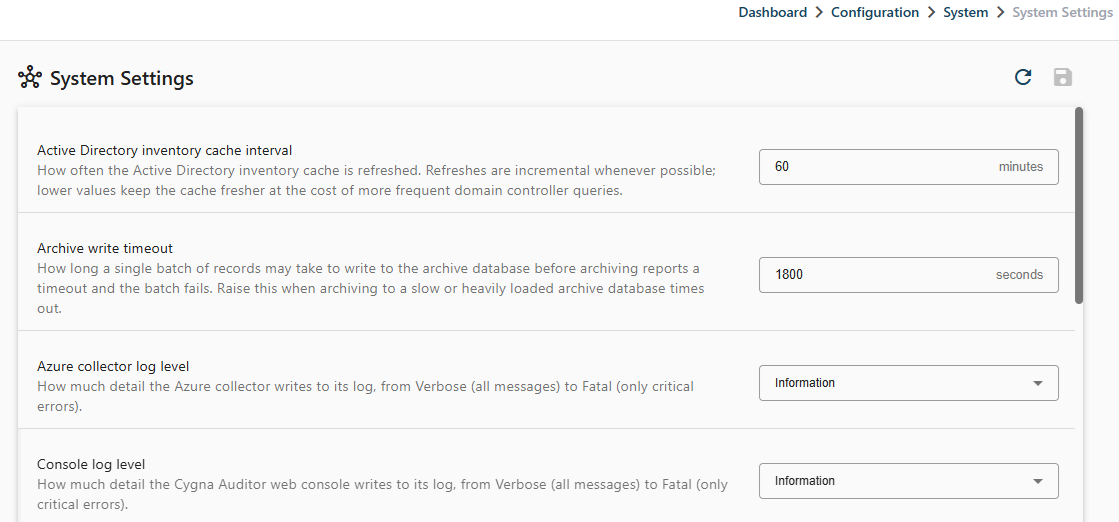
General
- Metric or US measurement—use metric or US for units, where applicable. Options are Metric and US. Default: Metric.
Data Management and Performance
-
Active Directory inventory cache interval—how often the Active Directory inventory cache is refreshed. Refreshes are incremental whenever possible; lower values keep the cache fresher at the cost of more frequent domain controller queries.
Default: 60 minutes. Minimum: 2 minutes.
-
Risk Radar posture statistics interval—how often Posture Detectors are re-run and a statistics snapshot is recorded for the risk dashboard. Runs start five minutes after midnight. Posture reflects configuration that changes slowly, so daily is the shortest useful interval; sample less often on a large estate.
Options are Every day, Every 2 days, Every 3 days, and Every week. Default: Every day.
-
Archive write timeout—how long a single batch of records may take to write to the archive database before archiving reports a timeout and the batch fails. Raise this when archiving to a slow or heavily loaded archive database times out.
Default: 1800 seconds. Minimum: 30 seconds.
-
Data management batch size—the maximum number of records a purge or archive rule removes in one batch. A job repeats batches for each rule until nothing more matches it or the run time limit is reached, so this caps a batch, not a job total.
Default: 6000 records per batch. Minimum: 1.
Log Levels
Each component writes its own log. The log level controls how much detail that component records, from Verbose (all messages) to Fatal (only critical errors). The available levels, in increasing order of severity, are:
- Verbose
- Debug
- Information
- Warning
- Error
- Fatal
A level includes all levels more severe than itself, so Warning records warnings, errors, and fatal messages. The default for every component is Information. Raise the level to Debug or Verbose only while investigating a problem; verbose logging produces significantly larger log files.
A log level can be set for each of the following components:
- Console log level—the Cygna Auditor web console.
- Scheduler log level—the scheduler service.
- Entra ID backup log level—Entra ID backup.
- Microsoft 365 collector log level—the Microsoft 365 collector.
- Okta collector log level—the Okta collector.
- Azure collector log level—the Azure collector.
- Exchange Server collector log level—the Exchange Server collector.
- Password expiry service log level—the password expiry service.
