Application Settings
Application settings  allow you to customize how the product behaves and appears for your user account.
These settings do not affect other users.
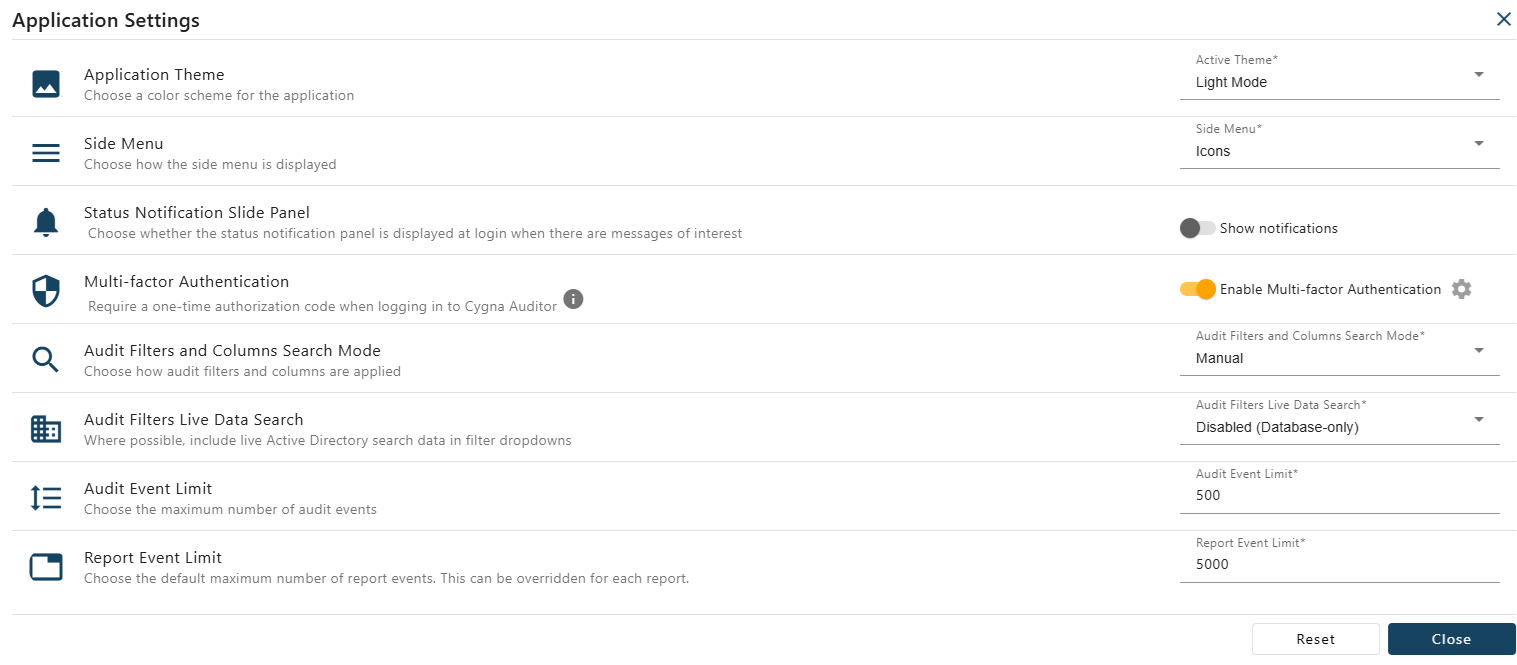
Application Theme
Choose the color scheme used by the application interface.
- Active Theme – Select from available color schemes, including high-contrast themes designed to improve accessibility and readability.
Side Menu
Choose how the side navigation menu is displayed.
- Side Menu – Controls whether the menu displays icons only or icons with labels.
Status Notification Slide Panel
Control whether the status notification panel is displayed when you log in.
- Show notifications – When enabled, the slide panel appears automatically at login to indicate potential system problems or important status messages.
Multi-factor Authentication
Add an additional layer of security to your account using time-based one-time passwords (TOTP).
- Enable Multi-factor Authentication – Requires a one-time authentication code when logging in.
- When enabled, a QR code is displayed to allow you to add the application to your preferred authentication app (for example, Microsoft Authenticator or Google Authenticator).
- When single sign-on (SSO) is enabled, you may still be prompted for a code whenever the system must acquire a new Kerberos token.
Audit Filters and Columns Search Mode
Control how audit filters and column changes are applied in the Auditing view.
- Manual – Requires clicking Apply to load new matching audit events (recommended for performance).
- Automatic – Automatically reloads the audit event list whenever a filter or column is changed.
Audit Filters Live Data Search
Control whether live Active Directory data is included in audit filter dropdowns.
- Enabled – Includes live Active Directory search data where possible.
- Disabled (Database-only) – Uses only data already stored in the audit database.
Audit Event Limit
Set the default maximum number of audit events displayed in the Auditing grid.
- Audit Event Limit – Limits the number of events returned when viewing audit data.
Report Event Limit
Set the maximum number of events exported when running reports.
- Report Event Limit – Controls the maximum number of events included in report exports.
- This value can be overridden for individual reports.
