Enabling Active Directory Data Collection
To start collecting entitlement data from your Active Directory domains, perform the following configuration steps. While there is no specific prerequisites for data collection that should be configured on the AD side, make sure you have sufficient permissions to perform data collection. See Account and Permissions Checklist for more information.
-
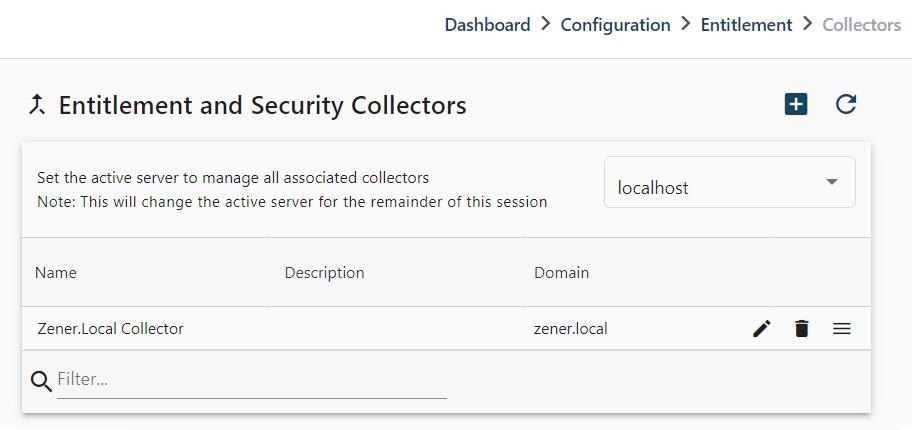
In the Cygna console, navigate to Configuration / Entitlement / Collectors / Active Directory and set up a new collector.
-
Complete the Deployment tab. If you are deploying
-
Complete the General tab — provide a name and description for your collection.
-
On the Connection settings tab:
-
Select Enable LDAPS (LDAP over SSL) to run all LDAP queries using a secure LDAP channel (LDAPS). Make sure LDAPS is configured in your AD.
-
Provide AD credentials. Consider using the domain administrator account.
-
Select Verify connection information to run a test collection.
-
Advanced settings should not be changed unless recommended by Cygna Labs Corp. technical personnel.
OPTION
DESCRIPTION
Collect Externally Trusted Domains
Enable collection of externally trusted domains. Cygna Labs Corp. recommends using a separate collector for these domains.
Domain Scope
Enable to stop referrals to external domains from being generated when data is collected.
Chase Referrals
Enable to allow collector to chase a referral provided that a referral is generated.
Use Active Directory provided DC lookups
By default, the Entitlement collector executes a site-aware Domain Controller & Global Catalog lookup to always execute the collection against the same set of Domain Controllers & Global Catalogs.
Enable this option to let AD/DNS determine which Domain Controllers to connect to instead of the optimized site-aware selection.
Reorganize and rebuild database indexes after successful collection
This option will trigger index rebuild and reorganize operations at the end of a collection.
It is recommended that index operations remain part of the standard SQL maintenance plan. If this option is enabled, the SQL user must be granted permission to perform index maintenance operations.
-
-
On the Schedule tab, configure the collection schedule. Cygna Labs recommends collecting data twice a week, preferably during off hours to avoid load on your system.
-
On the Summary tab, review collection settings.
Enabling Entra ID Data Collection
To collect entitlement data from your Entra ID tenant, perform the following configuration steps.
- In the Cygna console, navigate to Configuration / Entitlement / Collectors / Entra ID and set up a new collector.
-
On the General tab:
- Select a tenant configuration. Select an existing Microsoft 365 tenant configuration from Cygna Auditor, or register a new tenant by providing the tenant ID from Entra ID and other relevant details.
- Set a name and optional description for the collector.
-
On the Collector Settings tab:
- If an existing tenant with an Entra ID Backup configuration was selected, the application ID and Secret will be pre-populated. If you added a new tenant, you must add an application in the Entra ID portal (see Recovery for Entra ID configuration in Cygna Auditor) and then provide the application ID and secret.
- Do not modify the Advanced collection settings unless requested by Support or other Technical personnel from Cygna Labs.
-
On the Schedule tab:
- Define a collection schedule for entitlement data. The minimum interval is once per day.
-
On the Summary tab:
- Confirm the details and click Save.