Full System Recovery in Place
A full system recovery in place restores a whole domain controller—the operating system, its patches, and its directory—from a full system backup onto the same machine. The DC agent downloads the recovery image for the machine's operating system, restarts the machine into it once, and the recovery agent in the image restores every critical volume from the vault onto the existing disks. Use it when one domain controller's Windows installation is damaged or can no longer be trusted, but the machine can still start Windows one more time so its agent can stage the image. If the machine will not start at all, recover onto a candidate or onto a new VM instead (see Full System Recovery onto a Candidate and Full System Recovery onto a New VM). The restore is non-authoritative: the domain controller catches up from its healthy partners afterward.
Before you begin
- You need the Restore Operator role, or one operator who can approve and another who can execute.
- The domain controller starts Windows and its DC agent is connected.
- A recovery image exists for the machine's operating system. Check the Recovery image column on the OS Media screen. If no image exists, see Setting Up OS Media and Recovery Images.
- You have a Full system restore point younger than the tombstone lifetime. A DC state backup cannot do a full system recovery.
- The machine's disks still match the backup. An in-place recovery restores onto the existing layout and cannot repartition, so a disk that was added, resized, replaced, or converted since the backup blocks it. Choose a backup taken since the change.
- The machine has enough memory to load the recovery image into a RAM disk (about the image size plus 1 GB), and free space on the system volume for the image (about 1.1 times its size).
- The machine can reach the storage machine over SMB at the storage agent's advertised address, which is its IP address by default. If the storage machine is advertised by name, the recovery image must be able to resolve it through DNS, which is the only name resolution it has.
- The machine's clock is within five minutes of the Manager's.
- BitLocker is suspended, or you have the recovery keys at hand.
- A DHCP server serves the machine's network for the duration, or you plan a fixed address for the recovery environment (see Network settings).
For the full list, see Recovery Requirements.
Note: Everything on the critical volumes goes back to the restore point. Anything written to this domain controller since then that has not replicated to another domain controller is lost, and so are patches and software installed since the backup.
Plan the recovery
To plan a full system recovery in place:
-
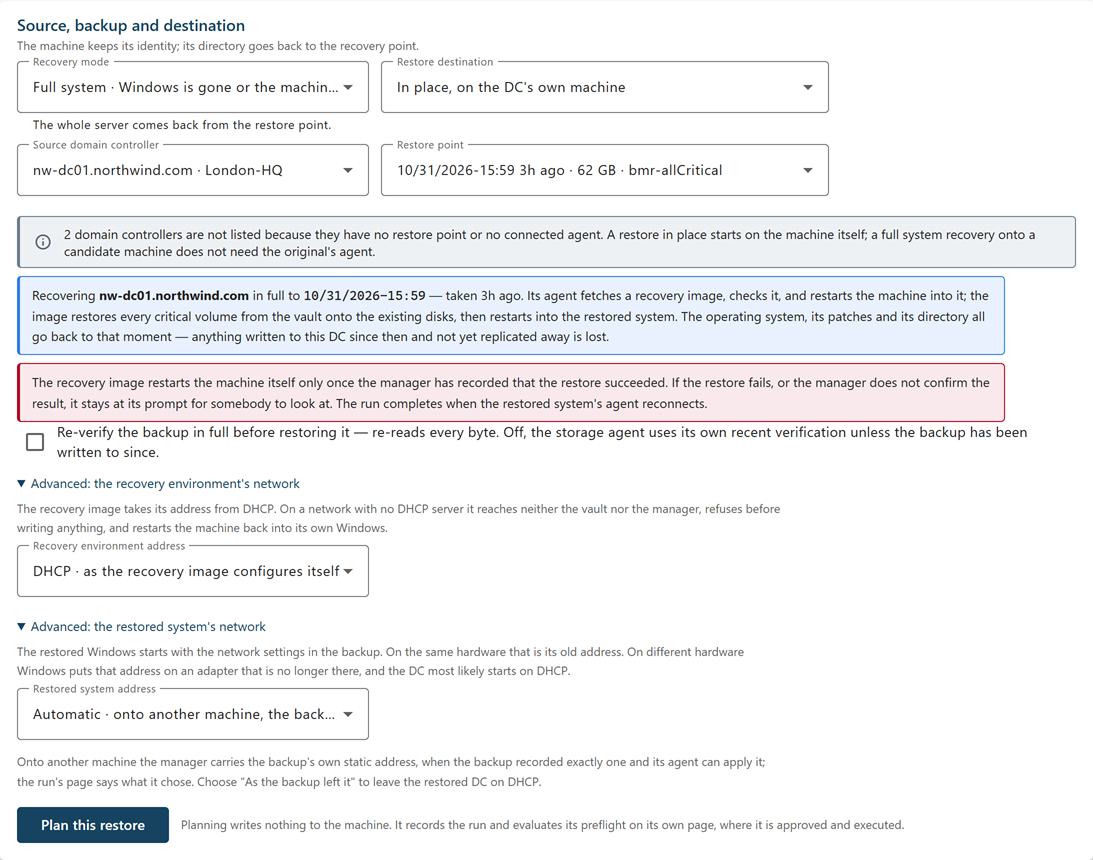
Go to Recovery > Recovery Plans, and under Active Directory recovery, select Single-DC recovery.
-
In Recovery mode, select Full system.
-
In Restore destination, leave In place, on the DC's own machine selected.
The other destinations are Onto a new VM booted from a recovery ISO — nothing installed on it first, a test restore on an Isolated Recovery Host, which changes nothing in production (see Running a Test Restore), and any candidate machines.
In place, only domain controllers with a restore point and a connected agent are listed.
-
In Source domain controller, select the machine.
-
In Restore point, select a full system restore point.
DC state restore points are listed but unavailable. The page states what the recovery will do.
-
Optionally, select Re-verify the backup in full before restoring it.
-
If the machine needs specific network settings, expand the advanced sections and set them. See Network settings.
-
Select Plan this restore.
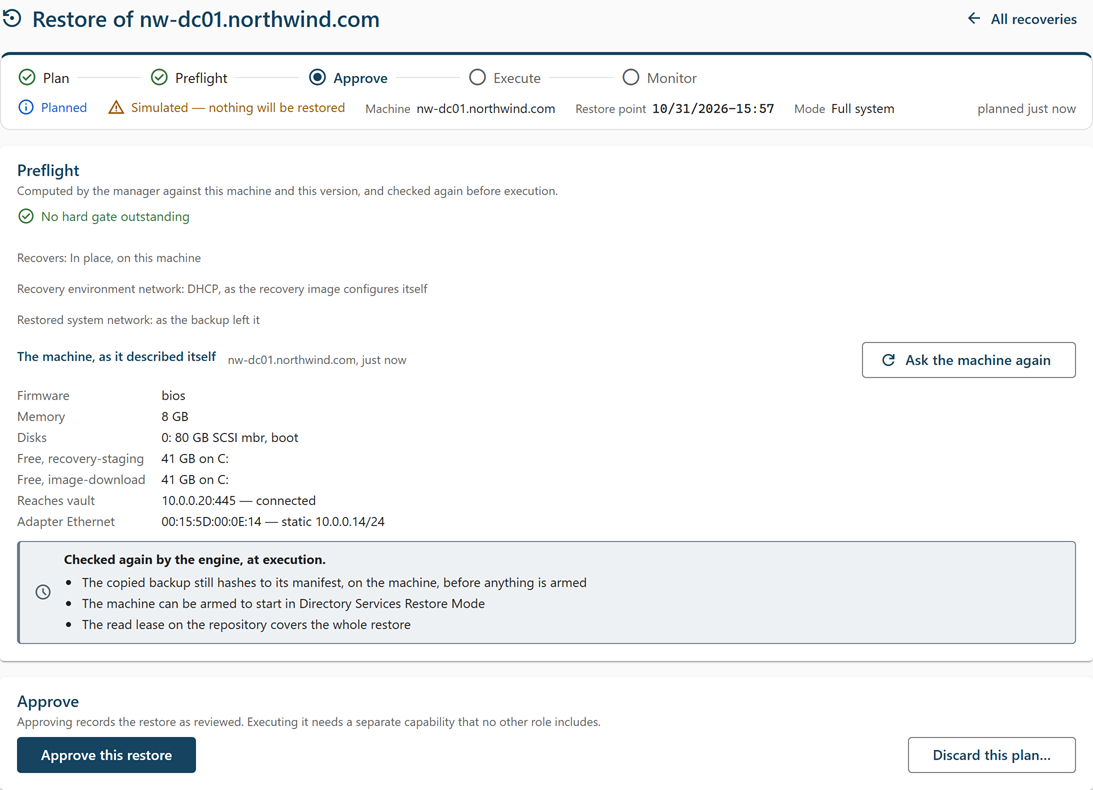
The restore's own page opens with the status Planned. Nothing has been sent to the machine.
Network settings
Full system recovery has two network choices: the address the recovery environment uses while it restores, and the address the restored system takes when it first starts. Both are under advanced sections on the planning page. The recovery environment uses DHCP by default, and the restored system's address is chosen automatically.
The recovery environment's network
By default the recovery image takes its address from DHCP. On a network with no DHCP server it reaches neither the vault nor the Manager, refuses before writing anything, and restarts the machine back into its own Windows.
| Recovery environment address | When to use it |
|---|---|
| DHCP | The default. A DHCP scope serves the machine's network. |
| This machine's own address | The machine has a static address and there is no DHCP. The recovery environment uses the address the machine last reported. |
| Another address | The restore runs on a different subnet or an isolated segment. Enter Address, with prefix (for example 10.99.0.10/24), and optionally Gateway (optional) and DNS servers, comma-separated. DNS servers are needed only if the storage machine is advertised by name; then give servers that resolve it. |
If the machine has more than one network adapter, enter the one to use in Adapter MAC (when it has several). A planned address is applied before the recovery environment contacts anything. If it cannot be applied, the run refuses before writing and the machine restarts into its own Windows. It never falls back to DHCP.
The restored system's network
The restored Windows starts with the network settings in the backup. Windows keeps a static address against the adapter it was set on, so if the machine's adapter is not the backed-up one—for example, a rebuilt virtual machine or a replaced card—the restored domain controller would come back on DHCP. Automatic, the default, prevents that where it can.
| Restored system address | When to use it |
|---|---|
| Automatic | The default. The Manager puts the backup's own static address back—on the backup's adapter if the machine still has it, otherwise on its only adapter—when the backup recorded exactly one static address and the machine's latest description says which adapter to use. Otherwise nothing is changed. The run's page says what it chose. |
| As the backup left it | Nothing is changed. Choose it to leave a restored domain controller on DHCP. |
| The backup's own address | The adapter has changed. The backup's static address is put back on the machine's adapter. |
| Another address | The domain controller moves to a new subnet, for example after a compromise. Enter Address, with prefix, and optionally a gateway and DNS servers—usually the domain controller itself or another domain controller on the recovery network. |
Use Target adapter MAC (when it has several) to name the adapter. The restored domain controller's own agent applies the address at its first start, before it contacts the Manager. When the address changes, it re-registers the domain controller in DNS and restarts Netlogon. A failure is written to POST-RECOVERY-README.txt on the machine and reported when the agent connects.
Note: Moving a domain controller to a new subnet leaves work for you: a subnet object mapped to its site, old address records, delegation records in the parent zone, a reverse zone, and anything else that reaches the domain controller by its old address, such as forwarders, firewall rules, and DHCP authorization.
Approve and execute
To approve and execute the recovery:
-
On the restore's page, review the Preflight card and resolve every hard check.
The card also shows the planned network settings and The machine, as it described itself: firmware, memory, disks, free space, and whether it can reach the storage machine. If you have changed the machine since planning, select Ask the machine again.
-
If the card shows checks to accept or refuse—for example, the machine cannot resolve the storage machine's name from where it is now—read each one's remediation. If you know the restore will get past it from where it runs, safely, select I have read this and accept it: the restore will get past it, safely, from where it runs under it. Otherwise, do not approve: discard the plan, or cancel it from its recovery plan.
Approval stays unavailable until you accept each such check. A storage machine name is also a redirection point: whatever answers for it receives the read credential and supplies what is restored, so accept a name only if its DNS is trustworthy now. The lasting fix is to advertise the storage machine by IP address.
-
Select Approve this restore.
Each check you accepted is recorded on the run under your name.
-
Select Execute….
The confirmation says the machine will restart into a recovery image and have every critical volume overwritten.
-
Enter the machine's short name in capitals, for example
DC01, and select Restore DC01 now.
Note: Important: Once wbadmin begins writing, the recovery cannot be stopped safely, and the machine's previous operating system is gone.
What happens during the recovery
The run's status moves from Verifying the backup through Preparing the machine, Rebooting into restore mode, Restoring, and Validating to Restored. The What the machine reported card shows the detailed phases, in this order:
- Fetching the recovery image and Recovery image staged on this machine—the DC agent downloads the image, checks it, and copies it to the system volume.
- Armed to boot the recovery image and Restarting into the recovery image—the agent arms a one-time start from the image and restarts the machine.
- Recovery environment started and Backup verified from the recovery environment—the recovery agent applies the planned network settings, checks the firmware and disks it can see against the backup, and connects to the vault.
- Restoring volumes—wbadmin restores every critical volume. From here the recovery cannot be stopped. The recovery agent reports each volume's progress. After a good restore, it replaces the restored DC agent with the build that staged the restore, so the domain controller does not come back on an older agent from its backup.
- Waiting for the restored system to start and Restored system started and reconnected—once the Manager has recorded that the restore succeeded, the recovery environment restarts into the restored Windows.
- Validating—the restored domain controller's own agent checks that AD DS is running and SYSVOL is ready, then waits up to 15 minutes for replication to converge and runs dcdiag. The run completes or fails on its answer.
The Steps card shows the result of each check. To check again, for example after fixing what made a check fail, select Validate again on the run's page, or run cdr restore validate. Validating again changes nothing on the machine; it needs plan.approve.
The machine's own agent is offline for several minutes before the recovery image reports in; the page says how long to expect. If the restore fails, or the Manager does not confirm the result, the recovery environment stays at its prompt for somebody to look at rather than restarting.
If the recovery image does not start, the machine returns to its own Windows at the next start, because the start from the image is one-time only. The run reports The machine restarted into its own Windows, not the recovery image, and nothing has been written.
Stopping or discarding a recovery
- Discard a plan you have not executed—select Discard this plan…, and then Discard plan.
- Stop an executing recovery—select Ask the machine to stop…, and then Ask it to stop. This works only before wbadmin starts writing.
- Close a recovery whose machine is gone—select Close as abandoned…, enter a reason, and confirm. Do not use the machine as a domain controller until it is rebuilt or its transcript has been read.
If the page shows This machine needs you, do not start another restore of the machine until somebody has looked at it. The ways forward are a fresh recovery from a different restore point or rebuilding the domain controller.
Using the command line
cdr restore plan dc01.corp.example.com --version "09/02/2026-23:00" --mode server
cdr restore plan dc01.corp.example.com --version "09/02/2026-23:00" --mode server --recovery-network original --restored-network unchanged
cdr restore plan dc01.corp.example.com --version "09/02/2026-23:00" --mode server --recovery-address 10.99.0.10/24 --recovery-dns 10.99.0.11
cdr restore survey <run>
cdr restore approve <run>
cdr restore approve <run> --accept target.vault-unresolved
cdr restore run <run> --wait
cdr restore validate <run>
The network options mirror the console: --recovery-network and --restored-network take unchanged, original, or override, with the address, gateway, DNS, and adapter options for an override. Omit --restored-network for the automatic choice. cdr restore approve --accept accepts one check by its code; repeat it for each. cdr restore survey asks the machine to describe itself again. Stopping, discarding, and abandoning use cdr restore cancel, discard, and abandon. For every option, see Restore Commands.
Result and next steps
The domain controller runs the operating system and directory from the restore point, on the same machine, and catches up from its partners. Next:
- Install any patches released since the backup, take a fresh backup, and complete the follow-ups in After a Recovery.
- For how recovery images work, see Recovery Images.
