Setting Up OS Media and Recovery Images
A full system recovery restores a whole domain controller from a full system backup, in place or onto a replacement machine. To do that, the machine starts into a recovery image: a small Windows PE environment that restores every critical volume from the vault. The storage agent builds one recovery image for each operating system variant your domain controllers run, from Windows Server installation media that you supply. It builds them ahead of time, because a build takes minutes and needs the ISO, and both are scarce during a disaster.
Until this is set up, domain controllers cannot use full system recovery. DC state recovery, which restores the directory on a domain controller that still starts Windows, does not need a recovery image.
No Windows Assessment and Deployment Kit (ADK) is needed. The storage agent builds each image with the DISM tool built into Windows, from the Windows Recovery Environment inside your own ISO, and adds the recovery agent to it.
For how recovery images are used, see Recovery Images.
Before you begin
- Set up the storage machine. See Setting Up the Storage Machine.
- Get a Windows Server ISO for each operating system variant your domain controllers run. See the matching rules below.
- Make sure the storage machine has room for the ISOs, the built images, and a build working folder roughly the size of one image.
- To change these settings, you need the
config.managecapability, which the System Admin role has.
How media is matched
For each domain controller, the operating system that matters is the one recorded in its newest backup, because that is what a restore puts back. An ISO covers a domain controller when it contains a Windows image that matches:
| Property | How it is compared |
|---|---|
| Build | Must match exactly, for example 20348 for Windows Server 2022. |
| Edition | Must match exactly, for example Standard or Datacenter. |
| Installation type | Must match exactly: Server Core or Desktop Experience. Desktop Experience media cannot produce a Server Core machine. |
| Language | Should match. Media in another language is reported as a warning: it works, but the display language and the tool output during a recovery differ from what your administrators expect. |
| Architecture | Must match, for example x64 or ARM64. |
| Update revision | Not compared. An ISO is a base image, and your domain controllers have been patched since; the console shows the difference for information only. |
One ISO can cover several variants if it holds several images, for example both Standard and Datacenter, each in Server Core and Desktop Experience.
Set up the folders and settings
Use two separate folders on the storage machine: one for your ISOs, which Cygna Forest Recovery only reads, and one for the recovery images it builds. Keep both outside the storage root's staging and vault folders.
To set up OS media and recovery images:
-
On the storage machine, create the two folders, for example:
New-Item -ItemType Directory -Path E:\os-media, E:\recovery-images
-
Copy your Windows Server ISOs into the media folder. Subfolders are scanned too.
-
In the console, select Administration > Configuration, and then select the Storage agents tab.
-
In the OS media library group, set Media folder to the ISO folder, for example
E:\os-media. -
In the Recovery images group, set Recovery image folder to the image folder, for example
E:\recovery-images. -
Optionally, give the storage agent a folder of drivers to add to every image. Set it on the storage machine: add
"RecoveryImages": { "DriverFolder": "E:\\drivers" }to theCygnaDRsection of the storage agent'sappsettings.json, and restart the service. See Settings Reference.Virtual machines are usually served by the drivers already in Windows PE. Physical servers often need the vendor's storage controller and network adapter drivers. Drivers in this folder are added even if they are unsigned.
-
Select Save.
-
Restart the storage agent so that the new folders take effect:
Restart-Service CygnaDRStorageAgent
The agent scans the media folder. It reads the image information inside each ISO without mounting it.
The media folder can also be a network share given as a UNC path. A local folder is usually the better choice: a share depends on a network, a server, and a credential that the same disaster may take away.
How images are built
The storage agent builds the images the Manager asks for: one for each operating system variant found in restore points still held in the vault. Images are therefore built only after domain controllers have been backed up at least once, and only for variants that the media folder covers. The agent checks for missing or out-of-date images whenever that requirement changes and on a schedule (every 24 hours by default), and builds what is missing. A new build is added beside existing images. The Manager then decides which images each library keeps: per operating system variant, the newest image and the newest image proven by a completed restore, and never an image a restore is using. The storage agent deletes the rest. For the full rule, see Recovery Images.
When you upgrade the storage agent and the recovery agent it ships changes, the storage agent builds new images.
A new image is untested until a full system recovery or a test restore completes with it. If you have set up an Isolated Recovery Host and the Prove new recovery images setting is on (the default), untested images are test-restored automatically. See Setting Up an Isolated Recovery Host.
If you set up OS media before the first backups run, expect the images to appear shortly after the first backups complete.
Check the results
To check media coverage and recovery images:
-
Select Active Directory > OS Media.
-
Select the Media library tab.
The Media folders card shows your folder, with Read successfully under Last scan. The ISO files card lists each ISO; any that show Could not be read should be checked against their published hash and replaced.
-
Select the Operating systems tab.
Each operating system variant your domain controllers run is listed. The Installation ISO column shows Media available where an ISO matches. The Recovery image column shows whether domain controllers on that variant can use full system recovery.
-
Select the Recovery images tab.
Each storage agent's library lists the images it holds, with each image's verdict and what the Manager decided for it under Retention, for example Kept, newest.
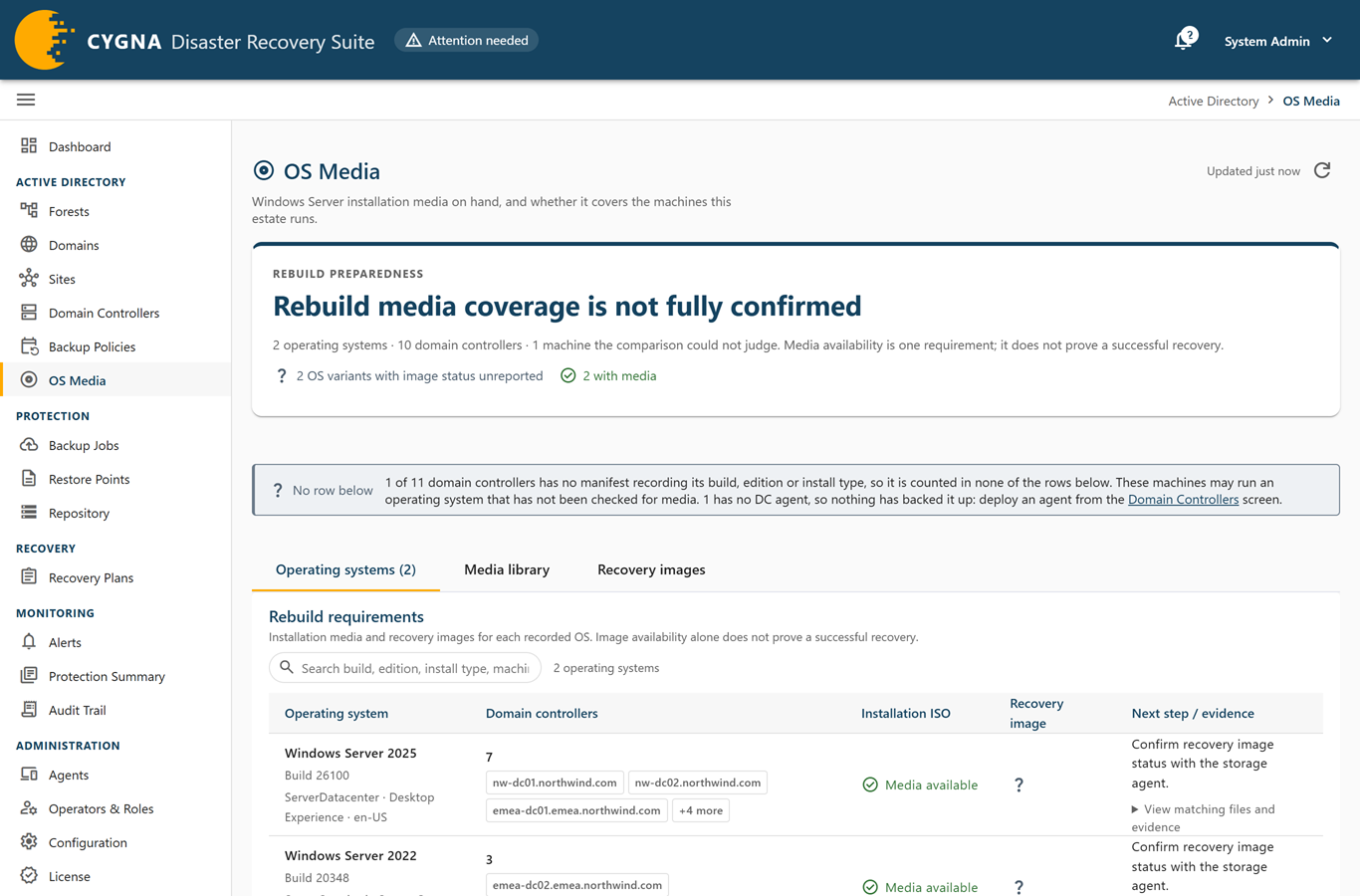
An Available value in the Recovery image column means full system recovery is possible. For what each Unavailable value means and what to do about it, and for a full description of the screen, see OS Media. For the other OS media and recovery image settings, see Settings Reference.
