Setting Up an Isolated Recovery Host
An Isolated Recovery Host is a Hyper-V host that you dedicate to Cygna Forest Recovery. The product uses it for test restores: it restores a domain controller's backup into a new virtual machine on the host, starts the restored system on a network that reaches nothing, checks that it comes up as a working domain controller, and then deletes the virtual machine. For how a test restore works, see Test Restores.
The host is optional. Backup and recovery never depend on it. Without one, everything else works the same, and the console shows your backups as not verified.
The host runs the Isolated Recovery Host agent, which you install by hand. The agent checks the host, installs Hyper-V if it is missing, creates the network that test restore virtual machines use, and reports to the Manager whether the host is ready.
Before you begin
- Choose a machine for the host. A dedicated machine is recommended. For its sizing and all other requirements, see Isolated Recovery Host (optional) in System Requirements.
- Install the current Windows updates on the machine, and keep it current afterward. A host that is behind on updates can fail to start a restored domain controller that is more current than the host. See Keeping the host current.
- Make sure the machine is not joined to a domain and is not a domain controller. Its disks briefly hold copies of the directory database, so no domain account may have rights on it.
- If the machine is a virtual machine, turn on nested virtualization for it. If it is a physical machine, turn on processor virtualization (Intel VT-x or AMD-V) in its firmware.
- Install the Manager and the storage agent, and deploy the DC agents. A test restore needs backups to restore and recovery images to start from. See Setting Up OS Media and Recovery Images.
- Have the enrollment token the Manager was installed with.
- Sign in to the host with a local administrator account.
Dedicated or shared machine
A dedicated machine is recommended, but installing the host agent on the storage machine or on the Manager machine is supported. A machine that runs the host agent or the storage agent is never offered as a candidate machine for a full system recovery, even if a DC agent is installed on it. A test restore builds its own virtual machine, of the backup's own generation, on the host. Consider what sharing costs before you choose it:
- A restored domain controller runs on the shared machine. If code in a restored backup ever escaped its virtual machine, it would land on the machine that holds every backup, or beside the Manager's certificate authority key and database.
- Test restores compete with backups for disk and network on a shared storage machine.
- If the storage machine or the Manager is itself a virtual machine, Hyper-V needs nested virtualization there.
- The agent does not restart a shared machine to finish installing Hyper-V, because the restart would also stop the storage agent or the Manager. You restart it yourself at a time that suits you.
The host can never be a domain controller or share a machine with one.
Allow the host to reach the storage machine
During a test restore, the virtual machine reads the backup from the storage machine over SMB and reports to the Manager. It reaches both through the host, so the connections come from the host's IP address. If you limit inbound TCP 445 on the storage machine to your domain controllers' networks, add the host's address, for example:
New-NetFirewallRule -DisplayName "Cygna DR Isolated Recovery Host (SMB)" -Direction Inbound -Protocol TCP -LocalPort 445 -RemoteAddress 10.0.0.30 -Action Allow
The host itself needs outbound access to the Manager on TCP 5211. The host agent installer creates no firewall rules, and the agent needs no inbound connections. For the full list, see Ports and Protocols.
Install the Isolated Recovery Host agent
Install the host agent by hand, with the command line the console builds for you. The Manager carries a copy of the package, CygnaDR.HostAgent.msi, which you can download from the Agents screen.
To install the Isolated Recovery Host agent:
-
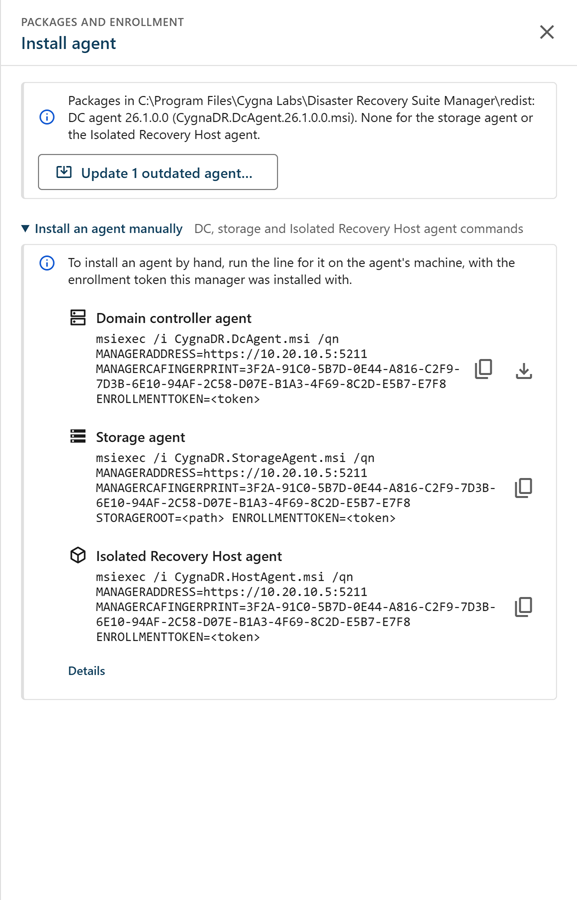
In the console, select Administration > Agents, and then select Install agent in the page header.
-
On the Isolated Recovery Host agent line, select the download button to save
CygnaDR.HostAgent.msi, and copy it to the host.Downloading a package requires the
agents.managecapability. You can also save it withcdr agent package download host. -
Select Copy command on the same line.
-
On the host, open an elevated command prompt in the folder that holds the package. Paste the command, replace
<token>with the enrollment token, and run it. The command looks like this:msiexec /i CygnaDR.HostAgent.msi /qn MANAGERADDRESS=https://10.0.0.10:5211 MANAGERCAFINGERPRINT=<fingerprint> ENROLLMENTTOKEN=<token>
The installer installs and starts the
CygnaDRHostAgentservice. The agent connects to the Manager and enrolls. It enrolls awaiting approval, and is given no test restores until you approve it.
The package takes no other properties. Use the Manager's IP address in MANAGERADDRESS, as for the other agents. The installer keeps the enrollment token out of its log.
The program files go to %ProgramFiles%\Cygna Labs\Disaster Recovery Suite Isolated Recovery Host Agent, and the agent's state and logs to %ProgramData%\Cygna Labs\Disaster Recovery Suite Isolated Recovery Host Agent.
What the agent does after it enrolls
The agent waits for its configuration from the Manager and then prepares the host. Each step is controlled by a setting on the Isolated Recovery Host agents tab of the Configuration screen, and each is on by default.
- Installs Hyper-V—If Hyper-V or its PowerShell module is missing, the agent installs the Hyper-V role with its management tools. Turn off Install Hyper-V to install it yourself instead. When the agent leaves a missing Hyper-V alone, for example because the setting is off or the processor cannot virtualize, its service log says why, once when the service starts and again whenever the reason changes.
- Restarts the host to finish—Hyper-V needs a restart to finish installing. A host where Windows reports the role installed but the Hyper-V service has not appeared yet counts as waiting for that restart. When nothing else of Cygna Forest Recovery's runs on the host, the agent asks Windows to restart it five minutes later, once per install. To cancel the restart, run
shutdown /aon the host within those five minutes. On a shared host, or with Restart to finish installing turned off, the agent reports that a restart is needed and why it did not make one. - Creates the recovery network—The agent creates an internal Hyper-V switch named CygnaDR Recovery, gives the host the first address of the Recovery network prefix (by default
172.31.250.0/24) on it, and puts Windows NAT behind it. Test restore virtual machines reach the Manager and the storage machine through the host, and nothing on your network can reach them. The agent never creates an external switch, and it refuses a prefix that overlaps an address or a NAT the host already has. - Chooses a folder for virtual machines—Unless you set Folder for verification VMs, the agent uses a
CygnaDR\Recovery VMsfolder on the data drive with the most free space. Hyper-V's own default folders are not changed.
Choose a recovery network prefix that is not used anywhere the host or the virtual machines need to reach. While it restores, each test restore's virtual machine gets a static address in this network and the host's own DNS servers, so the host must have DNS servers configured. Once isolated, the restored domain controller uses itself for DNS.
Check that the host is ready
The agent checks the host when it connects and every 15 minutes after that, and reports a verdict: Ready, Not ready, or Unknown.
To check the host:
-
In the console, select Administration > Agents, and then select the Recovery hosts tab.
A panel for the host shows its verdict and a headline, such as Ready to run verification, followed by any problem the host found and what to do about it.
-
If the host is not ready, follow the instructions in the panel, for example restarting the host to finish the Hyper-V install. The host reports again on its own.

From the command line, run cdr recovery-host list. For what each check means, see Agents.
Approve the host
A host is given test restores only once an operator approves it, so that a machine nobody meant to enroll never reads your backups. Until then, its panel and its row on the Agents screen read Awaiting approval, and the notice Isolated Recovery Hosts awaiting approval is raised. Approving needs the agents.manage capability.
To approve the host:
- In the console, select Administration > Agents, and then select the Recovery hosts tab.
- In the host's panel, select Approve….
- Check that the dialog names the host you installed, and select Approve the host.
From the command line, run cdr recovery-host approve with the host agent's ID, which cdr recovery-host list shows under the host.
When the host is approved and ready, scheduled test restores start on their own. To change when they run, see the Test restores settings in Settings Reference. You can approve more than one host; test restores go to whichever approved host can run one.
Keeping the host current
Keep the Isolated Recovery Host on current Windows updates. This is a requirement, not general good practice: without it, test restores of up-to-date domain controllers fail, and so would a real recovery onto that host. The same applies to any Hyper-V host you recover a domain controller onto as a new virtual machine.
Microsoft is replacing the Secure Boot certificates that Windows has started with since 2011. As a domain controller takes its Windows updates, its boot files move to the new Windows UEFI CA 2023 certificate. A backup holds the boot files, but not the list of certificates the machine's firmware trusts; for a Hyper-V virtual machine, that list comes from the host. A host that is behind on updates gives new virtual machines a list without the 2023 certificate, so the restored domain controller is refused at its first start.
The restore itself completes; only the first start of the restored system fails:
- The test restore restores the domain controller and then ends with no verdict, because the restored domain controller reports nothing.
- The virtual machine's console shows Virtual Machine Boot Summary, with The image's hash and certificate are not allowed (DB) against the system disk.
- The host logs event 18604 in Microsoft-Windows-Hyper-V-Worker-Admin, saying that at least one boot source failed Secure Boot validation.
To fix it, install the current cumulative update for the host's Windows Server version, restart the host, and then run a new test restore. Do not turn Secure Boot off on the virtual machine to get past it: the restored domain controller would then start on a machine set up differently from the original, and the test would not show that the host can recover it as it is.
Uninstalling the host agent
Before you uninstall the host agent, drain the host on the Agents screen or with cdr recovery-host drain, so that no test restore is cut short, and wait until it reads Drained. To move test restores to another host, see Moving an Isolated Recovery Host.
Uninstall the host agent from Apps in Windows Settings, or with msiexec /x CygnaDR.HostAgent.msi /qn. The uninstall removes the service and the program folder, and leaves the data folder. Hyper-V, the CygnaDR Recovery switch, its address, and the NAT named CygnaDRRecovery stay on the host; remove them yourself if you no longer need them, for example with Remove-NetNat -Name CygnaDRRecovery and Remove-VMSwitch -Name "CygnaDR Recovery".
