Agents
The Agents screen lists every enrolled DC agent, storage agent, and Isolated Recovery Host agent, the version each runs, and whether the Manager can reach it. It shows whether each Isolated Recovery Host is ready to run test restores and whether it is approved for them, says what automatic agent updates are doing, gives you the command lines and packages for installing an agent by hand, and lets you update, restart, and uninstall agents of every kind from the console. A storage agent that is not the storage machine can be made the storage machine from here.
To open it, select Administration > Agents. Viewing the screen requires the environment.view capability, which every role includes. Installing, updating, restarting, and uninstalling agents, and downloading agent packages, requires agents.manage, held by the System Admin role and the break-glass account. Without it, the selection checkboxes, row menus, download buttons, and update and restart buttons are not shown. Approving and draining an Isolated Recovery Host also need agents.manage. Replacing the storage machine needs both agents.manage and backup.manage; an operator holding either one can ask for it, and the row menu of a candidate storage agent is shown to them. See Moving the Storage Machine or an Isolated Recovery Host.
Layout
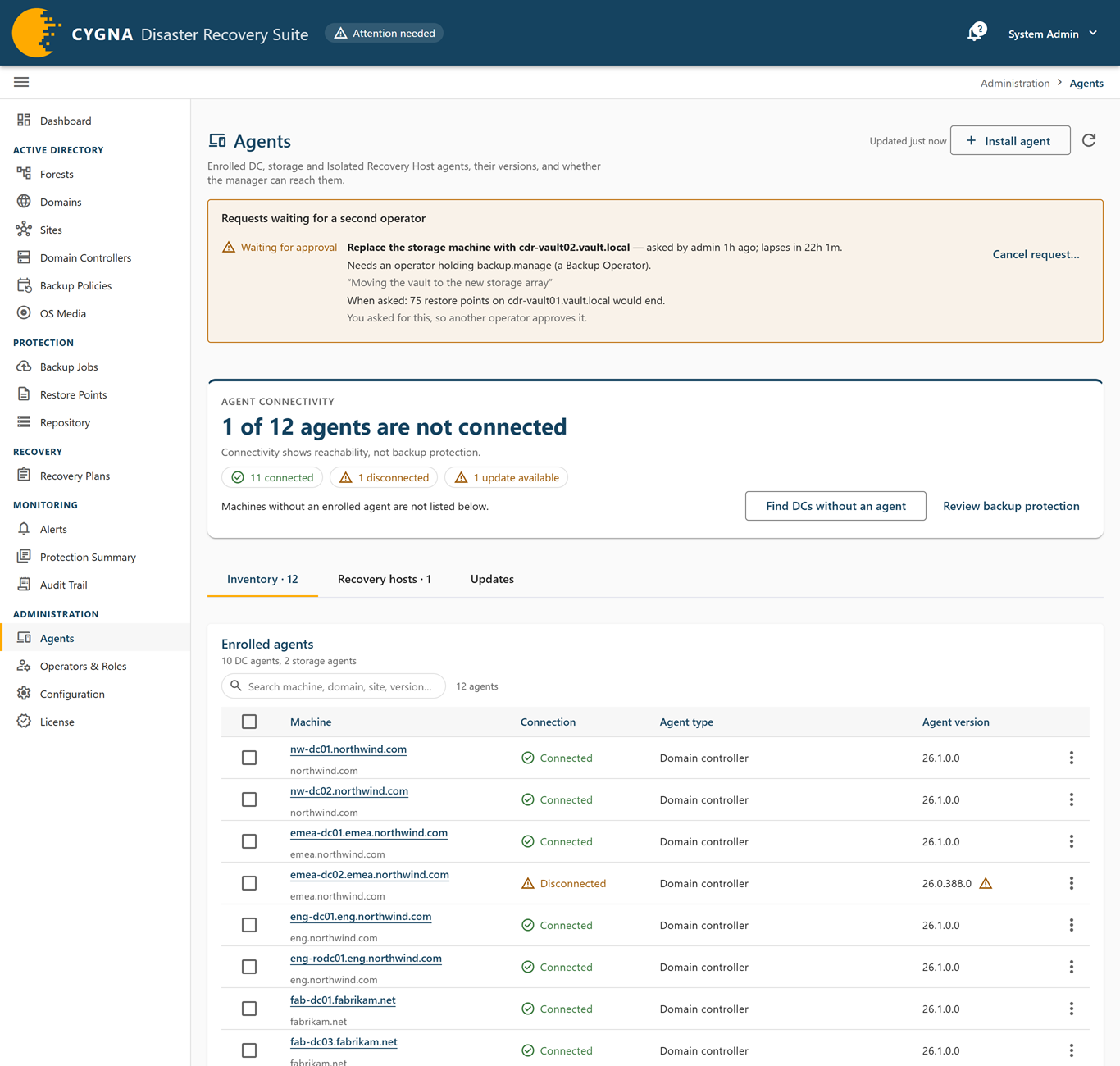
The Agent connectivity panel sits at the top of the screen. Below it, three tabs divide the rest:
- Inventory · n—Every enrolled agent. This is the tab the screen opens on. See Inventory tab.
- Recovery hosts · n—Each Isolated Recovery Host, whether it can run test restores, and what it is doing. The tab shows n need attention while a host is not ready, cannot be read, or is awaiting approval. See Recovery hosts tab.
- Updates—What automatic agent updates are doing, the agent package the Manager holds, and the install commands. The tab shows n to review while agents need an operator. See Updates tab.
The tab you choose is kept in the page address, so a refresh or a shared link opens the same tab. The page header holds Install agent, which opens the package line and the install commands in a panel at the side of the screen, and a refresh button.
When no agent is enrolled
Before any agent enrolls, the screen shows no tabs and reads No agents are enrolled. It says which agent goes where: the DC agent on a domain controller, the storage agent on the backup host, and the Isolated Recovery Host agent on the Hyper-V host that backups are verified on. It also gives the address the Manager answers on, which you pass as MANAGERADDRESS. Each agent enrolls itself using the Manager address, CA fingerprint, and enrollment token it is installed with.
Below it, the Agent packages card holds the Install an agent manually section, already expanded, with the install command and package download for each agent, filled in with the Manager's address and CA fingerprint. If the package folder cannot be used, the card also shows the package line saying why. See Installing an agent by hand.
Agent connectivity panel
The Agent connectivity panel sums up the connections in a headline, such as "n of m agents are not connected" or "n of m enrolled agents connected". A connected agent means the Manager can reach it, not that its machine has a usable backup. The panel's filter chips select agents on the Inventory tab that are connected, disconnected, never reported, or have an update available (n updates available). While agents need an operator after an automatic update, n update outcomes to review opens the Updates tab. Machines without an enrolled agent are not listed on this screen; select Find DCs without an agent to open the Domain Controllers screen filtered to them, or Review backup protection to open it unfiltered.
Inventory tab
The Enrolled agents card lists every agent. Use the search box to find agents by what the grid shows: machine, domain, version, or a chip such as Candidate or Not reported as a domain controller.
Candidate machines, which run the DC agent but are not domain controllers, are listed here like any other DC agent, with Not reported as a domain controller under the machine name. Hover over it, or focus it with the keyboard, for why: a member or standalone server, such as one kept for a full system recovery to restore a domain controller onto. The agent reports the same when it could not read the machine's directory role, so check any server you expect to be a domain controller. Candidate machines are not listed on the Domain Controllers screen and are not counted in coverage or alerts. A DC agent on the storage machine or on an Isolated Recovery Host is never offered as a candidate machine.
| Column | Description |
|---|---|
| Machine | The machine the agent runs on, with a DC agent's domain beneath it. Select the name to open the agent's details. Hover over it to see when the agent record was first enrolled; a reinstall or a new enrollment keeps the record and that date. |
| Connection | Connected, Disconnected, or Never reported. |
| Agent type | Domain controller for a DC agent, Storage for a storage agent, or Isolated Recovery Host for an Isolated Recovery Host agent. A chip beside a storage agent marks a candidate as Candidate, given no work and a replaced one as Replaced; while either is listed, the storage machine is marked Storage machine so the rows can be told apart. With a single storage agent, it has no chip. A chip beside an Isolated Recovery Host agent marks it Awaiting approval or Draining; an approved host has none. Hover over the chip for what it means. |
| Agent version | The installed agent version. A warning icon means the Manager holds a newer package for this kind of agent; hover to see the version (Update available: version). For a connected agent, hovering over the version shows what its session says it can do (Its session says it can: …). |
Select a machine name to open its Agent details panel at the side of the screen: the connection, Agent type, Role for a DC agent not reported as a domain controller, Domain and Site (not applicable to a storage agent or an Isolated Recovery Host agent, which are not domain-joined), Operating system, Build and revision, Agent version, Available version, Last heartbeat, Enrollment, the storage machine or host Designation, and the Capabilities its session reports.
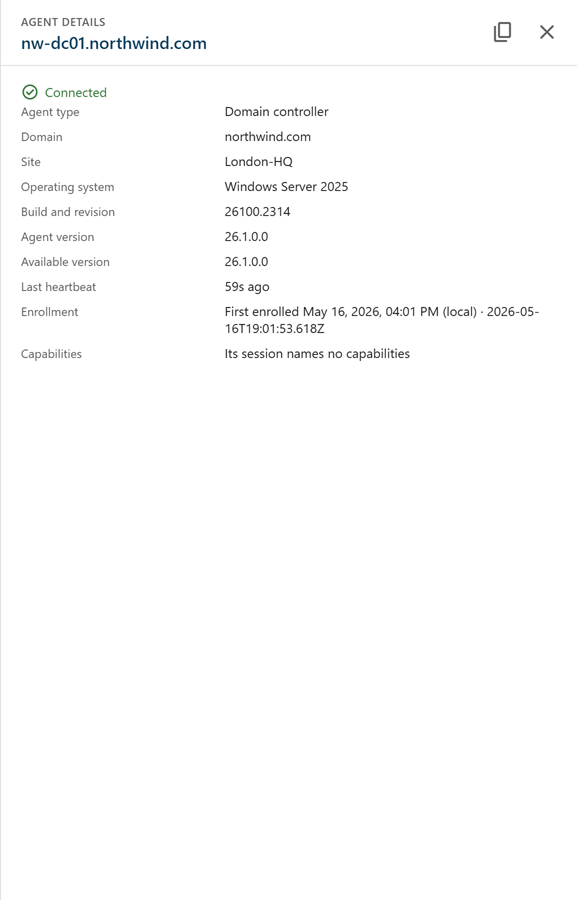
An agent shows as disconnected after it misses a few heartbeats. For causes and fixes, see Agent Enrollment and Connectivity.
The Manager keeps one record for each machine name and agent kind. When a recovery rebuilds a domain controller onto another machine, the replaced machine's record is removed. To remove the record of an agent whose machine is gone, select Forget this agent record… in its row menu, or use cdr agent forget. The menu item needs agents.manage and is offered only when nothing stops the deletion; the Manager checks again when you confirm. See Maintaining Agents.
The storage machine and candidates
The first storage agent to enroll is the storage machine, the one every backup is written to. A storage agent that enrolls after that is a candidate and is given no work. If it is meant to replace the storage machine, open its row menu and select Replace the storage machine with machine…. The dialog says how many restore points end, what else changes, and how the two machines' locally set retention values compare, and asks for the candidate's agent ID. An operator holding both agents.manage and backup.manage replaces the storage machine with Replace the storage machine; one holding only one of them selects Ask for the replacement, and an operator holding the other approves it. If nobody meant to install the candidate, uninstall it and delete its record. See Moving the Storage Machine or an Isolated Recovery Host.
While a replacement waits for its second operator, a Requests waiting for a second operator card at the top of the screen names it, who asked, when it lapses, and which capability approving it needs, with Review and approve…, Decline…, and Cancel request… for the operators who may use them. The Repository screen shows the same card.
Recovery hosts tab
The Recovery hosts tab shows a panel for each Isolated Recovery Host: whether it can run test restores, and what it is doing. The panels refresh every 30 seconds. With no host enrolled, the tab reads No recovery hosts reported.

- Verdict—Ready, Not ready, or Unknown, or Test restore running while one runs on the host. A host is not ready while anything blocks it, and unknown while something could not be read.
- Headline—Ready to run verification, Running verification, Not connected to the manager, Has not reported whether it can run verification, or the problem that blocks the host, followed by when it last checked.
- Findings—Each problem and warning, with what to do about it. Information findings, such as where test restore virtual machines are stored and which network they restore over, and the host's own notes are under Details.
- Test restores—The test restore running now (Testing machine now, scheduled or started by an operator), the last one and its result (Last:), and what the schedule last decided for this host (Schedule:): the test restore it started here, why it could start nothing here (for example that the host is busy, awaiting approval, or draining), that it is waiting for running backups, or that nothing is due. With more than one host, each host's line is its own. A host the schedule has not looked at yet says so; the schedule looks every five minutes.
- Approval—A host that is Awaiting approval is given no test restores, however ready it is. With
agents.manage, select Approve… and confirm with Approve the host. An approved host offers Drain, which stops new test restores going to it while the one running finishes; it then reads Draining, and Drained once nothing runs on it, when you can uninstall its agent and delete its record. Use it again puts a draining host back in use. See Moving an Isolated Recovery Host.
The host checks itself when it connects and at the Readiness check interval. These are the problems it reports most often:
| Finding | What to do |
|---|---|
| Hyper-V is installed and waiting for a restart | The agent has scheduled a restart, which shutdown /a cancels within five minutes, or it says why it will not restart the host itself. Restart the host when it suits you; it reports again on its own. A role that Windows reports installed before the Hyper-V service appears is also waiting for this restart. |
| Hyper-V is not installed | With Install Hyper-V on, the agent installs it. Otherwise, install the Hyper-V role with its management tools and restart. When the agent does not install it, its service log says why. |
| This host is a VM without nested virtualization, or The processor does not offer Windows hardware virtualization | On a virtual machine, turn on nested virtualization while it is shut down, for example with Set-VMProcessor -VMName <vm> -ExposeVirtualizationExtensions $true on Hyper-V. On a physical machine, turn on Intel VT-x or AMD-V in the firmware. |
| The host is joined to domain, or The host is a domain controller | Use a host that is not a member of any domain. |
| The agent could not create the recovery network | The finding says why, for example that the Recovery network prefix overlaps an address or a NAT already on the host, or that another switch is named CygnaDR Recovery. Choose another prefix, or rename the other switch. |
| The folder for verification VMs cannot be used, or The host has no drive that can hold virtual disks | Change Folder for verification VMs, or leave it empty for the agent to choose. Virtual disks need an NTFS or ReFS drive. |
| Low disk space or memory (warnings) | The host warns below 100 GB free where test restore virtual machines go, and below 8 GB of memory. A small host may not be able to start a restored domain controller. |
A host that shares a machine with the storage agent or the Manager says so under Details; that arrangement is supported. For the settings named here, see the Isolated Recovery Host agent settings in Settings Reference. For setup, see Setting Up an Isolated Recovery Host.
Updates tab
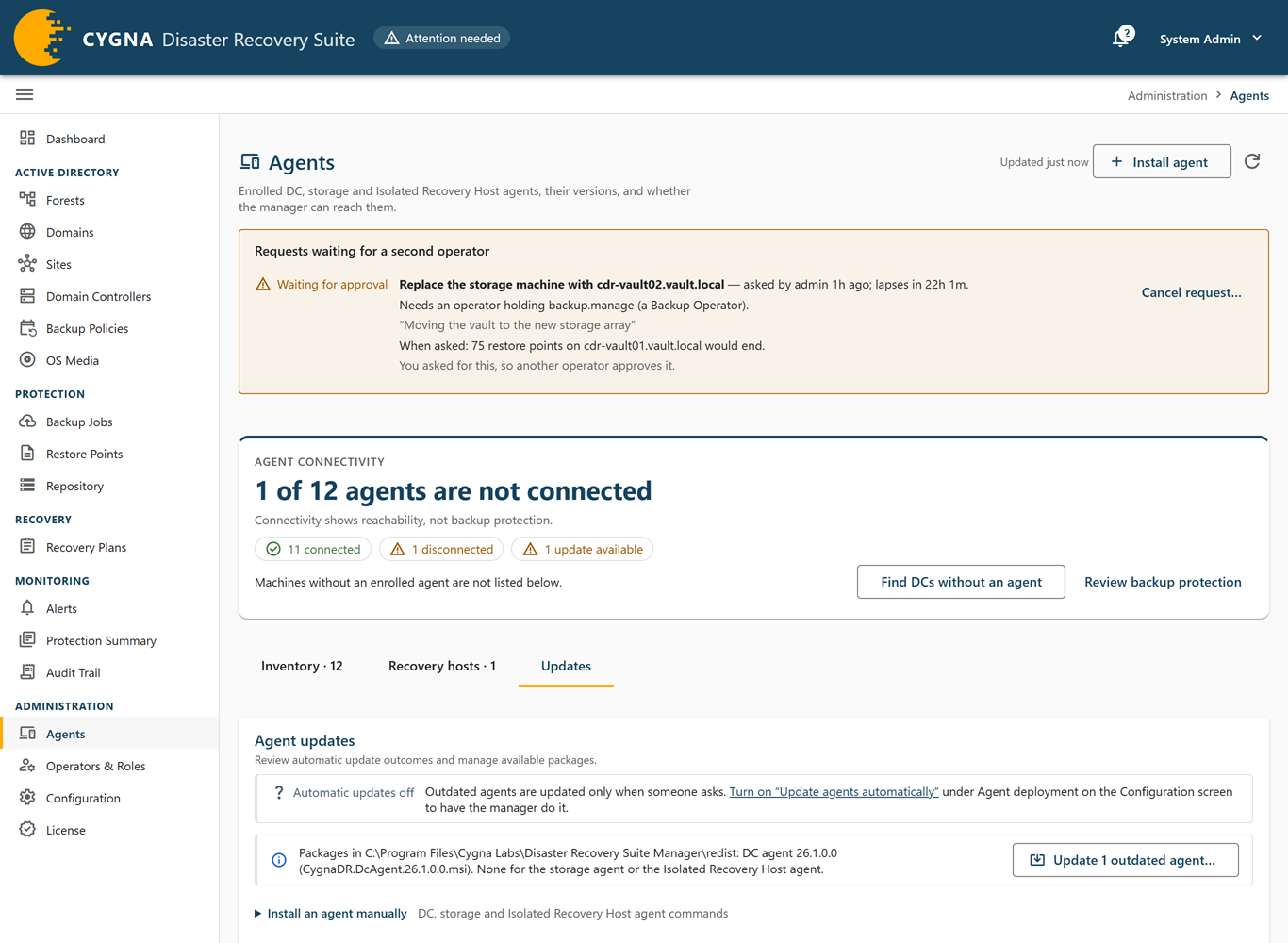
The Agent updates card on the Updates tab holds, from the top, the automatic updates line, the package line, and Install an agent manually. Updating itself is started from here or from the Inventory tab; see Updating agents.
Automatic updates
The first line says whether the Manager updates agents automatically. While Update agents automatically is off, the default, the line reads Automatic updates off and links to the Configuration screen where you turn it on. While it is on, the line reads Automatic updates on and counts the agents updating, queued, and waiting for a later check, or says Every agent is up to date., followed by when the Manager last checked. Hover over the time for the interval, the next check, and how many agents are updated at once. With agents.manage, Check now runs a check at once.
Agents that need an operator, because they cannot update themselves or their last automatic update failed, are listed beneath the line, each with its versions, why, and when a failed update may be retried. If the inventory already reports the version the update was going to, the entry says so: it is the previous outcome, and the next check reconciles it. See Updating agents automatically.
Package line
The package line names the package folder and each agent package it holds, with its version and file name, and says which kinds of agent have none. While the install lines are shown and no agent is outdated, the line is left out, because the install lines already carry each package and its version. It is always shown when the folder has a problem or an agent is outdated. The package folder is set by the Package folder setting on the Manager tab of the Configuration screen, and defaults to the redist folder in the Manager's program folder. If the folder is not set, does not exist, or holds no DC agent package, the line says so and links to the Configuration screen; agents cannot be installed or updated from the console until it is fixed.
The package folder also holds the storage agent and Isolated Recovery Host agent packages, which the Manager uses for downloads and for updating those agents. When some agents are older than the package for their kind, the line offers Update n outdated agents…, which opens the deploy dialog for all of them that can be updated from the console. Update DC agents before any recovery plan runs: the Manager does not send recovery plan steps to an agent that is behind the package.
Installing an agent by hand
Select Install agent in the page header to open the install commands and packages in a panel at the side of the screen. They are also under Install an agent manually on the Updates tab, and, before any agent is enrolled, on the Agent packages card, already expanded. Each agent's ready-made msiexec command line sits under the agent's name and icon (Domain controller agent, Storage agent, Isolated Recovery Host agent), filled in with this Manager's address and CA fingerprint. Select Copy command to copy one, then run it on the agent's machine, replacing the placeholders:
msiexec /i CygnaDR.DcAgent.msi /qn MANAGERADDRESS=https://10.0.0.10:5211 MANAGERCAFINGERPRINT=<fingerprint> ENROLLMENTTOKEN=<token>
msiexec /i CygnaDR.StorageAgent.msi /qn MANAGERADDRESS=https://10.0.0.10:5211 MANAGERCAFINGERPRINT=<fingerprint> STORAGEROOT=<path> ENROLLMENTTOKEN=<token>
msiexec /i CygnaDR.HostAgent.msi /qn MANAGERADDRESS=https://10.0.0.10:5211 MANAGERCAFINGERPRINT=<fingerprint> ENROLLMENTTOKEN=<token>
With agents.manage, each line also has a download button that saves that agent's package from the Manager. Hover over it to see the package version and its SHA-256 hash. You can also save a package with cdr agent package download.
- Manager address—An IP address rather than the Manager's name, because the Manager is usually not domain-joined and so not in the agents' DNS. If the Manager has other addresses, Details lists them, to put in
MANAGERADDRESSinstead when the agent's machine cannot reach the one in the command. - CA fingerprint—Identifies the Manager's certificate authority; the agent connects only to a Manager that presents it. The fingerprint is public, not secret. Before relying on it, compare it with a second source; see Certificates and Trust.
- Enrollment token—Not shown, because it is a secret. Use the token the Manager was installed with.
- Storage root—For the storage agent, the folder on the storage machine that holds staging and the vault.
These values are needed on a first install only; an upgrade keeps the values already there. A first install of the storage agent or the Isolated Recovery Host agent is always by hand, because only the DC agent can be pushed from the console. Once installed, any agent updates itself from the Manager. For full instructions, see Deploying DC Agents, Setting Up the Storage Machine, and Setting Up an Isolated Recovery Host.
Updating agents
Agents of every kind are updated from this screen. The Manager chooses how for each agent:
- Self-update—An agent that is connected and able to update itself is sent the package over its own connection to the Manager. It installs the package only after checking that it is signed by Cygna Labs, that it is the package for its own kind of agent, and that it is newer than the version it runs. No credential is needed, and nothing connects into the machine.
- Push install—A DC agent that cannot update itself is installed remotely from the Manager, with an administrator account you supply, as for a first install.
- By hand—A storage agent or Isolated Recovery Host agent that cannot update itself must be installed by hand, with the package from its install line.
An agent cannot update itself when it is not connected or when its machine's policy turns updates from the Manager off. For that policy, see Maintaining Agents.
To update agents:
- On the Updates tab, select Update n outdated agents… on the package line to update every agent that is behind the package for its kind, except those that must be installed by hand.
- On the Inventory tab, select the checkboxes of the agents you want, and then select Update 1 agent… or Update n agents… in the bar at the bottom of the screen. The count is of the selected agents that can be updated from the console. A checkbox is offered for every agent that can update or restart itself, and for every DC agent.
- Use a row's menu: Update the agent on <machine> to <version>…, or, for a DC agent that is already current, Reinstall the agent on <machine> (<version>)…. For an agent that must be installed by hand, the menu says so and points to Install agent.
To install the agent on a domain controller that has none yet, use Install agent… on the Domain Controllers screen.
The Manager refuses to update an agent while it is busy: a domain controller while it is being backed up or restored, or while a recovery plan is active in its forest; the storage agent while backups or a restore are using it; an Isolated Recovery Host agent while a test restore runs on its host. The storage agent also declines an update itself while it builds a recovery image or reads a backup to check it. Update it when that work has finished. Agents that share a machine, such as a storage agent and an Isolated Recovery Host agent on one server, are updated one after another, never at once.
Restarting agents
A setting marked Restart required on the Configuration screen is saved at once but comes into force only when the agent's service restarts. You can restart agents from the console instead of signing in to each machine. Restart is offered for a connected agent whose session says it can restart its own service.
- To restart one agent, open its row menu and select Restart the agent on machine….
- To restart several, select their checkboxes, and then select Restart 1 agent… or Restart n agents… in the bar at the bottom of the screen. The count is of the selected agents that can be restarted.
The dialog says that each agent's service stops and starts again and reconnects in a few seconds, and that settings saved since it last started come into force. Select Restart the agent or Restart n agents. A message then says which agents are restarting, and names each one that was not restarted with the reason. If any agent was not restarted, the message stays on screen until you dismiss it.
The Manager does not restart an agent whose work a restart would cut short:
- A DC agent while a backup of its domain controller or a restore involving it is running, or while a recovery plan is running.
- The storage agent while any backup is running or any restore is reading from its vault.
- An Isolated Recovery Host agent while a test restore is running on its host.
An agent that is not connected starts on the saved settings whenever its service next starts. The Configuration screen offers the same restart for every agent waiting on one. Each restart request is recorded in the audit trail.
Uninstalling an agent
For a connected agent that can remove itself, the row menu offers Uninstall the agent from machine…. It is not offered for the storage machine, which is replaced rather than removed. The agent can remove itself when it runs as its service, was installed by its own package, and its machine's policy allows changes from the Manager (the same AllowRemote policy that allows updates; see Maintaining Agents).
The dialog says that nothing on the machine is backed up, restored, or reported until an agent is installed again. To confirm, enter the machine's name and select Uninstall the agent. The Manager refuses, and the dialog shows why, in these cases:
- The agent is on a domain controller that is neither retired nor excluded. Retire the domain controller if it has been demoted or removed, or exclude it with a reason if it is deliberately out of scope, and then uninstall. See Excluding and Retiring Objects. A DC agent on a candidate machine is not held back.
- The agent has work in flight, by the same rules as a restart.
- The agent itself refuses; the dialog gives its reason.
Once accepted, the agent removes itself in a few seconds and does not reconnect. Its record stays on this screen, shown as disconnected; once the agent has gone, delete it with Forget this agent record… in its row menu, or with cdr agent forget. Each uninstall request, accepted or refused, is recorded in the audit trail.
Deploy dialog
The deploy dialog updates one or more agents, or installs the DC agent on domain controllers. Its title names the targets, for example Update the storage agent — <machine> or Update n agents, and it shows the package version being deployed.
When every target updates itself, the dialog asks for nothing: it explains that each agent is sent its package over its own connection, and the button reads Update on this machine or Update on n machines. When any target needs a push install, the dialog also asks for the fields below.
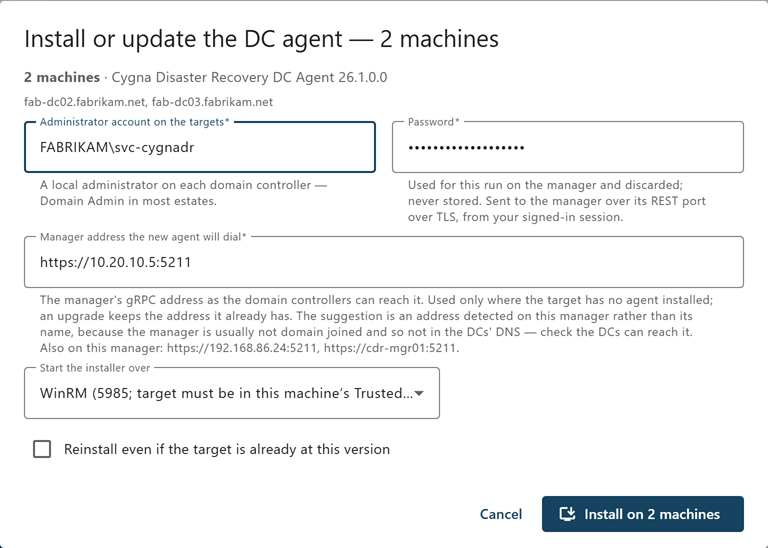
For a push install, the dialog asks for an administrator account on the targets and its password, the Manager address a new agent will dial, and whether to start the installer over WinRM or DCOM. For each field, see Deploying DC Agents.
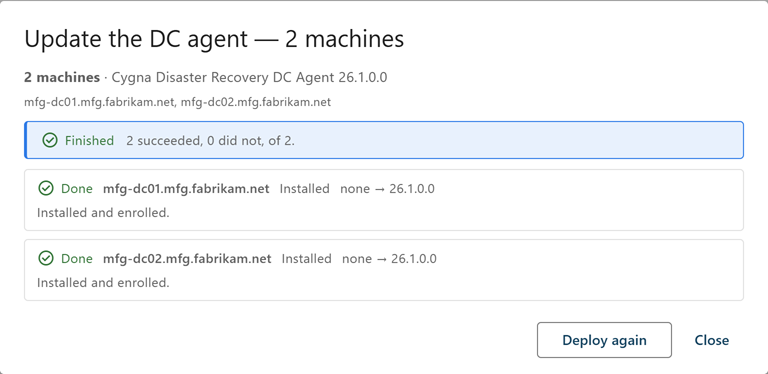
Select the button to start. The dialog then shows the run's progress: how many targets have finished and, for each target, its status, the agent's last line of output, the version before and after, and the transcript. For a push install, it also shows the path of the installer log left on the target. For a self-update, the transcript includes a summary of the installer log, and the full log stays in the update folder in the agent's data folder. You can select Close — the run continues to close the dialog while the deployment runs. When it finishes, the dialog reads Finished or Finished with failures.
| Outcome | Meaning |
|---|---|
| Installed | The agent was installed on a machine that had none. |
| Upgraded | An older agent was updated. |
| Reinstalled | The same version was installed again. |
| Already current | The target already had this version; nothing was done. |
| Refused before starting | The Manager did not attempt the install on this target, or the agent refused the package. The message says why, for example that the agent is busy, cannot update itself and must be installed by hand, or already runs a newer build. |
| Unreachable | The Manager could not connect to the target. |
| Credential refused | The target did not accept the account. |
| Install failed | The installer ran and failed. Check the installer log on the target. A failed self-update rolls back, and the agent reconnects at its previous version. |
If the request itself fails, the dialog says that whether anything started on the targets is unknown; check the audit trail before retrying. For the remote management prerequisites (ADMIN$, Remote Registry, WinRM or DCOM), see Accounts and Permissions and Ports and Protocols.
