Maintaining Agents
Once agents are enrolled, most of their upkeep is automatic: they reconnect after an outage, renew their own certificates, and enroll again if the Manager stops recognizing them. The tasks in this topic are the ones that need you: updating agents to a new build, or having the Manager do it automatically, restarting them so saved settings come into force, pointing them at a Manager whose address or CA has changed, and removing an agent from a machine.
The Agents screen shows every enrolled DC agent, storage agent, and Isolated Recovery Host agent, with its version, last heartbeat, and connection state. See Agents.
Updating agents
The Manager compares every agent with the package for its own kind in its package folder. By default that is the redist folder in the Manager's program folder. It holds the DC agent, storage agent, and Isolated Recovery Host agent packages of the Manager's own build, so upgrading the Manager is what makes newer agents available. The Agents screen marks every agent that is behind its kind's package, and the n updates available chip counts them. To deploy a build other than the one the Manager shipped with, change the Package folder setting; see Settings Reference.
The Manager decides for each agent how it is updated:
- Self-update—An agent that is connected and can update itself is sent the package over its own connection to the Manager, checks it, and installs it. No credential is needed, and nothing connects into the machine. This applies to agents of every kind.
- Push install—A DC agent that cannot update itself, and a domain controller that has no agent, are updated by push installation, with the same prerequisites as a first deployment: an account that is a local administrator on the domain controller, the
ADMIN$share, the Remote Registry service, and either WinRM or DCOM. See Deploying DC Agents. - Hand install—A storage agent or Isolated Recovery Host agent that cannot update itself is never updated from the Manager. Install its package on the machine; see Updating an agent by hand.
An agent cannot update itself when it is not connected or when its machine's policy switches updates from the Manager off. See Switching off updates from the Manager.
What the agent checks before it installs
A self-updating agent installs a package only when all of these are true:
- Its SHA-256 hash matches the one the Manager offered.
- It carries a valid, timestamped Authenticode signature from Cygna Labs Corp.
- It is the package for this agent's own kind.
- Its version is newer than the build the agent runs. An agent never updates itself to an older build, and never reinstalls the build it already runs.
- The agent's data folder has room for the package plus 256 MB.
The agent then runs the installer from a one-time scheduled task as SYSTEM. Its service stops, and the new build reconnects and reports back. If the installer fails, Windows Installer rolls the change back, and the old build keeps running and reports the failure. The installer log is in the agent's data folder, in the update subfolder; a summary of it comes back in the update's transcript.
Work in flight
The Manager does not start an update on a machine that is busy. The target's result is Refused before starting, with the reason:
- A domain controller while a backup of it is running, a restore involving it is in progress, or a recovery plan is active in its forest.
- The storage agent while backups are running, a restore run is reading from the vault, or a recovery plan is active.
- An Isolated Recovery Host agent while a test restore is running on its host.
The storage agent also checks for itself, and declines the package while it builds a recovery image or reads a backup to hash it for a commit or a restore. It holds that work back from its check until the installer runs, and builds any recovery image it held back once it is running again, on the new build or the old one. Update the agent when that work has finished.
Agents that share a machine, such as a storage agent and an Isolated Recovery Host agent on one server, are updated one after another, never at once: Windows runs one installation at a time on a machine, and a second started beside it would fail. This holds across separate update runs, including automatic ones.
From the console
To update agents from the console:
-
Select Administration > Agents.
-
Choose the agents in one of these ways:
- To update every outdated agent, select Update n outdated agents… beside the package line on the Updates tab. Agents that must be installed by hand are left out.
- To update one agent, open its row menu and select Update the agent on machine to version….
- To update a selection, select the rows' checkboxes, and then select Update n agents… (Update 1 agent… for one). A row has a checkbox when its agent can update or restart itself, or when it is a domain controller; the button counts only the selected agents that can be updated.
-
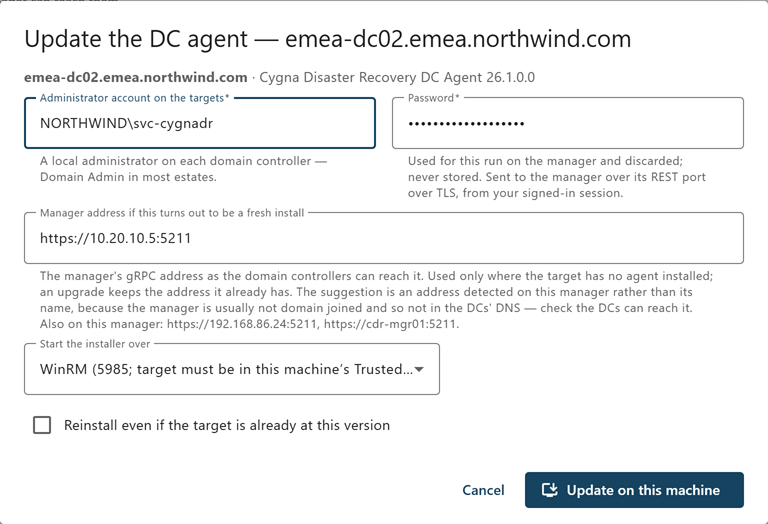
If any target needs a push install, enter the administrator account, as
DOMAIN\useroruser@domain, and its password.The password is used for this run only and is not stored. When every target updates itself, the dialog asks for nothing.
-
Start the update and watch each target's result.
Each self-updating agent receives the package, checks it, installs it, and reconnects on the new version. A push install copies the package to the domain controller, runs the installer, and checks that the agent service restarted on the new version. If you close the dialog, the update continues on the Manager.
Starting an update needs the agents.manage capability. For a push install over WinRM, each target must be in the Manager machine's WinRM TrustedHosts list; otherwise set Remote management transport to dcom.
From the command line
cdr agent update brings agents up to the build the Manager holds: by self-update where they can, and by push install for a domain controller that cannot. Name the agents, by ID or by machine name, or select every outdated agent with --outdated:
cdr agent update --outdated
cdr agent update --outdated --kind storage
cdr agent update dc01.corp.example.com
cdr agent update --outdated --kind dc --user CORP\admin
--kind limits --outdated to dc, storage, or host agents. --user is needed only for a domain controller that must be pushed to; the password is read from the CYGNADR_DEPLOY_PASSWORD environment variable or prompted for. Without --user, --outdated skips those domain controllers, and agents that must be installed by hand, and prints a line for each saying why. The command follows the update for up to 30 minutes (--wait changes that) and ends with a table of each agent's route, outcome, and versions. It exits with 0 when every agent was updated or already current, 7 when any was refused, failed, or needs a hand install, and 8 when the update was still running when it stopped following it.
cdr agent deploy runs a push installation to domain controllers, including first installs, with a credential you give for that run. Run it on the Manager, in the Manager's program folder, or on any Windows machine you have copied cdr.exe to:
cdr agent deploy --outdated --user CORP\admin --package "C:\Program Files\Cygna Labs\Disaster Recovery Suite Manager\redist\CygnaDR.DcAgent.msi" --plan
--plan reads each target's installed version and reports what would happen without changing anything. Run the command again without --plan to update. --domain limits the selection to one domain, and --transport dcom uses DCOM. The command exits with 0 when every target ended up where it should, including targets that were already current, and 7 when at least one did not; the table says which and why. For every option of both commands, see Agent and Trust Commands.
Every update is recorded in the audit trail: one agent.deployment.requested entry per target, then agent.deployment.completed or agent.deployment.failed with the route, the outcome, and the versions before and after.
Updating agents automatically
By default, an operator updates agents. With Update agents automatically on, the Manager updates them itself, as each agent can take an update. It updates to whatever is in the package folder, so putting a new build there, or upgrading the Manager, is how a new version reaches every agent. With no package folder, or no package of an agent's kind, nothing is updated.
To turn it on, select Administration > Configuration, and in the Agent deployment group on the Manager tab turn on Update agents automatically. Two settings beside it set the pace: Check for agents to update every (30 minutes by default) and Agents updated at once (8 by default). Or use cdr:
cdr config set CygnaDR:Deployment:AutoUpdate true
cdr config set CygnaDR:Deployment:AutoUpdateIntervalMinutes 60
cdr config set CygnaDR:Deployment:AutoUpdateMaxAtOnce 16
Changing them needs the config.manage capability and is audited like any setting. A change takes effect within a minute, with no restart. The first check after the Manager starts is three minutes in.
Each check looks at every DC agent, the storage machine, and every approved Isolated Recovery Host that is behind the package for its kind. A candidate or replaced storage agent and a host awaiting approval are never updated. Up to Agents updated at once are updated together. When more are ready than that, the rest are queued, and the next starts within a minute of one finishing, without waiting for the interval, until none are left. Raise Agents updated at once to work through a large estate faster, at the cost of more package traffic at once over the links to remote sites. Updates an operator starts are not counted against it.
Each update is the same self-update an operator starts: over the agent's own connection, checked by the agent before it installs anything, with no credential. It is recorded in the audit trail as a deployment requested by Automatic agent update. Automatic updates never push to a domain controller with a credential and never install anything by hand; those stay an operator's job.
Every outdated agent is in one of these states:
| State | Meaning | What happens next |
|---|---|---|
| Update started | Connected, able to update itself, and idle. Its update was started. | It reconnects on the new build. |
| Updating | An update of it is running, started by a check or by an operator. | Nothing until it finishes. Once updated, it is no longer listed or counted. |
| Queued | Ready, but as many as Agents updated at once are updating already. | Started within a minute of one of them finishing. |
| Waiting: busy | An update would cut short work in flight: a backup or restore on it; for the storage machine, any backup or restore at all; for a host, a test restore; for a domain controller, a recovery plan running in its forest. The storage machine also declines an update itself while it builds a recovery image or reads a backup to check it. | Looked at again on the next check. |
| Waiting: not connected | Not connected. | Looked at again on the next check. |
| Waiting: next check | An update an operator started did not complete. Automatic updates hold nothing against it. | Looked at again on the next check, like any other. |
| Cannot update itself | Its machine's AllowRemote policy switches updates from the Manager off. It needs an operator. |
Never retried automatically. Update a domain controller from the Agents screen with a credential, or install the package by hand. |
| Last update failed | Its last automatic update did not complete; the reason is shown. Being busy when its turn came is not a failure. It needs an operator. | Tried again after six hours, or at once when a newer package is put in the folder. |
To see what automatic updates are doing:
- Agents screen—One line says whether automatic updates are on, how many agents are updating, queued, and waiting, and when the Manager last checked. The agents that need an operator are counted beneath it and listed, with why, when you expand the count. Check now runs a check at once. See Automatic updates.
cdr agent auto-update—The same line, and the agents that need an operator.--alllists every outdated agent and why it is waiting, and--check-nowchecks first. It exits with code 4 when an outdated agent needs an operator, so a script or monitor can act on it. See Agent and Trust Commands.- The Manager's log—Says what each check started.
To keep one machine out of automatic updates, set its AllowRemote policy to false, as described in Switching off updates from the Manager. The agent then refuses every update from the Manager, automatic or not, and is listed as needing an operator.
Keeping DC agents current for recovery
The Manager does not send a recovery plan step to a DC agent whose build is behind the Manager's DC agent package. The step fails with a message that names both builds and how to update the agent: cdr agent update, or Update on the Agents screen; once the agent is updated, retry the step and it runs on the new build. The comparison is by build number. The Manager ships a DC agent package of its own build, so after every Manager upgrade the DC agents need updating. Because of this:
- After every Manager upgrade, update the DC agents at once, with Update n outdated agents… or
cdr agent update --outdated. - Update DC agents before any recovery plan runs. A restore puts back the agent that the restored DC will start, and restore preflight warns with
agent.restored-behindwhen that agent will be behind; update the machine that stages the restore while it is still reachable. - Avoid upgrading the Manager while a recovery is under way.
A restored DC starts the agent build of the machine that staged the restore, when the recovery image can put it in place, rather than the older build in its backup.
Keeping the storage agent current
Update the storage agent when you upgrade the Manager: recovery images are rebuilt when the recovery agent shipped with the storage agent changes, and only a current recovery image can give a restored DC the agent build of the machine that staged the restore. The storage agent updates itself like any other agent, from the console or with cdr agent update --outdated --kind storage, between backups. See Upgrading and Uninstalling.
Restarting agents
Some agent settings are marked Restart required: they are saved at once, and come into force when the agent's service next starts. The Configuration screen counts the agents waiting for a restart. You can restart them through the Manager, without signing in to each machine:
- On the Configuration screen, select Restart them… beside the count of agents waiting for a restart. When only some of them can be restarted from the console, the button reads Restart n that can be restarted from here….
- On the Agents screen, select Restart the agent on machine… in a row's menu, or select rows' checkboxes and then Restart n agents…. See Agents.
- With
cdr agent restart, naming the agents or giving--restart-pendingfor every connected agent waiting for a restart:
cdr agent restart --restart-pending
cdr agent restart --restart-pending --kind dc
cdr agent restart dc01.corp.example.com storage01
Each agent's service stops and starts again, and the agent reconnects within a few seconds. The Manager refuses to restart an agent that is not connected, one that is not running as its service, and one whose work a restart would cut short, and says which and why. Work that holds a restart back: for a DC agent, a backup of the domain controller, a restore involving it, or any running recovery plan; for the storage agent, any running backup or any restore reading from the vault; for an Isolated Recovery Host agent, a test restore on its host. An agent that is not connected starts on the saved settings whenever its service next starts. Restarting needs the agents.manage capability, and each request is recorded in the audit trail.
Updating an agent by hand
A storage agent or Isolated Recovery Host agent that cannot update itself is installed by hand on its machine, and so is any agent when you prefer not to update it from the Manager. The Agents screen says so in the agent's row menu. Get the package in one of these ways:
- On the Agents screen, select Install agent in the page header, and then select the download button beside the agent's install line. Its tooltip gives the version and SHA-256 hash. Downloading needs the
agents.managecapability. - With
cdr agent package download storage(ordc, orhost), which checks the file against the Manager's SHA-256 hash. - From the
redistfolder in the Manager's program folder.
Then run it on the machine in an elevated command prompt:
msiexec /i CygnaDR.StorageAgent.msi /qn
msiexec /i CygnaDR.HostAgent.msi /qn
The installer keeps the Manager address, CA fingerprint, enrollment token, and, for the storage agent, the storage root from the existing installation.
Every Cygna Forest Recovery package is signed by Cygna Labs Corp. To check a copy before you install it, run Get-AuthenticodeSignature on it in PowerShell and expect the status Valid with O=Cygna Labs Corp. in the signer, or open the file's Properties > Digital Signatures tab.
Switching off updates from the Manager
Whether an agent accepts updates from the Manager is set on its machine, never from the Manager. Set it in the registry, directly or through Group Policy, under this key, where <agent> is DC Agent, Storage Agent, or Isolated Recovery Host Agent:
HKLM\SOFTWARE\Policies\Cygna Labs\Disaster Recovery Suite\<agent>\CygnaDR\Update
AllowRemote—trueby default. Set it tofalseand the agent stops offering to update itself; the console then offers a push install for a domain controller, or a hand install for any other agent. Automatic updates leave the agent alone and list it as needing an operator.
Use a REG_SZ value of true or false, or a REG_DWORD (0 is false, anything else is true). Restart the agent service after you change a value. No installer creates or deletes anything under this key, so it survives upgrades and uninstalls. The Configuration screen shows the setting, read-only, as Allow updates from the manager in each agent scope's Local to each machine group.
Re-pointing agents at a moved Manager
Agents do not look the Manager up. Each one dials the address it was installed with and trusts only the CA fingerprint it was installed with. If the Manager's address changes, or its CA is replaced, every agent has to be told.
Note: The console's install and update actions do not re-point agents. An agent that is already current is left alone by them. Use cdr agent deploy --repoint for DC agents, and reinstall the storage agent and any Isolated Recovery Host agent.
After the Manager's address changes
The CA has not changed, so agents keep their fingerprint and only need the new address. From a machine where cdr trusts the Manager:
cdr agent deploy dc01.corp.example.com dc02.corp.example.com --repoint --force --manager-address https://10.0.0.20:5211 --user CORP\admin --package CygnaDR.DcAgent.msi
--repoint writes the new address to targets that already have an agent; --force reinstalls targets that are already at the package's version, so the agent restarts with the new address. Use the Manager's IP address, not its name. Name the domain controllers, or select them with --all, which also installs the agent on any domain controller that has none.
For the storage agent, and for any agent you installed by hand, reinstall with the new address on that machine. A property given when you reinstall replaces the stored value:
msiexec /i CygnaDR.StorageAgent.msi /qn MANAGERADDRESS=https://10.0.0.20:5211
After the Manager CA is re-keyed
A re-keyed Manager has a new CA, and every agent refuses it until it is given the new fingerprint. Run cdr agent deploy --repoint --force as above, from a machine where cdr trusts the re-keyed Manager: the deployment pins the fingerprint of the Manager that cdr trusts. Reinstall the storage agent, and any Isolated Recovery Host agent, with MANAGERCAFINGERPRINT set to the new fingerprint, and MANAGERADDRESS as well if it changed. The full procedure is in Re-Keying the Manager CA.
Re-enrollment
An agent enrolls again on its own when the Manager no longer accepts its certificate: for example, after the Manager is restored from a database snapshot taken before the agent enrolled, after a re-key, or if its certificate expired. The agent drops the certificate and enrolls again with the enrollment token it kept from installation. Nothing needs to be done on the machine, and the audit trail records the re-enrollment. The Manager refuses to enroll a machine onto the record of an agent that is connected under that name at that moment, and audits the refusal; the machine retries once the other session has ended.
Re-enrollment needs the token the Manager was installed with. If you install a Manager with a new enrollment token, which you do after a compromise, agents holding the old token cannot enroll. For DC agents, cdr agent deploy --repoint writes the token you give it to every target: set CYGNADR_ENROLLMENT_TOKEN to the new token, or enter it when prompted. Reinstall the storage agent, any Isolated Recovery Host agent, and any agent you installed by hand on its machine with ENROLLMENTTOKEN set:
msiexec /i CygnaDR.StorageAgent.msi /qn ENROLLMENTTOKEN=<new token>
Note: The enrollment token is a credential that can enroll new agents. Windows Installer masks it in installer logs, but do not leave it in scripts or command history.
Certificates
Agent certificates need no maintenance:
- Each agent's certificate is valid for 365 days and is renewed automatically once two-thirds of its lifetime has passed. A failed renewal is retried, and the current certificate stays in use meanwhile.
- An agent whose certificate has expired, or was issued by a CA it no longer trusts, enrolls again with its token.
- The Manager's own server certificate is also valid for 365 days and is reissued automatically.
For how agents trust the Manager, see Certificates and Trust.
Removing an agent
Before you remove a DC agent, remove the machine's backup policy on the Backup Policies screen, so the Manager stops scheduling backups for it.
The storage machine cannot be uninstalled or forgotten from the Manager: replace it with another storage agent first, and then remove it. Before you remove an Isolated Recovery Host agent, drain the host so that no test restore is cut short. See Moving the Storage Machine or an Isolated Recovery Host.
A connected agent can uninstall itself when the Manager asks, so you do not need to sign in to its machine. On the Agents screen, open the agent's row menu, select Uninstall the agent from machine…, enter the machine's name, and select Uninstall the agent. With the command-line tool, run cdr agent uninstall, which only says what it would do until you give the agent ID again with --confirm:
cdr agent uninstall dc05.corp.example.com
cdr agent uninstall 0847c3af-ec9c-4389-bcb1-7b706c5dc164 --confirm 0847c3af-ec9c-4389-bcb1-7b706c5dc164
The Manager refuses to uninstall the agent of a domain controller that is neither retired nor excluded, so that no domain controller loses its protection unnoticed: retire it, or exclude it with a reason, first (see Excluding and Retiring Objects). It also refuses while the agent has work in flight, and the agent refuses when it was not installed by its own package or its machine's AllowRemote policy is false. The agent runs the uninstall from a one-time scheduled task as SYSTEM, and writes the installer log to the Windows temporary folder on its machine. cdr agent uninstall prints the log's path, and the audit trail entry records it. Uninstalling needs the agents.manage capability, and each request is recorded in the audit trail.
To uninstall an agent on its machine instead, run its package with /x in an elevated command prompt:
msiexec /x CygnaDR.DcAgent.msi /qn
msiexec /x CygnaDR.StorageAgent.msi /qn
msiexec /x CygnaDR.HostAgent.msi /qn
Uninstalling removes the service, the program folder, and the registry configuration. It leaves the agent's data under %ProgramData%\Cygna Labs\, including job transcripts. Backups in the vault are never touched and stay under the vault retention rules.
However you uninstall it, the Manager keeps the agent on the Agents screen as not connected, and raises Enrolled agents that are not connected for it. What to do next depends on why you removed it:
- The domain controller is being decommissioned—Demote it and remove it from the directory as usual. Once every agent with a complete view of the directory stops seeing it, discovery records it as removed and it is no longer counted. See Excluding and Retiring Objects.
- The domain controller stays, but should not be protected—Exclude it, with a reason, so it is left out of the counts and alerts.
- You are reinstalling the agent—Install it again with the usual properties. It enrolls under the same machine name and reuses its existing identity.
- The machine is gone for good—Delete the agent's record from the Manager, as described below.
Deleting an agent's record
The Manager keeps one agent record for each machine name and agent kind. When a recovery rebuilds a domain controller onto another machine, the Manager removes the replaced machine's record itself. To delete the record of an agent whose machine is gone for some other reason, select Forget this agent record… in its row menu on the Agents screen, which is offered only when nothing stops the deletion, or use cdr agent forget with the agent ID that cdr agent list --wide shows. Without --confirm, the command only says what it would delete; give the ID again with --confirm to delete it:
cdr agent forget 0847c3af-ec9c-4389-bcb1-7b706c5dc164
cdr agent forget 0847c3af-ec9c-4389-bcb1-7b706c5dc164 --confirm 0847c3af-ec9c-4389-bcb1-7b706c5dc164
The Manager refuses while the agent is connected, while a restore run that has not finished names it, while an approved, running, or halted recovery plan has bound it as a candidate, while a test restore runs on it, or when it is the storage machine. The record's session history and backup jobs are kept, and the audit trail keeps a copy of the record. If the machine is still running, its agent enrolls again under its own name on its next connection. Deleting a record needs the agents.manage capability. For the options, see Agent and Trust Commands.
