Upgrading and Uninstalling
Each Cygna Forest Recovery package upgrades in place. Running the installer over an existing installation stops the service, replaces the program, and starts it again. Data, configuration, and enrollment are kept. Uninstalling removes the program but deliberately leaves the data behind.
Upgrade order
Upgrade the Manager first, then the agents:
-
Manager—The Manager package carries the DC agent, storage agent, and Isolated Recovery Host agent packages of the same release. Upgrading the Manager replaces the agent builds it holds, so the console can then flag every agent that is behind and update it.
-
Storage agent—Update it from the console or with
cdr agent update, between backups. It then rebuilds its recovery images with the new recovery agent, so full system recoveries run the current release. -
DC agents—Update them from the console or with
cdr agent update --outdated, before any recovery plan runs. -
Isolated Recovery Host agents—If you have any, update them the same way, when no test restore is running on their host.
Agents of every kind update themselves from the Manager, with no credential. Update all outdated agents in one run with Update n outdated agents… on the Agents screen or cdr agent update --outdated. An agent that cannot update itself is upgraded by hand or, if it is a DC agent, pushed to. Use packages from the same release for every component.
Every release file and package is signed by Cygna Labs Corp. To check a package before you install it, run Get-AuthenticodeSignature on it in PowerShell and expect the status Valid with O=Cygna Labs Corp. in the signer, or open the file's Properties > Digital Signatures tab.
Note: Important: The Manager does not send a recovery plan step to a DC agent whose build is behind its package, and every Manager upgrade puts every DC agent behind, even when the agent has not changed. Update the DC agents before any recovery plan runs, and avoid upgrading the Manager while a recovery is under way. If a step is refused, its message names both builds; update the agent on that domain controller, then retry the step. See Maintaining Agents.
Upgrade the Manager
Before you upgrade, take a database snapshot so that you have a copy of the database from just before the change. See Protecting the Manager.
"%ProgramFiles%\Cygna Labs\Disaster Recovery Suite Manager\CygnaDR.Manager.exe" db snapshot
To upgrade the Manager:
-
Copy the new
CygnaDR.Manager.msito the Manager machine, and open an elevated command prompt in that folder. -
Run the installer. No properties are needed: the installer keeps the enrollment token, ports, listen address, and redirect port the Manager was installed with.
msiexec /i CygnaDR.Manager.msi /qn
A property you do give replaces the kept value. Give
RESTPORT,GRPCPORT, orLISTENADDRESSonly to move the Manager: agents and operators go on using the old values until you change them. -
Reload the console in your browser.
The agents reconnect on their own.
The enrollment token and REDIRECTPORT are kept from the previous installation. A value you give on the command line replaces the stored one; for example, giving ENROLLMENTTOKEN on an upgrade changes the token.
Update the agents
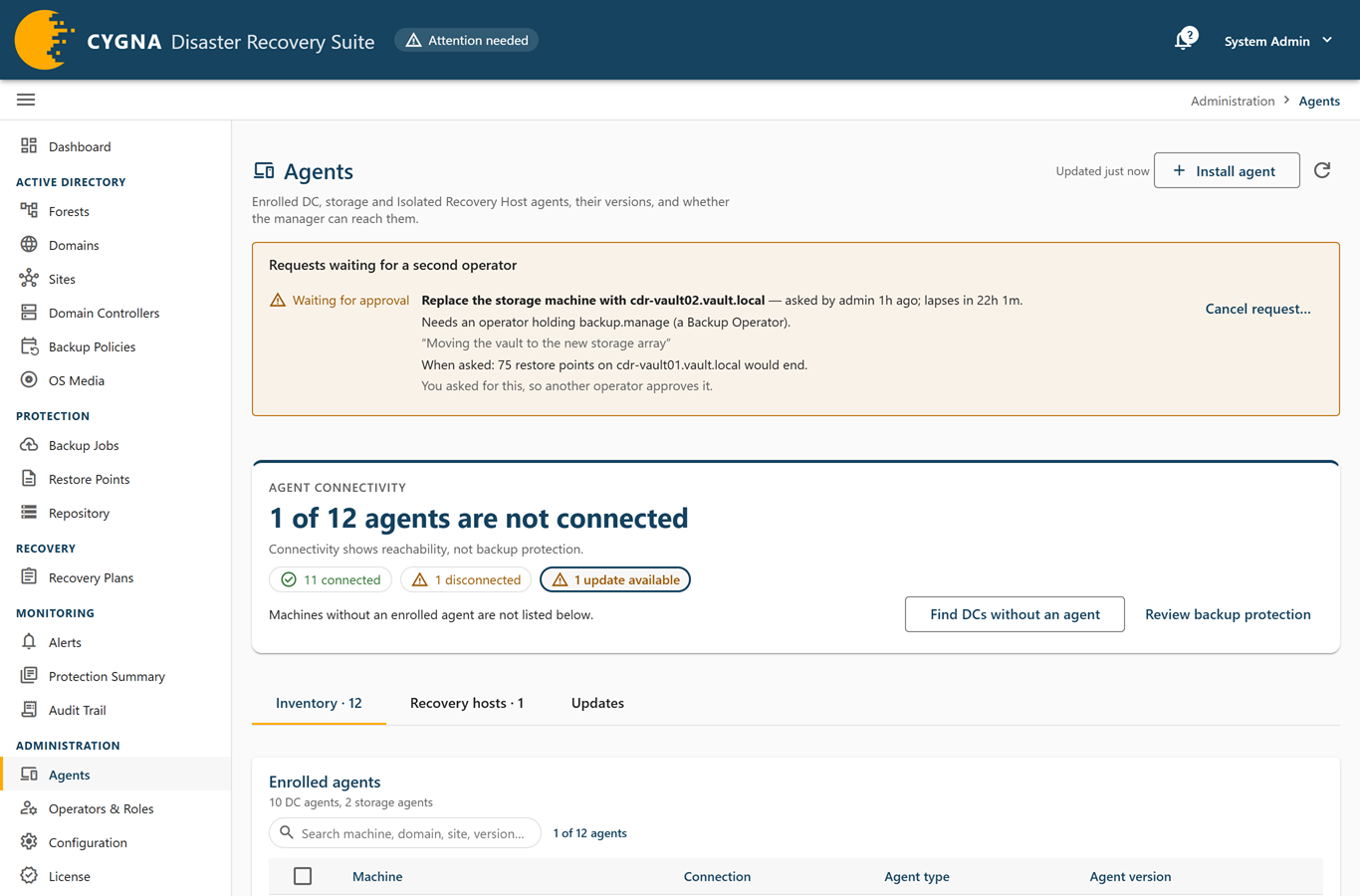
The Agents screen compares each agent with the package for its kind in the Manager's package folder and marks agents that are behind with an update icon. The n updates available filter above the table shows only those agents. With Update agents automatically on, the Manager updates them itself as each one can take an update, and you need only deal with those it lists as needing an operator. See Updating agents automatically.
To update agents from the console:
-
Select Administration > Agents.
-
Start the update in one of these ways:
- To update every outdated agent, select Update n outdated agents… beside the package line on the Updates tab.
- To update one agent, open its row's actions menu (⋮) and select Update the agent on machine to version….
- To update a selection, select the rows' checkboxes, and then select Update n agents… (Update 1 agent… for one).
-
Start the update.
Agents that can update themselves need nothing more. Each receives the package over its own connection, checks that the package is signed by Cygna Labs Corp., is its own package, and is newer, and then installs it and reports back. If any target is a domain controller that must be pushed to, the dialog also asks for an administrator account and password and the transport, as for a first installation. See Deploying DC Agents. An update keeps each agent's Manager address.
The Manager does not update an agent while it has work in flight, such as a backup or restore on that machine. For details, see Maintaining Agents.
With the cdr command-line tool, run this from the Manager's program folder after signing in with cdr login:
cdr agent update --outdated
Add --user CORP\admin to include domain controllers whose agent cannot update itself and must be pushed to.
Any agent can also be upgraded by hand, by running its package on the machine in an elevated command prompt. This is the only way to upgrade a storage agent or Isolated Recovery Host agent that cannot update itself. Download the package from the Agents screen or with cdr agent package download, or copy it from the redist folder in the Manager's program folder:
msiexec /i CygnaDR.DcAgent.msi /qn
msiexec /i CygnaDR.StorageAgent.msi /qn
msiexec /i CygnaDR.HostAgent.msi /qn
The Manager address, CA fingerprint, enrollment token, and, for the storage agent, the storage root are kept, so no properties are needed. To change one of them, give it on the command line.
The machine-local policy that turns off updates from the Manager, under HKLM\SOFTWARE\Policies\Cygna Labs\Disaster Recovery Suite, is not touched by an upgrade or an uninstall. See Maintaining Agents.
Note: Windows Installer refuses to install an older release over a newer one, with a message that a newer version is already installed. To go back to an older release, uninstall first.
Uninstall
To uninstall a component, run its package with /x in an elevated command prompt on the machine:
msiexec /x CygnaDR.DcAgent.msi /qn
msiexec /x CygnaDR.StorageAgent.msi /qn
msiexec /x CygnaDR.HostAgent.msi /qn
msiexec /x CygnaDR.Manager.msi /qn
A connected agent can also be uninstalled from the Manager, with Uninstall the agent from machine… on the Agents screen or cdr agent uninstall; see Maintaining Agents. You can also remove Cygna Disaster Recovery DC Agent, Cygna Disaster Recovery Storage Agent, Cygna Disaster Recovery Isolated Recovery Host Agent, or Cygna Disaster Recovery Manager from Programs and Features in Control Panel. Their services keep the short names, such as Cygna DR DC Agent.
Uninstalling removes the service, the program folder, the install-time registry settings, and, for the Manager, its firewall rules. It leaves these behind:
| What remains | Details |
|---|---|
| Manager data folder | %ProgramData%\Cygna Labs\Disaster Recovery Suite Manager: the database, which includes the Manager's CA, operator accounts, inventory, and restore point index; the database snapshots; and the logs. |
| Agent data folders | %ProgramData%\Cygna Labs\Disaster Recovery Suite DC Agent, %ProgramData%\Cygna Labs\Disaster Recovery Suite Storage Agent, and %ProgramData%\Cygna Labs\Disaster Recovery Suite Isolated Recovery Host Agent: agent state, backup job transcripts, and logs. |
| Vault and staging | Everything under the storage root, including every backup in the vault. The installer never touches the storage root. |
| Staging share and firewall rule | The SMB share and the inbound TCP 445 rule you created on the storage machine. |
| Trusted certificates | The Manager CA certificate you imported on workstations, and the Managers that cdr users have trusted. |
These are kept on purpose: an upgrade is a remove-then-install, and the data must survive it. If you are removing Cygna Forest Recovery for good, decide what to keep before you delete anything. The vault holds your backups, and the Manager database is the only index of them.
Note: Important: Deleting the vault folder permanently deletes every backup in it. Deleting the Manager data folder permanently deletes the Manager's CA and its record of every restore point.
