Deploying DC Agents
The DC agent runs on every domain controller, including read-only domain controllers. It reports the directory's topology, runs the backups the Manager schedules, and carries out restores and recovery steps. The agent only connects out to the Manager, so it needs no inbound firewall rule.
You can deploy the agent in three ways:
- From the console—The Manager pushes the agent to domain controllers it knows about, using an administrator account you supply for that run.
- With the cdr command-line tool—
cdr agent deploypushes the agent from the machine where you run it, to named domain controllers or to a selection from the Manager's inventory. - With the MSI package—Run the installer on each domain controller yourself, or with your software distribution tool.
The console lists only domain controllers that an agent has reported, so it cannot push the first agent. Install the agent on one domain controller in each forest by hand or with cdr agent deploy. That agent enumerates its forest and reports every domain controller it finds. The rest then appear on the Domain Controllers screen with no agent, ready for a push from the console.
Push installation is for a domain controller's first agent. Once installed, the DC agent updates itself from the Manager: it receives the package over its own connection, so an update needs no credential and nothing connects into the domain controller. The Manager falls back to a push install only for a DC agent that cannot update itself, because it is not connected or a policy on its machine switches updates from the Manager off. To update agents, use Administration > Agents or cdr agent update; see Maintaining Agents, which also describes the policy.
Before you begin
- Install the Manager and set up the storage machine. See Installing the Manager and Setting Up the Storage Machine.
- Make sure each domain controller can reach the Manager on TCP 5211 and the storage machine on TCP 445. See Ports and Protocols.
- Make sure each domain controller has the Windows Server Backup feature, or let the agent install it. See Windows Server Backup below.
Prerequisites for a push installation
The console and cdr agent deploy install the agent the same way and have the same prerequisites:
- An account—An account that is a local administrator on each target domain controller (Domain Admin in most environments), given as
DOMAIN\useroruser@domain. The password is used for that run only and never stored. - On each target—The administrative share
ADMIN$(TCP 445), the Remote Registry service, and either WinRM (TCP 5985) or DCOM (TCP 135 and dynamic RPC ports, with the Windows Management Instrumentation (WMI-In) firewall rule group enabled). All of these are on by default on Windows Server, except the WMI-In rules. - For WinRM from outside the domain—The machine that runs the installation must list each target in its WinRM TrustedHosts. For a console push, that machine is the Manager; for
cdr agent deploy, it is the machine where you runcdr. To avoid TrustedHosts, use DCOM instead.
To add targets to TrustedHosts, run this in an elevated PowerShell session on the machine that runs the installation:
Set-Item WSMan:\localhost\Client\TrustedHosts -Value "dc01.corp.example.com,dc02.corp.example.com" -Concatenate -Force
For the accounts and rights involved, see Accounts and Permissions.
Deploy from the console
To push from the console, you need the agents.manage capability, which the System Admin role has. The Manager deploys the DC agent package from its package folder. By default, this is the redist folder installed with the Manager, which holds the agent builds that shipped with it. You can change the folder, or the default transport (WinRM or DCOM), in the Agent deployment group on the Manager tab of the Configuration screen.
To deploy the DC agent from the console:
-
Select Active Directory > Domain Controllers.
-
Start the deployment in one of these ways:
- For one domain controller, select the row's actions menu (⋮), and then select Install agent….
- For several, select their checkboxes, and then select Deploy the agent to n… in the bar at the bottom of the screen. To find the ones that still need an agent, filter the list to those without an agent first.
A dialog titled Install the DC agent, or Install or update the DC agent for several machines, opens and lists the targets and the package version.
-
In Administrator account on the targets, enter the account, for example
CORP\admin. -
In Password, enter its password.
-
Check Manager address the new agent will dial.
The console suggests an address detected on the Manager. Make sure the domain controllers can reach it. Use an IP address rather than a name, because the Manager is usually not in the domain's DNS.
-
In Start the installer over, choose WinRM (5985; target must be in this machine’s TrustedHosts) or DCOM (135 + RPC; no TrustedHosts needed).
-
Select Install on this machine or Install on n machines.
The dialog shows each target's progress. You can select Close — the run continues to let it finish in the background. When it finishes, the dialog shows how many targets succeeded, and the version each one moved from and to.
Note: To update agents without entering a credential, use the Agents screen. Update agent… on the Domain Controllers screen asks for an administrator account, for any target that must be pushed to.
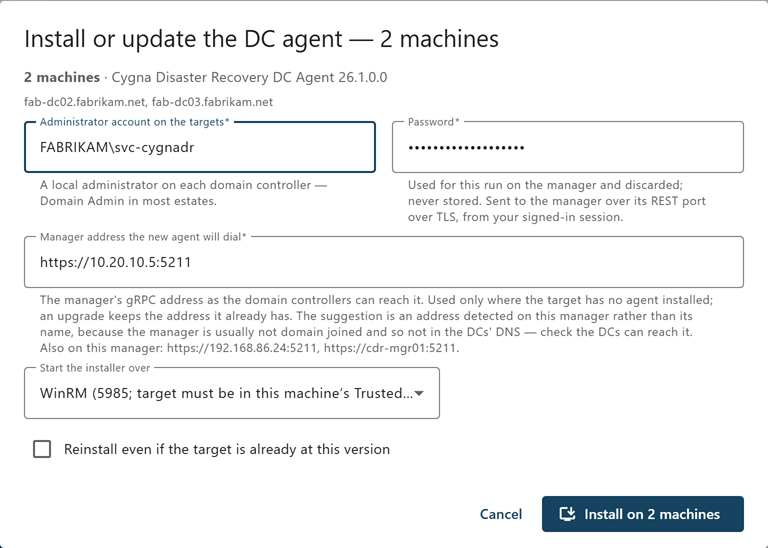
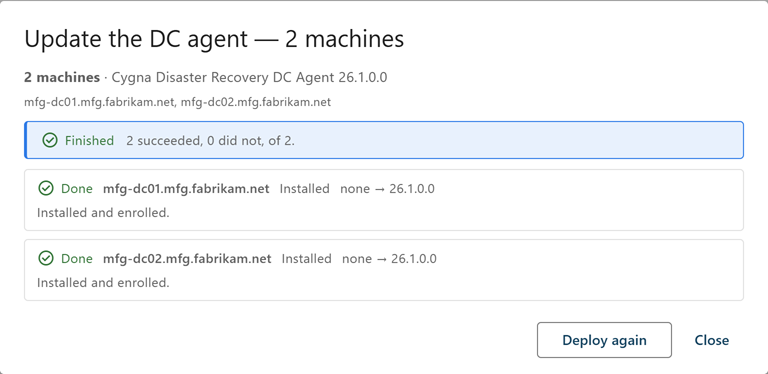
The dialog fields:
| Field | Description |
|---|---|
| Administrator account on the targets | Required. A local administrator on each target, as DOMAIN\user or user@domain. |
| Password | Required. Sent to the Manager over TLS from your signed-in session, used for this run, and discarded. |
| Manager address the new agent will dial | The Manager's agent address as the domain controllers reach it, for example https://10.0.0.10:5211. Used only where the target has no agent; an update keeps the address the agent already has. When you update agents, the field is labeled Manager address if this turns out to be a fresh install and is optional. |
| Start the installer over | WinRM (the default) or DCOM. See the prerequisites above. |
| Reinstall even if the target is already at this version | Off by default. Turn it on to repair an agent that is already current. |
You do not enter the enrollment token or the CA fingerprint. The Manager supplies its own.
Deploy with cdr agent deploy
cdr agent deploy runs on Windows. It reaches each domain controller directly over SMB and WinRM or DCOM, and it never sends the administrator password to the Manager. cdr.exe is installed in the Manager's program folder, and when you run it there it uses the DC agent package in the redist folder beside it. Elsewhere, give the package with --package.
The password is read from the CYGNADR_DEPLOY_PASSWORD environment variable or prompted for. For new installations, the enrollment token is read from CYGNADR_ENROLLMENT_TOKEN or prompted for. Neither is accepted as an argument, so neither lands in your command history. Each new agent is given the CA fingerprint of the Manager that cdr trusts.
Name the targets, or select them from the Manager's inventory with --all, --without-agent, or --outdated, optionally restricted to one domain with -d. The selectors read the inventory from the Manager, so sign in with cdr login first. See Connecting and Signing In.
On the Manager machine, open a command prompt in %ProgramFiles%\Cygna Labs\Disaster Recovery Suite Manager. Then, for example:
-
Install the first agent in a forest, on a named domain controller:
cdr agent deploy dc01.corp.example.com --user CORP\admin --manager-address https://10.0.0.10:5211
-
See what would happen to every domain controller in one domain that has no agent, without changing anything:
cdr agent deploy --without-agent -d corp.example.com --user CORP\admin --manager-address https://10.0.0.10:5211 --plan
-
Install the agent on every domain controller that has none:
cdr agent deploy --without-agent --user CORP\admin --manager-address https://10.0.0.10:5211
-
Install or update the agent on every domain controller in the inventory, over DCOM:
cdr agent deploy --all --user CORP\admin --manager-address https://10.0.0.10:5211 --transport dcom
-
Push the package to every agent that is older than it:
cdr agent deploy --outdated --user CORP\admin
To bring installed agents up to date, cdr agent update --outdated is usually the better choice: agents that can update themselves do so with no credential, and only domain controllers that cannot are pushed to.
When you run cdr on the Manager, it connects to the Manager as localhost, so you must give --manager-address for any new installation. A new agent cannot dial localhost.
cdr agent deploy exits with code 0 when every target ended where it was asked to be, including targets that were already current, and 7 when at least one did not. The table it prints says which and why. For every option, see Agent and Trust Commands.
Install with the MSI package
Use the MSI package directly when a push is not possible, or when you deploy software with your own tools. The installer is silent and takes these properties:
| Property | Description |
|---|---|
MANAGERADDRESS
|
Required. The Manager's agent address, for example https://10.0.0.10:5211. Use the IP address; a name works but the agent logs a warning. A restored domain controller's agent dials this address from the isolated recovery network, where the name may not resolve. See Isolating Recovery Targets. |
MANAGERCAFINGERPRINT
|
Required on a first installation. The Manager's CA fingerprint. Public, not secret. |
ENROLLMENTTOKEN
|
The Manager's enrollment token. The agent needs it to enroll. |
To install the DC agent by hand:
-
In the console, select Administration > Agents, and select Copy command next to the DC agent command.
-
Copy
CygnaDR.DcAgent.msito the domain controller, and open an elevated command prompt in that folder.Take the package from the
redistfolder in the Manager's program folder, from the download button beside the DC agent command (which needs theagents.managecapability), or withcdr agent package download dc. -
Paste the command, replace
<token>with the enrollment token, and run it:msiexec /i CygnaDR.DcAgent.msi /qn MANAGERADDRESS=https://10.0.0.10:5211 MANAGERCAFINGERPRINT=<fingerprint> ENROLLMENTTOKEN=<token>
The installer installs and starts the
CygnaDRDcAgentservice, which enrolls with the Manager.
To deploy the package with a software distribution tool such as Configuration Manager, run the same command line as a silent installation under the local SYSTEM account. Keep the enrollment token out of places other users can read. In particular, do not put it in a Group Policy startup script: scripts in SYSVOL are readable by every domain user. Windows Installer masks the token in installer logs, so a log option such as /l*v does not expose it. The package is signed by Cygna Labs Corp., which application control policies such as WDAC and AppLocker can allow by publisher.
The program files go to %ProgramFiles%\Cygna Labs\Disaster Recovery Suite DC Agent, and the agent's state, job logs, and service logs to %ProgramData%\Cygna Labs\Disaster Recovery Suite DC Agent.
Windows Server Backup
The DC agent runs backups with Windows Server Backup (wbadmin), which is not installed on Windows Server by default. Install it on each domain controller in either of these ways:
- Install the feature yourself, for example with
Install-WindowsFeature Windows-Server-Backup. - Let the agent install it: on the Domain controller agents tab of Administration > Configuration, leave Install the Windows Server Backup feature in the Windows Server Backup group on (the default). The agent then installs the feature at startup when
wbadminis missing. Turn the setting off, for the fleet or for one domain controller, where adding a Windows feature must go through change control; that domain controller's backups then fail until you install the feature. A newly installed agent also acts on the setting when it receives its first configuration from the Manager; an agent that is already running acts on a change at its next restart.
A backup that starts while the agent is installing the feature waits for the install to finish instead of failing. A backup that reaches a newly installed agent before its first configuration waits up to 2 minutes for that configuration, which decides whether the agent installs the feature. If the install fails, a restart still pending on the domain controller, for example after its promotion, is the usual cause: restart the domain controller, and the agent tries again at startup.
Verify enrollment
To verify that the agents enrolled:
-
Select Administration > Agents.
Each domain controller is listed with Kind Domain controller, its agent version, and Connection Connected.
-
Select Active Directory > Domain Controllers.
Each domain controller shows Connected in the Agent column. Domain controllers that still have no agent show No agent.
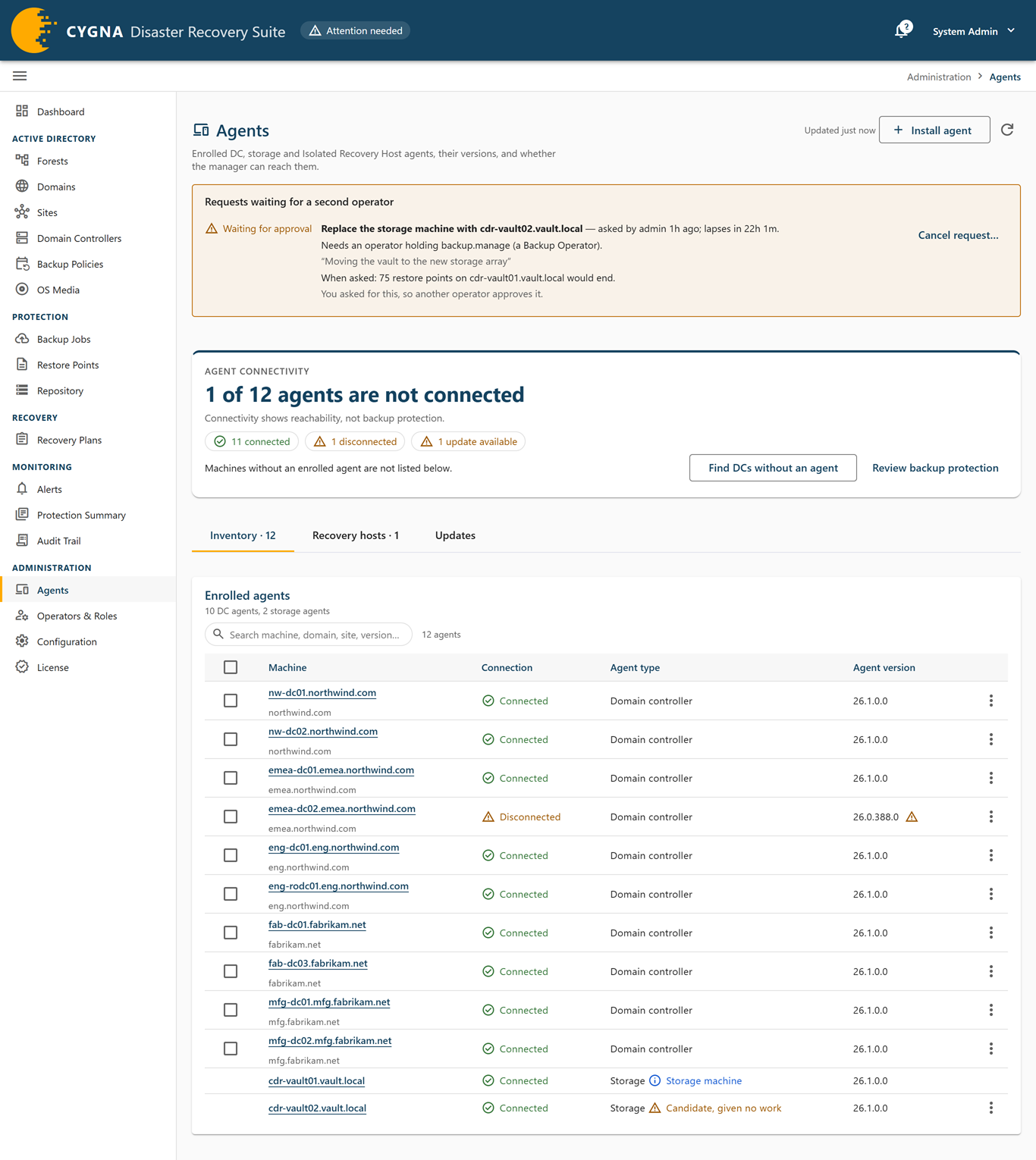
If an agent does not appear or stays disconnected, see Agent Enrollment and Connectivity.
Install the agent on candidate machines
A candidate is a machine that is not a domain controller and is set aside to receive a full system recovery when a domain controller's own hardware will not start. The candidate needs the DC agent too, enrolled with the same Manager, so that the Manager can survey it and stage the recovery on it. Install it by hand with the same DC agent command line. The candidate appears on the Agents screen once it enrolls. Because it is not a domain controller, it is not listed on the Domain Controllers screen and is not counted in coverage figures or alerts.
For how candidates are used, see Full System Recovery onto a Candidate.
To keep agents up to date later, see Upgrading and Uninstalling. To stop a machine accepting updates from the Manager, set the AllowRemote policy described in Maintaining Agents.
