Excluding and Retiring Objects
Cygna Forest Recovery counts every forest, domain, site, and domain controller it knows about when it decides whether the estate is covered, and raises an alert when one is not protected. Two tools keep those counts honest. Use an exclusion when an object still exists but is deliberately out of scope, such as a test domain or a domain controller that is about to be decommissioned. A domain controller you simply do not back up needs no exclusion: it is rebuilt on recovery and raises no alert. Use a removal record (retirement) when an object no longer exists in the directory, so that it stops counting.
Neither changes anything in Active Directory, and neither hides the object. An excluded or removed object is still listed, with a chip that says why.
Before you begin
- You need the Backup Operator role. Without it, the exclusion and removal actions are not shown.
- Have a reason ready. Every exclusion and every manual removal record needs one. It is recorded against your name, shown wherever the object appears, and kept in the audit trail.
Exclude an object
An excluded object leaves the counts, verdicts, and alerts, but stays on every screen. Excluding a forest, domain, or site also excludes the objects in it; those show Excluded via its domain, Excluded via its site, or Excluded via its forest.
To exclude an object:
-
Go to the screen for the object: Active Directory > Forests, Domains, Sites, or Domain Controllers.
-
Open the actions menu on the object's row and select Exclude from alarms….
On Domain Controllers, you can also select several rows and then select Exclude n from alarms… in the bar at the bottom of the screen.
-
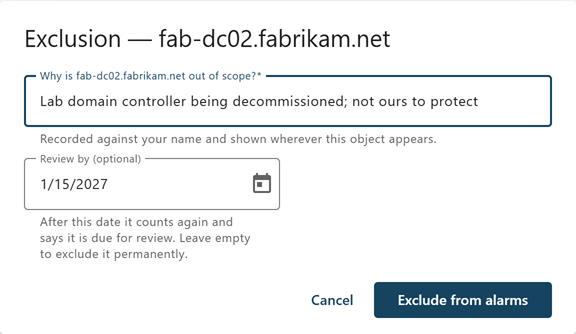
In Why is object out of scope?, enter the reason.
Write it for whoever reads it next, for example "Orphaned partition — no DC has existed since the 2019 migration".
-
Optionally, in Review by (optional), enter or pick a date.
After that date, the object counts again and its exclusion is marked as due for review. Leave the field empty to exclude the object permanently. A review date is recommended: it stops a temporary decision from becoming permanent by accident.
-
Select Exclude from alarms.
The object shows the Excluded chip. Hover over the chip to see the reason, who set it, and the review date.
Review, change, or clear an exclusion
An exclusion stops working in two cases, and the object starts counting and raising alerts again:
- Due for review—its review date has passed. The chip reads Exclusion due for review.
- Void—the object it was written about has changed identity since the exclusion was recorded. The chip reads Exclusion void — the object changed.
Both raise the alert Exclusions due for review, or voided. An exclusion on a domain controller or domain that has since been recorded as removed is not due for review, whatever its date: nothing can alert for an object that is gone. Its chip reads Exclusion spent — object removed, as a notice, and the alert leaves it out. Clear it when you no longer need the record.
To change or clear an exclusion:
-
Open the actions menu on the object's row and select Edit exclusion….
-
Do one of the following:
- To extend the exclusion, update the reason and the review date, and then select Update exclusion.
- To bring the object back into scope, select Clear exclusion. The object counts again from the next read.
An inherited exclusion can be cleared only on the object that holds it. The dialog names that object. On Domain Controllers, Clear n exclusions clears several at once.
Objects removed from the directory
When every agent with a current, complete view of the directory stops seeing a domain controller, domain, or trust, discovery records it as removed. It leaves the counts and alerts, and the Domain Controllers screen lists it only under the removed chip. Each new removal raises the alert Objects removed from the directory for seven days. Confirm that each removal was intended: an unexpected one can be a sign of an attack.
Discovery does not record removals on its own when more than a quarter of a forest's domain controllers or domains, or of a domain's trusts, disappear at once. It holds them and raises Mass removals from the directory held for review. Confirm in the directory that each object really is gone, and then record each one with cdr cleanup retire. If they are not gone, find out why the agents stopped seeing them.
Note: A removal record changes only what Cygna Forest Recovery counts. To remove a dead domain controller's objects and metadata from Active Directory itself, use cdr cleanup dc. See Directory Cleanup Commands.
Mark a domain controller as removed
Use this when you know a domain controller is gone and do not want to wait for discovery.
To mark a domain controller as removed:
-
On the Domain Controllers screen, open the actions menu on its row and select Mark as removed from the directory….
-
In Why it is gone, enter the reason.
-
Select Mark as removed.
If a later enumeration includes the machine again, the record is withdrawn automatically.
If the machine still has a backup policy, remove the policy as well. Otherwise its backups are still dispatched. See Managing Backup Policies.
Withdraw a removal record
If a domain controller was recorded as removed by mistake, select Withdraw removal record… on its row (shown while the removed chip is selected), and then select Withdraw the record. The machine is listed and counted again.
Forget a domain controller
Forgetting deletes the Manager's record of a removed domain controller. Use it to clear out machines that never had anything worth keeping. It is offered only when the machine is recorded as removed, no agent is enrolled for it, no backup jobs exist for it, and no backup policy names it. Otherwise the menu explains which of these keeps it.
To forget a domain controller:
-
On the row of the removed domain controller, select Forget this machine….
-
Enter the machine's FQDN to confirm, and then select Forget it.
The audit trail keeps a copy of what was deleted. If the directory ever defines the name again, it is discovered as a new domain controller.
Using the command line
cdr exclusion add dc dc09.corp.example.com --reason "Decommissioning, see change 4411" --review-by 2026-12-31
cdr exclusion add domain test.corp.example.com --reason "Test domain, not protected" --permanent
cdr exclusion list --spent
cdr exclusion remove dc dc09.corp.example.com
cdr cleanup retire dc09.corp.example.com --reason "Decommissioned"
cdr cleanup unretire dc dc09.corp.example.com
cdr cleanup forget dc09.corp.example.com --confirm dc09.corp.example.com
cdr exclusion add needs exactly one of --review-by or --permanent. cdr cleanup retire also records domains and trusts with --kind domain or --kind trust, and the Manager refuses it while a current, complete read of the directory still lists the object. For every option, see Configuration and Exclusion Commands and Directory Cleanup Commands.
Next steps
- Check the effect on readiness on the Dashboard. Excluded forests are noted there but not shown.
- For how exclusions affect verdicts, see Coverage and Readiness.
