Dashboard
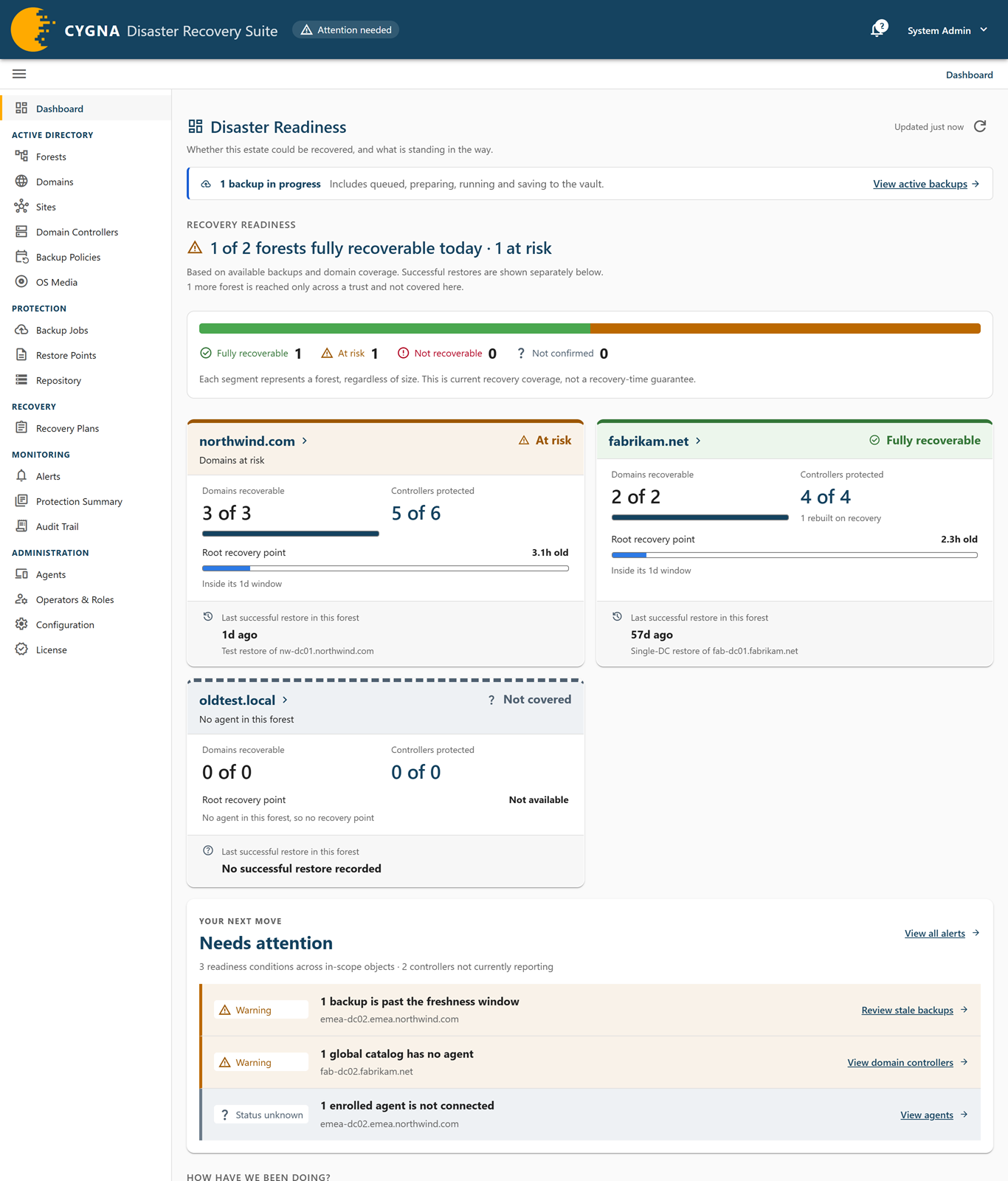
The Dashboard answers two questions: could this estate be recovered today, and what is standing in the way. It is the first screen after you sign in, and its page title is Disaster Readiness. To open it from anywhere, select Dashboard in the navigation pane or the product mark in the top bar.
Every role can see the Dashboard. It is read-only: each figure links to the screen where you can act on it.
All counts leave out objects an operator has excluded from alerts and domain controllers recorded as removed from the directory. The inventory figures refresh every 30 seconds; the backup and recovery history refreshes every five minutes. If a refresh fails, the Dashboard keeps showing the last figures it received and says how old they are.
Until a DC agent has enrolled, the Dashboard shows Nothing has been discovered yet. Install the DC agent on one domain controller; it reads the forest's configuration and the Dashboard starts reporting. See Deploying DC Agents.
Backups in progress
For an operator who can view backups, a line at the top of the Dashboard counts the backups in progress, including those queued, preparing, running, and saving to the vault, for example 3 backups in progress. With none, it reads No backups in progress. View active backups opens the Backup Jobs screen filtered to them. The line refreshes every ten seconds. If it cannot be refreshed, it reads Backup activity could not be refreshed, with the last count it received.
Recovery in progress
When a restore or recovery is running, and you can view recovery plans, a Recovery in progress panel at the top of the Dashboard lists each one with its status, its current step, how many of its steps are complete, and when it started. Select View recovery to open its page, or Review required action when it is waiting for a person. All recoveries opens the Recovery Plans screen. If the Dashboard cannot check for active recoveries, it shows Recovery activity could not be refreshed with a Check recoveries link. The recovery banner that appears on other screens is not shown on the Dashboard.
A test restore is marked as one, so nobody signing in mid-test takes it for a real recovery. It is shown compactly: the domain controller, its status, whether it is Scheduled, Approved by an operator, or Manual, and View test restore. Only a test restore that is waiting for a person gets the full entry. When every running item is a test restore, the panel is smaller, headed Test restore in progress or Test restores in progress with how many are active, and lists each by its domain controller's name. At most two routine test restores are listed; beyond that, a line says how many more are in progress, with View all test restores. On other screens, the recovery banner then reads Test restore in progress — nothing in production changes on a neutral band instead of the information color a recovery gets, and names whether each was scheduled or who approved it. For test restores, see Test Restores.
Recovery readiness
This section opens with a one-line verdict for the estate, for example All 2 forests could be fully recovered today, or a count of forests that are fully recoverable today and of those that are not. Forests known only through a trust, with no agent in them, are not counted; the line below the verdict says how many there are.
A bar below the verdict has one segment for each forest, regardless of its size, with counts for Fully recoverable, At risk, Not recoverable, and Not confirmed. It shows current recovery coverage, not a recovery-time guarantee.
Below the bar is one card for each forest:
- Verdict—Fully recoverable, At risk, Not recoverable, Not confirmed, or Not covered. When the forest's readiness on the Forests screen says more, for example Domains at risk, it appears beneath the forest name.
- Domains recoverable—How many of the forest's domains could be recovered.
- Controllers protected—How many backup targets are protected, out of those in scope. Domain controllers rebuilt on recovery are not backup targets, so they are left out of the figure and named below it. A line below says what the others are, when it is not a missing backup, for example
1 need a backup policy · 1 last backup failed (still recoverable) · 2 backup too old · 4 rebuilt on recovery · 1 excluded. Domain controllers that need a backup policy are ones a domain with too few backup targets needs backed up; they stay in the figure. See Backup Targets and Rebuilt Domain Controllers. Select the figure to open the Domain Controllers screen scoped to the forest. - Root recovery point—The age of the forest root domain's newest recovery point against its freshness window. A forest recovery starts from the root domain, so this is the age of the point the whole forest would return to.
- Last successful restore in this forest—When a restore or recovery in this forest last completed, and what it was, for example Test restore of dc01.corp.example.com or Forest recovery. A test restore that passed counts as a completed restore here. When something newer than the forest's last forest recovery is named, a second line gives that forest recovery's age, for example Last forest recovery 3 days ago. No successful restore recorded means no recovery has proven these backups yet.
Select the forest name to open the Domains screen scoped to that forest. If forests are excluded, a line says how many, with a link to them on the Forests screen.
For how forest and domain verdicts are decided, see Coverage and Readiness.
Needs attention
The Needs attention section, under Your next move, lists what stands in the way of recovery, worst first. Each item names the affected objects and links to the screen that holds the details. Select View all alerts to open the Alerts screen. When nothing is wrong, the section shows No active readiness alarms.
The section lists the alerts in the table below. The test restore alerts, Domain controllers whose latest test restore failed and Domain controllers with no recent verified backup, are not listed here; they appear on the Alerts screen and in the notifications panel. Neither are the security and recovery plan alerts, such as Unexpected SMB connections to the staging share, Committed vault content changed outside retention, or krbtgt second reset due; the bell's badge in the top bar counts them with the rest.
| Alert | Severity | What to do |
|---|---|---|
| Forests could not be recovered | Critical | The forest root domain cannot be recovered, so recovery cannot start, or a child domain cannot, so it would stop partway. The Forests screen says which. |
| Domains could not be recovered | Critical | The domain has nothing restorable, its backups are past the tombstone lifetime, or it replicates SYSVOL by FRS. The Domains screen names the reason. |
| Backup targets have nothing to restore from | Warning | A policy covers each and nothing of it is in the vault: the first backup has not completed, every one failed, or every one was pruned. Check that the agent is enrolled, then run a backup. Whether this costs a domain its recovery is the domain alert above. Review unprotected controllers opens the Domain Controllers screen, filtered to the unprotected machines. |
| Domain controllers whose last backup failed | Warning | Check the failure and whether an older usable restore point exists. The Backup Jobs screen holds the failure and its transcript. The alert counts every domain controller whose newest backup attempt is treated as failed, including interrupted and uncommitted attempts. A backup refused because the domain controller had no agent, made before its current agent enrolled, is not counted. |
| Backups past the freshness window | Warning | Check that the agent is connected, then run a backup. Review stale backups opens the Domain Controllers screen, filtered to the stale machines. |
| Domain controllers with no backup schedule | Warning | A restore point exists and nothing keeps it current. Give each an enabled policy on the Backup Policies screen. |
| Forests have a stale topology | Warning | No agent has reported a recent enumeration of the forest, so the figures describe the estate as it was. Confirm a DC agent is running and reporting in each forest. |
| Global catalogs have no agent | Warning | Recovering any other domain in the forest reconciles every global catalog through its agent, and that recovery does not start until each has one. Install the DC agent, or remove the machine's global catalog role. Other domain controllers without an agent are not listed here. |
| Enrolled agents are not connected | Status unknown | Their figures are the last thing each reported. Confirm the agent service is running on each machine. |
The freshness window is derived from your backup policies: it is twice the shortest enabled backup interval. It is not a separate setting.
Domain controllers that you do not back up, and that are rebuilt on recovery, raise no item here. Critical items belong to forests and domains that could not be recovered. For how the console decides which domain controllers need a backup, see Backup Targets and Rebuilt Domain Controllers.
How have we been doing?
Two cards show history.
Backup success covers every backup that finished in the last 30 days, compared with the 30 days before:
- The success rate, as a percentage. It shows good at 100 percent, a warning from 90 percent, and critical below 90 percent. The rate shows 100 percent only when every backup succeeded.
- The change in points against the previous 30 days.
- A bar chart of succeeded, failed, and cancelled backups per day. Days with a failed backup are marked ▼.
Select Open the protection summary on the card's menu to open the Protection Summary screen.
Recent recoveries covers restores and domain and forest recoveries that actually ran in the last 90 days and have finished; one still running is shown in the Recovery in progress panel instead. It shows when the last successful restore completed and the four most recent recoveries with their status; each links to its page. A domain controller restore that a recovery plan carried out is part of that plan and is not listed on its own. Test restores are not among the four: the newest finished one is shown on its own line, Latest finished test restore. Select View recoveries on the card's menu to open Recovery Plans.
A note at the bottom of the Dashboard says that the krbtgt second-reset countdown is tracked on each recovery's page, on the Recovery Plans screen. A second reset still due and any recovery protection override are also raised on the Alerts screen. The history cards cover backup outcomes only.
