Using the Console
The console is the web interface for Cygna Forest Recovery. You use it to see what is protected, schedule backups, review restore points, plan and run recoveries, and administer the Manager. The Manager serves the console itself, so it does not depend on Active Directory, DNS, or any other server: you can sign in and work while every domain controller is offline.
This chapter describes each console screen: what it is for, who can see it, what its columns, filters, and statuses mean, and which actions it offers. The procedures that use these screens are in the task and recovery chapters; each screen topic links to them.
Opening the console
Open a browser on any machine that can reach the Manager and go to https://<manager>:5210/, where <manager> is the Manager's IP address or a name your workstation can resolve. Because the Manager is not joined to the domain, its IP address is usually the most reliable choice.
If the HTTP redirect is enabled on the Manager (it listens on port 80 by default), http://<manager>/ redirects you to the HTTPS address. The console refuses plain HTTP for everything else.
The Manager uses a certificate issued by its own certificate authority. Your browser warns about the certificate until you trust that authority on your workstation. For the steps, see Trusting the Manager Certificate. For the ports involved, see Ports and Protocols.
Signing in and out
You sign in with a Cygna Forest Recovery operator account: a username and password stored in the Manager's own database. Operator accounts are not Windows or domain accounts, which is why sign-in keeps working when the directory is down.
The first time anyone opens the console after installation, the sign-in page shows Set up this manager instead, which creates the break-glass account and sets the recovery passphrase. See Signing In for the First Time.
To sign in:
-
Open the console address.
The sign-in page shows Sign in to Cygna Disaster Recovery Suite. On a wide enough window, the panel beside it shows the product name, Cygna Disaster Recovery Suite, with the module it carries, Cygna Forest Recovery for Active Directory.
-
Enter your Username and Password.
-
Select Sign in.
The console opens the Dashboard, or the screen you were on if your previous session ended.
If you have turned on multi-factor authentication, the sign-in page asks for a code after the password. Enter the 6-digit code your authenticator app shows, or one of your recovery codes, in Code, and select Verify and sign in. See Multi-factor authentication.
If an administrator created your account or reset your password, the console shows Choose a new password after you sign in with the temporary password. Enter a new password in New password and Repeat it, then select Set password and sign in. The password must be at least 12 characters, must not contain your username, and must differ from the temporary one. If your account uses multi-factor authentication, the code is asked for next.
The sign-in page reports these problems:
| Message | What it means |
|---|---|
| The username or password is not correct, or the account cannot sign in now. An account is locked for 15 minutes after 5 failed sign-ins; an administrator can unlock it. | The sign-in page gives this one answer for a wrong username or password, a locked account, a disabled account, and a removed one, so it tells nobody which accounts exist. Check both and try again. If it goes on, ask an administrator: the audit trail records the real reason for each refused sign-in. The break-glass account is never locked by wrong passwords. |
| Too many failed sign-ins from this address. Try again later. | 10 sign-ins from your address failed within 15 minutes, for any accounts. Sign-ins from it are refused until the oldest of those failures is 15 minutes old. The break-glass account is refused too, except when it signs in on the Manager machine itself. |
| That code is not correct. | The authenticator code or recovery code was wrong or already used. Wait for the next code and try again. If a fresh code is refused too, check that the clocks on your phone and on the Manager are both right. |
| Too many wrong codes: authenticator codes are refused for now. | Authenticator codes are locked until the time shown. A recovery code still works, or an administrator can unlock the account. If you did not enter the wrong codes, someone else has your password: change it. |
| This manager cannot read your authenticator enrolment: its database was moved from another machine. | The Manager was rebuilt from a database snapshot. Sign in with a recovery code and set MFA up again, or ask an administrator to reset your MFA. |
| The manager did not respond. Check that it is running and reachable. | The browser could not reach the Manager. Check that the CygnaDRManager service is running and that your workstation can reach port 5210. |
To sign out, open the user menu at the right of the top bar and select Sign out. If the screen you are on holds choices that are not saved yet, the console asks you to confirm before it leaves the page.
Session timeouts
A console session ends after 30 minutes without activity, and in any case 12 hours after you signed in. The user menu shows when your current session ends (Session ends). A session also ends when an administrator disables your account or resets your password or multi-factor authentication, and your other sessions end when you change your own password or turn on multi-factor authentication.
When a session ends, the next request returns you to the sign-in page with the message Your session ended. Sign in again to carry on where you were. After you sign in, the console returns you to the screen you were on.
Changing your password
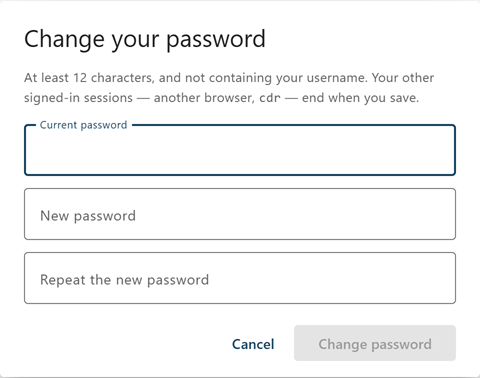
To change your password:
-
Open the user menu and select Change password.
The Change your password dialog opens.
-
Enter your Current password.
-
Enter the new password in New password and again in Repeat the new password.
The password must be at least 12 characters and must not contain your username.
-
Select Change password.
The console confirms with Password changed. Your other sessions were signed out. Sessions in other browsers and in the
cdrcommand-line tool end.
Note: Important: No administrator can reset the break-glass account's password. This dialog is the only way to change it. When you change it, update the offline record of the credential as well.
Multi-factor authentication
Multi-factor authentication (MFA) makes sign-in ask for a 6-digit code from an authenticator app on your phone after your password, in the console and in cdr. It is optional, and each operator turns it on for their own account. Open the user menu and select Multi-factor authentication; the menu item shows On or Off. In the dialog you can:
- Set up—Turn MFA on: enter your password, scan the QR code with your authenticator app, enter the code it shows, and store the ten recovery codes the dialog then shows once.
- New recovery codes—Replace all your recovery codes, used or not. The dialog shows how many unused codes you have.
- Turn off—Turn MFA off. To move MFA to a new phone, turn it off and set it up again.
Replacing the codes and turning MFA off each need your password and a code from the app, or a recovery code. For the full procedures, see Multi-Factor Authentication.
Changing the appearance
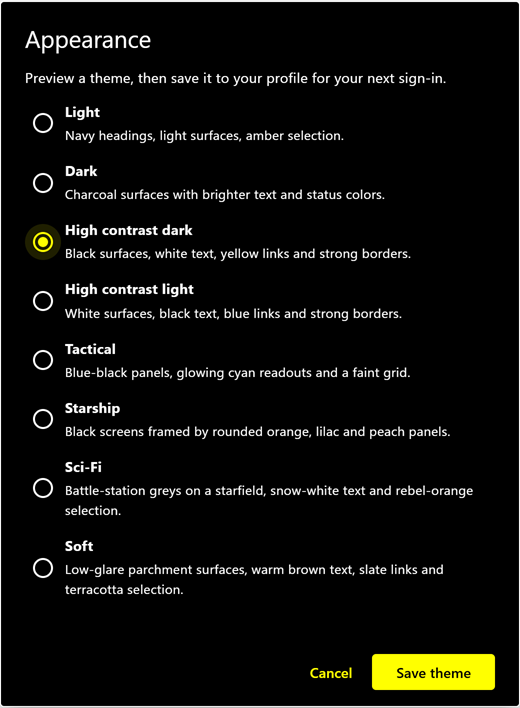
The console offers six color themes. Your choice is saved to your operator profile on the Manager, so it follows you to any browser or computer you sign in from, and it does not affect other operators.
- Light—Navy headings, light surfaces, and amber selection. This is the default.
- Dark—Charcoal surfaces with brighter text and status colors.
- High contrast dark—Black surfaces, white text, yellow links, and strong borders.
- High contrast light—White surfaces, black text, blue links, and strong borders.
- Tactical—Blue-black panels, glowing cyan readouts, and a faint grid.
- Starship—A space-computer look: black screens with bright colored panels.
To change the appearance:
-
Open the user menu and select Appearance.
The Appearance dialog opens.
-
Select a theme.
The console shows the theme at once, so you can preview it.
-
Select Save theme.
The console confirms with Theme saved to your profile. To keep your saved theme instead, select Cancel or press Esc.
The theme is applied when you sign in. When you sign out, the console returns to the Light theme. In every theme, a status is conveyed by a label and an icon, never by color alone.
Console layout
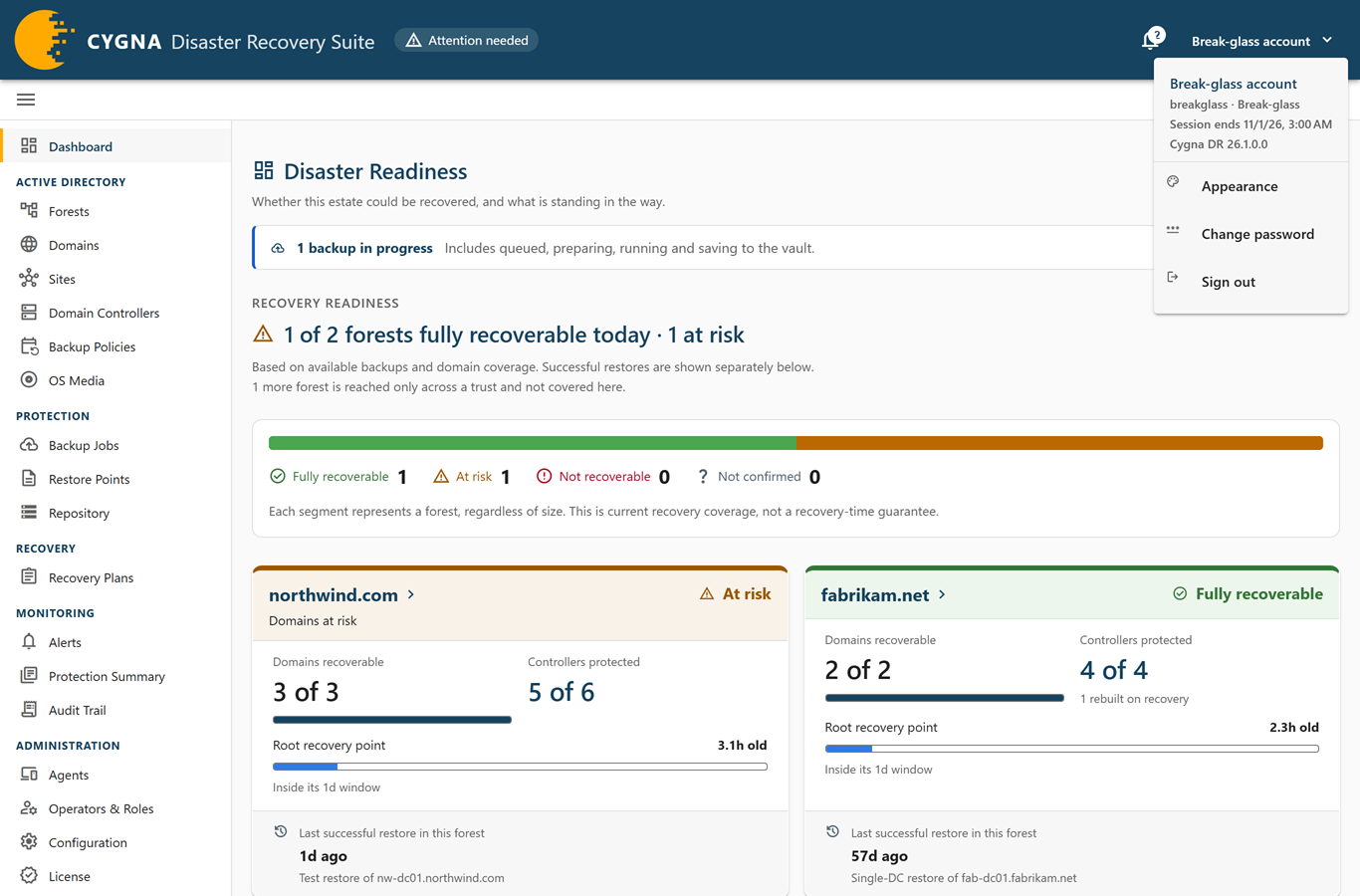
Every screen shares the same frame:
- Top bar—The product mark on the left returns you to the Dashboard. On the right are the health chip, the alerts bell, and the user menu.
- Navigation—The left pane lists the screens you can open, in groups. Use the Toggle navigation button to collapse it to icons; the browser remembers your choice.
- Breadcrumb—Shows the group and screen, for example Active Directory › Domains. When a screen is scoped to a forest, domain, site, or machine, or a detail sheet is open, the breadcrumb adds that object. Each part is a link.
- Recovery banner—Appears below the breadcrumb while a recovery is running. See The recovery banner.
- License banner—Appears below the recovery banner when the license is ending soon, has ended, or is stopping backups and recovery operations. See The license banner.
- Screen—The screen's header shows its title, a one-line description, when the data was last updated, and a Refresh now button.
Top bar
The health chip summarizes the domain verdicts and the protection of the domain controllers. Select it to open the screen behind the verdict: the Domains screen when a domain set the color, otherwise the Domain Controllers screen, filtered to the machines behind the verdict when there is a problem.
| Health chip | Meaning |
|---|---|
| System healthy | Every backup target is protected: it has a current, restorable backup and its last backup succeeded. No domain has a finding against it. |
| Attention needed | At least one domain is at risk, or at least one domain controller has a stale backup, a failed last backup, or no schedule, or is a backup target with nothing to restore from. |
| Action required | At least one domain could not be recovered. This is shown as soon as the domain verdicts are known, even before the domain controller list has been read. |
| Coverage incomplete | Fewer than 90 percent of the domain controllers the chip counts have a verdict, so the chip cannot speak for the rest. The tooltip shows how many were assessed, and how many domain controllers recovery rebuilds, which the chip does not count. |
| Nothing discovered | No domain controller that the chip counts is known yet, and no domain has a finding against it. |
| Not yet assessed | The console has not received the first answer from the Manager. |
Domain controllers that are excluded from alerts, recorded as removed from the directory, or rebuilt on recovery do not count toward the health chip, and neither do excluded domains. See Backup Targets and Rebuilt Domain Controllers.
The user menu shows your display name, your username and roles (or Break-glass), when your session ends, and the product name and Manager version. It also contains Appearance, Change password, Multi-factor authentication (with On or Off), and Sign out.
Navigation groups
The navigation pane shows only the screens your roles allow you to open. A group with no screen you can open is not shown.
| Group | Screen | What it shows |
|---|---|---|
| (none) | Dashboard | Whether each forest could be recovered today, and what to fix first. The page title is Disaster Readiness. |
| Active Directory | Forests | Forest readiness, and the trusts each forest holds. |
| Active Directory | Domains | Recovery coverage for each domain. |
| Active Directory | Sites | Site coverage, subnets, and site links. |
| Active Directory | Domain Controllers | Every known domain controller, its protection, agent, and reachability. Backups and agent installs start here. |
| Active Directory | Backup Policies | The backup schedule of each domain controller. |
| Active Directory | OS Media | Windows Server installation media, whether each operating system in use can use full system recovery, and the recovery images each storage agent keeps and retires. |
| Protection | Backup Jobs | Every backup attempted and its outcome. |
| Protection | Restore Points Screen | What each backup captured about its domain controller. |
| Protection | Repository | Vault capacity, retention, and integrity. |
| Recovery | Recovery Plans | Restore runs, including test restores, and forest and domain recovery plans. |
| Monitoring | Alerts | Active alerts and their history. |
| Monitoring | Protection Summary | Backup outcomes over a period and coverage now, with a CSV export. |
| Monitoring | Audit Trail | Every operator and system action. |
| Administration | Agents | Enrolled DC agents, storage agents, and Isolated Recovery Host agents, and their versions. |
| Administration | Operators and Roles Screen | Operator accounts and role assignments. |
| Administration | Configuration | Manager and agent settings. |
| Administration | License | The installed license, where it stands, and the enabled user accounts beside its count. See Licensing. |
Roles and what you can see
Each operator holds one or more roles. Every role can view the monitoring and inventory screens; the roles differ in what they can change. Duties are deliberately separated: administering the Manager does not carry backup or recovery rights, and recovery rights do not carry backup policy control. The break-glass account holds every capability.
| Role | Screens and actions |
|---|---|
| Viewer / Auditor | Every screen except Operators & Roles and Configuration. Changes nothing. |
| Backup Operator | As Viewer / Auditor, plus backup policies and exclusions, and starting and stopping backups. |
| Restore Operator | As Viewer / Auditor, plus drafting, approving, and running restores, test restores, and recovery plans. |
| System Admin | As Viewer / Auditor, plus Operators & Roles, Configuration, agent installs and updates, and setting the recovery passphrase. No backup or restore rights. |
Within a screen, most actions you are not allowed to take are hidden. A few are shown, and the Manager refuses them if you lack the role. For example, a Viewer / Auditor sees the Domain Controllers screen without the row selection checkboxes or the actions menu. The Manager checks every request as well, so a change you are not allowed to make is refused even if you reach it another way.
If you open a screen your roles do not allow, for example from a bookmark, the console shows Not permitted. The page names the capability the screen needs, the roles that hold it, and the roles you hold. Select Go back or Go to the dashboard. To have a role added, ask a System Admin. For the full role definitions, see Managing Operators and Roles.
Notifications
The bell in the top bar shows a badge with the number of alert types currently firing at critical or warning severity. Select the bell to open the notifications panel:
- Recoveries in progress—Each running restore or recovery plan, with its status. A plan that is waiting for an operator shows Waiting for you, and a plan stopped by a failed step shows Halted — a step failed. Select an item to open it.
- Active alerts—Up to six alerts, worst first, each with its severity and count, and a link to the screen where you can act on it. No alert is firing at critical or warning. means there is nothing to act on.
- Open Alerts—Opens the Alerts screen.
The bell's tooltip also says when a recovery is waiting for you.
The recovery banner
While any restore run or recovery plan is in progress, a banner appears below the breadcrumb on every screen except that recovery's own page and the Dashboard. The Dashboard shows running recoveries in its own Recovery in progress panel. The banner reads Recovery in progress, or A recovery is waiting for you when a step needs an operator to acknowledge, attest, or act. The banner lists up to three recoveries, such as Restore of a machine or Recovery of a forest, with their status; select one to open it, or select and n more to open the Recovery Plans screen. The banner refreshes every 15 seconds and disappears when nothing is in progress.
When the only runs in progress are test restores, the banner says so on a neutral band: Test restore in progress — nothing in production changes. Each test restore is listed with who started it, for example Scheduled or Approved by an operator. A test restore never changes production; see Test Restores.
For what each status means, see Recovery Plans.
The license banner
When the license needs your attention, a banner appears below the recovery banner on every screen except the License screen. It starts with License ending soon in the last 30 days before the end date, License ended during the grace period, or Backups and recovery operations are stopped when the license has run out or no usable key is installed. The license's own sentence follows, with its dates, and View license opens the License screen. The banner uses the critical color during the grace period and when operations are stopped. It refreshes every 5 minutes, and disappears once the license is current and ends more than 30 days from now. See Licensing.
Working with screens and tables
Most screens follow the same conventions.
Refreshing
Screens refresh themselves while open, and the header shows when the data was last updated, for example Updated 20s ago. Select Refresh now to reload at once. If a refresh fails, the screen keeps the data it has, shows Refresh failed with how old that data is, and offers Try again. If a screen cannot load at all, it shows the reason and a Retry button.
| Load error | What to check |
|---|---|
| The manager did not respond. | The Manager service is not running, or your workstation cannot reach it. |
| The manager could not be reached. | Something between the browser and the Manager could not connect. Check the service and the address you use. |
| The manager refused this request. | Your roles do not include the capability the screen or action needs, or your session has ended. |
| The manager does not support this request. | The console and Manager versions may not match. Reload the browser page. |
Summary cards
Inventory screens open with a summary card, such as Recovery readiness on the Forests screen or Controller protection on the Domain Controllers screen. Its headline states the screen's most important finding, and a line below it says what the verdict is based on and how many objects are in scope or excluded. Below that, the card lists the problems on that screen, worst first, each marked by severity—for example Action required or Blocked for a critical problem, and Review for a warning. Every problem is listed; there is nothing to expand. Each problem names the affected objects and says what clears it.
Status chips
Verdicts and statuses appear as chips that combine an icon with a color: a check mark for good, a warning sign for something that needs attention, an error sign for a critical problem, an information sign for a neutral fact, and a question mark when the state is not known. A state that is not known is never shown as good. Hover over a chip to see the reasoning behind it.
Search, filters, and scope
- Search—The box above a table narrows the rows to those that contain the text you enter. The count beside it shows how many rows match, for example 12 of 240 domain controllers. Select Clear search to remove the text.
- Filter chips—The chips above a table count the rows in each state. Select a chip to show only those rows, and select it again to show every row. A filter changes only the table: the counts and alerts above it still describe everything on the screen. A notice marked Filtered says what is shown, with a Clear filter button.
- Scope—When you drill down from another screen, for example from a forest to its domains, the screen is scoped. A notice marked Scoped names the forest, domain, or site, and every count and alert on the screen then describes that scope alone. Select Clear filter to see everything again.
Sorting, paging, and detail sheets
- Select a column heading to sort by that column, and select it again to reverse the order.
- Long tables are paged. Choose the number of rows per page at the bottom of the table.
- Select an object's name to open its detail sheet at the side of the screen. Select Copy name to copy the name, and close the sheet with the close button or Esc.
- The browser address keeps the search, sort, filters, page, and open detail sheet. They survive Back and a browser refresh, and you can bookmark the address or send it to a colleague to show the same view.
Actions and confirmations
Row actions are on the actions menu (⋮) at the end of each row. On screens that support bulk actions, select rows with the checkboxes and a bulk bar appears with Select all n matching, the available actions, and Clear selection.
Actions that change something open a confirmation dialog that states the consequences. Some ask for a reason, which is recorded in the audit trail. Actions that cannot be undone ask you to type a phrase, such as the machine name, before the confirm button works. If the Manager refuses an action, the dialog shows Refused and the Manager's reason.
Pages where you build a plan keep your choices only in the browser until the plan is built. If you leave such a page, the console asks you to confirm with Leave and discard.
Longer explanations are folded under a Details link; select it to expand them.
Exclusions
On the Forests, Domains, Sites, and Domain Controllers screens, a Backup Operator can exclude an object from alerts: for example, a test domain controller you do not intend to protect, or an orphaned domain partition. An excluded object is still listed with its real verdict, but it is left out of the counts, alerts, and readiness figures. Excluding a forest, domain, or site also excludes the objects in it.
To create or change an exclusion, select Exclude from alarms… or Edit exclusion… on the row's actions menu. The Exclusion dialog asks:
- Why is <object> out of scope?—Required. The reason is recorded against your name and shown wherever the object appears.
- Review by (optional)—A date after which the object counts again and is flagged as due for review. Leave it empty to exclude the object until someone clears the exclusion.
Select Exclude from alarms or Update exclusion to save, or Clear exclusion to remove the object's own exclusion. If the object is excluded through its domain, site, or forest, the dialog says so; clear the exclusion there instead.
| Exclusion chip | Meaning |
|---|---|
| Excluded / Excluded from alarms | The exclusion is active. Hover to see the reason, who set it, and the review date. |
| Excluded via its domain / its site / its forest | The object is excluded because a containing object is. |
| Exclusion due for review | The review date has passed. The object counts again until someone renews or clears the exclusion. |
| Exclusion void — the object changed | The object changed after the exclusion was recorded, so the exclusion no longer applies. |
For the procedure and guidance on when to exclude, see Excluding and Retiring Objects.
In this chapter
Active Directory
Protection
Recovery
Monitoring
Administration
