Configuration
The Configuration screen holds the settings for the Manager and every agent. The settings are stored in the Manager's database and pushed to the agents from there, and each agent reports back which settings it is actually running. This topic describes how the screen works; for every setting, its default, and its range, see Settings Reference.
To open it, select Administration > Configuration. The screen requires the config.manage capability, held by the System Admin role and the break-glass account. The tabs run long: once you scroll down, a Back to top button in the lower right corner takes you back to the save bar and the tabs.
Layout
The Manager and fleet settings panel at the top reads Review your pending changes while you have unsaved edits, and Review settings and where they apply otherwise. It shows how many agents are waiting for a restart to apply saved settings and how many have not reported their configuration, then when the configuration last changed (Last changed and how long ago), or Nothing has been changed from its default. Hover over it to see the current configuration revision. With agents.manage, the panel also offers Restart them…, or Restart n that can be restarted from here… when only some of the waiting agents can restart themselves. Either button restarts every connected agent waiting for a restart. See Agents.
The settings are on four tabs, one per scope. Within each tab, settings are grouped in cards, such as Backup execution or Vault retention.
| Tab | Applies to |
|---|---|
| Manager | Settings this Manager reads, such as scheduled test restores, backup timeouts, concurrency, database retention, agent deployment, and the mail server it sends email through. Changes take effect on the next sweep or dispatch, except where a field says a restart is needed. |
| Storage agents | Settings sent to the storage agents: staging, vault, retention, verification, the OS media library, and recovery images. Storage agents cache these and keep running on the last values they received if the Manager is unreachable. |
| Domain controller agents | Settings sent to every DC agent as a fleet default: heartbeat, topology reporting, job logs, and Windows Server Backup installation. Agents apply a change when they receive it, and catch up on their next connection if they were offline. |
| Isolated Recovery Host agents | Settings sent to the agents on Isolated Recovery Hosts, the Hyper-V hosts that test restores create their VMs on: readiness checks, Windows features, and the VMs and recovery network for test restores. An installation without an Isolated Recovery Host has nothing here to send to. |
Finding a setting
Above the tabs, a search box and Show changed only narrow the settings on every tab at once:
- Search—The box (Search name, key, description, group…) keeps the settings whose label, key, summary, or group contains the text you enter. To find a field, you can paste a setting key as
cdr config showprints it. The longer explanation under Details is not searched. The count beside the box shows how many settings match across all tabs, as n of m settings. - Show changed only—Hides every setting that is at its product default.
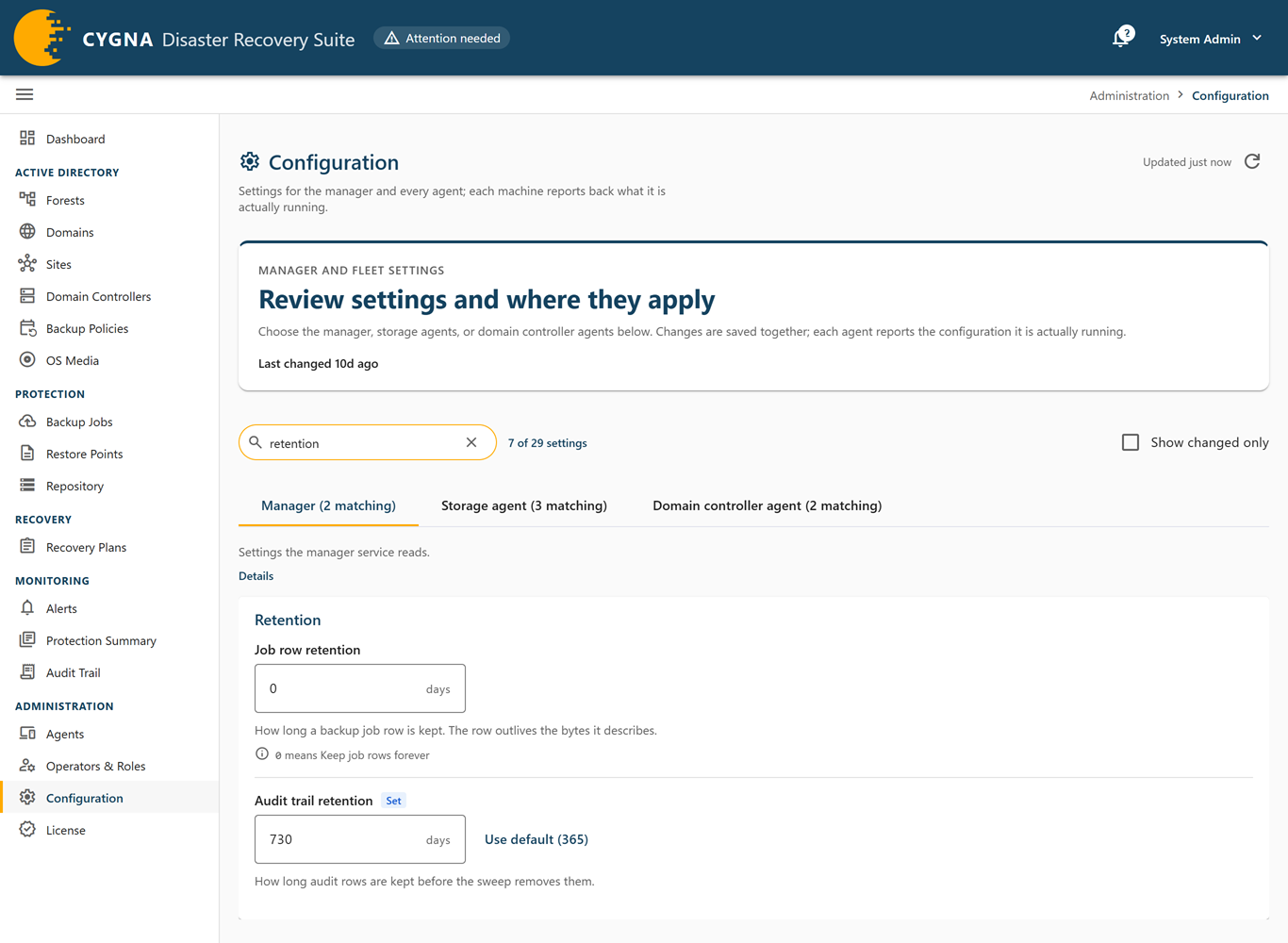
While you search, each tab's label shows how many settings matched on it, for example Storage agents (3 matching). A tab where nothing matched says so and names the tabs where the search did match, for example No settings here match “retention”. It matches on: Manager 2, Storage agents 5. The browser address keeps the search as ?q=, so it survives a refresh and you can bookmark or share it. Neither filter hides an unsaved change: the save bar still counts and names every one.
A tab's label also shows how many unsaved changes it holds, for example Manager (2 matching, 1 pending). The agent tabs also show whether their agents are running the current configuration, for example All 12 agents are on the current configuration, or 10 of 12 agents on the current configuration · 1 catching up · 1 not reported. An agent catching up has reported an older configuration; an agent not reported has never reported one. Hover over the chip to see the current revision.
Settings
Each setting shows its label, its current value as an On/Off switch, a list, or a number or text box with its unit, and a summary of what it does. Where a value of 0 has a special meaning, such as "keep forever", a line under the field says so. A Details section explains the setting further. Below each field:
- Undo—Shown while the field has an unsaved change.
- Use default (<default>)—Removes your value so the setting follows the product default, now and in future releases.
A password setting, such as SMTP password in the Email group, is write-only. The Manager never sends the stored password back, so the field never holds it:
- The field starts empty. Its placeholder reads Set — type to replace it when a password is stored, and Not set when none is.
- Typing in the field queues the new password as a change. Emptying the field again takes the change back; it does not clear the stored password.
- To remove the stored password, select Clear below the field, where other settings show Use default. The field then says Will be cleared when saved.
- Saving without typing leaves the stored password as it is.
- A save that changes SMTP server or SMTP security must also enter the password again or clear it, or it is refused, so the stored password is never sent to a new server.
The audit trail records only that the password was set, changed, or cleared. For how the password is stored, see Settings Reference.
Badges mark settings that behave differently:
| Badge | Meaning |
|---|---|
| Set on the machine | The value is set in the machine's own configuration file, usually at install time, and shown here as the agent reports it. It is read-only on this screen. These settings are in each tab's Local to each machine card, and include the storage root, Manager address, CA fingerprint, and log folders. |
| Restart required | Saved immediately, but not in force until the service restarts. The agent confirms which settings are waiting for a restart. |
| Can delete data | Changing this can cause backups or records to be deleted. Saving it needs a typed confirmation. |
| Cannot weaken the machine's floor | The storage machine uses the more protective of its own value and this one. |
| Set | Changed from the product default. |
The retention floor and the minimum versions per DC are set on the storage machine and shown on the Storage agents tab read-only. A value sent from this screen can tighten retention but never weaken it. To lower a floor, change it on the storage machine itself.
Saving changes
Edits are not sent until you save. When you have unsaved changes, a save bar shows how many there are on each tab, with Discard and Save. If you try to leave the screen with unsaved changes, the console asks you to confirm; leaving discards them.
The Manager checks the whole batch before saving it. If any value is refused, nothing is saved and the screen lists each error. The Manager also checks settings against each other. For example, the vault reservation timeout must exceed the backup job timeout by at least 30 minutes; a conflict like this is shown as Inconsistent and blocks the save. Combinations that are allowed but have no effect, such as a version ceiling below the storage machine's minimum, are shown as Worth knowing.
When the changes are saved, the screen reports the new revision and how many connected agents were told. Agents that were offline pick up the change on their next connection.
Changes that can delete data
When any pending change has the Can delete data badge, the save button reads Review and save…. It opens a confirmation titled This change can delete data that lists each such change, its scope, and its old and new value. Type CONFIRM and select Save and reduce what is kept to save.
Machines in this scope
On the agent tabs, the Machines in this scope card shows what each agent reports it is running:
- Whether it is running the current configuration (Current configuration, Not yet on the latest change, or Has not reported), and whether it is connected. Hover over the chip to see the revision it is running and the current revision.
- Settings saved but not in force until the agent restarts.
- Values the machine declined because they were less protective than its own floor, with the value it is using instead.
- Settings its local configuration file still sets that are now managed from this screen and are being ignored. Remove them from the file.
- Settings overridden for this machine (see below).
Per-machine overrides
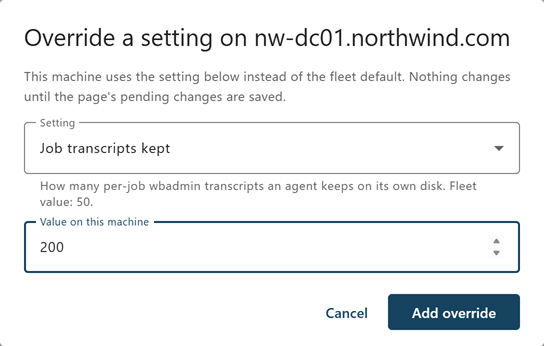
An agent can use a different value from the fleet default for any setting that is not set on the machine, for example to try a change on one domain controller before applying it to all. Select Override a setting on this machine…, choose the Setting, enter the Value on this machine, and select Add override. The override is queued with your other changes and saved from the save bar. To remove an override, select Follow the fleet default beside it.
Manager recovery, configuration backups, and support packages
The Manager recovery, Configuration backups, and Support package cards are on the License screen. See Manager recovery and configuration backups and Support package in Licensing.
