Licensing
Cygna Forest Recovery is licensed with a Cygna license key, the same kind of key that Cygna issues for its other products. The key names your organization, the license type (subscription, trial, or perpetual), the number of people it licenses, and its end date. A key licenses modules. Cygna Forest Recovery has one, Cygna Forest Recovery for Active Directory, and the type, number of people, and dates are that module's. A single key can license other Cygna products as well; Cygna Forest Recovery reads only its own modules and ignores the rest. A key that does not license Cygna Forest Recovery for Active Directory, such as a Cygna Auditor key, is refused.
The Manager keeps the key in its database, so the database snapshots carry it and a Manager recovered from a snapshot keeps its license.
What is enforced
- The number of people—Cygna licenses physical people, and one person often holds several accounts, such as a separate administrator account or a test account. The License page shows the enabled user accounts in every forest beside the licensed count, to help you check your coverage.
- The end date is enforced—The Manager warns you as the end date approaches. After the end date, a subscription has a 14-day grace period in which everything keeps working; a trial has none. Then the Manager refuses to start new backups and recovery operations until a current key is applied. A perpetual license does not end.
- No key is the same as an expired one—A new Manager has no key, so it refuses backups until you apply one. Apply the key right after you sign in for the first time.
Applying a license key
Applying a key replaces the installed one, if there is one. A key takes effect at once: if backups and recovery operations were stopped, they resume, and scheduled backups that came due while they were stopped start on the scheduler's next pass.
Before you begin
- You need the
config.managecapability, which the System Admin role and the break-glass account hold. See Managing Operators and Roles. - Have the license key that Cygna sent you.
To apply a license key in the console:
-
Select Administration > License.
-
Select Apply a license key…, or Apply a new license key… when a key is already installed.
The Apply a license key dialog opens.
-
In License key, paste the key exactly as Cygna sent it. Line breaks from an email are fine.
The Manager reads the key and shows what it says, without installing it: the license's standing and its terms. If the key cannot be used, the dialog shows Refused and the reason.
-
Check the licensee, type, number of people, and end date, and then select Apply this license.
The key is installed, the License page shows the new standing, and the audit trail records License installed.
To apply a key with the command-line tool, run cdr license apply <KEY>. To see what a key says first, run cdr license preview <KEY>. See Configuration and Exclusion Commands.
The Manager refuses a key in these cases:
- It is not a key the Manager can read—The message is This is not a Cygna version 2 license key. Paste the whole key again, exactly as sent. If it is still refused, ask Cygna Labs for a new Cygna Forest Recovery key.
- It does not license this product—The message is This key does not license Cygna Forest Recovery for Active Directory. It may be a Cygna Auditor key: ask Cygna for a key that licenses it.
The License page
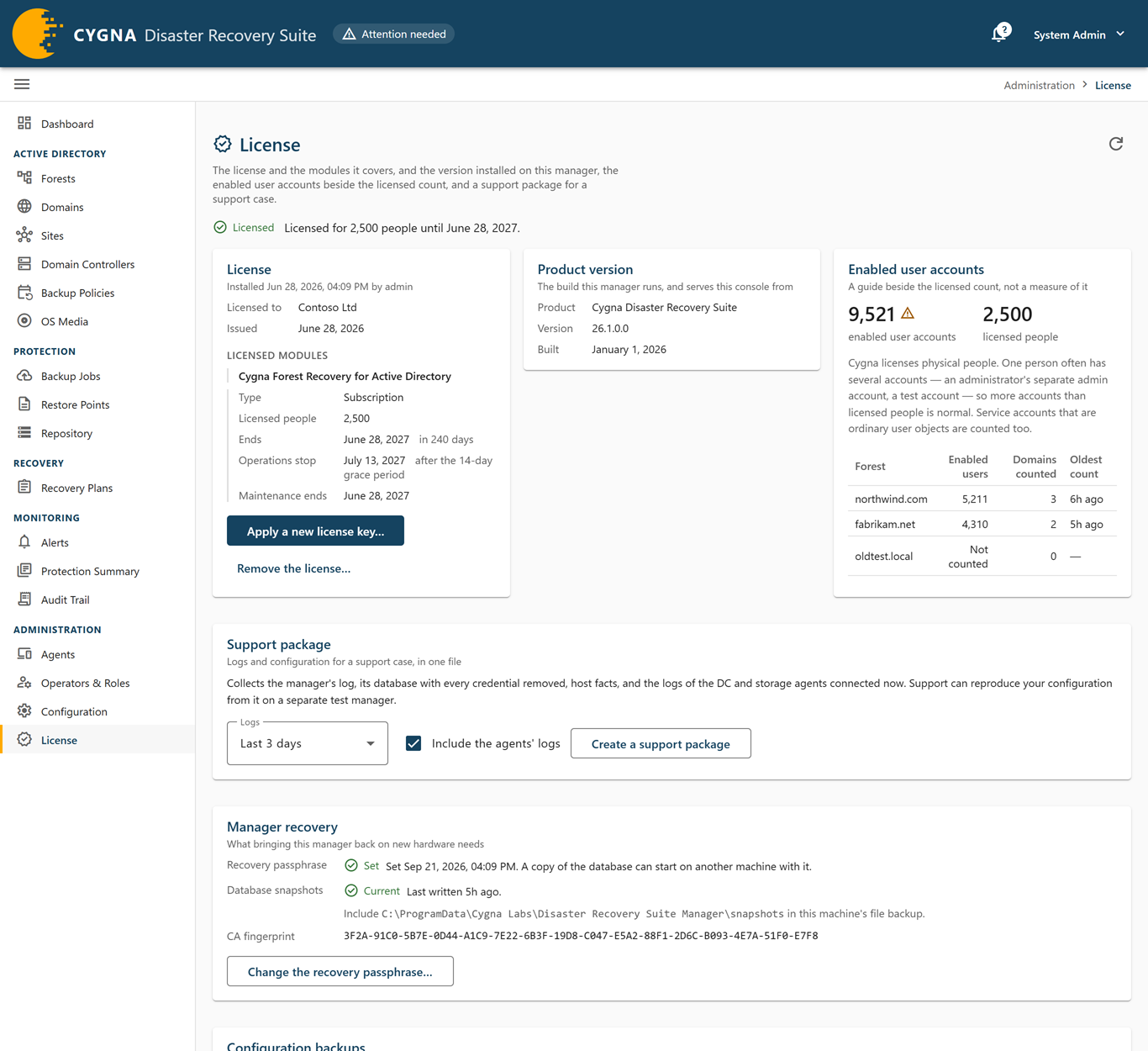
The License screen, in the Administration group, shows the license and the product version installed on this Manager, the enabled user accounts beside the licensed count, a support package for a support case, and, at the foot of the page, whether this Manager can be recovered. Every operator can open it. At the top, a status chip and one sentence give the standing, for example Licensed for 250 people until 31 March 2027. When backups and recovery operations are stopped, the page also says what is refused and what keeps working.
| Status | Meaning |
|---|---|
| Licensed | The license is current and ends more than 30 days from now, or does not end. |
| Ending soon | The license ends within 30 days. Everything works. |
| Grace period | The end date has passed, and the 14-day grace period is running. Everything works until the date shown under Operations stop. |
| Expired | The grace period is over, or a trial has ended. New backups and recovery operations are refused. |
| Module not licensed | The installed key does not license Cygna Forest Recovery for Active Directory. New backups and recovery operations are refused. |
| No license | No key is installed. New backups and recovery operations are refused. |
The License card shows when the key was installed and by whom, and the facts that apply to the whole key:
- Licensed to—The organization named in the key.
- Issued—The day the key was issued.
Under Licensed modules, each module the key licenses has its own block, headed by the module's name, Cygna Forest Recovery for Active Directory, with its terms:
- Type—Subscription, Trial, or Perpetual.
- Licensed people—The number of people the key licenses.
- Ends—The last licensed day, and how far away it is. A perpetual license shows Never (perpetual).
- Operations stop—The first day new backups and recovery operations are refused: the day after the 14-day grace period, or the day after a trial ends.
- Maintenance ends—The end of the maintenance period named in the key, or Not stated.
Operators with the config.manage capability see the buttons to apply a key and to remove the license. Other operators see Applying a license key needs the Configuration capability.
The Product version card shows the build this Manager runs and serves the console from: Product, Version, and Built, the day the build was made. Give the version when you contact Cygna Labs Corp. support. The card is shown even when the license cannot be read.
The Enabled user accounts card shows the number of enabled user accounts across every forest beside the number of licensed people, and a table with one row per forest: Forest, Enabled users, Domains counted, and Oldest count. The figures come from the DC agents, which count the user accounts in their domain. A domain with no DC agent is not counted, so its forest's Domains counted shows, for example, 2 of 3, and the total reads "at least". Domains excluded from alerts are still counted, and service accounts that are ordinary user objects are counted too. More accounts than licensed people is normal, so the page never calls the difference a breach. When the enabled accounts are more than a fifth above the licensed count, a warning icon appears beside the figure as a prompt to look.
Support package
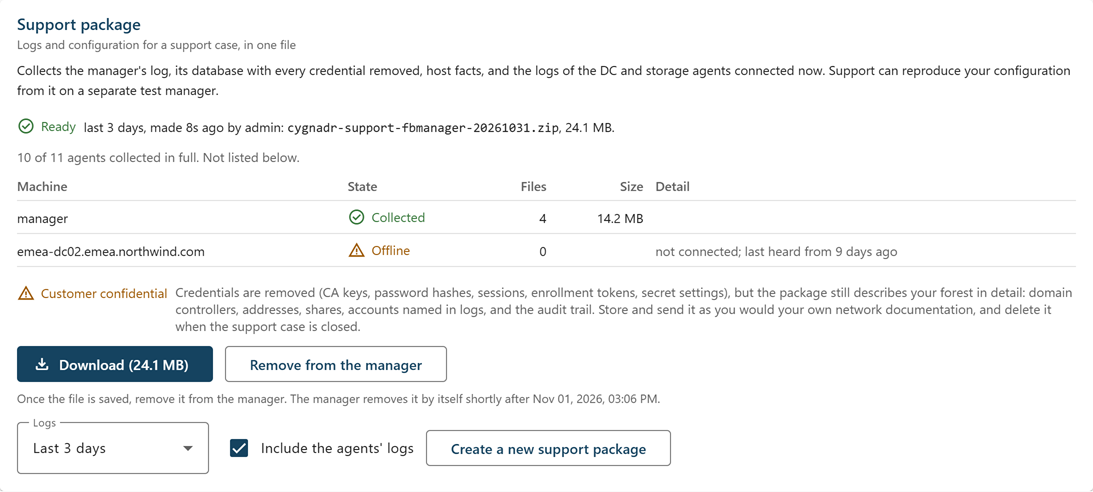
Below the license cards, the Support package card collects what Cygna Labs Corp. support needs for a case into one zip file: the Manager's log, a copy of its database with every credential removed, host facts, and the logs of the agents connected now. The card is shown only to operators with config.export, and is shown even when the license cannot be read. For what a package contains and leaves out, see Logs and Diagnostics.
To create a support package:
-
Select Administration > License.
-
In Logs, choose how far back to collect logs: Last day, Last 3 days (the default), Last 7 days, Last 14 days, Last 30 days, or Everything retained.
-
To collect the Manager's part only, clear Include the agents' logs. It is selected by default.
-
Select Create a support package, or Create a new support package if the card already shows one.
The card shows Collecting, with who started it, when, and how many machines have finished.
-
When the card shows Ready, select Download (size) and save the file.
-
Select Remove from the manager.
Each agent sends at most 512 MB, newest files first. To choose particular agents or a different limit, use cdr support package (see Support Commands).
Machines table
While a package is collected and once it is ready, a table lists each machine with its State, Files, Size, and Detail. To keep the table short on a large estate, it lists the Manager, machines still being collected, and machines with a gap; agents collected in full and agents waiting their turn are counted in the caption above it.
| State | Meaning |
|---|---|
| Waiting | Not started yet. The Manager collects from up to four agents at a time. |
| Collecting | The machine is sending its files. |
| Collected | Every file in the period was collected. |
| Partial | Something was left out, because it was over the agent's limit or could not be read. The detail says what. |
| Offline | The agent is not connected, so nothing was collected. The detail says when it was last heard from. Collect its log folder by hand if support needs it. |
| Failed | Collection from this machine failed. The detail gives the reason. |
Ready, failed, and refused packages
- Ready—The card names the file and its size, and shows a Customer confidential warning: credentials are removed, but the package still describes your forest in detail. Download (size) saves the file. Once you have saved it, select Remove from the manager; otherwise the Manager removes it 24 hours after it finished, and the card says when.
- Failed—The package could not be built, with the reason.
- Refused—The Manager did not start the package, with its message: for example, another package is still being collected, or the Manager's data disk has less than 2 GB free.
Under Also on the manager, the card lists every other package the Manager still holds, including packages started with cdr, each with Download and Remove. Every package is also deleted when the Manager service starts.
Manager recovery and configuration backups
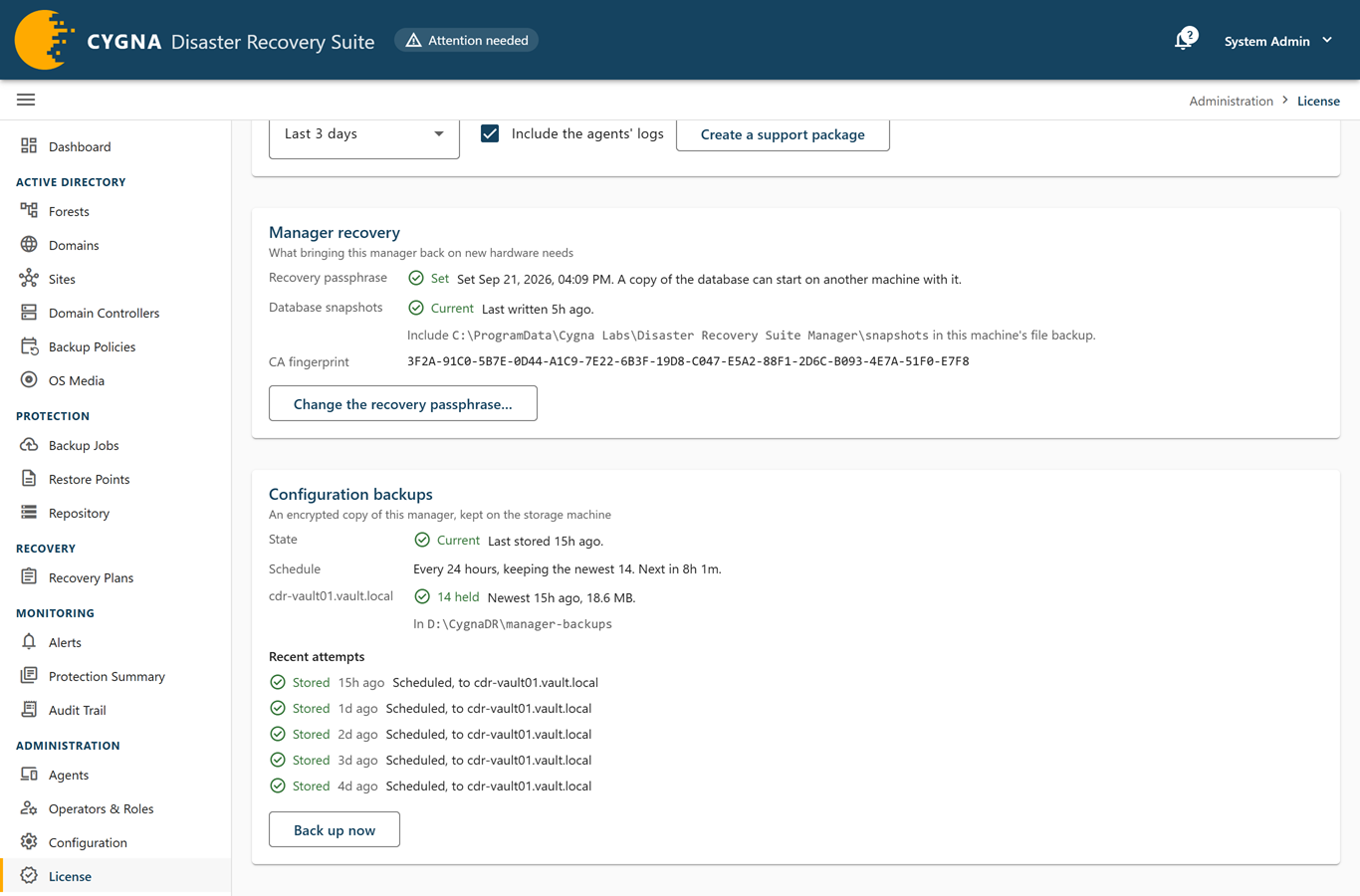
At the foot of the page, below the Support package card, two cards show whether this Manager could be brought back on new hardware. They are shown only to operators with config.manage, and are shown even when the license cannot be read. Setting the recovery passphrase and starting a configuration backup also require config.export, held by the System Admin role.
The Manager recovery card shows:
- Recovery passphrase—Set, with the date, or Not set. Without it, a copy of the Manager's database cannot start the Manager on another machine.
- Database snapshots—Current, Stale (the last snapshot is more than 2 days old), or None yet, with the folder to include in the Manager machine's file backup.
- CA fingerprint—The fingerprint of the Manager's certificate authority.
With config.export, select Set the recovery passphrase… or Change the recovery passphrase…, enter the New passphrase (at least 16 characters) and Repeat it, and select Save the passphrase. Copies made from then on need the new passphrase; database snapshots and configuration backups written before still open with the previous one. The new passphrase is never stored or shown again, so replace the offline record immediately. Saving it also starts a configuration backup.
Below it, the Configuration backups card shows whether the Manager is sending its encrypted configuration backups to the storage machine:
- State—Current, Stale (the newest backup is more than twice the interval old), None yet, Running, Last attempt failed, or Not running with the reason.
- Schedule—How often a backup is sent, how many the storage machine keeps, and when the next is due.
- Each storage machine—How many backups it holds, the newest one's age and size, and the folder they are in.
- Earlier passphrase—Shown when backups written under a previous recovery passphrase are still held.
- Recent attempts—The last five, with who started each, the storage machine, and why any did not store.
With config.export, select Back up now to send one at once. For why these matter and how to recover the Manager, see Protecting the Manager, Manager Configuration Backups, and Recovering the Manager.
Warnings before the end date
The Manager checks the license every hour. As the end date approaches, it warns on every surface:
- License page—The status changes to Ending soon 30 days before the end date.
- Banner—From 30 days before the end date, a banner appears on every screen of the console, below the recovery banner, except the License page. It reads License ending soon, License ended during the grace period, or Backups and recovery operations are stopped, followed by the license's sentence and a View license link. The banner also appears whenever no usable key is installed.
- Alert—The License ending soon warning alert, then the License ended: grace period running critical alert, then Backups and recovery operations stopped: no active license. Only the one that applies is raised. See Alerts Reference.
- Log and email—On each warning day, the Manager writes a warning to its log and emails the addresses in the Expiry warning recipients setting, through the mail server in the Email settings. The audit trail records License expiry warning emailed, or License expiry warning not emailed with the reason, for example when no recipients are set.
The warning days are 30, 15, 7, 5, 4, 3, 2, and 1 days before the end date; the day the grace period begins, and 7, 5, 4, 3, 2, and 1 days before it is over; and the day backups and recovery operations stop. A trial has no grace period: its warnings run up to the end date, followed by the stop warning the day after.
To receive the emails, set Expiry warning recipients to one or more addresses separated by commas, and set up the Email settings. See Settings Reference. The alert and the banner appear whether or not anyone is emailed.
When the license stops operations
After the grace period, or the day after a trial ends, and whenever no usable key is installed, the Manager refuses to start:
- New backups, scheduled or started with Back up now or
cdr backup start. A refused backup leaves no failed job; scheduled backups stay due and start once a current key is applied. - Restore runs. An approved run stays approved, ready to execute once a current key is applied.
- Recovery plans.
- Test restores, scheduled or started by an operator.
The refusal carries the code license-inactive, shown in the console as No active license, and gives the license's sentence as the reason, for example No license is installed, so backups and recovery operations are stopped. Apply a license key. The cdr commands exit with code 3 and add a hint to run cdr license show and cdr license apply.
The license never interrupts recovery work. These keep working:
- Work already under way finishes, including a recovery plan that is already executing and every restore it starts, even one that waits for an operator to execute it.
- Planning and approving restores and recovery plans.
- Every screen of the console and every
cdrcommand that only reads. - Cleanup of test restore virtual machines.
Note: Important: Without a current license, your restore points age and no new ones are taken. Renew before the grace period ends, so that you always have a recent backup to recover from.
Removing the license
Removing the license stops new backups and recovery operations at once, exactly as an expired license does. To replace a key, apply the new one instead; you do not need to remove the old one first.
To remove the license:
-
Select Administration > License.
-
Select Remove the license….
-
Read the consequences, and then select Remove the license.
The audit trail records License removed.
With the command-line tool, run cdr license remove.
