Managing Operators and Roles
Everyone who uses the console or the cdr command-line tool signs in as an operator. Operator accounts belong to Cygna Forest Recovery itself: they are stored in the Manager database, not in Active Directory and not as Windows local accounts or groups. That is what lets you sign in and run a recovery while the directory is down. Each account signs in with a username and password and, if the operator turns on multi-factor authentication (MFA), a code from an authenticator app. See Multi-Factor Authentication.
You manage operators on the Operators & Roles screen, which needs the System Admin role (or the break-glass account). For a description of the screen itself, see Operators and Roles Screen.
Roles
An operator's roles decide what they can see and do. The Manager checks the operator's capabilities on every request, from the console and from cdr alike. The console also hides the screens and buttons an operator cannot use; a screen opened directly without the capability shows Not permitted, with the capability it needs and the roles that hold it.
| Role | Can | Cannot |
|---|---|---|
| Viewer / Auditor | See everything: the dashboard and alerts; forests, domains, sites, domain controllers, and agents; backup policies, backup jobs, restore points, OS media, and the repository; restore runs and recovery plans; reports; and the audit trail. | Change anything. |
| Backup Operator | Everything a Viewer / Auditor can see, and also create, edit, and remove backup policies; start and cancel backups; exclude objects from alerts; and record domain controllers, domains, and trusts as removed from the directory. | Plan, approve, or run a restore or recovery plan. Manage operators, configuration, or agents. |
| Restore Operator | Everything a Viewer / Auditor can see, and also plan, approve, and discard restores and recovery plans; ask a machine to describe itself again; execute, cancel, or close a restore as abandoned; execute or abort a recovery plan; acknowledge points of no return, attest operator steps, supply domain credentials to a plan, and shorten the wait between krbtgt resets. | Change backup policies or start backups. Manage operators, configuration, or agents. |
| System Admin | Everything a Viewer / Auditor can see, and also create operators and assign their roles; reset passwords and MFA, unlock, disable, enable, remove, and restore accounts; change Manager and agent settings; install the DC agent and update, restart, and uninstall agents from the console; and set the recovery passphrase. | Change backup policies, start or cancel backups, or plan, approve, or run any restore or recovery plan. |
| Break-glass | Everything. This is not a role you can assign: it belongs to the one break-glass account. | — |
An operator can hold several roles and gets every capability of each. Every operator must hold at least one role, because an account with none could sign in and see nothing.
Capabilities
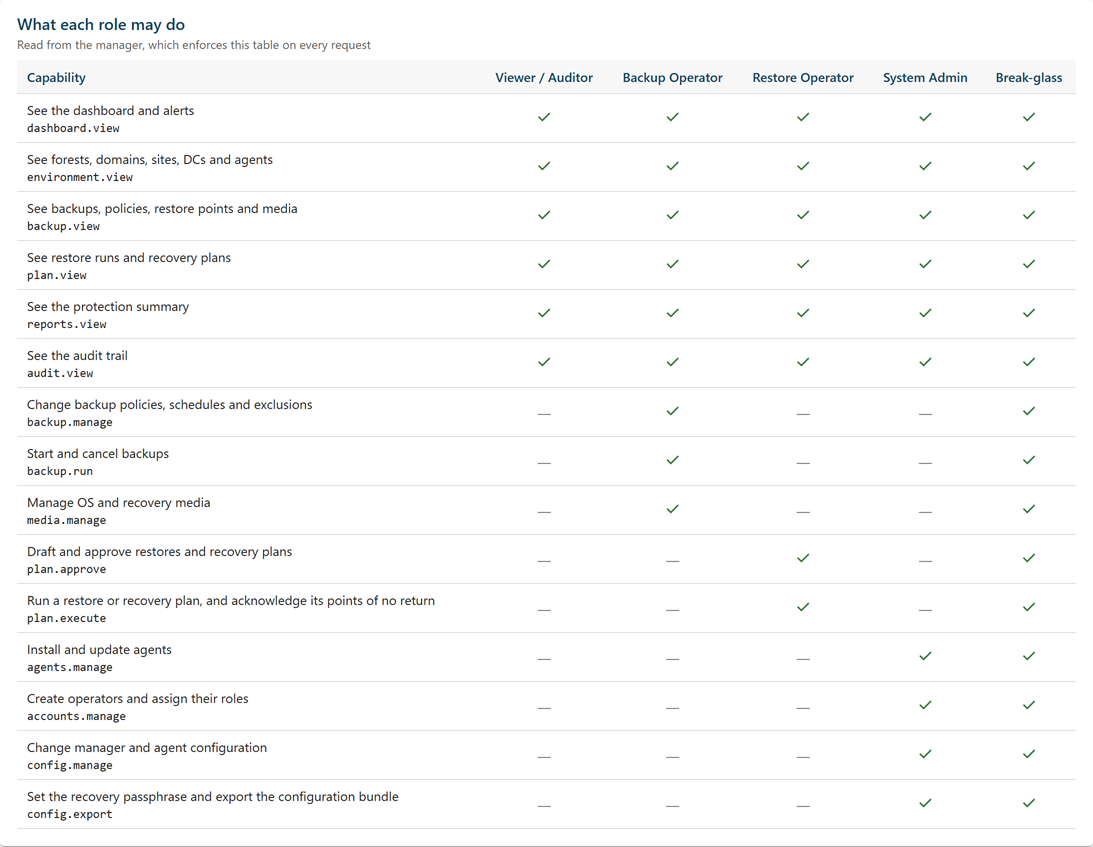
The Roles tab lists the capabilities behind each role. The Not permitted screen and the command-line tool name capabilities by code, so this table maps the codes to what they allow.
| Capability | Allows | Held by |
|---|---|---|
dashboard.view
|
See the dashboard and alerts | Every role |
environment.view
|
See forests, domains, sites, DCs and agents | Every role |
backup.view
|
See backups, policies, restore points and media | Every role |
plan.view
|
See restore runs and recovery plans, and open or download a plan's recovery report | Every role |
reports.view
|
See the protection summary | Every role |
audit.view
|
See the audit trail | Every role |
backup.manage
|
Change backup policies, schedules and exclusions | Backup Operator |
backup.run
|
Start and cancel backups | Backup Operator |
plan.approve
|
Draft and approve restores and recovery plans, accept the preflight gates that need an approver's acceptance, and ask a restored domain controller to validate itself again | Restore Operator |
plan.execute
|
Run a restore or recovery plan, and acknowledge its points of no return. Also: run a plan unattended, take an unattended plan back, retry a halted step, set a plan's notification addresses (including when the plan is created), and email its recovery report | Restore Operator |
agents.manage
|
Install and update agents from the console, approve and drain Isolated Recovery Hosts, and delete an agent's record with cdr agent forget |
System Admin |
accounts.manage
|
Create operators and assign their roles; reset passwords and MFA; unlock, disable, enable, remove, and restore accounts | System Admin |
config.manage
|
Change Manager and agent configuration | System Admin |
config.export
|
Set the recovery passphrase, and create, download, and remove support packages | System Admin |
Note: The break-glass account holds every capability in the table. cdr agent deploy needs no Manager capability to install agents, because it installs with the Windows credential you give it; the console's install and update actions, and cdr agent forget, need agents.manage.
Separation of duties
The roles are built so that no single role reaches from one area into another:
- Administering the Manager does not carry backup or recovery rights. A System Admin can configure retention and agents but cannot run a restore.
- Recovery rights do not carry backup policy control, and backup rights do not carry recovery.
- Nobody can change their own roles. Another operator with
accounts.managehas to make the change, so nobody grants themselves a capability without a second person. - No administrator can change the break-glass account.
- An action that crosses two roles needs both capabilities. Replacing the storage machine changes which agent holds the backups and ends every restore point, so it needs
agents.manageandbackup.manage. An operator holding both, such as the break-glass account, does it alone. Otherwise one operator asks, and an operator holding the other capability approves: a System Admin's request waits for a Backup Operator, and a Backup Operator's for a System Admin. A request lapses after 24 hours, and each step is audited. See Requests.
Two things to plan for:
- Approve and execute are in the same role. Approval and execution are separate actions, and the Manager records who did each. But both capabilities belong to Restore Operator, so one operator can approve a restore and then execute it. If your policy requires two people, give the Restore Operator role to a small group, agree that the person who approves a recovery and the person who executes it are different people, and check the Restore approved and Restore execution requested entries in the audit trail.
- Account administration can create accounts with any role. A System Admin cannot change their own roles, but can create a new operator with the Restore Operator role. Restoring a removed operator assigns roles in the same way. Limit who holds System Admin, and review Operator created, Operator roles or name changed, and
operator.restoredentries in the audit trail.
The break-glass account
The break-glass account, breakglass, is created at the first sign-in to a new Manager. The Manager generates its password and shows it once, and you set the recovery passphrase in the same step. See Signing In for the First Time.
- It holds every capability.
- It is never locked out by wrong passwords. An address that has made too many failed sign-ins is refused for it as for any account, except on the Manager machine itself: a sign-in there is never refused for its address, so the account always has a way in from the Manager's console.
- A password it chooses for itself must be at least 20 characters.
- No administrator can change its roles, disable it, or reset its password or MFA. It changes its own password, and turns MFA on or off, from the account menu while signed in as itself.
- It can use MFA like any other account. If it does, keep its recovery codes in the safe with its password: they are its only way in without the phone. Wrong authenticator codes lock its codes as they do for any account, and its recovery codes still work while they are locked.
- It comes back with the Manager database after a Manager recovery, which makes it the one account certain to work on a rebuilt Manager.
Keep the break-glass credential offline, with the recovery passphrase, and use it only when no named account will do. Create named operators for day-to-day work, so the audit trail records who did what. When you change the break-glass password, update the offline record in the same sitting.
Creating an operator
To create an operator:
-
In the console, select Administration > Operators & Roles.
-
Select New operator.
-
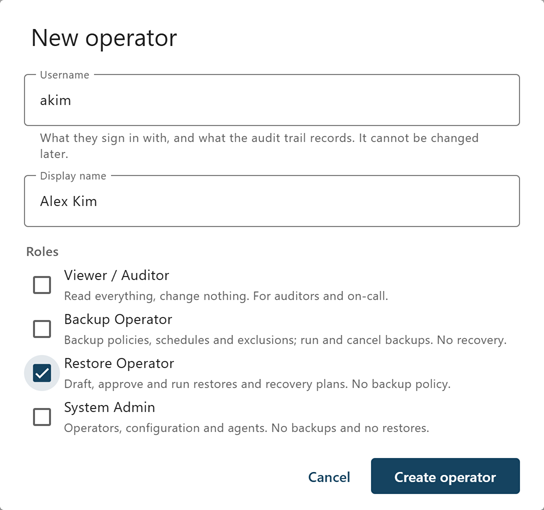
In Username, enter the name the operator signs in with.
A username is 2 to 64 characters: letters, digits, dot, hyphen, and underscore, starting with a letter or digit. It is what the audit trail records, and it cannot be changed later. Names that the product uses for itself, such as
system,manager,operator, andbreakglass, are reserved. -
In Display name, enter the person's name.
-
Under Roles, select one or more roles.
-
Select Create operator.
The Manager generates a temporary password and shows it once.
-
Select Copy, and give the temporary password to the operator by a channel you trust.
-
Select Done.
The operator's status is Temporary password until they sign in. At their first sign-in, in the console or with
cdr login, they must choose their own password before they get a session.
Changing an operator
Open the row menu for an operator on the Operators tab to change it:
- Edit name and roles…—Change the display name and roles. On your own row this reads Edit display name…, because you cannot change your own roles.
- Reset password…—Issues a new temporary password, shown to you once. The operator's current password stops working at once, and every session they have, in the console and in
cdr, ends. Not available on your own row: change your own password from the account menu. - Reset MFA…—For an operator who has lost their phone and their recovery codes. Turns their MFA off, so they sign in with their password alone until they set it up again, and ends every session they have. Shown only for operators who use MFA, and not on your own row. See Multi-Factor Authentication.
- Unlock—Clears a lockout, or a lock on MFA codes, before it expires. On the break-glass account's row, Unlock MFA codes clears a lock on its MFA codes.
- Disable… / Enable…—A disabled operator cannot sign in, and their sessions end on their next request. The account and its history are kept. You cannot disable your own account.
- Remove…—For someone who has left. See the next section. Not available on your own row.
If another administrator removes or restores the account while you make one of these changes, the Manager refuses your change and says it was not saved; reload and try again. A refused change ends none of the operator's sessions.
Removing and restoring an operator
Operators are never deleted. The audit trail, recovery plans, and approvals name operators by username, so deleting an account would free its name for someone else, who would then appear to have done everything the old account did. Use one of these instead:
- Disable—For a temporary absence, or a credential you suspect. The account keeps its roles and MFA, stays in the list, and Enable… brings it back as it was.
- Remove—For someone who has left. Every session ends at once, in the console and in
cdr. The password, MFA, and roles are cleared, not kept. The account stays in the audit trail, its username stays reserved, and the Operators tab hides it unless you show removed operators. A sign-in with a removed username fails in the same way as one with an unknown username.
You cannot remove your own account or the break-glass account. A removed account cannot be edited, enabled, reset, or unlocked; restore it first. Creating an operator with a removed operator's username is refused, with who removed the account and when: if it is the same person returning, restore the account; otherwise choose another username.
To remove an operator:
-
In the console, select Administration > Operators & Roles.
-
Open the row menu for the operator, and select Remove….
-
Check the consequences listed, and select Remove the operator.
The account disappears from the list. The audit trail records the removal under your name, with the roles the account held.
Restore an account only for the same person returning. Nothing comes back from before: the account gets a new temporary password, no MFA, and only the roles you choose now.
To restore a removed operator:
-
On the Operators tab, select Show removed.
-
Open the row menu for the removed operator, and select Restore….
-
Check the Display name, and change it if needed.
-
Under Roles, select one or more roles.
No role is selected to begin with, because the old roles were cleared at removal.
-
Select Restore operator.
The Manager generates a temporary password and shows it once.
-
Select Copy, give the temporary password to the operator by a channel you trust, and select Done.
As for a new account, the operator must choose their own password at their next sign-in. MFA stays off until they set it up again from their account menu.
You can also list, remove, and restore operators with cdr operator list, cdr operator remove, and cdr operator restore. See Connecting and Signing In.
Passwords, lockout, and sessions
| Rule | Value |
|---|---|
| Password length | At least 12 characters, at most 1,024 |
| Password content | Must not contain the username. A new password must differ from the current one. |
| Lockout | 5 failed sign-ins in a row lock the account for 15 minutes. From any one address, no more than 10 failed sign-ins in 15 minutes, for any accounts. A wrong current password in Change password counts as a failed sign-in. The break-glass account is never locked by wrong passwords, and is refused for its address only when it does not sign in on the Manager machine itself. A refused sign-in does not say why; the audit trail does. Wrong MFA codes have a lock of their own, which covers every account. |
| Session lifetime | 12 hours from sign-in, however active the session is |
| Idle timeout | 30 minutes in the console; 4 hours for cdr. The console counts only keyboard, pointer, and touch input, so a console left open is signed out 30 minutes after it was last used, even while its screens refresh. |
| Recovery passphrase | At least 16 characters |
No administrator ever chooses another operator's password: the Manager generates temporary passwords, and each operator chooses their own. To change your own password, open the account menu in the top bar and select Change password. Your other sessions, in another browser or in cdr, end when you save.
cdr keeps its session for the Windows user who signed in, protected with Windows data protection, until the session expires or you run cdr logout.
