Multi-Factor Authentication
Multi-factor authentication (MFA) adds a second step to signing in. After the password, Cygna Forest Recovery asks for the 6-digit code that an authenticator app on your phone shows, such as Microsoft Authenticator, Google Authenticator, or Authy. Someone who learns your password cannot sign in without the phone. MFA applies to the console and to the cdr command-line tool alike.
Neither the Manager nor the phone needs the internet for MFA. The app computes each code from a secret it shares with the Manager and from the current time, so the only requirement is that the two clocks agree to within about 30 seconds.
How MFA works
- Each operator turns it on for themselves—from the account menu, which proves the phone works before anything depends on it. An administrator cannot turn MFA on for someone else, because binding an account to a phone the administrator chose would hand them the account. An administrator can only turn it off, for an operator who has lost their phone. See When an operator loses their phone.
- The code is asked for after the password—so the sign-in page reveals nothing about MFA to someone who does not have the password.
- Each code works once—a code that someone saw over your shoulder cannot be used again, even within its 30 seconds.
- Recovery codes—turning MFA on gives you ten one-time recovery codes. Each signs you in once in place of an authenticator code, so a lost phone does not lock you out.
- The break-glass account can use it too—if you turn MFA on for the break-glass account, keep its recovery codes in the safe with its password.
| Rule | Value |
|---|---|
| Authenticator code | 6 digits, time-based, changing every 30 seconds. A code from the step before or after the current one is accepted, to allow for a small clock difference. |
| Recovery codes | Ten, shown once, each good for one sign-in. Each is ten letters and digits in two groups of five. You can type it with or without the hyphen, in upper or lower case. |
| Setup | Must be finished with a code from the app within 10 minutes of starting it. |
| Code lock | 5 wrong authenticator codes in a row lock authenticator codes for 15 minutes, for every account, including break-glass. Recovery codes are never locked. See Wrong codes and the code lock. |
Before you begin
- Install an authenticator app that supports time-based codes on your phone.
- Check that the clock on your phone and the clock on the Manager are both right.
- Decide where you will store your recovery codes: somewhere other than the phone, such as on paper or in a password manager. For the break-glass account, the safe that holds its password.
Turning on MFA
To turn on MFA for your account:
-
Open the user menu at the right of the top bar and select Multi-factor authentication.
The menu item shows Off while MFA is off. The Multi-factor authentication dialog opens.
-
In Your password, enter your password, and select Set up.
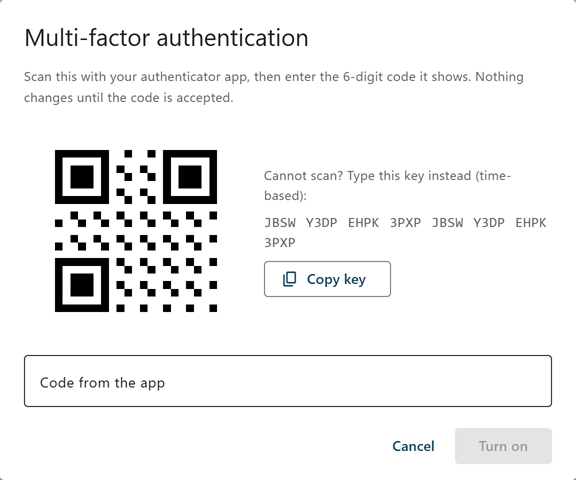
The dialog shows a QR code and, beside it, the same secret as a key you can type.
-
Scan the QR code with your authenticator app.
If your app cannot scan it, add the account in the app by typing the key shown under Cannot scan? Type this key instead (time-based), or select Copy key. The app lists the account under the product name, with your username and the Manager's machine name, so you can tell two Managers apart.
-
In Code from the app, enter the 6-digit code the app shows, and select Turn on.
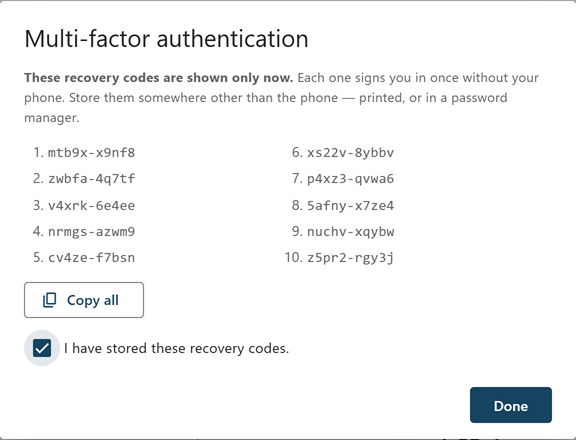
Nothing changes until the code is accepted. The dialog then shows your ten recovery codes.
-
Store the recovery codes somewhere other than the phone. Select Copy all if you want to copy them, for example into a password manager.
The codes are shown only now. They cannot be shown again.
-
Select I have stored these recovery codes., and then select Done.
The console confirms with Multi-factor authentication is on. Your other sessions were signed out. Sessions in other browsers and in
cdrend, because they were opened with the password alone. The user menu now shows On.
If the setup takes longer than 10 minutes, the dialog says That setup has expired or was never started. Start it again to get a new code to scan. Close the dialog and start again; delete the unused entry from your app.
Signing in with MFA
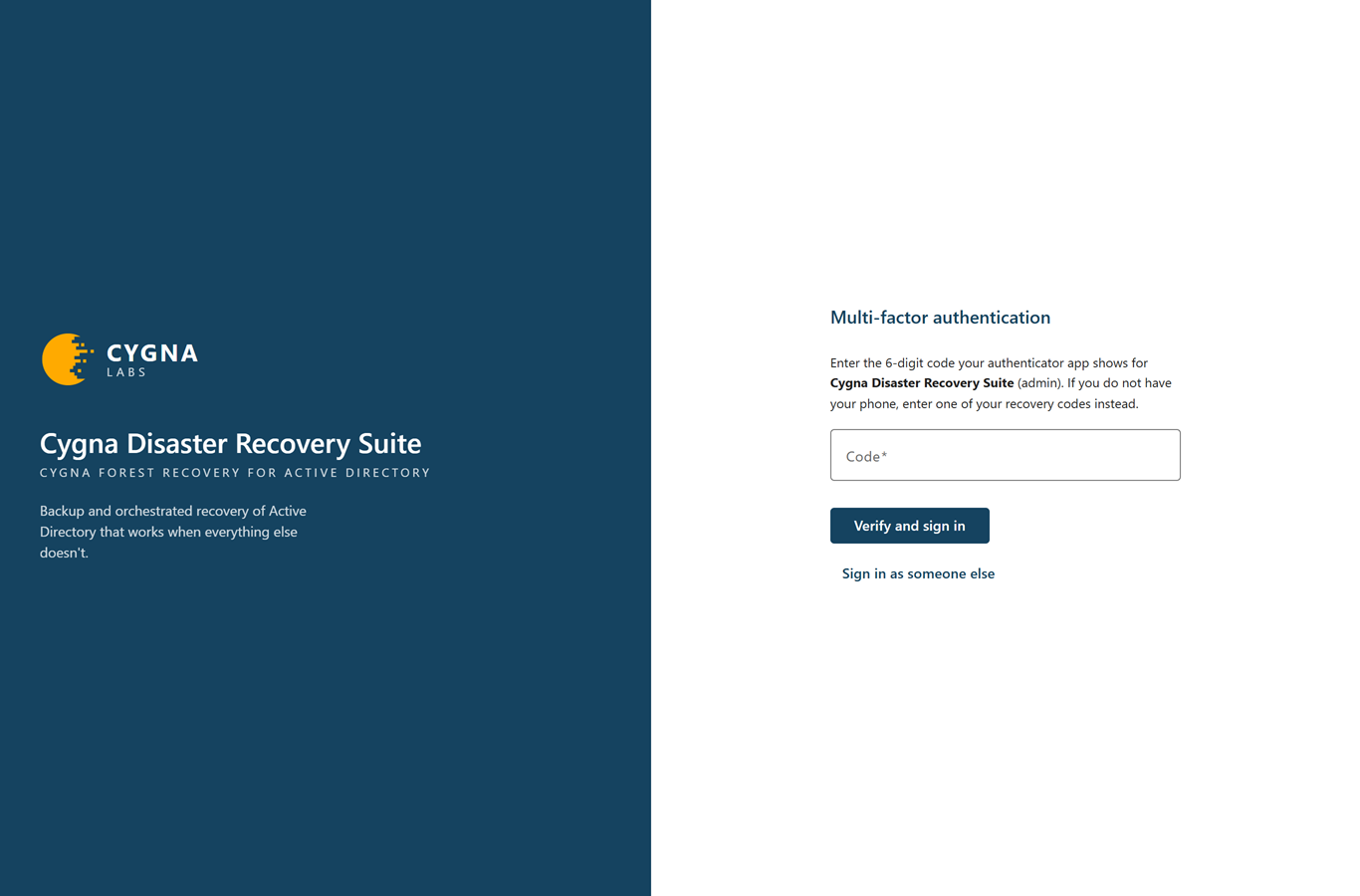
In the console, sign in with your username and password as usual. The sign-in page then shows Multi-factor authentication and asks for the code your authenticator app shows for this account. Enter it in Code and select Verify and sign in. If you do not have your phone, enter one of your recovery codes instead. To start again with another account, select Sign in as someone else.
If an administrator has issued you a temporary password, you choose your new password first, and the code is asked for after that.
With cdr, cdr login prompts for the code after the password, or takes it with --code. See Connecting and Signing In.
When a code is refused, the sign-in page says That code is not correct. Codes change every 30 seconds; if a fresh one is refused too, check that the clock on your phone and on the manager are both right. Wait for the next code and try again.
Managing your recovery codes
Open the user menu and select Multi-factor authentication to see how many unused recovery codes you have. cdr whoami shows the count too. When none are left, the dialog says You have no recovery codes left. Replace them immediately: without one, a lost phone needs an administrator, and locks the break-glass account out for good.
To replace your recovery codes:
-
Open the user menu and select Multi-factor authentication.
-
Select New recovery codes.
-
Enter Your password, and in Code from the app, or a recovery code, enter a current code.
-
Select Replace the codes.
The dialog shows ten new codes. Every earlier code stops working, used or not.
-
Store the new codes, select I have stored these recovery codes., and then select Done.
The console confirms with New recovery codes saved. Your old ones no longer work.
Each time you sign in with a recovery code, the audit trail records it, with the number of codes left.
Turning off MFA or moving it to a new phone
To move MFA to a new phone, turn it off and set it up again on the new phone. Turning it off needs your password and a code. If the old phone is gone, a recovery code works.
To turn off MFA for your account:
-
Open the user menu and select Multi-factor authentication.
-
Select Turn off.
-
Enter Your password, and in Code from the app, or a recovery code, enter a current code.
-
Select Turn off.
The console confirms with Multi-factor authentication is off. You now sign in with your password alone. Your authenticator entry and recovery codes stop working.
To set MFA up on the new phone, follow Turning on MFA again, and delete the old entry from the old app if you still have it.
Wrong codes and the code lock
Wrong authenticator codes are limited separately from wrong passwords. After 5 wrong codes in a row, authenticator codes are refused for 15 minutes. After that, each further wrong code locks them again, and the lock doubles for every 5 more wrong codes, up to 24 hours. A correct code or a recovery code ends the run.
- It covers every account—including the break-glass account, which is never locked by wrong passwords.
- Recovery codes are never locked—while authenticator codes are locked, a recovery code still signs you in. Someone else's guessing cannot lock you out.
- A lock means your password is known—only someone with the right password reaches the code step. If you did not enter the wrong codes, change your password.
While codes are locked, the sign-in page says Too many wrong codes: authenticator codes are refused for now. One of your recovery codes still works, or an administrator can unlock the account. If you did not enter those codes, someone else has your password: change it., with the time the lock ends.
On the Operators & Roles screen, the operator's MFA column shows On, codes locked. An administrator can end the lock with Unlock in the row menu, or with Unlock MFA codes on the break-glass account's row.
The checks in the Multi-factor authentication dialog follow the same rules: a wrong password there counts toward the account lockout, and a wrong code toward the code lock.
When an operator loses their phone
- They still have their recovery codes—they sign in with a recovery code, turn MFA off with another one, and set it up again on the new phone. No administrator is needed.
- They have lost their recovery codes too—an administrator resets their MFA, as described below.
- The break-glass account—no administrator can reset it, so its recovery codes are the only way in without its phone. Keep them in the safe with its password.
To reset an operator's MFA:
-
Confirm that it is really the operator asking.
A reset lets anyone with their password sign in.
-
Select Administration > Operators & Roles.
Resetting MFA needs the
accounts.managecapability. -
Open the operator's row menu and select Reset MFA….
The confirmation explains that their authenticator enrollment and recovery codes stop working, that every session they have in the console and in
cdrends, and that the reset is recorded in the audit trail under your name. -
Select Reset MFA.
The operator signs in with their password alone until they set MFA up again from their account menu. If their phone was stolen, consider resetting their password as well.
Reset MFA… appears only for operators who use MFA. It is not available on your own row (turn off your own MFA from your account menu) or on the break-glass account's row.
MFA and Manager recovery
Each operator's authenticator secret is stored in the Manager database, protected for the Manager machine with Windows data protection. How it comes back depends on how you recover the Manager:
- From a backup of the whole machine—MFA works as before.
- From a configuration backup—the backup carries every operator's MFA enrollment, encrypted under the recovery passphrase like the rest of its contents, and the new Manager protects them again for its own machine. MFA works as before.
- From a database snapshot—the new machine cannot read the secrets. An operator who used MFA gets This manager cannot read your authenticator enrolment: its database was moved from another machine. Sign in with one of your recovery codes, or ask an administrator to reset your MFA. After signing in with a recovery code, they turn MFA off and set it up again. The break-glass account signs in with its password alone, and MFA is turned off for it, with an entry in the audit trail; turn it on again once the Manager is running.
Support packages never contain authenticator secrets or recovery codes. For the recovery routes, see Recovering the Manager.
MFA in the audit trail
The audit trail records every change to an operator's MFA and every sign-in step that involves it. The Action column shows these actions:
| Action | Recorded when |
|---|---|
operator.signin.mfa-challenged
|
The password was right and the Manager asked for a code. One of these without a sign-in after it means someone tried the password and stopped at the code. |
operator.signin.failed
|
A sign-in was refused. For MFA the reason is bad-code, mfa-locked, or mfa-unreadable. |
operator.mfa.enabled, operator.mfa.disabled |
An operator turned MFA on or off for their own account. |
operator.mfa.recovery-code-used
|
A recovery code was used, with the number left. |
operator.mfa.recovery-codes.replaced
|
An operator replaced their recovery codes. |
operator.mfa.challenge.failed
|
A wrong password or code was entered in the Multi-factor authentication dialog. |
operator.mfa.locked
|
Wrong codes locked authenticator codes, with when the lock ends. Someone other than the operator may have their password. |
operator.mfa.reset
|
An administrator reset an operator's MFA. The actor is the administrator. |
operator.mfa.unreadable
|
The break-glass account signed in on a Manager that could not read its authenticator secret, and MFA was turned off for it. |
An administrator ending a code lock is recorded as Account unlocked (operator.unlocked). For reviewing the trail, see Auditing Operator Activity.
