Operators and Roles Screen
The Operators & Roles screen lists who can sign in to this Manager and what each role may do. Operator accounts are Cygna Forest Recovery's own, held in the Manager's database rather than in Windows or Active Directory, so you can sign in when the directory is down, and the accounts come back with the Manager after a rebuild.
To open it, select Administration > Operators & Roles. The screen requires the accounts.manage capability, held by the System Admin role and the break-glass account.
For procedures and guidance on assigning roles, see Managing Operators and Roles.
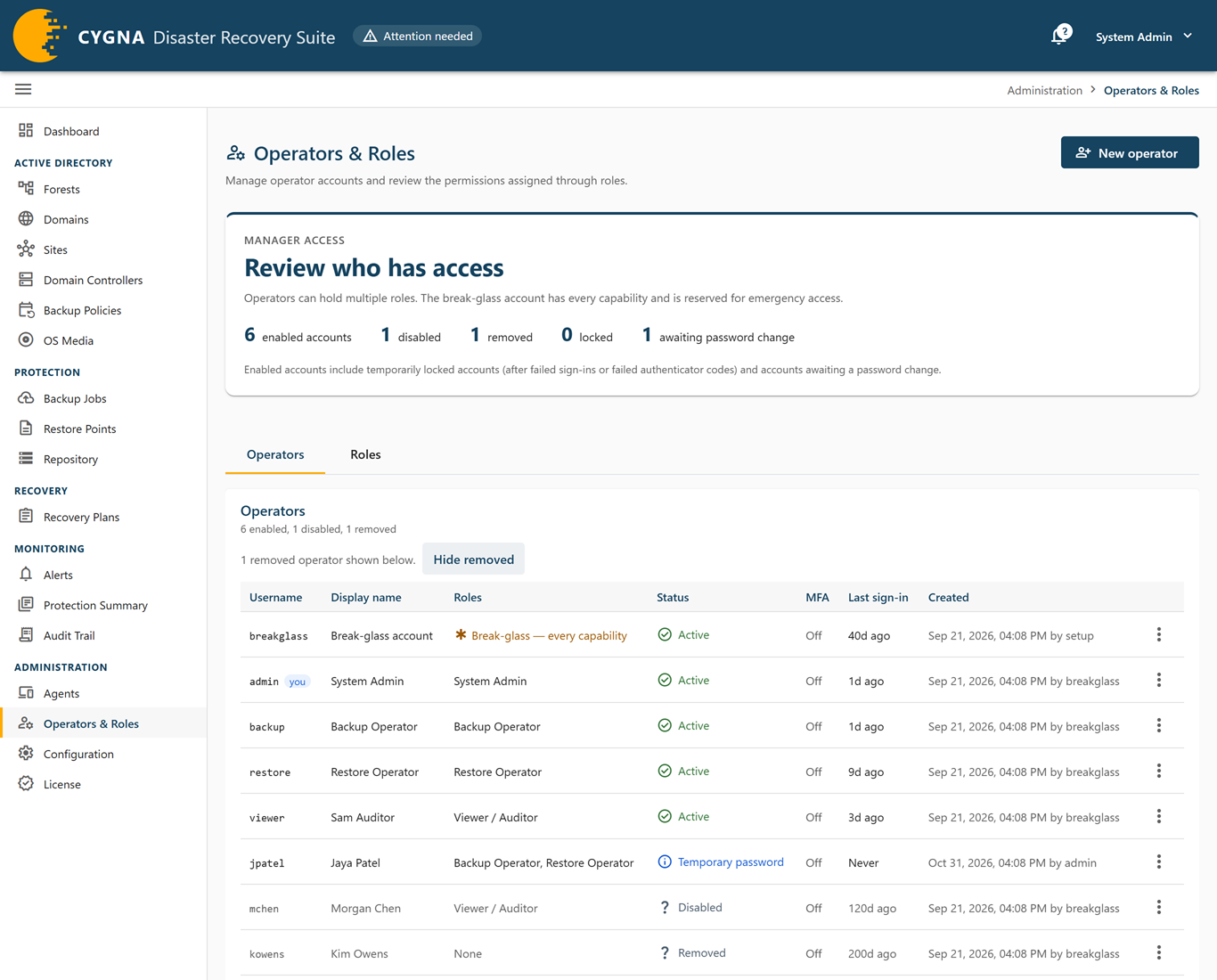
Operators tab
The Operators card lists every account except removed ones, with a count of enabled, disabled, and removed accounts. When removed accounts exist, a line above the table says how many are not shown; select Show removed to list them at the end of the table, and Hide removed to hide them again. The Manager access panel above the tabs also counts enabled, disabled, removed, and locked accounts, and accounts awaiting a password change.
| Column | Description |
|---|---|
| Username | What the operator signs in with, and what the audit trail records. Your own account is tagged you. |
| Display name | The operator's name as shown in the console. |
| Roles | The roles the account holds. The break-glass account shows Break-glass — every capability; a removed account shows None. |
| Status | Active, Disabled, Locked, Temporary password, or Removed (see below). |
| MFA | Whether the operator uses multi-factor authentication: Off, On, On, no recovery codes, or On, codes locked after too many wrong authenticator codes. The tooltip gives the number of unused recovery codes, or when a code lock ends. Each operator turns MFA on for themselves. |
| Last sign-in | When the operator last signed in, or Never. |
| Created | When the account was created, and by whom. |
| Status | Meaning |
|---|---|
| Active | Can sign in. |
| Disabled | Cannot sign in. The account and its history are kept. |
| Locked | Locked after repeated failed sign-ins, until the time shown. Lockout lasts 15 minutes after 5 failures. |
| Temporary password | Has not yet signed in with the temporary password an administrator issued. |
| Removed | Removed for someone who has left. Holds no password, MFA, or role, and cannot sign in. The username stays reserved. The tooltip says when and by whom. |
Row actions
Each row has a menu with the actions that apply to it:
- Edit name and roles…—Change the display name and roles. On your own row this reads Edit display name…, because you cannot change your own roles.
- Reset password…—Issue a temporary password (not available on your own row).
- Reset MFA…—Turn off multi-factor authentication for an operator who has lost their phone and their recovery codes. Shown only when the operator uses MFA, and not on your own row.
- Unlock—Shown when the account is locked, or its MFA codes are locked. Lets the operator try again immediately.
- Disable… or Enable…—Stop or restore the operator's ability to sign in (not available on your own row).
- Remove…—Remove the account of someone who has left (not available on your own row).
On a removed account's row, the menu says when and by whom the account was removed, and offers one action: Restore….
Accounts cannot be deleted. Disable is for a temporary absence and keeps the roles; remove is for someone who has left. See Managing Operators and Roles.
Creating an operator
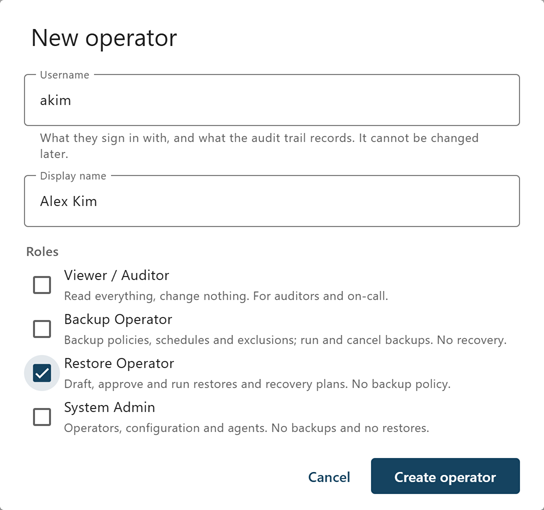
Select New operator to open the operator dialog:
| Field | Description |
|---|---|
| Username | 2 to 64 characters: letters, digits, dot, hyphen, and underscore, starting with a letter or digit. It cannot be changed later. |
| Display name | Required, up to 128 characters. |
| Roles | One or more of the roles below. At least one is required. |
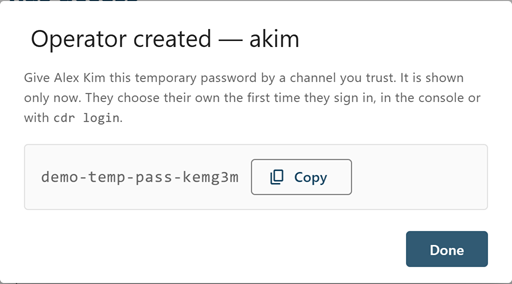
Select Create operator. The Manager generates a temporary password and shows it once, in a dialog titled Operator created — <username>. Select Copy, give the password to the operator by a channel you trust, then select Done. The operator chooses their own password the first time they sign in, in the console or with cdr login. Administrators never set another operator's password.
Resetting a password
Select Reset password… on an operator's row, then Reset the password. The operator's current password stops working, every session they have in the console and in cdr ends, and the reset is recorded in the audit trail under your name. The Manager shows a new temporary password once, in the same way as for a new operator.
To change your own password, use Change password in your account menu. Passwords must be at least 12 characters and must not contain the username.
Resetting MFA
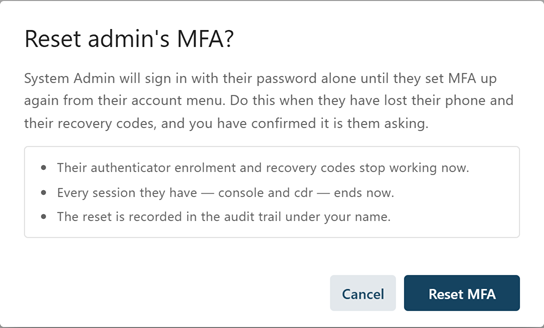
Select Reset MFA… on an operator's row, then Reset MFA. Do this only when the operator has lost their phone and their recovery codes, and you have confirmed it is them asking. Their authenticator enrolment and recovery codes stop working, every session they have in the console and in cdr ends, and the reset is recorded in the audit trail under your name. They sign in with their password alone until they set MFA up again from their account menu. No administrator can turn MFA on for someone else. See Multi-Factor Authentication.
Disabling, enabling, and unlocking
Select Disable…, then Disable the account. The operator cannot sign in until the account is enabled again, and every session they have ends on its next request. Select Enable…, then Enable the account, to let them sign in again with the roles the account already holds. Select Unlock to clear a lockout, or a lock on the operator's MFA codes. You cannot disable your own account.
Removing and restoring an operator
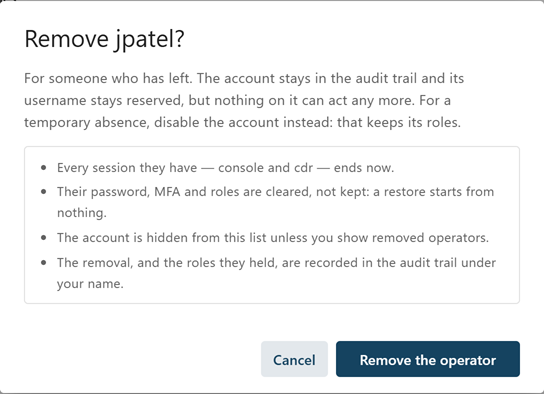
Select Remove… on an operator's row, then Remove the operator. Every session they have in the console and in cdr ends at once, their password, MFA, and roles are cleared, and the removal and the roles they held are recorded in the audit trail under your name. The account is then hidden unless you select Show removed. You cannot remove your own account or the break-glass account. Creating an operator with a removed operator's username is refused.
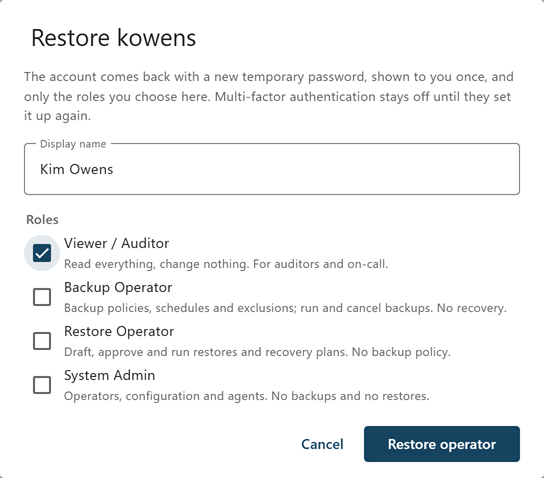
To bring a removed account back for the same person, select Show removed, then Restore… on its row. The dialog, titled Restore <username>, has the Display name and Roles fields of the operator dialog, with no role selected. Choose at least one role and select Restore operator. The Manager shows a new temporary password once, in a dialog titled Operator restored — <username>, in the same way as for a new operator. MFA stays off until the operator sets it up again.
The same actions are available as cdr operator list, remove, and restore. See Connecting and Signing In.
Roles tab
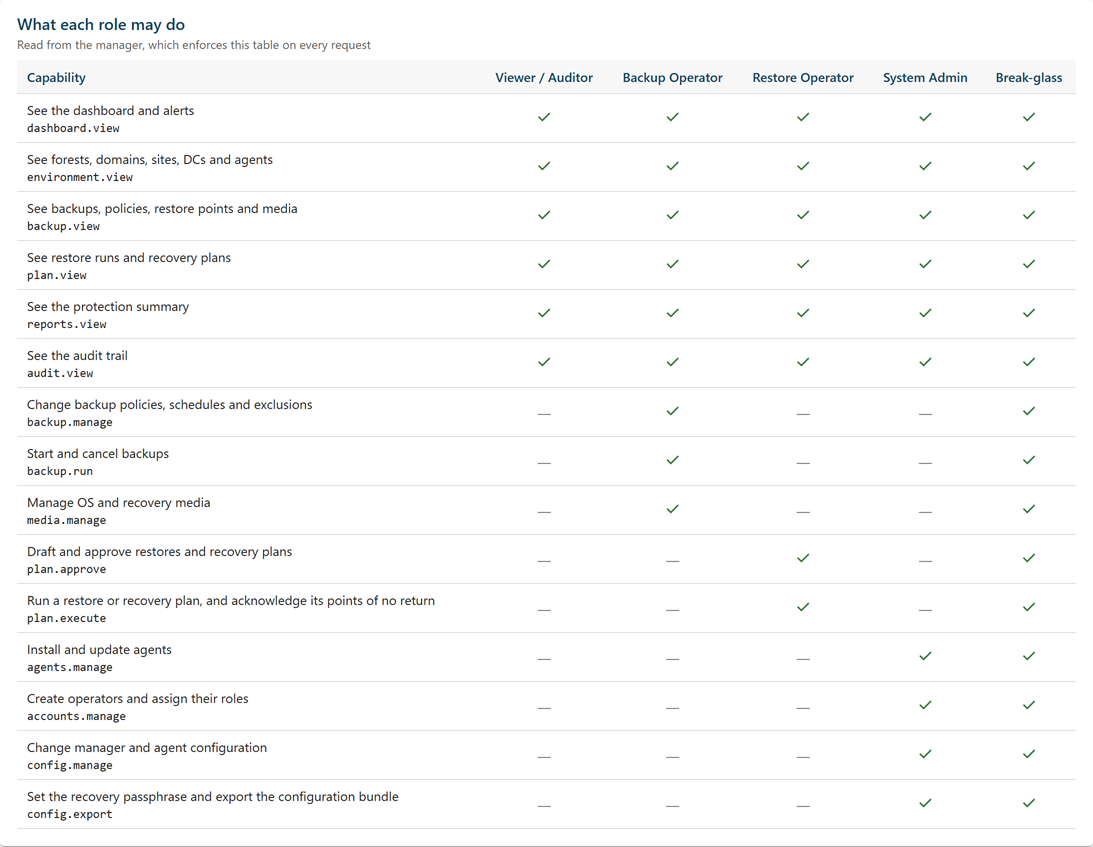
The Roles tab shows the What each role may do table, read from the Manager, which enforces it on every request. Each row is a capability, with its description and code, and each column a role. An operator can hold several roles.
| Role | What it may do |
|---|---|
| Viewer / Auditor | Read everything, change nothing. For auditors and on-call staff. |
| Backup Operator | Backup policies, schedules, and exclusions; run and cancel backups. No recovery. |
| Restore Operator | Draft, approve, and run restores and recovery plans, including unattended plans, their notification addresses, and the emailed recovery report. No backup policy. |
| System Admin | Operators, configuration (including the mail server), and agents, including deleting an agent's record. No backups and no restores. |
| Break-glass | Every capability. Not an assignable role: a property of one account. |
The roles separate duties on purpose. System Admin holds neither backup nor restore capability, and only Restore Operator (and break-glass) may run a restore, so account administration never brings destructive capability with it. For the full capability table, see Managing Operators and Roles.
The break-glass account
The break-glass account is created at the first console sign-in and holds every capability. It exists for when nothing else works. Its row cannot be changed from this screen: no administrator can change its roles, password, or status. To change its password, sign in as the break-glass account and use Change password, then update the offline record of the credential. The one action on its row is Unlock MFA codes, shown when too many wrong authenticator codes have locked its codes.
Note: Nobody can change their own roles, and nobody but the break-glass account itself can change the break-glass account. Either would let one person go from account administration to running a restore without a second person.
For how the break-glass account is created, see Signing In for the First Time.
