Signing In for the First Time
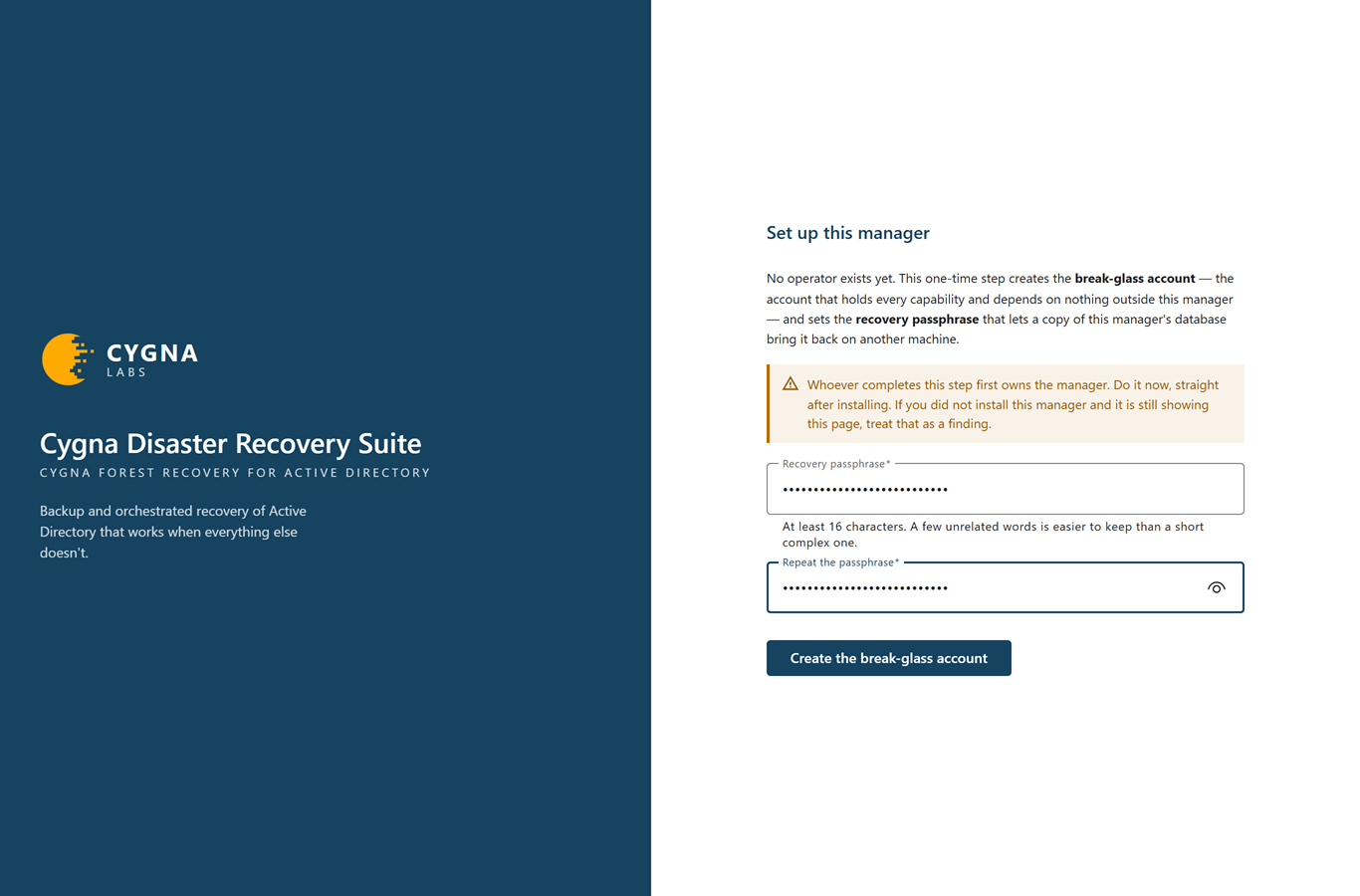
A new Manager has no operator accounts. The first time anyone opens the console, it shows a one-time setup page that creates the break-glass account and sets the recovery passphrase:
- Break-glass account—An account that holds every capability and depends on nothing outside the Manager. You keep it for the day nothing else works, and use named operator accounts for everyday work. No administrator can change its roles or reset its password.
- Recovery passphrase—A passphrase that protects a copy of the Manager's CA key in its database. With a copy of the database and this passphrase, you can bring the Manager back on another machine. It also opens the Manager's configuration backups on the storage machine.
Note: Important: Whoever completes the setup first owns the Manager. Complete it immediately after you install the Manager. If you open the console of a Manager you did not just install and it still shows the setup page, treat that as a security finding.
Before you begin
- Install the Manager. See Installing the Manager.
- Choose a recovery passphrase of at least 16 characters. A few unrelated words are easier to keep than a short, complex string.
- Have a way to record the break-glass credential offline, such as paper you can put in a safe. The password is shown only once.
Open the console
The console is served by the Manager at https://<manager>:5210, where <manager> is the Manager's IP address or host name. If the HTTP redirect is on, http://<manager>/ takes you there too. If you changed the port at installation, use that port instead.
Until you trust the Manager's CA on your workstation, the browser warns that the connection is not private. The certificate is genuine, but it is issued by the Manager's own CA, which your browser does not yet know. To remove the warning, see Trusting the Manager Certificate.
For the first sign-in, the safest choice is a browser on the Manager machine itself, at https://localhost:5210. The break-glass password then never crosses the network before you have confirmed the Manager's certificate.
On a wide enough window, a panel beside the setup and sign-in forms shows the product name, Cygna Disaster Recovery Suite, with the module it carries, Cygna Forest Recovery for Active Directory. Once setup is complete, the sign-in form is headed Sign in to Cygna Disaster Recovery Suite, at any window width.
Complete the setup
To set up the Manager:
-
Open the console.
The Set up this manager page opens.
-
In Recovery passphrase, enter the passphrase you chose.
-
In Repeat the passphrase, enter it again.
-
Select Create the break-glass account.
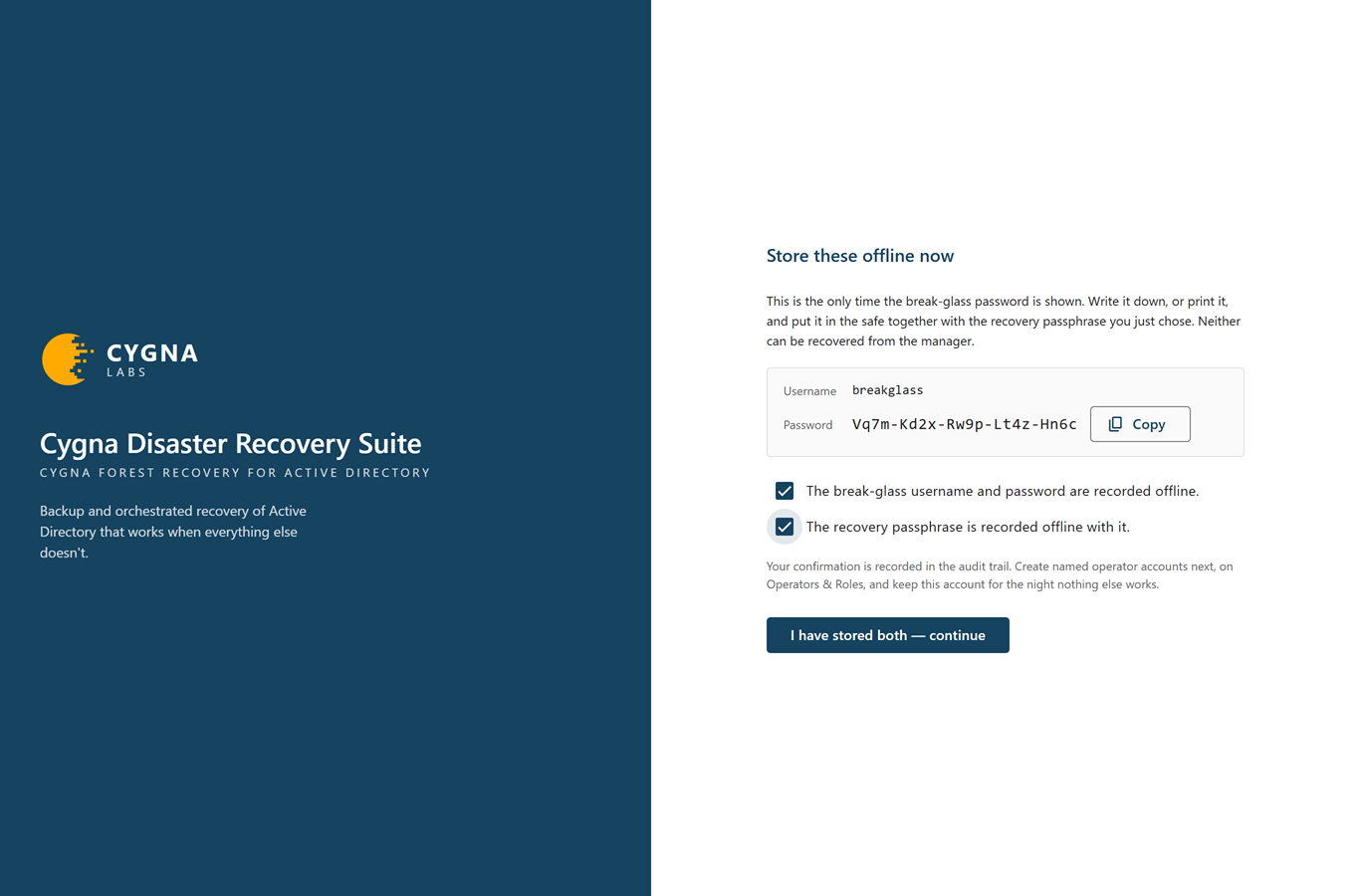
The Store these offline now page shows the break-glass Username and Password, which the Manager generated.
-
Record the username and password offline, together with the recovery passphrase. Select Copy if you want to copy the password, for example to print it.
Neither the password nor the passphrase can be recovered from the Manager.
-
Select The break-glass username and password are recorded offline.
-
Select The recovery passphrase is recorded offline with it.
-
Select I have stored both — continue.
Your confirmation is recorded in the audit trail, and the console opens, signed in as the break-glass account.
If the page was closed before you confirmed, the next visit says that the break-glass account was created but its password cannot be shown again. If you recorded it, select It was recorded — continue. If you did not, select Issue a new password: the Manager shows a new password, and the old one stops working.
If the console says Setup has already been completed on this manager. Sign in instead. and you did not complete it, someone else holds the break-glass account. Treat this as a security finding, and do not enroll agents with this Manager.
Store the Manager's credentials offline
Keep these together in a safe or another offline location that does not depend on Active Directory:
- The break-glass username and password
- The recovery passphrase
- The enrollment token the Manager was installed with
- The break-glass account's recovery codes, if you turn on multi-factor authentication for it
The CA fingerprint is public, so it does not belong in the safe. Keep a copy with your recovery notes instead.
For everything else to do on the first day, see Manager Day-One Checklist. You can change the recovery passphrase later from the Manager recovery card on the License screen; replace the offline record when you do.
Apply the license key
A new Manager has no license, and without one it refuses every backup, restore, recovery plan, and test restore. Until you apply a key, a banner on every screen says that backups and recovery operations are stopped. Apply the key now, while you are signed in as the break-glass account, which can apply it.
To apply the license key:
-
Select Administration > License.
-
Select Apply a license key….
-
In License key, paste the key exactly as Cygna sent it.
The dialog shows what the key says: the licensee, type, number of people, and end date.
-
Select Apply this license.
The License page shows the license's standing. The banner disappears, unless the license ends within 30 days, as a short trial may; it then reads License ending soon.
You can also run cdr license apply <KEY>. For what the license enforces and how it warns before it ends, see Licensing.
Create named operator accounts
Use the break-glass account only to set up named accounts, and then keep it in the safe. Every action it takes is recorded in the audit trail as break-glass, and named accounts let you see who did what.
Operator accounts belong to Cygna Forest Recovery itself. They are stored in the Manager database, not in Active Directory or Windows, so they work when the directory is down. Each account gets one or more roles: Viewer / Auditor, Backup Operator, Restore Operator, and System Admin. A System Admin manages agents, accounts, and configuration but cannot run backups or restores, so the people setting up the deployment usually need more than one role.
To create the first named accounts:
-
Select Administration > Operators & Roles.
-
Create an account for each person, with the roles they need.
The Manager generates a temporary password for each new account and shows it once. The person chooses their own password at their first sign-in.
-
Sign out of the break-glass account and sign in with your named account.
Each operator can then turn on multi-factor authentication for their own account from the user menu, so that signing in also needs a code from an authenticator app on their phone. It does not need internet access. The break-glass account can use it too; if you turn it on, its recovery codes go in the safe with its password. See Multi-Factor Authentication.
For the details of each role and how to create accounts, see Managing Operators and Roles.
