Audit Trail
The Audit Trail screen lists every gate result and state change the Manager has recorded, with who or what caused it. The Manager writes an audit entry for events such as an agent enrolling, a backup starting, completing, or failing, a policy or setting changing, an operator signing in or changing roles, and every step of a restore or recovery, including each approval and acknowledgment.
To open it, select Monitoring > Audit Trail. The screen requires the audit.view capability, which every role includes. It changes nothing, and it refreshes itself every 30 seconds.
For what is audited and how long entries are kept, see Auditing Operator Activity.
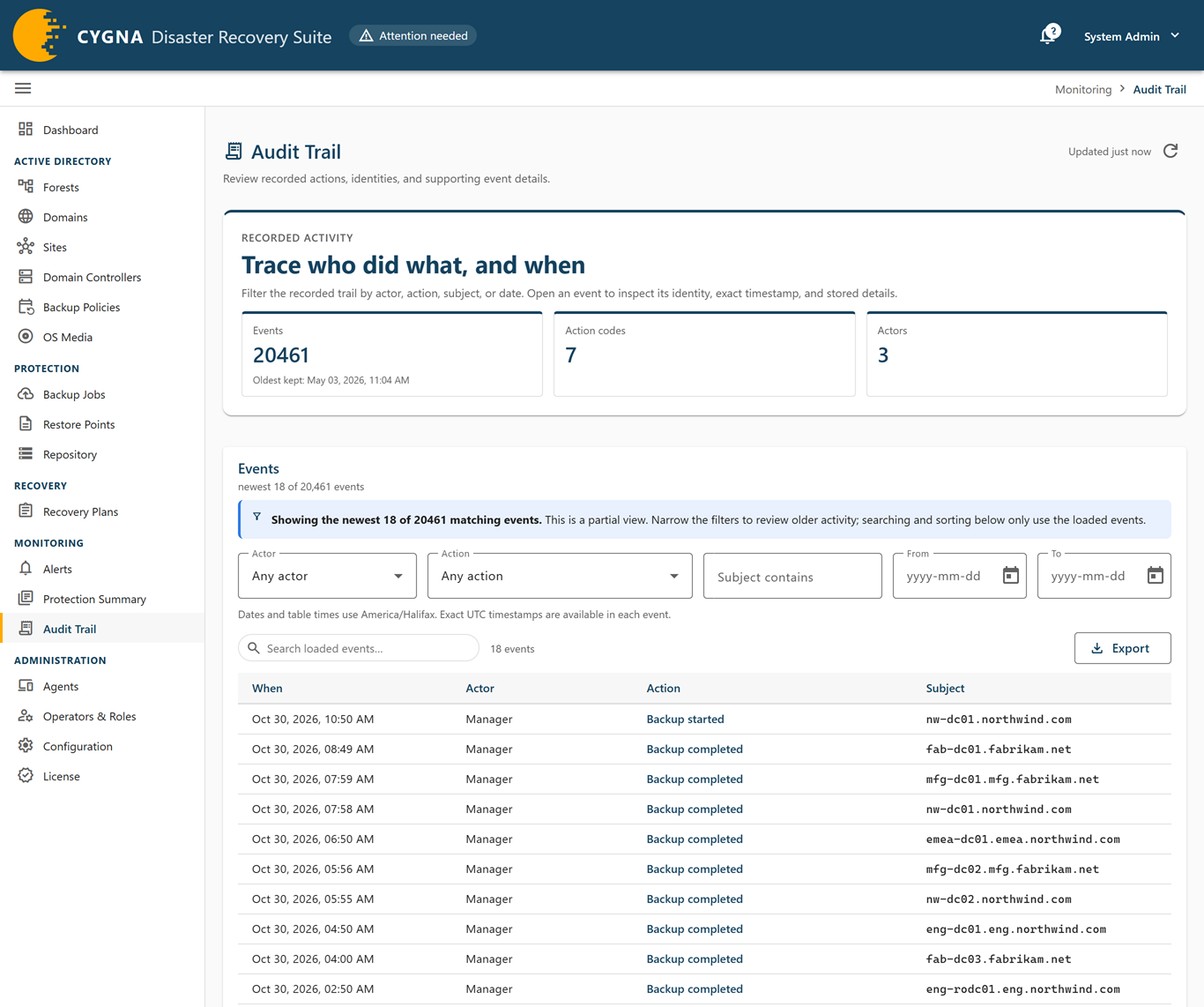
Tiles
- Events (or Events matching when filtered)—How many entries there are, whether all of them are shown, and the date of the oldest entry kept.
- Action codes—How many distinct kinds of action appear across the whole trail.
- Actors—How many distinct actors appear across the whole trail.
Filters
The filters on the Events card are applied by the Manager, which returns at most the newest 200 matching entries. To find older entries, narrow the filters.
| Filter | Description |
|---|---|
| Actor | One actor, or Any actor. |
| Action | One kind of action, shown with its label and code, or Any action. |
| Subject contains | Text the entry's subject must contain, such as a machine name. |
| From and To | A date range. |
Select Clear filters to remove them all. The search box narrows only the entries already returned; to ask the Manager for a different set, change the filters. If the Manager did not apply a filter as requested, a Filter not applied notice warns that the rows are not narrowed the way the controls say.
Events
The table has four sortable columns:
| Column | Description |
|---|---|
| When | When the entry was recorded. |
| Actor | The operator's username, or System, Manager, Storage agent, or Unauthenticated caller. |
| Action | What happened, for example Restore approved, Configuration changed, or Sign-in failed. An action the console has no wording for is shown as its code. |
| Subject | The object the action applied to, such as a machine, policy, plan, or operator. |
Audit entry detail
Select a row to open the entry's detail sheet. It shows Recorded (local) and Recorded (UTC), Actor (with the stored identity beneath it), Subject, Action code, and the entry number. The Fields section lists the entry's detail as key and value pairs, such as the reason an operator gave. The Detail as stored section shows the same detail exactly as recorded. It starts collapsed for each entry you open; select it to expand it. When the detail could not be read into fields, it starts expanded, because it is all there is.
Exporting the audit trail
Export, beside the search box on the Events card, saves the audit trail as a file to keep or send. Exporting needs only the audit.view capability, so every role can export.
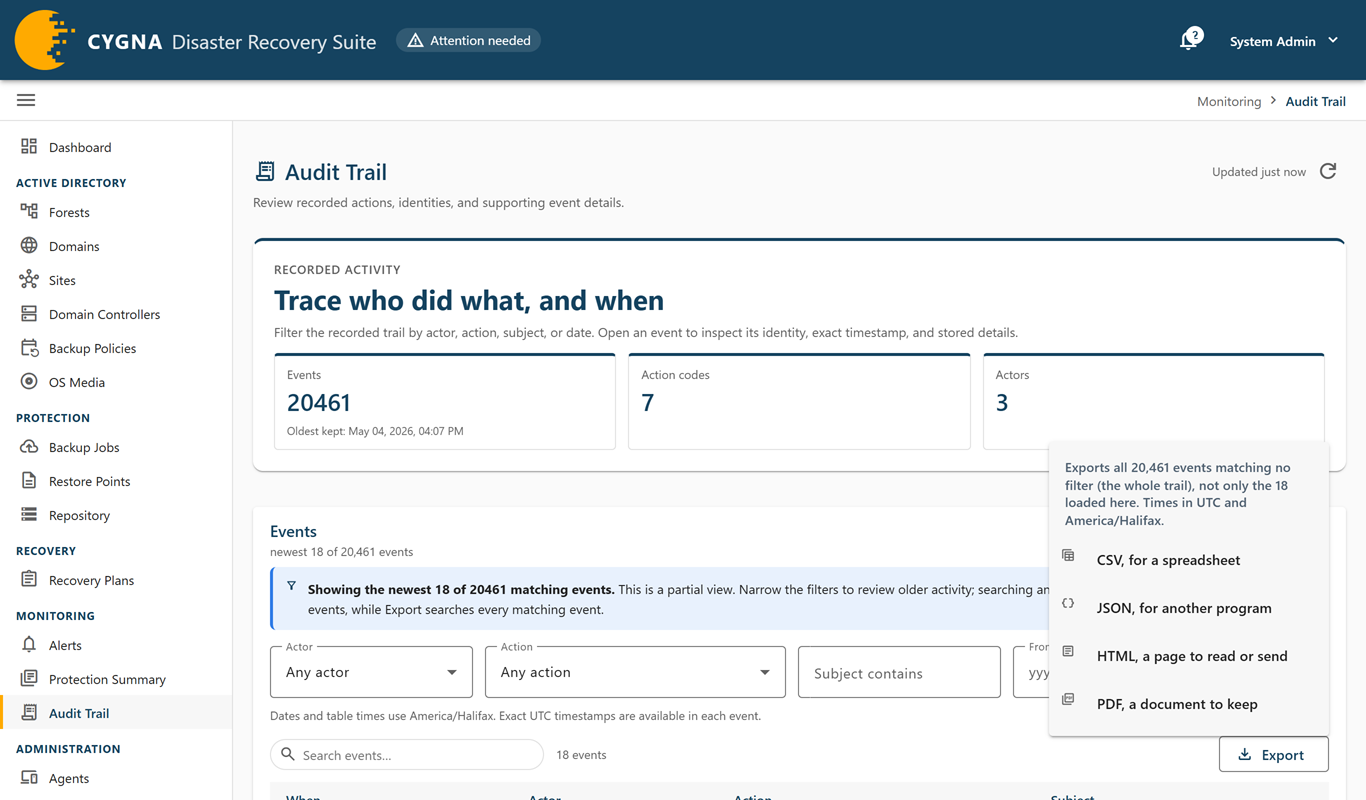
The Manager makes the file from every entry that matches the filters and the search box, across the whole trail—not only the 200 entries loaded on the screen. Before you choose a format, the menu says what the file will hold, for example Exports all 4210 events matching the filters, not only the 200 loaded here. Times in UTC and Europe/Berlin. The time zone is your browser's.
To export the audit trail:
-
Set the filters, and a search if needed, to match the entries you want.
-
Select Export.
The menu shows what the export holds.
-
Select a format.
The button reads Exporting… until the file is made, and your browser then saves it. You can export one format at a time.
| Format | At most | What you get |
|---|---|---|
| CSV, for a spreadsheet | 100,000 entries | One header row and one row per entry: Event ID, Time (UTC), the time in your time zone, Actor, Actor code, Action, Action code, Subject, and Detail. UTF-8 with a byte order mark, so Excel reads it correctly. A value that starts with =, +, -, @, a tab, or a carriage return is written with a leading apostrophe, so a spreadsheet shows it as text instead of running it as a formula; Excel does not display the apostrophe. The filters are not written into the file. |
| JSON, for another program | 100,000 entries | When and by whom the file was exported, the Manager, the filters and search, the time zone, the number of entries, and the entries themselves. |
| HTML, a page to read or send | 5,000 entries | A page titled Audit trail export that says when, by whom, and from which Manager it was exported, lists the filters and search, and then the entries with their time, actor, action, subject, and detail. Times are shown in your time zone with UTC beneath. |
| PDF, a document to keep | 5,000 entries | The same document as the HTML page, on A4 landscape pages. The Manager makes it with its own PDF renderer. |
The file uses the console's wording for actors and actions, with the codes beside them. It takes the Manager's name for it, cygnadr-audit-<yyyyMMdd-HHmmss>.<format>, from the UTC time of the export.
If more entries match than the format holds, nothing is exported, so you never get a truncated file. A Not exported notice gives the Manager's reason, for example More than 5,000 events match, and a PDF export holds at most 5,000. Narrow the dates or the filter, or export CSV or JSON, which hold up to 100,000. The same notice reports a PDF the Manager could not make. Narrow the filters or the dates and export again.
Each export is recorded in the audit trail as Audit trail exported (audit.exported) before the file leaves the Manager. The entry's subject is the file name, so you can match a saved file to the record of its export.
To export from a script, use cdr audit export. See Alert, Audit, and Report Commands.
