Backup Policies
The Backup Policies screen shows what gets backed up, how often, and with which backup type. It has one row per known domain controller. A policy belongs to one machine and sets its backup interval, an optional start time, its backup type, and whether it is enabled. No machine has a policy until you create one.
To open the screen, select Active Directory > Backup Policies. Every role can see it. Creating, changing, and removing schedules, and starting a backup from a row, require the Backup Operator role (or the break-glass account); the Manager refuses a schedule change from any other account with The manager refused this request., and the back-up-now button is not shown to it.
For step-by-step procedures, see Managing Backup Policies. To set up policies on a new installation, see Creating Your First Backup Policies.
If no domain controller is known yet, the screen shows No domain controllers are known to this manager. A schedule is attached to a machine, so install the DC agent first; see Deploying DC Agents.
Schedules
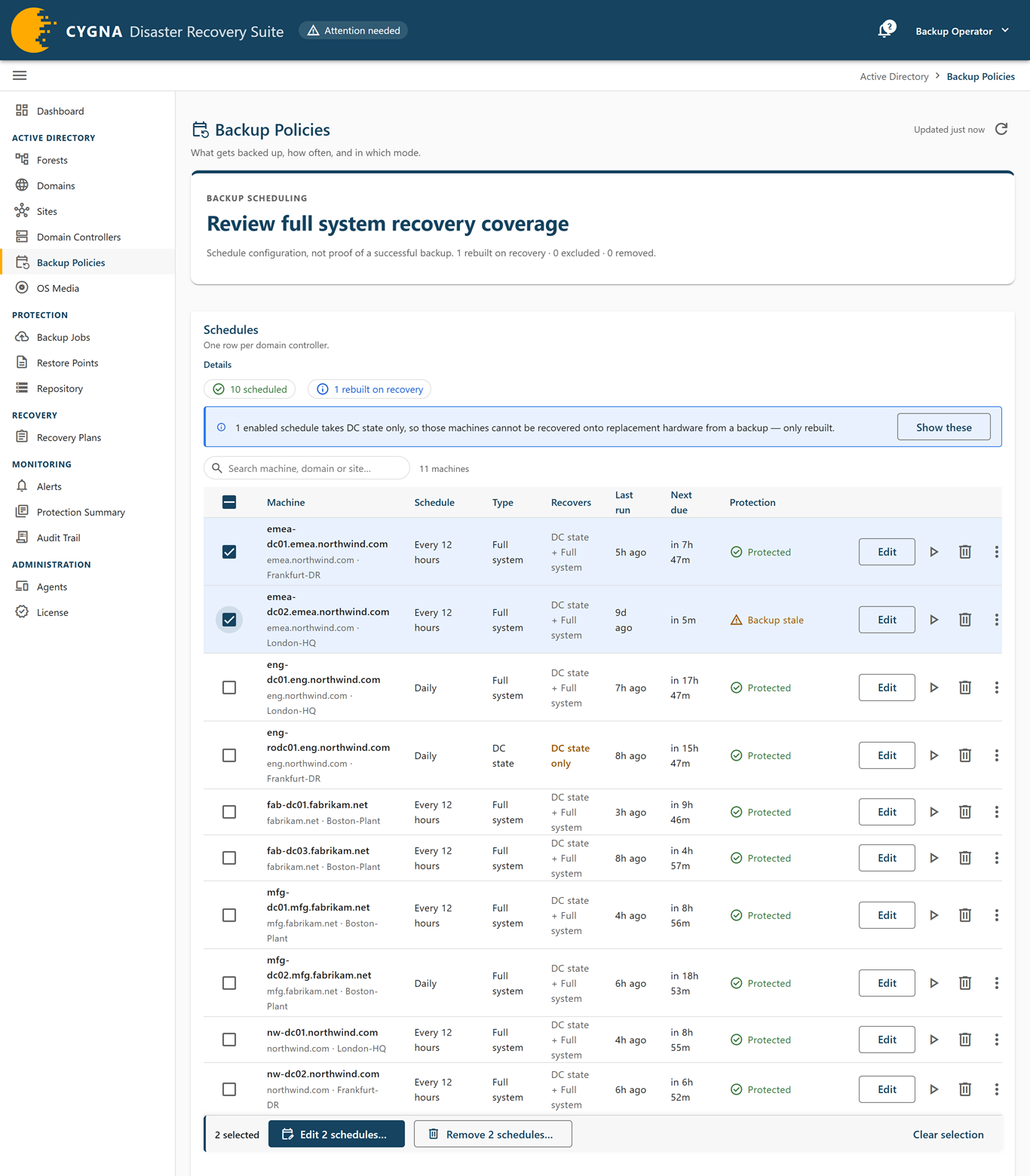
The Schedules card lists first the machines that need a schedule: those with backups and no schedule, and those their domain needs backed up. Scheduled machines follow, then the machines rebuilt on recovery, which need none, and machines excluded from alerts come last.
| Filter chip | Shows |
|---|---|
| scheduled | Machines with a schedule. |
| need a backup policy | Critical. Shown when a domain has fewer backup targets than a recovery needs. The count is how many more domain controllers need a schedule. Selected, it lists every domain controller that could make up the difference: writable, in scope, and rebuilt on recovery. Any of them will do. |
| rebuilt on recovery | Machines with no enabled schedule and no restore point, which a recovery rebuilds by promotion. Information, not a finding. Schedule one only to make it a backup target. See Backup Targets and Rebuilt Domain Controllers. |
| unscheduled | Machines with restore points and no schedule, so their restore points will age. A warning. |
| disabled | Machines whose schedule is disabled and that still have restore points. |
| due now | Machines whose next backup is due. |
| excluded | Machines excluded from alerts. They are left out of the other counts but still listed and can still be scheduled. |
| removed | Machines recorded as removed from the directory. Those that still have a schedule stay listed so you can remove it. |
When a domain has fewer backup targets than a recovery needs, the panel at the top of the screen shows n need a backup policy as Action required, and names each domain with how many more it needs. Select Review candidates to list the domain controllers that could take the schedule. A schedule on a machine without a DC agent waits for one, so when the candidates have no agent the panel says to install one first, and each such row reads Its domain needs another backup. Install an agent here before scheduling it. Machines with backups and no schedule are a separate warning, n with backups and no schedule.
When enabled schedules take DC state backups, a notice says how many: those machines can be recovered only with DC state recovery, not onto replacement hardware. Select Show these to list them.
Columns
| Column | Description |
|---|---|
| Machine | The domain controller, with its domain and site. Notes appear when no agent is enrolled (the schedule will not run), when the machine is excluded, and when it is Removed from the directory but backups are still being dispatched to it (remove the schedule). |
| Schedule | The interval, such as Daily, Hourly, or Every 4 hours, followed by the start time if the schedule has one, for example Daily from 22:00. The start time is the Manager's local time. A disabled schedule shows the same text followed by · off. None means no schedule. |
| Type | Full system or DC state. |
| Recovers | DC state + Full system for a full system backup, or DC state only for a DC state backup. |
| Last run | When the scheduler last dispatched a backup. This is not necessarily the last successful backup; see the Backup Jobs screen for outcomes. |
| Next due | How long until the next backup is due (for example in 9h 40m), Due now, Not scheduled, or Waiting for agent. Waiting for agent means no DC agent has come online for the machine yet: the schedule is held, and its first backup runs as soon as one does. |
| Protection | The machine's protection verdict, as on the Domain Controllers screen. |
Row actions
- Schedule—Shown when the machine has no schedule. Opens the editor for a new schedule.
- Edit—Changes the state, interval, start time, or backup type.
- Back up now (play icon)—Shown on a row with a schedule, except for a machine recorded as removed from the directory or one whose DC agent has never connected. Starts a backup of the machine now, of the type its schedule takes; the tooltip names it, for example Back up now (Full system). The backup does not change the schedule's last or next run. See Running a Backup Now.
- Remove schedule (delete icon)—Removes the schedule and discards its interval, start time, and type. To pause backups and keep the settings, disable the schedule instead.
- Actions menu (⋮)—Links to the same machine on other screens: Backup jobs, Restore points, and Repository, each filtered to the machine, and Domain controller, which opens its details on the Domain Controllers screen with the list filtered to it.
While a schedule is being saved, Edit, Back up now, and Remove schedule are unavailable on every row, so a backup never starts with the type being changed away from.
Schedule, Edit, Remove schedule, and the bulk bar are shown only to operators with the backup.manage capability (Backup Operator role). Back up now needs backup.run.
Select machines with the checkboxes to show the bulk bar, with Edit n schedules…, Remove n schedules…, and Select all n matching.
Schedule editor
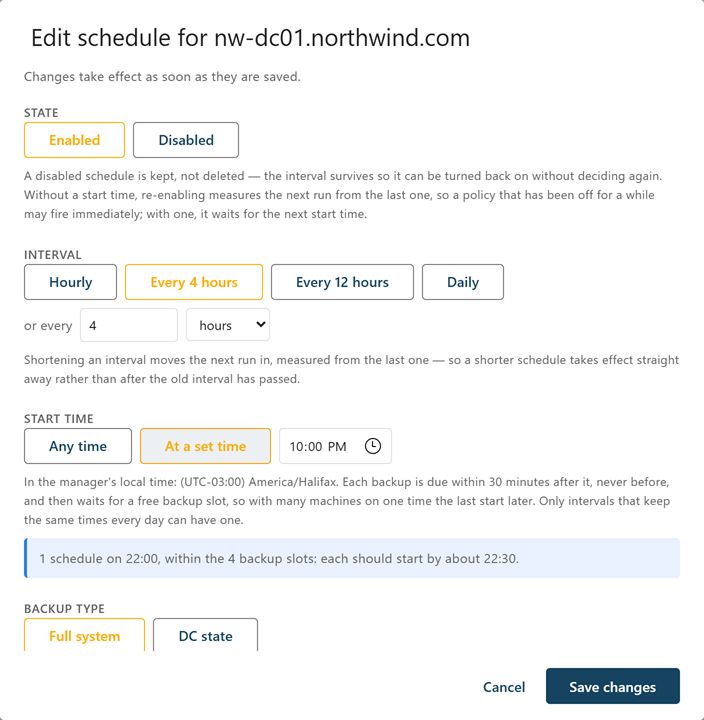
The editor opens as Schedule machine for a new schedule or Edit schedule for machine. A new schedule starts as enabled, daily, Full system. Changes take effect as soon as you save them.
| Field | Description |
|---|---|
| State | Enabled or Disabled. A disabled schedule keeps its settings so you can turn it back on later. When you re-enable a schedule without a start time, the next run is measured from the last one, so a schedule that has been off for a while may run immediately. A schedule with a start time waits for its next start time. |
| Interval | A preset (Hourly, Every 4 hours, Every 12 hours, Daily) or a custom value: or every a whole number of minutes, hours, or days, from 5 minutes to 90 days. Shortening an interval moves the next run in, measured from the last run. |
| Start time | Any time (the default) runs on the interval alone, with a small random spread either side of it. At a set time shows a time field, filled in with 22:00. The time is 24-hour, in the Manager's local time; the hint under the field names the Manager's time zone. Each backup is due within the Start time spread after the start time, never before, and then waits for a free backup slot. Only an interval that runs at the same times every day can have a start time; see Managing Backup Policies. |
| Backup type | Full system captures the critical volumes, including Windows, applications, and DC state, and supports both DC state recovery and full system recovery. DC state is smaller and faster and supports DC state recovery only. See Backup Types. |
While an enabled schedule has a start time, the editor shows the Manager's estimate under the field. When the schedules on that time fit in the backup slots, it reads, for example, 3 schedules on 22:00, within the 4 backup slots: each should start by about 22:30. When more schedules share the time than there are slots (Maximum concurrent backups), a warning says how late the last of them should start, based on the average length of recent backups, and suggests raising Maximum concurrent backups or giving some of them another start time. The warning does not stop the save.
Select Create schedule or Save changes. The confirmation says how the timing changed, for example first backup is due immediately, first backup is due at time for a new schedule with a start time, next run moved from time to time, next run is now due at time when an edit gives a schedule that has never run its first run, or timing unchanged. Times in the confirmation are shown in your browser's time zone. If the machine's agent was not reachable, the confirmation says the agent picks up the change when it reconnects. If no DC agent has ever come online for the machine, the confirmation says instead that no backup runs until one is installed and connects. It then names the first backup's due time, if that is still ahead, adding that the backup runs as soon as the agent connects if that is later; otherwise it says that the first backup then runs straight away.
The bulk editor (Edit the schedules of n machines) has the same fields, each with a Keep current option that leaves that setting unchanged. Machines without a schedule get the defaults for any field left on Keep current. A start time that some machines' intervals cannot keep is refused before the save, with the machines named. If some machines fail, the dialog lists them and offers to retry only those.