Running a Backup Now
Take a backup outside the schedule when you need a fresh restore point straight away: before a risky change such as a schema update or an operating system patch, after a domain controller was patched (a DC state recovery cannot restore DC state from before an update), after a recovery, or to prove that a new domain controller can be backed up. When a recovery plan completes, it requests a backup of every domain controller it restored or rebuilt that has an enabled backup policy, so you do not need to start those yourself. An ad hoc backup is an ordinary backup job. It does not change the domain controller's policy or its next scheduled run. You can start one from the Domain Controllers screen, of either type, or from the Backup Policies screen, of the type the machine's schedule takes.
Before you begin
- You need the Backup Operator role.
- The domain controller must have an enrolled DC agent, and a storage agent must be connected.
- No backup can already be running on the machine. A running backup shows Stop backup… in place of Back up now.
- No recovery can be working on the machine: a recovery plan running over it (or halted with a step that moved in the last 24 hours), a restore run in progress on it, or a plan that recovered it in the last 2 hours while its DC agent has not connected yet. The backup is then refused with A recovery is working on this DC, and no job is recorded. A scheduled backup of the machine waits and starts by itself when the recovery is done. A test restore does not hold backups.
Back up one domain controller
To back up a domain controller now:
-
Go to Active Directory > Domain Controllers.
-
Open the actions menu on the row for the domain controller.
-
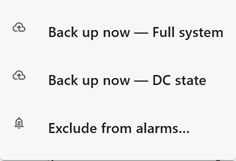
Select Back up now — Full system or Back up now — DC state.
Both types are offered whatever the machine's policy says. Choose Full system unless you need only a restore point for DC state recovery. A message confirms that the backup has been queued, with a View backup jobs link.
If the menu says "No agent enrolled, so nothing can back this machine up.", install the DC agent first. See Deploying DC Agents.
Back up several domain controllers
To back up several domain controllers now:
-
On the Domain Controllers screen, select the checkbox on each row.
-
In the bar at the bottom of the screen, select Back up n now, and then select the backup type.
The Manager queues a job for every selected machine that can take one. If any could not be started, the screen lists them with the reason.
Back up from the Backup Policies screen
To try a schedule you have just created, or to back up a machine of the type its schedule takes, start the backup from its policy.
To back up a scheduled domain controller now:
-
Go to Active Directory > Backup Policies.
-
On the row for the domain controller, select Back up now (play icon).
The button is shown only on rows that have a schedule, and its tooltip names the type, for example Back up now (Full system). It is unavailable while a schedule is being saved. A message confirms that the backup has been queued, with a View its jobs link to the machine's jobs on the Backup Jobs screen.
If the Manager refuses the backup, the message The backup of machine was not started. gives the Manager's reason. It stays until you dismiss it.
Retry a failed backup
A job that ended without a restore point—Failed, Interrupted, or Cancelled—can be started again from the Backup Jobs screen. Open the job's row menu (⋮) and select Retry — type, or select the same button on the job's detail sheet. The retry is a new backup of the same machine and of the same type, sent as Back up now sends it, so the same conditions apply. A message confirms that it has been queued, or says why the Manager did not start it.
What happens next
A queued backup waits until the Manager has room to run it. The Manager limits how many backups run at once (see Maximum concurrent backups in Settings Reference), so a large bulk request runs in turns. A backup appears on the Backup Jobs screen as soon as it is queued, and then moves through these statuses:
- Queued—the backup is waiting for a backup slot. It is kept across a Manager restart.
- Created—the backup has a slot and the Manager has started the job.
- Staging—the storage agent prepares the staging folder and a credential for this job only.
- Running—the backup runs on the domain controller.
- Committing—the storage agent verifies the content and moves it into the vault.
- Completed—the backup is in the vault and is a restore point.
A machine has only one backup queued or running at a time. Asking for another while one is queued or running is refused, and the message names the backup that is already under way.
A backup that is running blocks a restore of the same machine until it finishes or is stopped. A queued backup does not: if a recovery starts working on the machine while the backup waits, the backup stays queued until the recovery is done. To stop a running or queued backup, see Monitoring and Cancelling Backup Jobs.
Using the command line
cdr backup start queues a backup of one domain controller. The default type is bmr (Full system). With --wait, the command follows the job and exits with its outcome, which is useful in a script.
cdr backup start dc01.corp.example.com
cdr backup start dc01.corp.example.com --type systemstate
cdr backup start dc01.corp.example.com --wait
If a recovery is working on the machine, cdr backup start refuses the backup and exits with code 3.
For every option and exit code, see Backup Commands.
Next steps
- Confirm that the job completed and produced a restore point. See Monitoring and Cancelling Backup Jobs.
- Review what the backup captured on the Restore Points Screen.
