Restore Points Screen
The Restore Points screen shows what each backup captured about its domain controller: its operating system build, hardware, network settings, Active Directory roles, and backup details. These facts are what restore preflight checks a restore against, so this screen tells you in advance whether a backup could be restored and what might stand in the way.
To open it, select Protection > Restore Points. The screen requires the backup.view capability, which every role includes. It is read-only: you cannot start a restore from here. To restore from a restore point, or to test-restore it, create a recovery on the Recovery Plans screen. Test restore results are not shown on this screen; the restore point list of a new single-DC restore shows them.
For what a restore point is and what it records, see Restore Points.
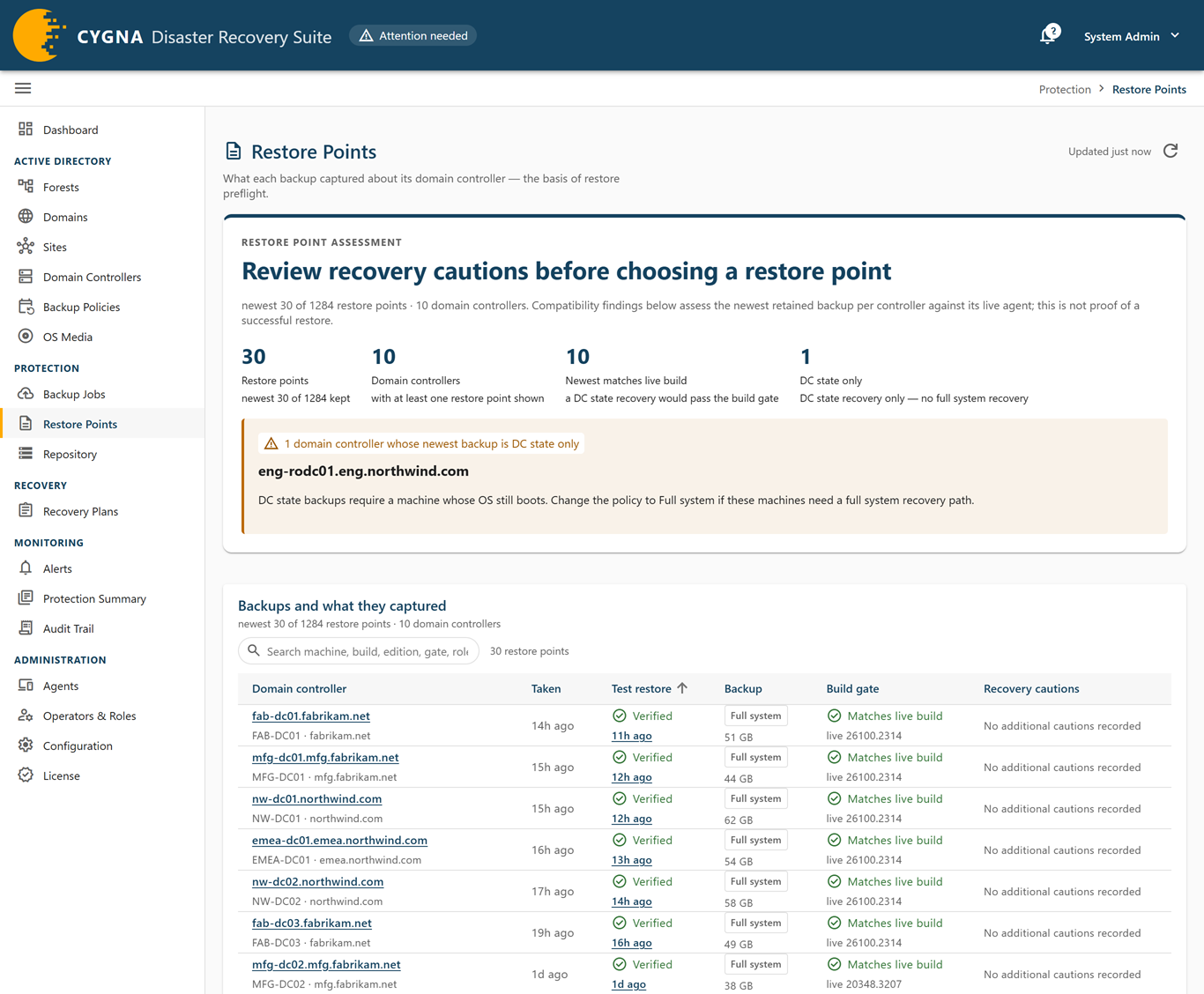
Restore point assessment
At the top of the screen, the Restore point assessment panel opens with a headline and summarizes problems with each machine's newest restore point, which is the one a restore would start from:
- Domain controllers whose newest backup no longer matches the build the machine runs now. A DC state recovery of that backup would be refused; take a fresh backup.
- Newest restore points that report SYSVOL replicated by FRS. Restore preflight refuses FRS; migrate SYSVOL to DFSR, then take a fresh backup.
- Domain controllers whose newest backup holds an operations master role that a later backup lists on another DC. Confirm that the role was transferred, not seized: a DC whose roles were seized elsewhere after its backup must be rebuilt, never restored.
- Domain controllers whose newest backup is DC state only, so they have no full system recovery option.
Compact metrics in the same panel count the restore points kept, the domain controllers they cover, and how many newest restore points fall into each of the cases above. Metrics for a case that does not occur are hidden.
Backups and what they captured
This card lists the newest 200 restore points, one row per backup. Each machine's newest restore point is tagged Newest; older rows are shown dimmed. Use the search box to find rows by machine, build, edition, gate, role, test restore result, or hash. When you open the screen from another screen's machine link, every count and finding describes that machine alone; select Clear filter to see the whole fleet.
Backups that retention has pruned are not restore points, because their content is gone, so the card hides them and says how many are hidden. Select Show them as history to list them, each tagged Pruned · not restorable; select Hide them to hide them again. When every backup in view has been pruned, the card reads No restore points: every backup in view has been pruned. and offers Show the pruned backups as history. A restore point taken while a recovery of its forest was under way is tagged During recovery; hover for the plan and the step it had reached. Such a backup holds the directory part-way through that recovery, so restore it only if that is the state you mean.
| Column | Description |
|---|---|
| Domain controller | The machine, with its NetBIOS name and domain. Select the name to open the restore point's detail page. |
| Taken | How long ago the backup was taken. Hover for the local and UTC time. |
| Test restore | The result of this version's latest test restore: Verified, Failed, Running, Waiting to start, or Inconclusive (the test restore ended without testing this version). Hover for what it means and the host it ran on. Below it, the time links to the test restore's page. A version never tested reads Not tested. Sorting by this column puts failed versions first and untested ones last. See Test Restores. |
| Backup | Full system (supports DC state recovery and full system recovery) or DC state (DC state recovery only), with the size. |
| Build gate | How the backup's build compares with the build the machine's DC agent reports now (see below). |
| Recovery cautions | What could stand in the way of restoring this backup: Unsupported SYSVOL (SYSVOL replicated by FRS, which recovery does not support), SYSVOL not collected, Role holder changed (a later backup of another DC lists one of this DC's operations master roles), and Roles not collected. An RODC · not a first-DC candidate tag marks a read-only DC, which is rebuilt rather than restored. Otherwise the column reads No additional cautions recorded. |
Select a row, or press Enter or Space on a focused row, to open the Captured backup sheet with what the backup recorded: Captured, OS at backup (product name, build and update build revision, edition, and install type), Test restore (the latest result, when, what it means, and Open the run), Build comparison, SYSVOL, Operations master roles at backup, Role changes (when a role has since been listed elsewhere), Machine shape (platform, firmware type, disks, and memory), Manifest schema, and SHA-256 of the stored restore point document. Select Open full captured manifest to open the restore point's detail page.
Build gate values
| Value | Meaning |
|---|---|
| Matches live build | A DC state recovery of this backup onto the machine as it runs now would pass the build check. |
| Live build differs | A different Windows release is installed now. This backup cannot be restored onto that machine; rebuild it instead. |
| Live revision differs | Same build, different revision—usually Windows Update since the backup. A DC state recovery is refused until you take a fresh backup. |
| Build not captured | The backup recorded no build or revision, so nothing can be compared. |
| Live build not reported | The agent running under this name has not reported its build. |
| No live target | No DC agent is enrolled under this machine's name. |
On older rows a difference is expected, because the machine has been updated since; only the newest restore point's gate is a finding.
Operations master holders over time
Expand Operations master history · investigate role changes at the bottom of the screen to show this card. It shows, for each operations master role, which backed-up domain controller held it and over which backups. Only backups provide evidence here, so a role move is known to have happened somewhere between one holder's last backup and the next holder's first. The Domains screen shows the directory's own account of role holders. When a role has no current holder attested by a backup, a Role history incomplete notice above the section says how many.
Columns: Role, Of (the domain or forest), Held by, First attested and Last attested (each with a link to the restore point), Backups (how many consecutive restore points listed the role), Contradicted (when a later restore point listed the role on another DC, or the holder stopped listing it), and Standing. Latest record means this is the newest evidence for the role and nothing contradicts it. No current holder attested means the current holder has not been backed up, or the role is unassigned.
Restore point detail
Select a domain controller in the list to open the detail page for that restore point. Select All restore points to return to the list, scoped to the same machine.
The This restore point card shows the SHA-256 of the stored document, when it was written, the backup job, the backup type, size, and agent version, the latest Test restore result with a link to its run (or Not tested), the wbadmin version identifier a restore is addressed by, and links to the same machine on other screens.
Notices
A notice above the tabs explains anything that limits what the page can show:
- Backup pruned—Retention deleted this backup's content. The restore point is kept as a record, but nothing is left to restore from it.
- Hash changed—The document changed between two requests. Refresh before trusting either.
- Unreadable—The stored document could not be parsed. The bytes are on the Raw tab.
- Preflight unavailable, Not in the index, or No machine named—The preflight comparison cannot be built. The captured facts and raw document are unaffected. Not in the index usually means the restore point is older than the newest ones the Manager returns for a machine.
Tabs
- Preflight—Compares the restore point with the machine as it runs now: OS build and revision, Disk count and sizes, SYSVOL replication, Recovery mode (DC state and Full system or DC state only), Writeable DC, and Operations master roles. Each check shows a verdict and the reason for it. Disks always show Cannot be evaluated from here, because the DC agent does not report the live machine's disks; the target machine's disks are checked when you plan a full system recovery.
- Captured facts—Everything the backup recorded, grouped as Identity, Operating system, Active Directory role, Backup, Hardware (including disks, and volumes with their BitLocker status), Network (adapters, addresses, DNS servers, and persistent routes), and Roles, features and programs. A value that was not collected shows Not collected.
Roles, features and programs lists the Windows roles and features installed at backup time (name, feature name, and type) and the installed programs (name, version, and publisher). A rebuild of the domain controller from this backup reinstalls its roles and features before it promotes the machine; it does not bring back the roles' configuration or the programs.
- Raw—The stored document exactly as kept, with its SHA-256 and a Copy button.
Note: An Encrypted BitLocker status on a volume means a full system recovery of that volume needs extra steps. See Recovery Requirements.
