Recovery Plans
The Recovery Plans screen is where every recovery starts and where you follow it to the end. It lists every restore and recovery the Manager holds, and has a page for creating each kind of recovery and a page for each one you create.
To open it, select Recovery > Recovery Plans. Viewing the screen and its pages requires the plan.view capability, which every role includes. Changing anything requires one of two further capabilities, held by the Restore Operator role and the break-glass account:
plan.approve—Draft restores and recovery plans, approve them, withdraw an approval, ask a target machine to describe itself again, accept a restore's preflight checks that need acceptance, ask a restored machine to validate again, and discard a plan that was never executed.plan.execute—Execute a restore or plan, stop or abandon a restore, cancel a restore a plan holds, acknowledge a point of no return, attest or reject an operator step, retry a halted step, shorten a wait, supply domain credentials and the DSRM password, set a plan's notification addresses, email its report, take back an unattended plan, and abort a plan.
No other role implies plan.execute. The System Admin role, which can configure the Manager, cannot run a restore. Where you lack a capability, the page says which roles hold it instead of showing the button, except where noted below.
For how a recovery moves from plan to completion, see Recovery Lifecycle. For step-by-step instructions, see Recovery Procedures.
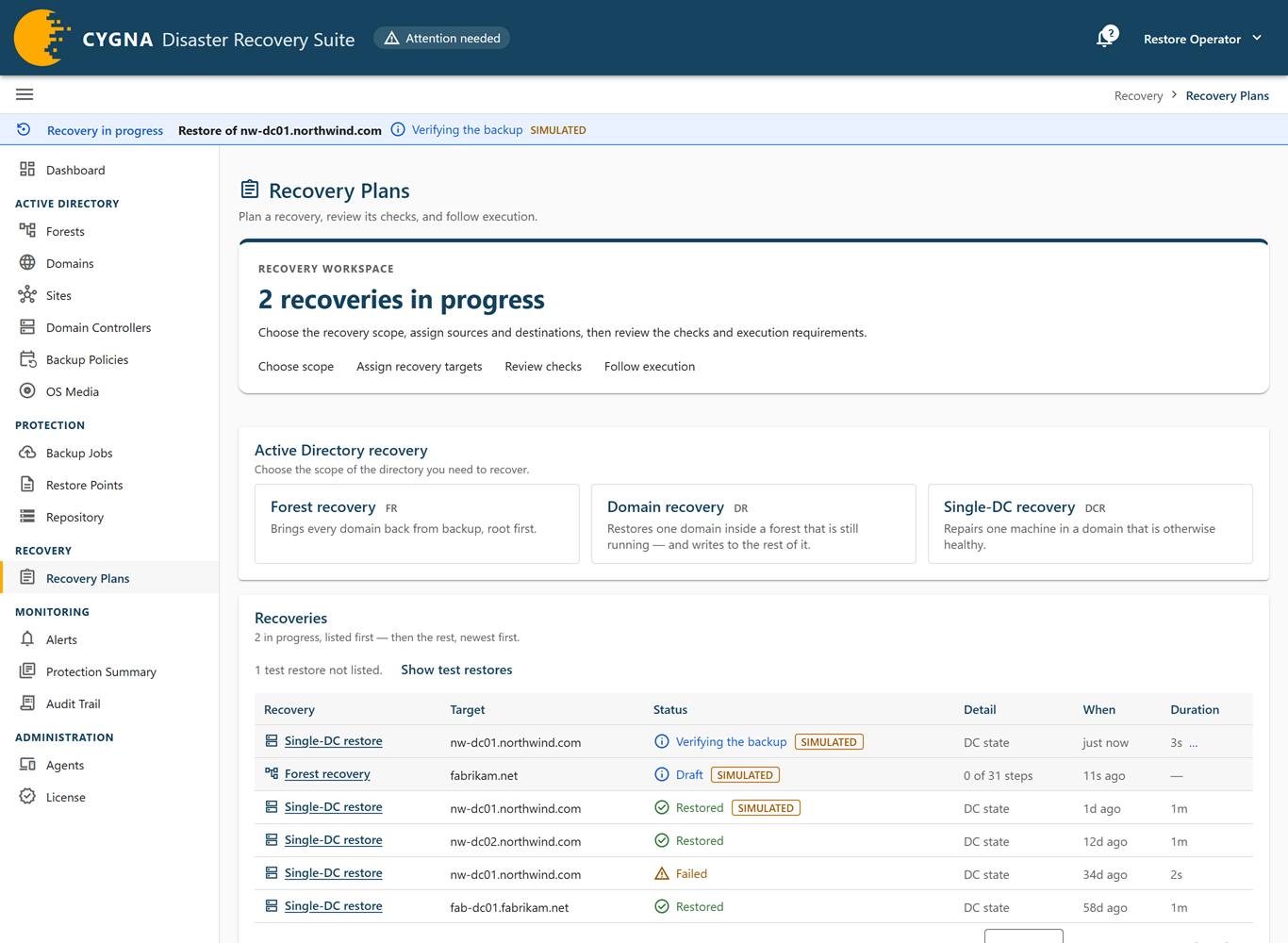
Recovery Plans landing page
Active Directory recovery
This card has one tile for each recovery scope. Each scope is a different procedure:
- Forest recovery—Brings every domain back from backup, root domain first.
- Domain recovery—Restores one domain inside a forest that is still running, and makes changes in the rest of the forest to reconcile it.
- Single-DC recovery—Repairs one domain controller in a domain that is otherwise healthy.
To decide which to use, see Choosing a Recovery Approach.
Recoveries
This card lists every recovery on this Manager, a page at a time. Recoveries in progress are listed first, then the rest, newest first. Select a row to open its page. Use the paginator at the bottom of the card to change the page or the number of rows per page, up to 200.
When test restores have run, a line above the list says how many there are and whether they are listed. Test restores are left out until you select Show test restores; select Hide test restores to leave them out again. The choice is remembered in your browser. The dashboard's View all test restores link and the View test restores link of a test restore alert open the list with test restores shown.
| Column | Description |
|---|---|
| Recovery | Single-DC restore, Test restore, Forest recovery, or Domain recovery. |
| Target | The domain controller, domain, or forest being recovered. |
| Status | The restore run status or plan status (see below). |
| Detail | For a restore run, DC state or Full system. For a plan, how many of its steps are done. |
| When | When the recovery was planned, started, or finished. |
| Duration | How long it took from execution to its end, including any time halted. A recovery in progress is measured to now and marked with an ellipsis. A dash means it was never executed. |
Planning a recovery writes nothing to any machine. It records the plan and evaluates its preflight checks.
New single-DC restore
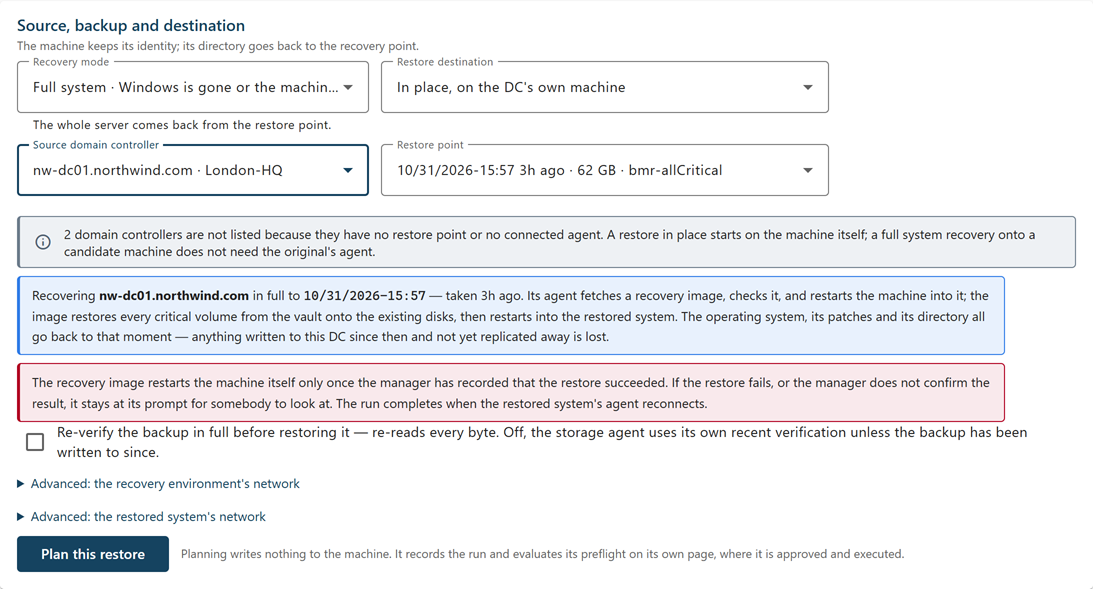
Select Single-DC recovery to open the New single-DC restore page. It restores one domain controller to one of its own backups. The machine keeps its identity; its directory goes back to the restore point.
Which domain controllers are listed depends on Restore destination. In place, only domain controllers with a restore point and a connected agent are listed, because the restore is driven by the agent on the machine itself. Onto a candidate machine, every domain controller with a restore point is listed, and one whose agent is down is marked agent not connected: the candidate's agent drives the restore. If nothing can be recovered, the page says No domain controller can be restored in place, and no candidate machine is enrolled. A notice counts the domain controllers left out and why.
| Field | Description |
|---|---|
| Recovery mode | DC state—Windows still starts; the subtrees and objects you name go back to the restore point on every domain controller. This is a supported restore through Directory Services Restore Mode, not a VM snapshot revert. Full system—Windows is gone or the machine is being replaced; the whole server comes back from the restore point. For the difference, see Restore Methods. |
| Restore destination | Full system recovery only. In place, on the DC's own machine, the default, or a candidate machine: a machine with the DC agent enrolled that is not a domain controller. The storage machine and Isolated Recovery Hosts are never listed as candidates. |
| Source domain controller | The domain controller to restore, with its site. It is preselected when only one is connected. |
| Restore point | The backup to restore, shown with its version identifier, age, size, and type. The newest usable restore point, by when the domain controller completed it, is preselected. Restore points that cannot be used are listed but disabled, with the reason: no version identifier was captured; a DC state backup chosen for a full system recovery; the machine has been patched since the backup (DC state recovery); or the machine now runs a different Windows release (DC state recovery). |
| What to roll back | DC state recovery only. One or more rows of Scope (Subtree or One object) and Distinguished name; Add a subtree or object adds a row. Each is marked authoritative after the restore. The Not accepted, and why list shows what the Manager refuses. When a subtree holds krbtgt, the page warns that krbtgt and the users' passwords go back to the backup, and offers Reset krbtgt twice once the rollback validates, selected by default. See Restoring a DC with DC State Recovery. |
| Re-verify the backup in full before restoring it | Off by default. When on, the storage agent re-reads every byte of the backup and checks it against its recorded hash. When off, it relies on its own recent verification unless the backup has been written to since. |
When you choose a restore point, the page describes the consequence: what goes back to that moment, and that anything written to this domain controller since then and not yet replicated to other DCs is lost. For a full system recovery it also explains that the recovery image restarts the machine into the restored system only after the Manager records that the restore succeeded. If the restore fails or the result is not confirmed, the recovery environment stays at its prompt for someone to look at.
If a restore of the same machine is already in progress, the page says so and offers Open that run. Follow, stop, or discard that run before planning another.
Network settings for a full system recovery
A full system recovery has two folded sections for network settings. Leave them at their defaults unless the recovery network needs something different.
| Setting | Options |
|---|---|
| Recovery environment address (in Advanced: the recovery environment's network) | DHCP (default), This machine's own address (its static address, as it last described itself), or Another address. For another address, enter Address, with prefix (for example 10.99.0.10/24), and optionally Gateway and DNS servers, comma-separated. The recovery environment reaches the vault at the storage agent's advertised address, its IP address by default; give it a DNS server only if the storage machine is advertised by name. If the machine has several adapters, enter the Adapter MAC. |
| Restored system address (in Advanced: the restored system's network) | Automatic (default: onto another machine, the backup's own address; in place, the backup's own address only when the machine's description says which adapter to use, otherwise unchanged), As the backup left it (nothing is changed), The backup's own address (put back on the target's adapter), or Another address, with the same address, gateway, DNS, and Target adapter MAC fields. |
The recovery environment applies its address before it contacts anything. If it cannot, the run refuses before writing and the machine restarts into its own Windows; it never falls back to DHCP. The restored system's address is applied by the restored domain controller's agent at its first start, from a directive the Manager signs. If that fails, the failure is written to POST-RECOVERY-README.txt on the machine and reported when the agent connects.
Plan this restore
Select Plan this restore to record the run and open its page, where its preflight is evaluated and where it is approved and executed. Planning writes nothing to the machine and requires plan.approve. If you leave the page before planning, the console asks you to confirm, because the choices are not saved anywhere until the plan is built.
Restore run page
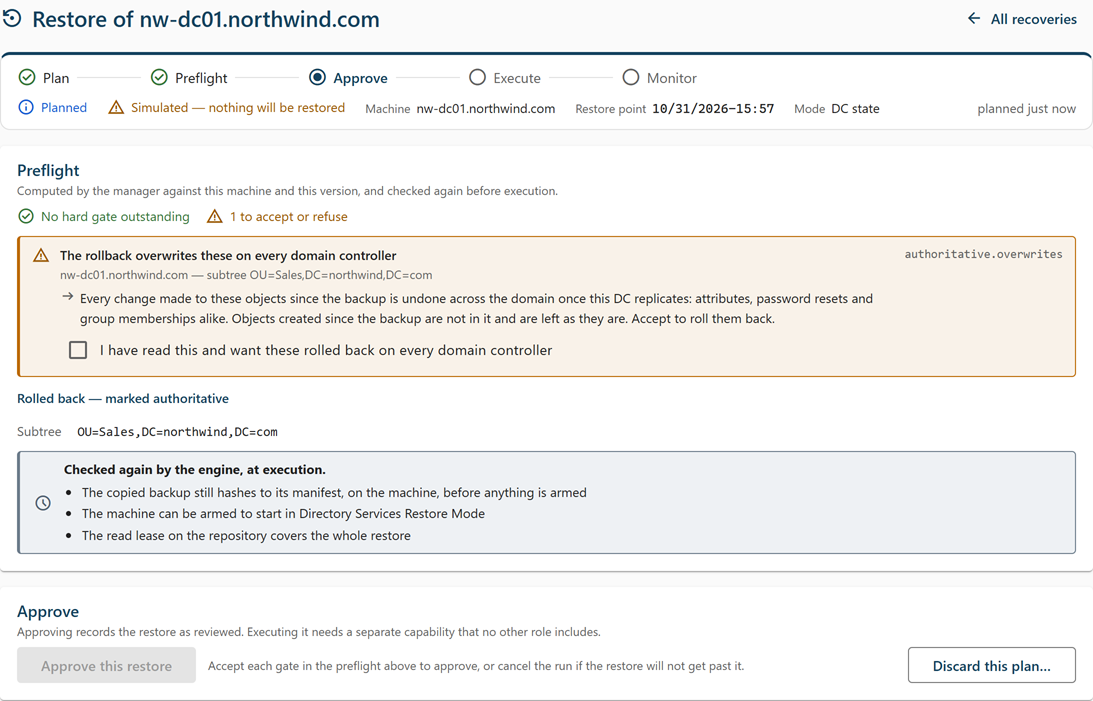
Each single-DC restore has its own page, titled Restore of <machine>. A stepper across the top shows the stage: Plan › Preflight › Approve › Execute › Monitor. The summary bar shows the status, Machine, Restore point, Mode, and when the run was planned, started, or finished. The page refreshes every few seconds; if the Manager stops answering, a Not refreshing notice says how old the view is.
Restore run statuses
The summary bar shows the run's status, from Planned and Approved through the execution phases to Restored, Failed, Cancelled, or Stopped — needs an operator. For what each status means, see Recovery Lifecycle.
Preflight card
The Preflight card shows the checks the Manager computed against this machine and this restore point. They are checked again before execution. Each check (gate) shows a title, the subject, what to do, and a code:
- Hard—Blocks approval. The chip reads N hard, blocking approval, or No hard gate outstanding.
- Advisory—Read, not cleared. Advisory gates do not block approval; they say what the restore costs.
- To accept or refuse—Something that failed from where the Manager looked but may not fail from where the recovery environment runs, such as a storage machine name the target cannot resolve now. The chip reads N to accept or refuse. Each such gate has a checkbox, I have read this and accept it: the restore will get past it, safely, from where it runs; approval stays unavailable until you select it for every one, or you cancel the run instead. After approval the chip reads N accepted at approval, and each gate shows who accepted it.
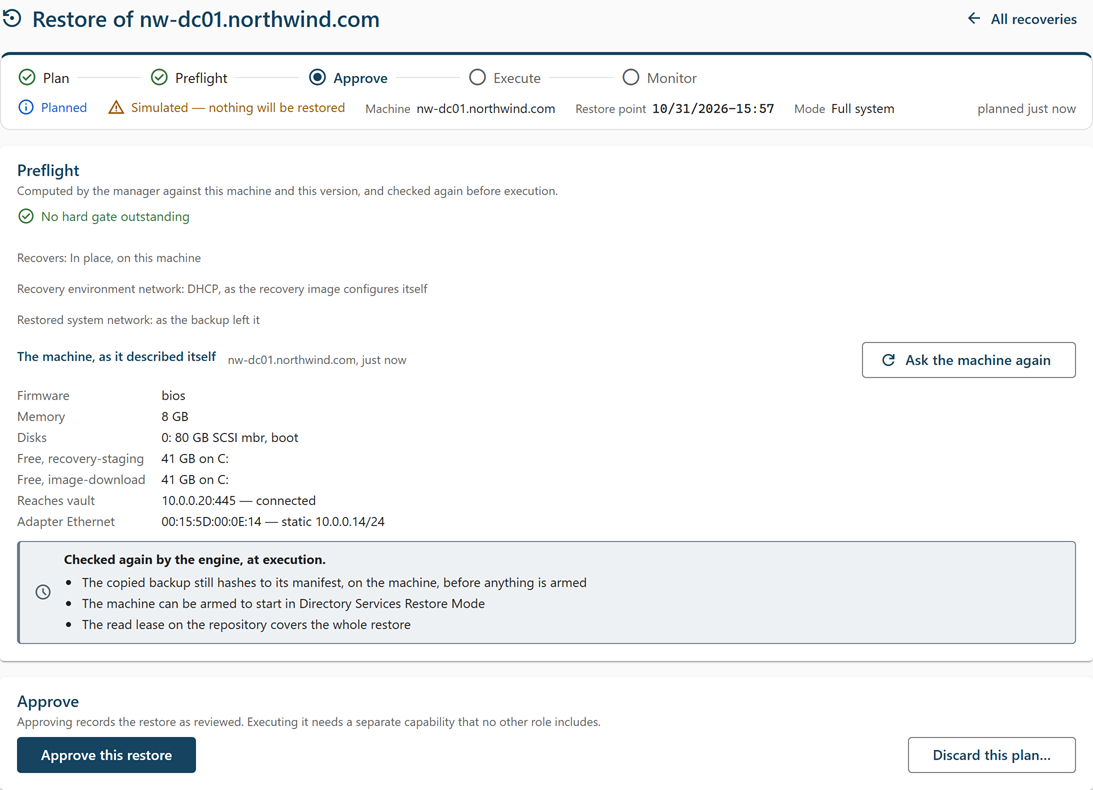
For a full system recovery, the card also shows the planned recovery environment and restored system network settings, the status of post-recovery directives, and The machine, as it described itself: the target's firmware, memory, disks, free space, whether it can reach the storage machine and Manager, its adapters, and whether the original domain controller still answers. Select Ask the machine again (plan.approve, while the run is planned or approved) to refresh this survey.
For a DC state recovery, the card shows Rolled back — marked authoritative: each subtree and object the run marks, or Nothing: a nonauthoritative restore for a restore started by a domain or forest plan. For a DC state recovery that resets krbtgt, approving asks for a Domain administrator and Password; if the reset later fails, krbtgt has not been reset twice yet offers Reset krbtgt.
The card ends with the checks the Manager makes again at execution: the backup's hash against the vault, that the version is present at the target, that the machine's boot configuration can be set and cleared, for a full system recovery the recovery environment's own view of firmware and disks, and, after the restore, the restored domain controller's own checks of AD DS, SYSVOL, replication, and dcdiag.
For every gate, what it means, and how to clear it, see Preflight Check Reference.
Approve and execute
Approving records the restore as reviewed. Executing it needs a separate capability that no other role includes.
| Button | Capability | What it does |
|---|---|---|
| Approve this restore | plan.approve
|
Records the run as reviewed, with each gate you accepted. Disabled while any hard gate remains or any gate to accept is unaccepted; the Manager refuses an approval over a preflight that does not pass. If a forest or domain plan was waiting on the run and you also hold plan.execute, the plan carries on at once. |
| Withdraw approval | plan.approve
|
Returns an approved run to Planned. |
| Execute… | plan.execute
|
Starts the restore after a confirmation (see below). |
| Discard this plan… | plan.approve
|
Closes a run that was never executed as cancelled. Nothing has been sent to the machine, and it can be planned again straight away. Not offered for a run that belongs to a forest or domain plan. |
| Cancel this restore… | plan.execute
|
Shown for a planned or approved run that a running or halted forest or domain plan holds. Closes the run as cancelled; nothing has been sent to the machine. The plan step that started it fails, and the plan halts. |
| Ask the machine to stop… | plan.execute
|
Shown while the run is in flight. The machine abandons the restore only if wbadmin has not started writing yet; past that point the Manager refuses, because stopping a restore midway cannot be done safely. |
| Close as abandoned… | plan.execute
|
Shown once the run is past the point where it can be stopped. Use it when the machine is gone or will be rebuilt. The run is closed as failed, nothing is sent to the machine, and the machine can be planned again. You must enter a reason, which is recorded in the audit trail. Do not use that machine as a domain controller until it is rebuilt or its transcript has been read. |
| Validate again | plan.approve
|
Shown for a finished run whose checks show Not checked or failed, when the machine's agent is connected and can make them. Asks the restored domain controller to check AD DS, SYSVOL, replication, and dcdiag again, waiting up to 15 minutes for replication. Changes nothing on the machine. If the checks cannot be made now, the page says why. |
| Plan another restore | plan.approve
|
Shown when the run has finished. Opens a new single-DC restore. |
Executing asks for confirmation. The dialog, titled Restore <machine>, states what will happen: for a DC state recovery, the machine restarts into Directory Services Restore Mode, has its Active Directory database replaced, and restarts again; for a full system recovery, it restarts into a recovery image and has every critical volume overwritten. The machine is unreachable while that happens, and once wbadmin begins writing there is no way to stop it safely. To confirm, type the machine's short name in uppercase (for example DC01) and select Restore DC01 now.
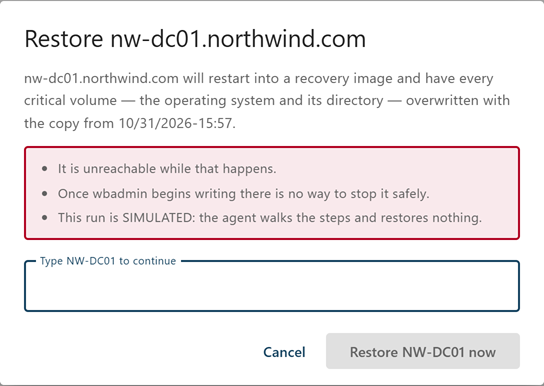
In progress and outcome
While the run is in flight, the In progress card shows whether stopping is still possible: Safe to stop — nothing was changed, Stopping needs cleanup — the machine was changed, or Cannot be stopped or resumed — needs an operator. While the machine restarts, a notice says how long it is expected to be unreachable; silence during that time is the restore working, not the agent being lost.
When the run finishes, the card becomes Outcome and shows one of these results:
| Outcome | Meaning |
|---|---|
| Restored and validated | The restore completed and the validation checks passed. |
| Restored, but a validation gate did not pass | The restore completed; a post-restore check failed. |
| Refused before anything was touched | Preflight refused the restore before the machine was changed. |
| Stopped before anything was written | The run was stopped in time. |
| wbadmin refused the restore and wrote nothing | wbadmin declined the restore. |
| wbadmin failed after it began writing | The restore failed partway through. |
| The machine restarted but did not enter restore mode | A DC state recovery could not reach Directory Services Restore Mode. |
| The machine could not be armed for restore mode | The boot configuration could not be set. |
| Restore mode was left before the restore began | The machine left Directory Services Restore Mode too early. |
| The read lease could not cover the work or The read lease expired before the restore started | The time-limited credential for reading the backup was too short. |
| The machine restarted while the restore was writing | The restore was interrupted. |
| The machine stopped reporting before the restore touched it | The agent went silent early. |
| The machine stopped reporting mid-restore — outcome unknown | Nothing outside the machine can tell what state it is in. |
| The recovery image could not be staged on the machine | A full system recovery could not stage the recovery image. |
| The machine restarted into its own Windows, not the recovery image | A full system recovery did not boot the recovery image. |
| Closed as abandoned by an operator — what is on the machine is unknown | Someone selected Close as abandoned. |
When the outcome needs a person, the card shows This machine needs you. Do not start another restore of the machine until someone has looked at it: its directory may be inconsistent. The two ways forward are a fresh restore from a different restore point, or rebuilding the domain controller. The agent leaves a note and the full transcript on the machine's own disk.
Steps and what the machine reported
The Steps card lists the three checks resolved for this run: a hard block if the domain controller's operations master roles were seized elsewhere after the backup, checked when the run is dispatched; AD DS running and SYSVOL ready; and replication converging and dcdiag results coming back clean. Each step shows its state: Not started, Running, Done, Failed, Skipped, or Not checked, which means the restored agent could not make the check. In a forest or domain plan, the first restored domain controller of a domain has no partners yet, so replication is not required of it.
The What the machine reported card shows each phase the agent reported, such as Checking the machine, Copying the backup to this machine, Arming restore mode, Restoring DC state, or, for a full system recovery, Fetching the recovery image and Restoring volumes. Times are shown on the Manager's clock. It then shows the last lines of the transcript and the path of the full transcript on the machine. After the run finishes, the preflight stays available as Preflight, as approved.
New forest or domain recovery
Select Forest recovery or Domain recovery to open the plan builder, titled New forest recovery or New domain recovery. The builder has two steps, shown in the summary bar along with the counts of domain controllers to restore, rebuild, and exclude, and a Security breach chip if you mark the plan as a breach response.
A forest can have only one plan at a time, whether of the whole forest or of a domain in it. If another plan is active, an Already active notice links to it.
Step 1: Choose
Choose the Forest, and for a domain recovery the Domain to recover. A domain recovery cannot recover a forest root domain; if the forest has only its root domain, use a forest recovery.
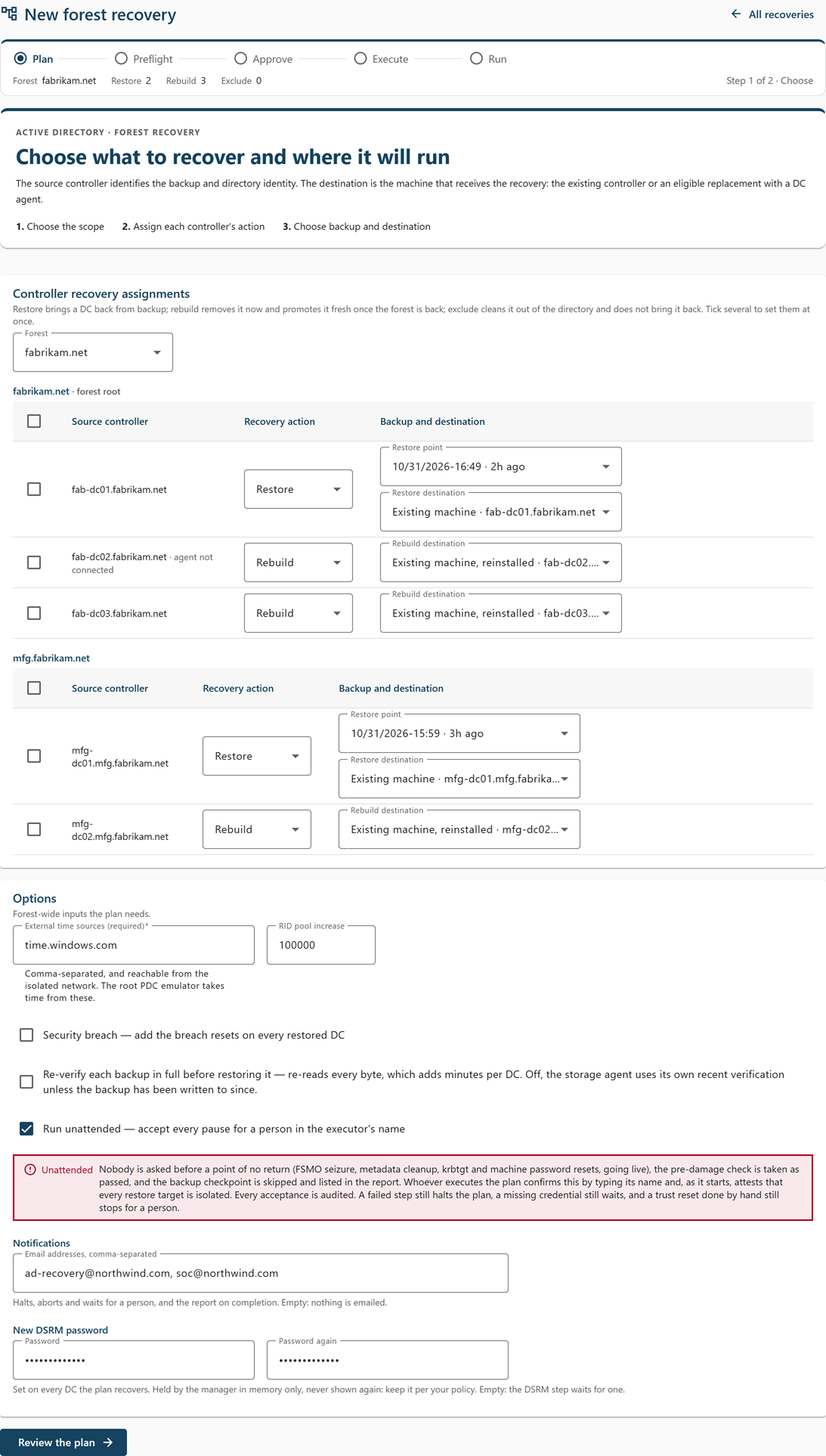
The Controller recovery assignments card has a table per domain, with these columns. Retired DCs are not listed. DCs of the forest with no known domain are not in the plan either; a notice above the tables counts them and points to the Domain Controllers screen, because this is usually a demotion that did not finish.
| Column | Description |
|---|---|
| Source controller | The DC, marked read-only, agent not connected, or excluded from protection where that applies. |
| Recovery action | Restore brings the DC back from backup. Rebuild removes it now and promotes it fresh once the domain or forest is back. Exclude neither restores nor rebuilds it: its metadata is removed from the directory along with the domain's other DCs, and it is not brought back. Keep the machine off the network. Restore is not available for a read-only DC. |
| Backup and destination | For a DC set to Restore, the Restore point and Restore destination (Existing machine or a candidate machine, listed as Replacement). Restore points with no version identifier, or DC state backups, cannot be chosen, and a backup taken while an earlier recovery was under way is never the default. For a DC set to Rebuild, Rebuild destination: Existing machine, reinstalled, or a candidate machine (Replacement), which the plan renames to the DC's name and promotes. |
By default, in each domain the connected writable PDC emulator (or the first eligible DC) is set to Restore and every other DC to Rebuild. A DC excluded from protection starts as Exclude; if only excluded DCs in a domain can be restored, one of them is still set to Restore. Select several rows to set their recovery action at once. Each domain must restore exactly one DC, and each machine can be bound to only one DC; the builder says so before review if not.
For a domain recovery, an Outside the domain card lists what the plan changes in the rest of the forest: the global catalogs outside the domain it will reconcile (a global catalog with no agent is flagged and blocks the plan), the trusts it will reset on both sides (by the agents where the partner domain has a live DC with an agent, otherwise by hand), and a confirmation it will ask for that each domain's default administrator can sign in while the global catalogs are being reconciled.
The Options card holds the plan's inputs:
| Option | Description |
|---|---|
| Global catalog reconciliation (domain recovery) | Remove lingering objects — GCs stay online (default) removes the recovered domain's lingering objects from each global catalog, in advisory mode first. Unhost, then rehost — for small forests has every global catalog drop the domain and take it back site by site; they cannot answer for it in between. |
| External time sources (required) (forest recovery) | One or more time sources, comma-separated, reachable from the isolated network. The root PDC emulator takes time from them. |
| RID pool increase | How much to raise each domain's available RID pool. The default is 100000; it must be positive. |
| Security breach | Off by default. Adds the breach resets on every restored DC. For a forest recovery, it also adds the trust resets; without it, a forest recovery resets no trust. For a domain recovery, it also re-creates the domain's group managed service accounts; a domain recovery resets the domain's trusts either way. |
| Re-verify each backup in full before restoring it | Off by default. Re-reads every byte of each backup, which adds minutes per DC. |
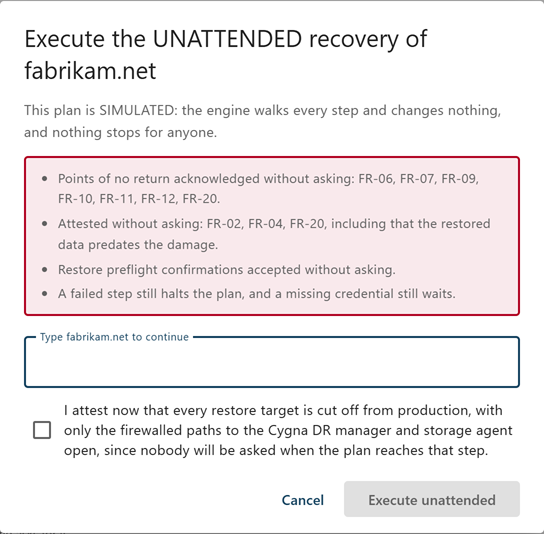
| Run unattended | Off by default. The plan does not stop for a person at points of no return, attestations, the backup checkpoint, or restore preflight confirmations. A warning lists what is accepted. The acceptances are made, and recorded, in the name of whoever executes the plan, who confirms it at execution. A failed step still halts the plan, a missing credential still waits, and a trust reset carried out by hand—an external trust, or a partner with no DC agent—still stops for a person. Trust resets the agents carry out are accepted. See Recovering a Forest. |
| Notifications: Email addresses, comma-separated | Empty by default: nothing is emailed. These addresses get the plan's halts, aborts, and waits for a person, and its report on completion. Shown only with plan.execute; without it, a note says who can add addresses later. |
| New DSRM password: Password and Password again | Empty by default: the DSRM step waits for one. The new Directory Services Restore Mode administrator password the plan sets on every DC it recovers. Password again appears once Password is filled in; if the two differ, the builder says so. Held by the Manager in memory only and never shown again. Shown only with plan.execute. |
Select Review the plan. The button stays disabled, with the reason beside it, until you have chosen a forest (and domain), at least one DC is set to Restore, every DC being restored has a restore point, and, for a forest recovery, at least one external time source is given.
Step 2: Review
The Recovery of <forest or domain> card states what the plan will do in each domain (which DC is restored from which restore point and where, which are rebuilt, and which are left out) and across the forest (RID pool, time source, backup verification, whether this is a breach response, whether it runs unattended, who it emails, and whether it holds a new DSRM password). Select Back to the choices to change anything, or Build the plan to record it and open its page. Building requires plan.approve and writes nothing to any machine.
Forest or domain plan page
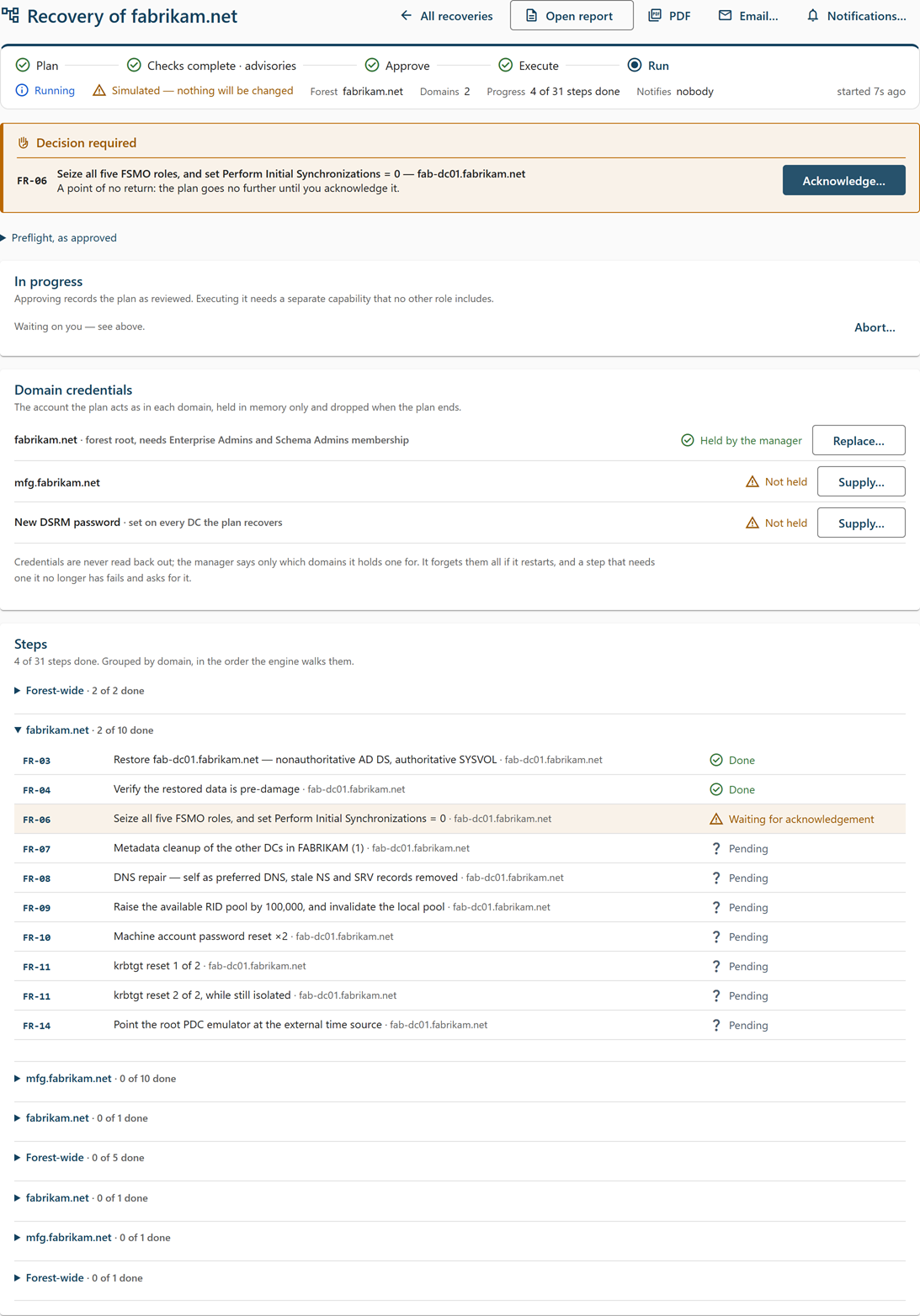
Each forest or domain plan has its own page, titled Recovery of <forest or domain>. The stepper shows Plan › Preflight › Approve › Execute › Run; the Preflight stage reads Checks complete · advisories when no hard gate is open but advisories remain. The summary bar shows the status, the forest and domain, the number of domains, progress (Not started until the plan starts, then steps done of total), Notifies (the plan's notification addresses, or nobody), and, for an unattended plan, an Unattended chip whose tooltip names whose name pauses are accepted in.
Banners below the summary bar show the plan's state when it matters:
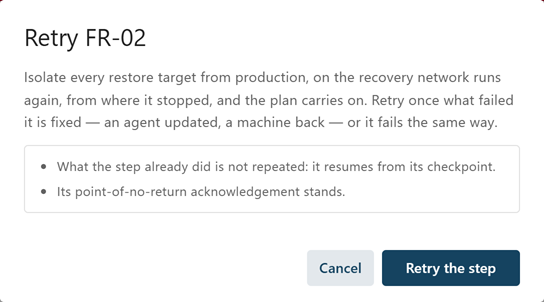
- Halted—names the step that failed, the machine, and the reason, and offers Retry <step>….
- Live on reduced DCs—from the reconnect until the last rebuilt DC is confirmed, the recovered directory is in production on fewer domain controllers than planned. The banner says since when and which DCs each domain is serving on, and warns when a domain is on one DC with no redundancy. Afterward, a note says how long the directory was live on reduced DCs.
- Report—the result of the last report download or email from this page.
Plan statuses
| Status | Meaning |
|---|---|
| Draft | Built, with gates evaluated. Can be edited with Edit this draft. Not yet approved. |
| Approved | Approved and waiting to be executed. |
| Running | The Manager is working through the steps. |
| Halted — a step failed | A step failed. Nothing more is issued until the step is retried or the plan is aborted. |
| Completed | Every step finished. Each DC the plan restored or rebuilt that has an enabled backup policy is made due for a backup, which starts when its agent connects. |
| Aborted | An operator aborted the plan. This is final: build a new plan rather than resuming. |
Actions
| Button | Capability | What it does |
|---|---|---|
| Edit this draft | plan.approve
|
Reopens the builder with the draft's choices. If a chosen restore point is no longer available, the builder picks another and tells you. |
| Approve this plan | plan.approve
|
Records the plan as reviewed. Every hard gate must clear first. |
| Execute… | plan.execute
|
Starts the plan after you type the forest or domain name to confirm. Each point of no return still stops for your acknowledgment. For an unattended plan, the dialog is Execute the UNATTENDED recovery of <forest or domain>: it lists what will be accepted without asking, and you also attest that the restore targets are isolated, then select Execute unattended. Aborting later stops the plan but does not undo steps that have run. |
| Acknowledge… | plan.execute
|
Lets a point-of-no-return step proceed. Type the step code shown in the dialog to confirm. Past this step the plan cannot be walked back. |
| Attest | plan.execute
|
Confirms a check only a person can make, such as that the restore targets are isolated. A single selection, with no dialog. |
| Reject… | plan.execute
|
Rejects an operator step and halts the plan. The dialog asks for a reason. |
| Run it now… | plan.execute
|
Shown only when the plan was created with a gap between the two krbtgt resets. Ends the wait early. Kerberos tickets issued between the resets are invalidated. You must enter a reason. |
| Supply… or Replace… | plan.execute
|
Hands the plan the administrator credential for a domain, or the new DSRM password (see below). |
| Retry <step>… | plan.execute
|
Shown on a halted plan. Runs the failed step again from its checkpoint, after you select Retry the step, and the plan carries on. What the step already did is not repeated, and its point-of-no-return acknowledgment stands. Fix the cause of the failure before you retry. |
| Take back | plan.execute
|
Shown on an unattended plan that has not finished. After you select Take it back, every pause waits for a person. It cannot be made unattended again. |
| Notifications… | plan.execute
|
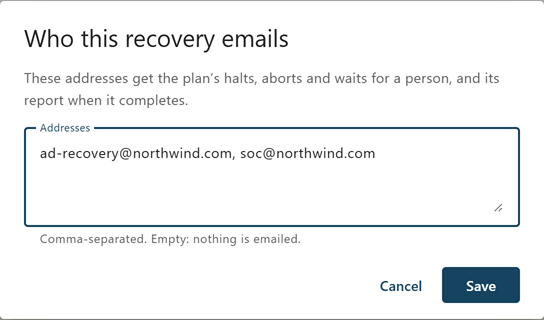
Opens Who this recovery emails. Edit Addresses, comma-separated, and select Save. Empty means nothing is emailed. If the plan had no addresses and is already halted or aborted when you add some, the new addresses are emailed that it halted or was aborted. |
| Open report | plan.view
|
Shown once the plan has started. Opens the recovery report in a new browser tab. It is built from the plan's records each time, so it shows the plan as it is now. |
plan.view
|
Downloads the report as a PDF, made by the Manager's own PDF renderer. If the Manager cannot make it, the page shows its reason. | |
| Email… | plan.execute
|
Opens Email the recovery report. Enter addresses in Send to, or leave it empty for the plan's notification addresses, and select Send the report. The report is the email itself, with its PDF attached when the Manager can make one. Needs the Manager's email settings. Recorded in the audit trail with its recipients. |
| Abort… | plan.execute
|
Stops the plan where it is. It cannot be resumed. Steps already run are not undone; each restore the plan started is asked to stop, and one already writing carries on. The dialog says what aborting now leaves—which points of no return are behind the plan, and which changes stay to finish or undo by hand—and asks for a reason. |
| Plan another recovery | plan.approve
|
Shown when the plan has finished. |
Reasons you enter are recorded in the audit trail.
Decision required
When the plan is waiting on a person, a Decision required section at the top of the page says what it needs, and the recovery banner at the top of the other console screens, except the Dashboard, reads A recovery is waiting for you:
- Waiting for acknowledgement—A point of no return. Select Acknowledge….
- Waiting for you—Something only a person can check, with a prompt that says what. Select Attest or Reject…. If the step is a restore whose preflight raised a gate only a person can accept, select Decide on the restore instead, and approve or cancel the restore run.
- Waiting for a credential—The step cannot run without a domain's administrator credential, or the new DSRM password, and the Manager holds none. Select Supply credentials… or Supply DSRM password…. The step runs by itself once it is supplied.
- Waiting (krbtgt)—The plan was created with a gap between the two krbtgt resets, and is waiting it out; it shows when it will continue by itself. Select Run it now… to continue early. By default there is no gap.
- Waiting for its machine to be built—The machine a rebuilt DC is to be promoted onto has never connected, so it still has to be built, with a base operating system and the DC agent enrolled. The step runs by itself once its agent connects.
A pending step's row says which steps it is waiting for, and a rebuilt machine restarting between steps shows Restarting, which needs nothing from you. If the plan has notification addresses, each wait for a person is emailed to them once.
Domain credentials
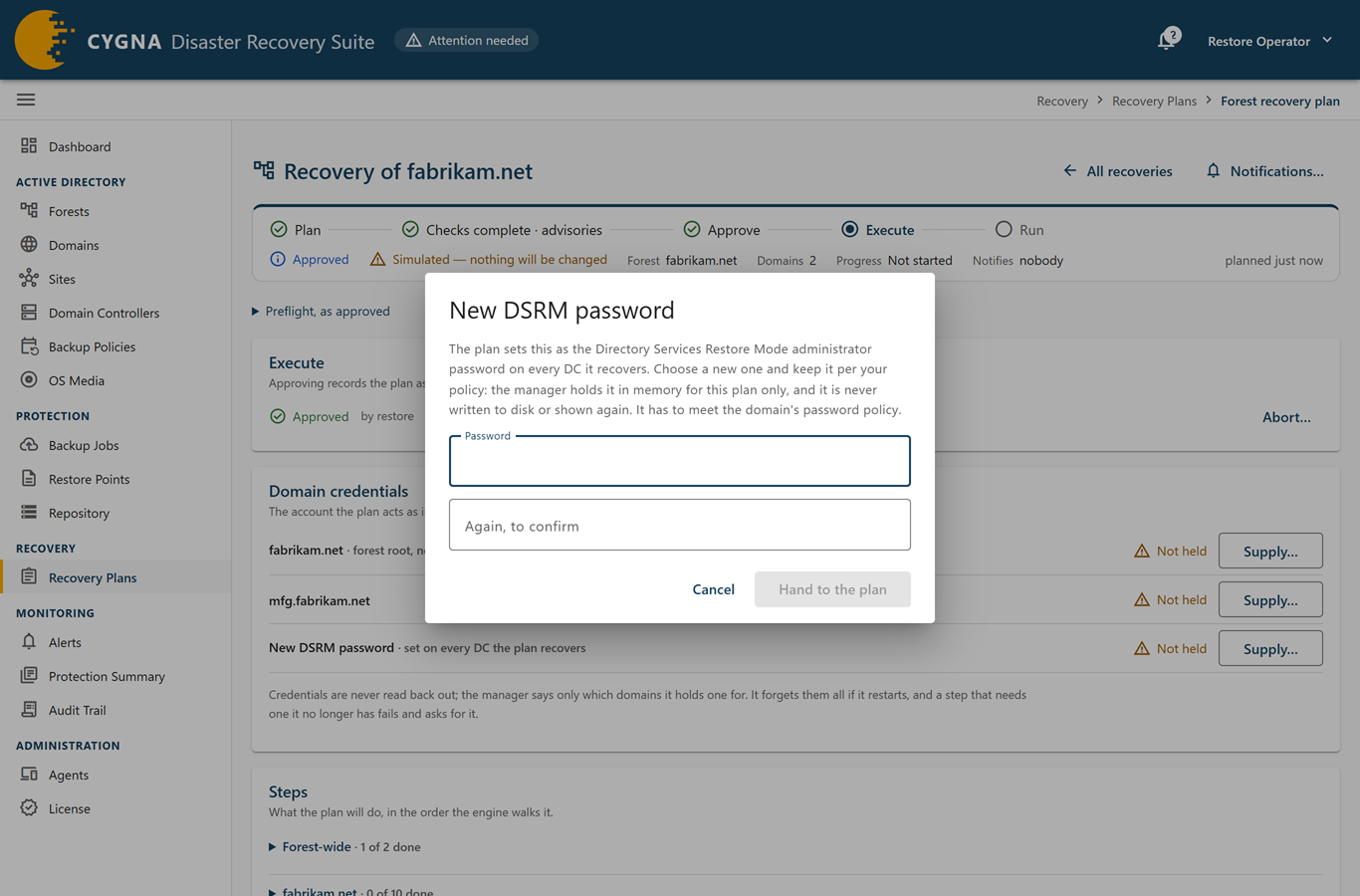
While the plan is approved, running, or halted, the Domain credentials card lists the account the plan acts as in each domain. In a domain recovery, the list also includes each partner domain whose live DC resets its side of a trust. Each domain shows Held by the manager or Not held. A step in a domain that is not held, and that needs a credential, is not sent: it shows Waiting for a credential until one is supplied, and then runs. The card reads this from the plan itself, so it is accurate when you open the page and after a Manager restart. Credentials are never read back out: the Manager says only which domains it holds one for. Select Supply… and enter the Administrator account (for example NETBIOS\Administrator) and Password, then select Hand to the plan. For the forest root domain, the account must be an Enterprise Admin and Schema Admin; for other domains, a Domain Admin of that domain.
The Manager holds credentials in memory for this plan only. They are never written to disk or shown again, and they are forgotten if the Manager restarts; a step that then needs one waits for it. Each supply is recorded in the audit trail and the recovery report, without the secret.
The card also has a New DSRM password row, set on every DC the plan recovers, showing Held by the manager or Not held. Select Supply… or Replace… to open New DSRM password, enter the Password and Again, to confirm, and select Hand to the plan. The password must meet the domain's password policy. Record it as your policy requires: the Manager holds it in memory only and never shows it again.
Plan as built, preflight, and steps
- Plan as built—What the plan was built from; it does not change. Columns: Domain controller, What happens (restored from backup, as a DC state recovery or a full system recovery, or rebuilt after the recovery), Restore point, and Destination. Each DC says at which step it is handled, for example At FR-03 for a restore or At FR-21, after FR-20 for a rebuild; each rebuild also says what it reinstalls, which roles come back without their configuration, and how many programs are not reinstalled. Expand Recovery settings below the table for the time source, RID pool increase, Gap between krbtgt resets (None: both resets run while isolated unless one was set when the plan was created), backup check before restoring, first global catalog, and global catalog strategy.
- Preflight findings—The plan's hard and advisory gates, shown while the plan is a draft and folded as Preflight, as approved afterwards. For each DC restored onto a candidate machine, they include the checks of the candidate's firmware and disks against the chosen restore point. Approval evaluates those again against the machines as they are then, saves the result on the plan, and is refused if one of them blocks. In a forest plan without the security breach flag, an advisory warns about each trust whose two sides are restored from points 30 days or more apart. This card and Plan as built sit above the approve and execute buttons. See Preflight Check Reference.
- Steps—Every step, grouped by domain and forest-wide, in the order the Manager runs them. Each group can be expanded or collapsed; a group opens by itself when one of its steps is running, has failed, or is waiting on a person. Each row shows the step's code and title, the machine, a Follow the restore link for restore steps, and its state, with the steps a pending step waits for and the reason for each check that failed.
Step states are Pending, Waiting for acknowledgement, Waiting (krbtgt), Waiting for its machine to be built, Restarting, Waiting for a credential, Running, Waiting for you, Done, and Failed. A point of no return needs a typed acknowledgment and cannot be walked back.
For what each step does, see Recovering a Forest and Recovering a Domain.
