Recovering a Forest
A forest recovery brings every domain of a forest back from backup, following the Microsoft Active Directory forest recovery procedure. In each domain, one domain controller is restored on isolated targets—the forest root first, then each child domain after its parent. Each restored domain is fenced off from its pre-recovery state, the restored domain controllers are joined and checked, and only then is the forest reconnected to production. The remaining domain controllers are promoted fresh afterward. Use it when the forest root domain is lost, when the whole forest is compromised, or when a single-domain forest's domain is lost. By default the plan stops for you at every point of no return and at every check only a person can make. A plan built to run unattended accepts those pauses in the name of the operator who executes it.
The steps are built on Microsoft's Active Directory Forest Recovery Guide. For how each one maps to the guide, and why the krbtgt resets run back to back by default, see Alignment with Microsoft Guidance.
Before you begin
- You need the Restore Operator role, or one operator who can approve and another who can execute. Plan for several people over several hours, depending on the size of the forest and the number of domain controllers to rebuild.
- Someone with the Backup Operator role is available for the backup checkpoint step, unless the plan runs unattended. The Restore Operator role cannot start a backup.
- No other recovery plan is active for the forest.
- In every domain, at least one writable domain controller has a usable full system restore point and a recovery image for its operating system, and either its own connected agent or a prepared candidate machine. Choose restore points from one backup window across the forest, and from before the compromise if the incident is an attack.
- The topology knows the forest root domain. Refresh it if the Forests screen shows Root domain unidentified or a stale topology.
- The restore targets are isolated: cut off from production, with firewalled paths only to the Manager's agent port and the storage machine's SMB. Do not simply unplug the machines. See Isolating Recovery Targets.
- You have at least one external time source (NTP server) that the root PDC emulator can reach from the isolated network.
- For each domain, you have an administrator account and password valid as of the restore point—usually the built-in Administrator. The forest root needs an Enterprise Admin and Schema Admin; other domains need a Domain Admin. The Manager holds these in memory only.
- You have chosen a new Directory Services Restore Mode (DSRM) administrator password for the recovered domain controllers, and somewhere to keep it under your password policy.
- If you plan the recovery as a breach response, an administrator of each external trust's partner forest is ready to reset the partner's side.
For the full list, see Recovery Requirements. For what is not recovered, see What Recovery Does Not Cover.
Build the plan
To build a forest recovery plan:
-
Go to Recovery > Recovery Plans, and under Active Directory recovery, select Forest recovery.
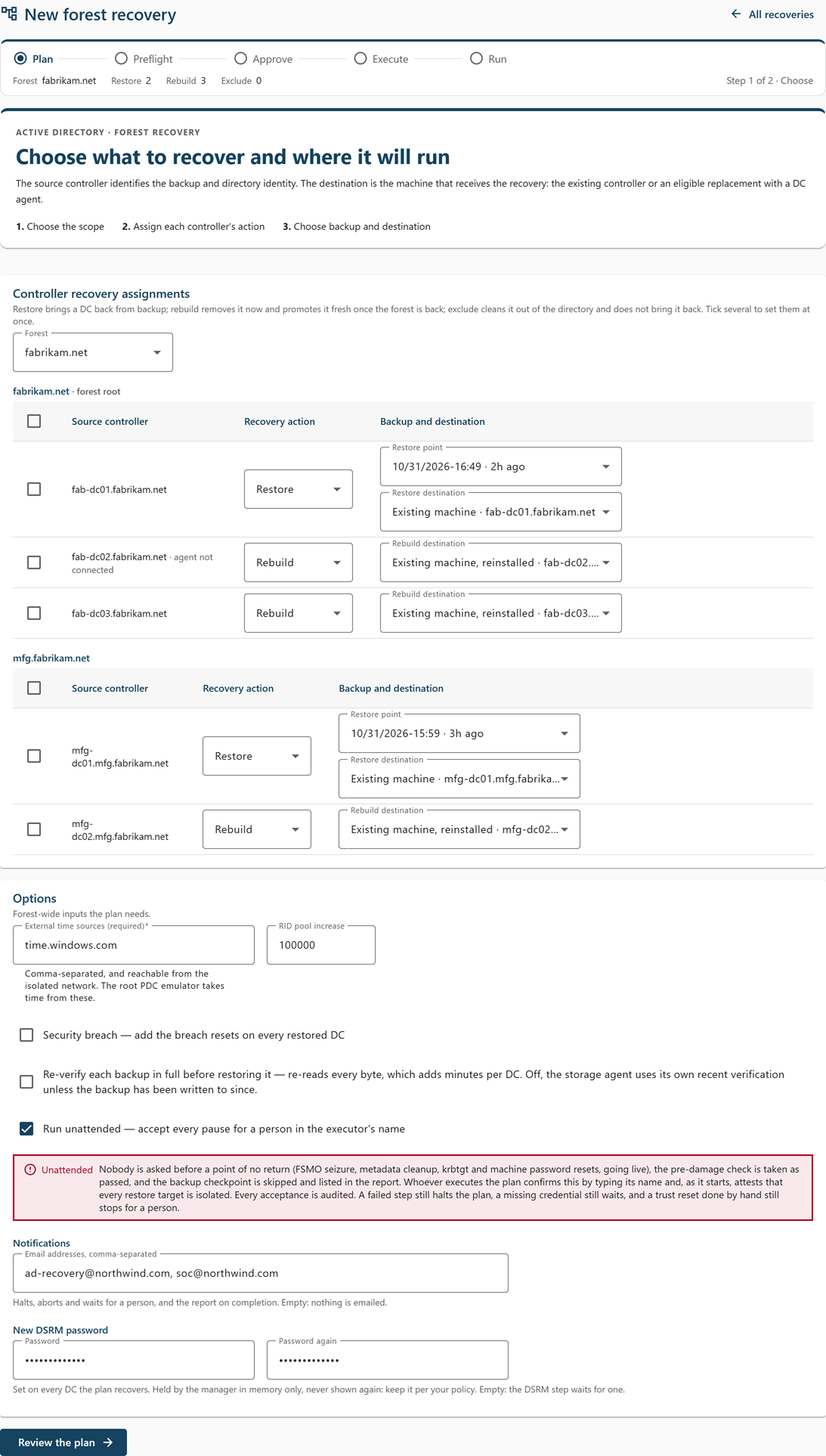
The New forest recovery page opens at step 1, Choose.
-
Select the Forest.
The page shows one table per domain, the root first. In each domain, the connected writable PDC emulator (or the first eligible domain controller) is set to Restore and every other domain controller to Rebuild. A domain controller under an active exclusion is marked "excluded from protection" and starts as Exclude; if only excluded domain controllers in a domain can be restored, one of them is still set to Restore. Retired domain controllers are not listed. Domain controllers with no known domain—usually a demotion that did not finish—are not in the plan, and a notice above the tables counts them.
-
Set the Recovery action of each domain controller:
- Restore—brought back from backup by a full system recovery. Every domain needs exactly one. A plan that restores two domain controllers in one domain cannot be approved: restore one and rebuild the others, which replicate the whole directory from it.
- Rebuild—removed from the directory now and promoted fresh once its domain is back. Its Windows roles and features are reinstalled from its last backup's record before it is promoted; their configuration and its installed programs are not. Read-only domain controllers can only be rebuilt.
- Exclude—neither restored nor rebuilt. Its metadata is removed from the directory along with the domain's other domain controllers, and it is not brought back. Keep the machine off the network.
To set several at once, select their checkboxes and use the bar at the bottom of the screen.
-
For each domain controller you restore, select the Restore point and, in Restore destination, either Existing machine or a candidate machine (Replacement).
See Full System Recovery onto a Candidate for how to prepare a candidate. Each machine can be bound to only one domain controller.
-
For each domain controller you rebuild, choose in Rebuild destination either Existing machine, reinstalled or a candidate machine (Replacement).
A bound candidate is renamed to the domain controller's name, given its roles and features back, and promoted.
-
Under Options, set:
- External time sources (required)—one or more NTP servers, comma-separated, reachable from the isolated network. The root PDC emulator takes its time from these.
- RID pool increase—how far each domain's available RID pool is raised. The default, 100,000, is Microsoft's figure.
- Security breach—select this when the forest was compromised. It adds the breach resets on every restored domain controller and resets every trust. Without it, no trust is reset: each side of every trust keeps the trust password its own restore point holds.
- Re-verify each backup in full before restoring it—optional; adds minutes per domain controller.
- Run unattended—optional. See Recovering a Forest.
- Notifications > Email addresses, comma-separated—optional. These addresses receive the plan's halts, aborts, and waits for a person, and its recovery report when it completes. Leave it empty to email nobody.
- New DSRM password > Password and Password again—optional. The password the plan sets on every domain controller it recovers. Password again appears once you fill in Password. Leave it empty to supply it later; the DSRM step waits for it.
The notification and DSRM password fields are shown only to an operator with the
plan.executecapability, because the addresses receive the plan's report outside the Manager. -
Select Review the plan.
Step 2, Review, states what is restored, rebuilt, and left out in each domain, the forest-wide choices, whether the plan runs unattended, who it emails, and whether it holds a DSRM password.
-
Select Build the plan.
The plan's page opens with the status Draft. Building writes nothing to any machine.
The console restores every domain controller by full system recovery and adds the global catalog back on the first restored root domain controller. To restore a domain controller by DC state recovery, or to choose which restored root domain controller becomes the first global catalog, build the plan from the command line.
Approve, supply credentials, and execute
To start the recovery:
-
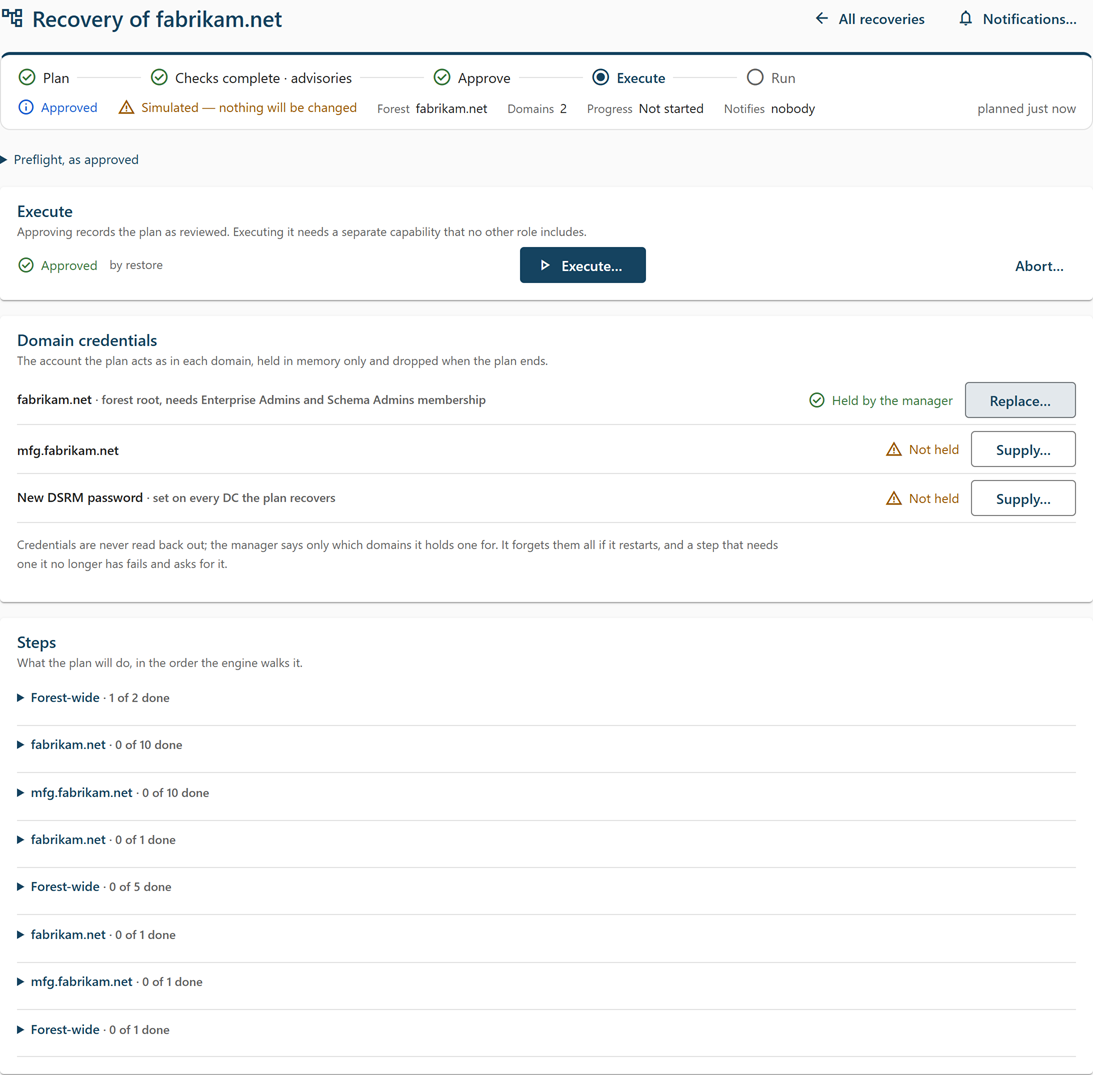
On the plan's page, review the Preflight findings card and resolve every hard check. To change your choices, select Edit this draft.
For each domain controller restored onto a candidate machine, the checks compare the candidate's firmware and disks with the chosen restore point. They run again when you approve, against the machines as they are then, and approval is refused if one of them blocks. Read the advisory checks too. In particular, look for a warning that the chosen restore points are not from one backup window and, in a plan that is not a breach response, a warning that the two sides of a trust are restored from points 30 days or more apart, so their trust passwords may no longer match. For each check, see Preflight Check Reference.
-
Review the Plan as built card. It shows what happens to each domain controller, at which step, and where; what each rebuild reinstalls and what it does not carry; the time source; the RID pool increase; the gap between krbtgt resets (None: both resets run while isolated, unless the plan was created with a gap); and the first global catalog. It does not change once built.
-
Select Approve this plan.
-
On the Domain credentials card, select Supply… for each domain, enter the Administrator account (for example
CORP\Administrator) and Password, and select Hand to the plan.The root row reads "forest root, needs Enterprise Admins and Schema Admins membership". Each row shows Held by the manager or Not held, read from the plan itself, so the card is accurate when you open the page and after a Manager restart. A step that cannot run without a domain's credential waits in Waiting for a credential until one is supplied. The Manager forgets every credential if it restarts; supply them again when the card shows Not held.
-
If the New DSRM password row shows Not held, select Supply…, enter the Password twice, and select Hand to the plan.
The row then shows Held by the manager. You can do this later; the DSRM step waits for it.
-
Select Execute….
The confirmation lists the number of steps and the machines they touch. For an unattended plan, the dialog is different; see Recovering a Forest.
-
Enter the forest's FQDN and select Execute recovery.
Note: Aborting later stops the plan but does not undo steps that have already run.
Running a plan unattended
A recovery can run for hours. A plan built with Run unattended selected does not stop for a person at its pauses: the person who executes it accepts them all, in advance, in their own name.
Executing an unattended plan opens the dialog Execute the UNATTENDED recovery of <forest>. It lists what will be accepted without asking. To start the plan, type the forest's name, select the attestation that every restore target is cut off from production with only the firewalled paths to the Manager and storage machine, and select Execute unattended. The isolation attestation is taken at execution, not approval, so that it is current.
Once it runs, an unattended plan:
- Acknowledges every point of no return.
- Attests every operator step: isolation, the pre-damage check, and the reconnect.
- Accepts the restore preflight confirmations of each restore.
- Passes over the backup checkpoint without carrying it out. The recovery report lists it as a follow-up.
Each acceptance is recorded in the audit trail and listed in the recovery report. The plan still stops when:
- A step fails. The plan halts.
- A step needs a domain credential or the new DSRM password the Manager does not hold. It waits until one is supplied.
- The plan was created with a gap between the krbtgt resets. The gap is waited out.
- It reaches a trust reset that is carried out by hand: this forest's side of an external trust, or a trust inside the forest with a side that has no restored domain controller. These exist only in a breach response, and they stop for a person because the old trust passwords still work until the reset is done. The trust resets the agents carry out are accepted like any other point of no return.
Note: Important: An unattended plan also attests that the restored data predates the damage, and attests the reconnect, without anyone checking. Cygna Forest Recovery reconnects nothing itself. Before you execute an unattended plan, make sure every original domain controller the recovery replaces is already powered off, wiped, or isolated, and that the network is ready for the recovered forest to go live and for the rebuilt domain controllers to reach the restored ones.
To stop accepting pauses on a running plan, select Take back, then Take it back. From then on every pause waits for a person. A plan that has been taken back cannot be made unattended again. While a plan runs unattended, its page shows an Unattended chip.
What happens during the recovery
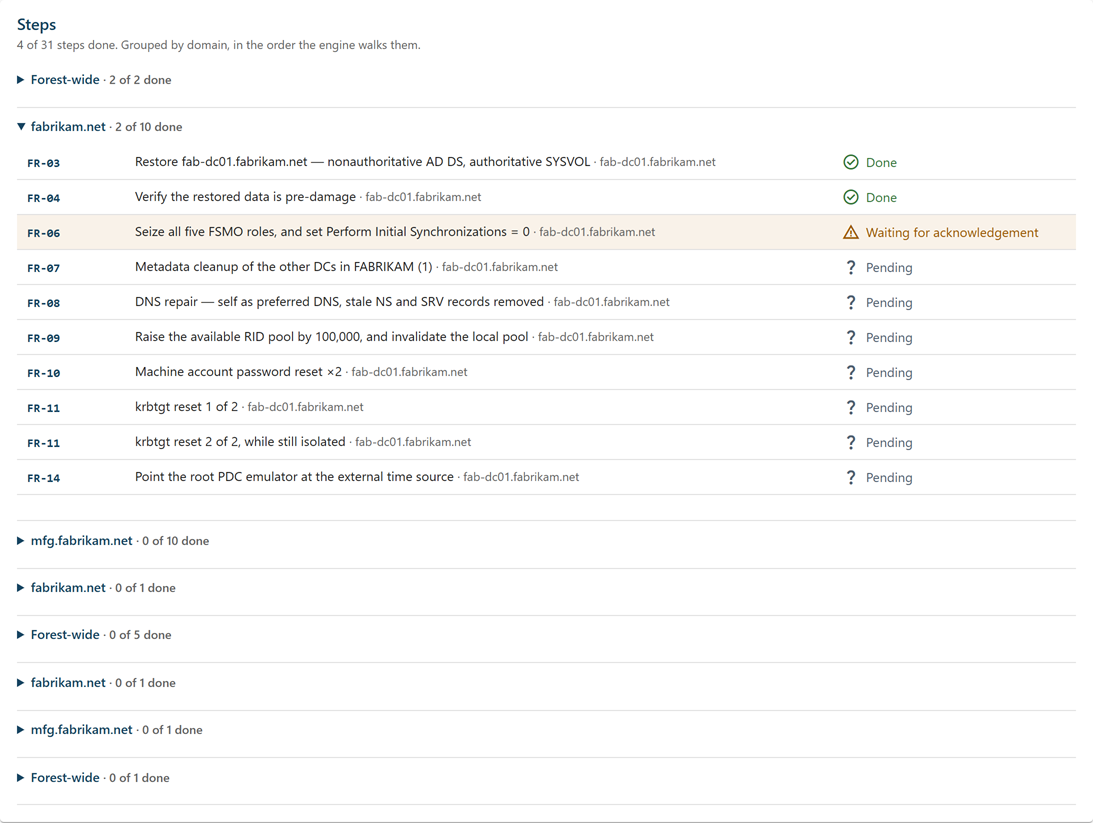
The Steps card lists every step, grouped by domain, in the order the Manager runs it. Each row shows the step code, title, machine, and state, the steps a pending step waits for, and the reason for any check that failed. The summary shows how many steps are done. The steps:
| Step | What happens | Your part |
|---|---|---|
| FR-02 | Isolate every restore target from production. | Attest that no domain controller, member, or client of the directory, and no other production machine, can reach the targets, and that their only links are the firewalled paths to the Manager's agent port and the storage machine's SMB. See Isolating Recovery Targets. |
| FR-03 | Restore the domain's domain controller: non-authoritative AD DS, authoritative SYSVOL. Select Follow the restore to open its restore run. | Watch the restore run. If its preflight raises a check only you can accept, decide on the restore run. |
| FR-04 | Verify the restored data is from before the damage. | Sign in to the restored domain controller and spot-check the directory. Attest, or reject and re-plan with an older restore point. |
| FR-05 | Breach resets on the restored domain controller (breach response only). | Acknowledge, carry out by hand, and attest. |
| FR-06 | Seize the operations master roles—all five in the root, the domain-wide roles in a child—and set Perform Initial Synchronizations to 0. | Acknowledge. |
| FR-07 | Remove the metadata of every other domain controller in the domain. A domain controller already absent from the restored directory counts as removed. | Acknowledge. |
| FR-08 | Repair DNS: set the preferred DNS server and remove stale name server and service records. In a child domain, the preferred DNS server is the forest root's restored domain controller. | Watch. |
| FR-09 | Raise the available RID pool and invalidate the local pool. | Acknowledge. |
| FR-10 | Reset the domain controller's machine account password twice. | Acknowledge. |
| FR-11 | Reset the krbtgt password twice, back to back while the forest is still isolated. In a plan created with a gap between the resets, the second reset waits it out. | Acknowledge each reset. |
| FR-13, FR-14 | Remove the global catalog flag from every domain's restored domain controller (forests with more than one domain), and set the time source: the external source on the root PDC emulator, the domain hierarchy elsewhere. | Watch. |
| FR-12 | Breach response only: reset every trust. For a trust inside the forest, there is one step per side, run by the agent on that domain's restored domain controller with that domain's credential; both sides are reset to one password the Manager generates and holds in memory. For an external trust, only this forest's side is reset. Without the breach flag, this step is not in the plan and no trust is reset. | Acknowledge each side. For an external trust, carry out this forest's side by hand and attest; the partner forest's administrator resets their side. That step stops for a person even in an unattended plan. |
| FR-16 | Join the restored domain controllers to one isolated network and fix name resolution. | Watch. |
| FR-17 | Forest health gate, one step per restored domain controller, run by its own agent: ask its KCC to drop links to removed domain controllers, pull replication into it from its partners (retrying up to four times, 30 seconds apart, while another restored domain controller cannot be pulled from yet), check that its inbound replication converges and that its domain lists exactly its restored domain controller, and run dcdiag. In a forest with more than one domain, dcdiag reporting no global catalog is expected at this point and does not block, nor do the event-log tests. | Watch. Nothing is promoted before every restored domain controller's gate passes. If one fails, resolve what its checks name and retry it. |
| FR-18 | Add the global catalog back on the designated root domain controller, and wait until it serves as a global catalog: the step pulls every partition from its partners every 2 minutes until the global catalog completes its first full sync. It fails after 30 minutes. | Watch. If it fails, check with repadmin /showrepl on the domain controller for a partition that is not replicating, then retry the step. |
| FR-19 | Backup checkpoint: a fresh backup of every restored domain controller before redeployment begins. | Run Back up now on each restored domain controller, wait for each job to complete, and attest. An unattended plan passes over this step, and the recovery report says so. |
| FR-20 | Reconnect to the production network. This is the moment the recovered forest goes live. From here until the last rebuilt domain controller is confirmed, each domain serves on its restored domain controllers alone, and the page shows Live on reduced DCs. | Acknowledge, reconnect, and attest. Confirm that none of the original machines the recovery replaced can rejoin. |
| FR-21 | Rebuild each remaining domain controller: rename the bound candidate, if any, and restart it; point its DNS at the recovered domain; reinstall the roles and features it had, as its last backup recorded them; promote it into its site; and confirm it came back. A role or feature that will not install is named, and the promotion goes ahead. | Make sure each rebuild has its machine: the bound candidate, or the domain controller's own machine reinstalled with the DC agent. |
| FR-22 | Clean up: set Initial Synchronizations back to 1 on each restored domain controller, set the new DSRM administrator password you supplied on every recovered domain controller (on a newly promoted domain controller, this waits up to 15 minutes for its first RID pool), and produce the recovery report and email it to the plan's notification addresses. | Supply the new DSRM password if the plan does not hold one. Then read the report and complete its follow-ups. See After a Recovery. |
Steps FR-03 to FR-14 run for the root first, and for each child domain after its parent. The restore at FR-03 runs as an ordinary restore run, so its page shows the same phases as Full System Recovery in Place.
The recovery leaves the operations master roles on the restored domain controllers. You move them to their final placement; the recovery report lists this follow-up.
Responding when the plan waits for you
When a step needs you, the Decision required section at the top of the plan's page explains what is needed, and the banner on every other screen reads "A recovery is waiting for you". Responding needs execution rights. If the plan has notification addresses, each wait is also emailed to them once.
Acknowledge a point of no return
A step marked Point of no return cannot be walked back once it runs, so the plan goes no further until you acknowledge it. Its state is Waiting for acknowledgement.
-
Read the step's title, machine, and detail.
-
Select Acknowledge….
-
Type the step code shown in the dialog, for example
FR-06, and select Acknowledge FR-06.
Note: Important: Acknowledge FR-20 only when you are ready for the recovered forest to go live. From then on it cannot be isolated again without a new recovery, and none of the original domain controllers it replaced may ever return to the network: each must be powered off, wiped, or reinstalled clean, because it still holds the forest as it was before the recovery.
Attest or reject an operator step
Some steps are checks only a person can make, such as isolation (FR-02), the pre-damage check (FR-04), and reconnecting (FR-20). Others—breach resets, the reset of this forest's side of an external trust, and the backup checkpoint—are carried out by you; the step's detail says what to do and, after "It is done when:", when the step is done. Their state is Waiting for you.
- When the check passes or you have carried out the step, select Attest. There is no further confirmation.
- If it does not pass—for example the restored directory still shows the damage—select Reject…, enter why, and select Reject and halt. The plan halts.
Decide on a restore's preflight
If the preflight of a restore at FR-03 raises a check only a person can accept—for example, the target cannot resolve the storage machine's name from where it is now—the step waits for you and offers Decide on the restore instead of Attest. Select it to open the restore run, then either approve the run accepting each such check, or select Cancel this restore…, which fails the step and halts the plan. See Full System Recovery in Place.
Supply a credential or the DSRM password
A step in the state Waiting for a credential needs something the Manager does not hold: a domain's administrator credential, or the new DSRM password. Select Supply credentials… or Supply DSRM password… in the Decision required section, enter it, and select Hand to the plan. The step runs by itself once it is supplied. The Manager holds both in memory only, so after a Manager restart a step may ask again.
A gap between the krbtgt resets
By default the second krbtgt reset follows the first as soon as it is acknowledged: both run while the forest is isolated, and going live waits for the second, so no client holds a ticket issued between them. In a plan created with a gap between the resets, the second reset waits it out. Its state is Waiting (krbtgt), and the page shows when it runs by itself. To run it early:
-
Select Run it now….
-
Enter a Reason. It is recorded in the audit trail and the recovery report.
-
Select Override the wait.
Kerberos tickets issued between the two resets are invalidated.
A rebuild waiting for its machine
A rebuild step in the state Waiting for its machine to be built needs a machine to promote that has never connected. If the plan bound no candidate to the domain controller, install Windows Server cleanly on the domain controller's own machine, with its name, and install the DC agent on it. The step runs by itself once the agent connects. While a rebuilt machine restarts between steps, its step shows Restarting and needs nothing from you.
Halts, retries, and aborting
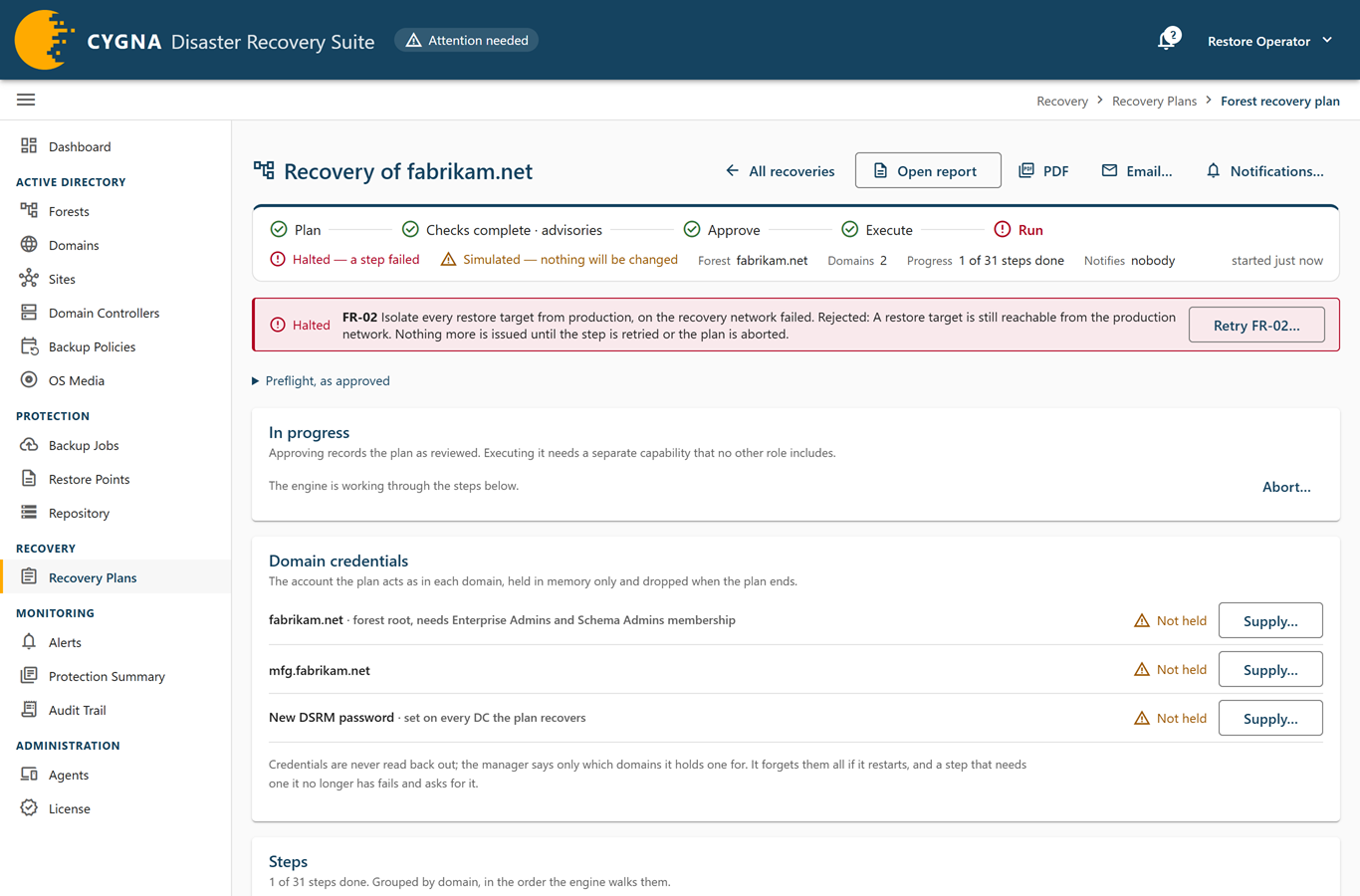
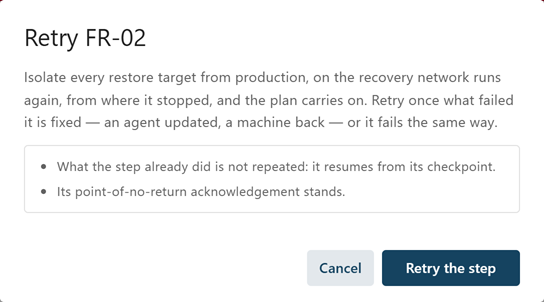
If a step fails, the plan's status changes to Halted — a step failed, and the page names the step, the machine, and the error, with each check that did not pass. Nothing more is issued until the step is retried or the plan is aborted. A step that was already running on a machine when the plan halted may still finish and report.
To retry the step that halted the plan:
-
Fix what failed it—for example, update an out-of-date agent or bring a machine back.
-
In the halted banner, select Retry <step>….
-
Select Retry the step.
The step runs again from its checkpoint, without repeating what it already did, and the plan carries on. Its point-of-no-return acknowledgment stands.
To abort a recovery:
-
Select Abort….
The dialog says what aborting now leaves: which points of no return are behind the plan, and which changes stay to finish or undo by hand.
-
In Why are you abandoning this recovery?, enter the reason.
-
Select Abort recovery.
The plan stops where it is and its status is Aborted. Steps that have already run are not undone. Each restore the plan started is asked to stop; one that is already writing carries on, and if its machine is gone, close it as abandoned from its own page.
The recovery report and notifications
The last step produces the recovery report: what happened to each domain controller, the manual follow-ups the recovery left, the decisions and interventions on the way, and every step. It is emailed to the plan's notification addresses. Once the plan has started, you can read it at any time with Open report, save it with PDF, or send it with Email…. For what it contains, see After a Recovery.
To change who the plan emails, select Notifications…, edit Addresses, and select Save. Emails need the Manager's email settings; the PDF is made by the Manager itself. See Settings Reference.
Using the command line
cdr recovery plan corp.example.com --restore "dc01.corp.example.com=09/02/2026-23:00" --restore "dc11.child.corp.example.com=09/02/2026-23:05" --rebuild dc02.corp.example.com --ntp time.windows.com --breach --notify ad-team@corp.example.com --dsrm
cdr recovery plan corp.example.com --restore "dc01.corp.example.com=<version>:rollback" --gc dc01.corp.example.com --ntp time.windows.com
cdr recovery show <plan> --wait
cdr recovery approve <plan>
cdr recovery secrets <plan> --domain corp.example.com --admin "CORP\Administrator"
cdr recovery secrets <plan> --dsrm
cdr recovery execute <plan>
cdr recovery execute <plan> --confirm corp.example.com --isolated
cdr recovery ack <plan> FR-06@corp.example.com --confirm FR-06
cdr recovery attest <plan> <step>
cdr recovery attest <plan> <step> --reject --note "Encrypted objects still present"
cdr recovery retry <plan> <step>
cdr recovery report <plan> --pdf corp-recovery.pdf
cdr recovery abort <plan> --reason "Re-planning"
Other options include --onto (bind a candidate to a restored or rebuilt domain controller), --exclude, --rid-increase, --reverify, and --unattended. An unattended plan is executed with --confirm and --isolated. cdr recovery show prints each step ID and what a waiting step needs; while the plan is a draft, approved, running, or halted, it also lists the domains whose credential the Manager holds and, for each domain a remaining step needs but the Manager does not hold, the cdr recovery secrets command that supplies it. For every option, see Recovery Plan Commands.
Result and next steps
When every step is done, the plan's status is Completed. The forest runs on the restored and rebuilt domain controllers and is connected to production. Every domain controller the plan restored or rebuilt that has an enabled backup policy is due for a backup at once; each backup starts when the domain controller's agent connects. Next, read the recovery report, complete its follow-ups, check that those backups completed, and review the audit trail; see After a Recovery.
