Creating Your First Backup Policies
No backup policy exists by default, so nothing is backed up until you create one. A backup policy belongs to one domain controller and sets how often it is backed up and with which backup type. This topic shows how to protect the domain controllers you choose with one bulk edit. You can refine individual policies afterwards.
Before you begin
- Deploy the DC agent to your domain controllers and set up the storage machine. See Deploying DC Agents and Setting Up the Storage Machine.
- Make sure the Windows Server Backup feature is installed on the domain controllers, or that the agent is set to install it.
- To create policies, you need the
backup.managecapability, which the Backup Operator role has. - Decide which domain controllers to back up in each domain: at least two writable domain controllers, including the PDC emulator and the one you prefer to restore. See Choosing Which Domain Controllers to Back Up.
Choose the settings
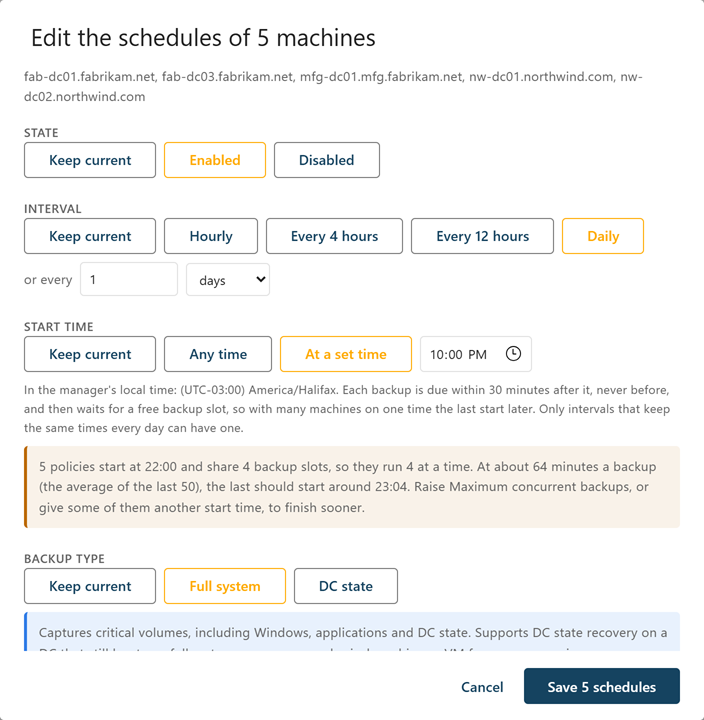
- Backup type—Choose Full system. It captures critical volumes, including Windows, applications and DC state, and supports both DC state recovery and full system recovery. DC state backups are smaller and faster to take but support DC state recovery only, on a domain controller that still boots, so a domain controller whose hardware is lost would have to be rebuilt. See Backup Types.
- Interval—Daily is the default. Choose a shorter interval if you need recent restore points, and make sure your storage can hold the backups. Intervals range from 5 minutes to 90 days.
- Start time—Any time is the default: each policy runs at its interval, with a small random spread so that domain controllers do not all start at once. To keep backups outside business hours, choose At a set time and enter a time in the Manager's local time, such as 22:00. Each backup is due shortly after that time, never before, and then waits for a free backup slot, so with many domain controllers on one time the last start later. The editor estimates how late. See Managing Backup Policies.
Create policies for the domain controllers you back up
To create backup policies in bulk:
-
Select Active Directory > Backup Policies.
Each domain controller is listed. Those without a policy show None in the Schedule column and are listed first.
-
Select the checkbox of each domain controller you chose to back up in each domain.
-
In the bar at the bottom of the screen, select the edit button, for example Edit n schedules….
The bulk editor opens.
-
In State, choose Enabled.
-
In Interval, choose Daily or another preset, or enter a custom interval.
-
In Start time, leave Any time, or choose At a set time and enter the time.
If more domain controllers share the time than there are backup slots, the editor warns you how late the last should start.
-
In Backup type, choose Full system.
-
Select Save n schedules.
Each new policy's first backup is due immediately, or at the start time if you set one. For a domain controller whose DC agent has not come online yet, the policy waits, shown as Waiting for agent, and its first backup runs as soon as the agent connects.
Backups do not all run at once. The Manager runs a limited number at a time, set by Maximum concurrent backups on the Configuration screen, and queues the rest, so the first round can take a while in a large environment.
Domain controllers you don't back up need no further action. With no enabled policy and nothing in the vault, a domain controller has the Rebuilt on recovery verdict: information, not a finding, and it raises no alert. See Backup Targets and Rebuilt Domain Controllers.
Run a backup now
To back up a single domain controller without waiting for its policy, select Back up now (play icon) on its row on the Backup Policies screen. The backup is of the type its policy takes. See Running a Backup Now.
Confirm the first backups
To confirm that the first backups completed:
-
Select Protection > Backup Jobs.
A job is listed for each domain controller you scheduled. Watch the jobs until they complete. If a job fails, the job shows why; see Backup Job Errors.
-
Select Protection > Restore Points.
A restore point is listed for each completed backup.
-
Select Dashboard.
The dashboard shows whether each domain and forest is covered.
Once restore points exist, the storage agent can build recovery images for the operating systems they record. Check the OS Media screen after the first backups. See Setting Up OS Media and Recovery Images.
For changing, disabling, and removing policies, see Managing Backup Policies.
