Managing Backup Policies
A backup policy tells the Manager how often to back up one domain controller, optionally from what time of day, and which backup type to take. Create a policy for every domain controller you want to protect, change the interval or type as your recovery needs change, and disable a policy when you need to pause backups without losing its settings. You manage policies on the Active Directory > Backup Policies screen, one row per domain controller.
Before you begin
- You need the Backup Operator role. Other operators can open the screen, but the Manager refuses their changes.
- The domain controller must be known to the Manager. A machine appears on the screen once its DC agent enrolls or discovery reports it. You can create a policy for a machine that has no agent yet, but it does not run until an agent is enrolled. The row says "No agent is enrolled, so this will not run." The schedule is held, with Next due showing Waiting for agent, and no failed backup is recorded. The first backup runs as soon as the machine's first DC agent connects. Once a machine has had a DC agent, a due backup that cannot run because the agent is stopped or the machine is down is recorded as a failed job, so a protected machine that is not being backed up shows up.
- Decide on the backup type. Full system recovery needs full system backups. See Backup Types.
Choosing the interval, start time, and type
The interval is how long the Manager waits after one scheduled backup before it starts the next. Without a start time (Any time), the Manager spreads policies slightly around their interval so that a fleet does not start every backup at the same moment (the Schedule jitter setting).
With a start time (At a set time), backups run at fixed times of day, for example outside business hours. Keep these rules in mind:
- The start time is 24-hour, in the Manager's local time, not the time zone of your browser or the domain controller.
- It is the earliest a backup is due, never the exact time. Each backup is due at a random moment within the Start time spread after it (at most half the interval), so domain controllers on the same start time do not all ask for a backup slot at once.
- Backups then wait for a free backup slot. With more domain controllers on one start time than Maximum concurrent backups, the last of them start well after it. The editor estimates how late, and warns you when the slots cannot keep up. To finish sooner, raise Maximum concurrent backups or give some domain controllers another start time.
- Only an interval that runs at the same times every day can have a start time: a whole number of days, or one that divides a day evenly (every 1, 2, 3, 4, 6, 8, or 12 hours, or a divisor of an hour). For example, every 6 hours from 22:00 runs at 22:00, 04:00, 10:00, and 16:00. Every 7 hours is refused.
- Runs stay on their times of day. A backup that started late, for example after a long wait for a slot, is followed by the next start time that is at least half an interval later.
- Daylight saving time: a start time in the hour that is skipped in spring runs at the first time that exists after it (02:30 becomes 03:00). A start time in the hour that repeats in autumn runs once, in the first of the two.
For the spread settings and Maximum concurrent backups, see Settings Reference.
| Option | Description |
|---|---|
| Hourly, Every 4 hours, Every 12 hours, Daily | Interval presets. A new policy starts on Daily. |
| or every n days / hours / minutes | A custom interval. It must be a whole number of minutes, at least 5 minutes and at most 90 days. |
| Full system | Captures the critical volumes, including Windows, applications, and DC state. The backup supports both DC state recovery and full system recovery. This is the default for a new policy. |
| DC state | Smaller and faster to take, but supports DC state recovery only. A machine whose Windows installation is lost cannot be recovered from it and has to be rebuilt instead. |
The Recovers column shows the result of your choice for each machine: DC state + Full system or DC state only. When any enabled policy takes DC state only, the screen shows an advisory with a Show these button that lists those machines.
For guidance on how often to back up and how much history the vault keeps, see Retention and Coverage and Readiness.
Create a policy
To create a backup policy for one domain controller:
-
Go to Active Directory > Backup Policies.
Machines that need a policy are listed first. To show only those with backups and no policy, select the unscheduled chip. To show the domain controllers that could make up a domain's shortfall, select the need a backup policy chip.
-
On the row for the domain controller, select Schedule.
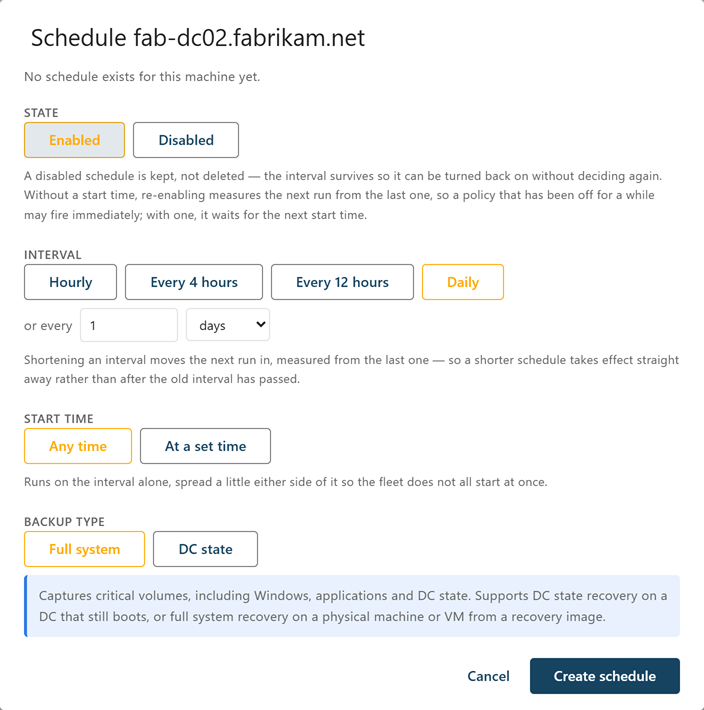
The Schedule dialog opens with the defaults: enabled, daily, any time, Full system.
-
Under State, leave Enabled selected.
-
Under Interval, select a preset, or enter a number and select a unit beside or every.
-
Under Start time, leave Any time selected, or select At a set time and enter the time.
With a start time, the dialog names the Manager's time zone and estimates when the domain controllers on that time should start.
-
Under Backup type, select Full system or DC state.
The dialog states what the chosen type can recover.
-
Select Create schedule.
A message confirms the schedule and when the first backup is due: immediately, or at the first start time. For a machine whose DC agent has not come online yet, the first backup waits until the agent connects.
To try a new schedule straight away, select Back up now (play icon) on its row. See Running a Backup Now.
Edit a policy
To change the state, interval, start time, or type of one policy:
-
On the Backup Policies screen, select Edit on the row for the domain controller.
-
Change the State, Interval, Start time, or Backup type.
-
Select Save changes.
Changes take effect as soon as they are saved. The confirmation says how the next run moved, for example from one time to another, or that the timing is unchanged. If the agent was not reachable, the message says it picks up the change when it reconnects.
How an edit moves the next run:
- Without a start time—the next run is measured from the last one. Shortening an interval therefore brings the next backup forward at once, and a policy that has been disabled for a while may run as soon as you enable it again. Removing a start time also measures the next run from the last one.
- With a start time—setting or changing the start time, changing the interval, or enabling the policy moves the next run to the first start time that is at least half an interval after the last backup and not in the past. For example, a daily policy that last ran yesterday at 23:10 and is set to 22:00 runs tonight at 22:00. Changing only the backup type keeps the next run.
Edit several policies at once
Use bulk edit to apply the same change to many domain controllers, for example to move a domain to full system backups or to give every unscheduled machine a policy.
To edit several policies:
-
On the Backup Policies screen, select the checkbox on each row you want to change.
To select every row that matches the current filter and search, select the checkbox in the header, then select Select all n matching.
-
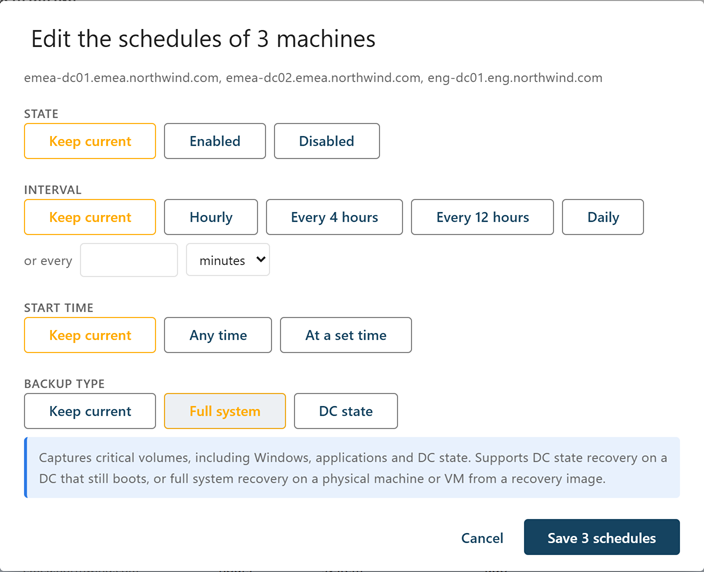
In the bar at the bottom of the screen, select Edit n schedules….
The dialog lists the selected machines.
-
For each of State, Interval, Start time, and Backup type, either leave Keep current selected or select the new value.
If a start time does not suit the interval some machines keep, the dialog names them; choose an interval for all of them, or Any time. With a start time, the dialog warns you when more machines share it than there are backup slots.
-
Select Save n schedules.
If some machines could not be saved, the dialog lists them with the Manager's reason. Correct the problem and select Retry n.
How Keep current works:
- A field left on Keep current keeps each machine's own value. Only the fields you change are applied to every selected machine.
- A selected machine that has no policy yet gets one. Any field left on Keep current uses the defaults for a new policy: enabled, daily, any time, Full system. The dialog says how many of the selected machines have no policy.
- If none of the selected machines has a policy, the Keep current choices are not shown. The fields start on the defaults, and every machine gets exactly what is selected.
- You must change at least one field, unless you are creating policies for machines that have none.
Disable or remove a policy
Disabling and removing both stop scheduled backups, but they are not the same:
- Disable—the policy is kept with its interval, start time, and type, so you can turn it back on without deciding again. The Schedule column shows the interval followed by · off, and Next due shows Not scheduled.
- Remove—the policy is deleted, along with its settings. The machine counts as unscheduled. Removing a policy deletes no backups.
To disable a policy:
-
Select Edit on the row for the domain controller.
-
Under State, select Disabled, and then select Save changes.
To disable several policies, use bulk edit and set only State to Disabled.
To remove a policy:
-
On the row for the domain controller, select the Remove schedule icon. To remove several, select their rows and then select Remove n schedules… in the bar at the bottom of the screen.
-
Read the consequences, and then select Remove schedule.
Note: A domain controller that is recorded as removed from the directory stays on this screen while it still has a policy, with the warning "Backups are still being dispatched to it; remove the schedule." Remove its policy so the Manager stops backing up a machine that is no longer part of the estate. See Excluding and Retiring Objects.
Using the command line
The cdr policy commands manage the same policies. cdr policy set reads the current policy first, so an edit changes only the options you give.
cdr policy list --due
cdr policy set dc01.corp.example.com --every 1440 --type bmr
cdr policy set dc01.corp.example.com --every 1440 --at 22:00
cdr policy set dc01.corp.example.com --at none
cdr policy set dc01.corp.example.com --disabled
cdr policy set dc01.corp.example.com --enabled
cdr policy remove dc01.corp.example.com
--every takes minutes and is required when you create a policy. --at sets the start time in the Manager's local time, and --at none removes it; an edit without --at keeps the start time. Setting --type systemstate asks you to confirm that the machine loses full system recovery; --yes skips the confirmation. For every option, see Backup Commands.
Next steps
- Check that each new policy produces a restore point. See Monitoring and Cancelling Backup Jobs.
- To take a backup without waiting for the schedule, see Running a Backup Now.
- For a description of every column and filter on the screen, see Backup Policies.
