Alerts
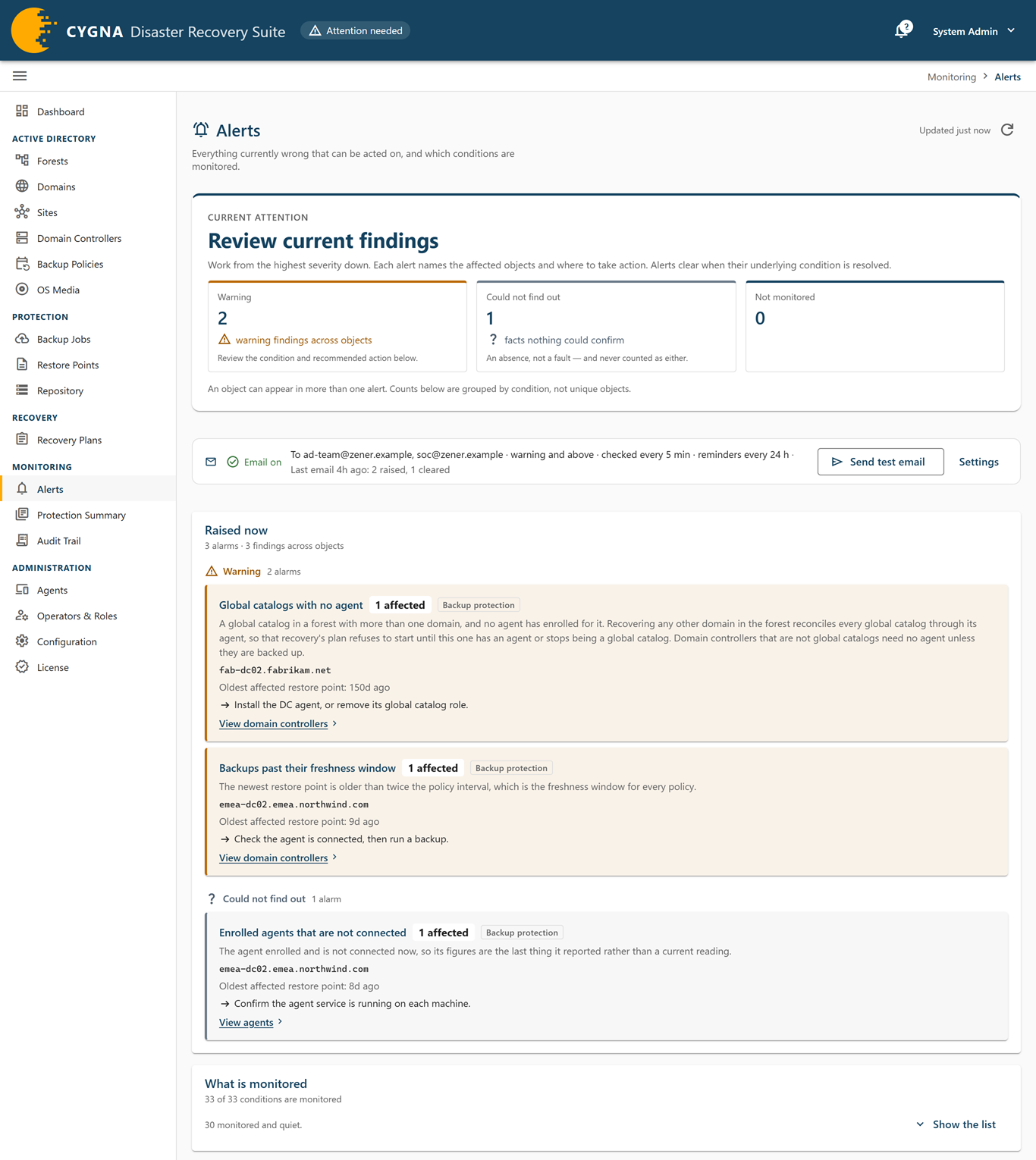
The Alerts screen lists everything currently wrong that you can act on: each alert the Manager raises, which objects it affects, and what to do about it. Alerts are evaluated continuously from what the agents report, and an alert disappears when its condition is no longer true. There is nothing to acknowledge, with one exception: Committed vault content changed outside retention stays raised until someone records a review of the change with cdr repository changes review.
To open it, select Monitoring > Alerts, or select Open Alerts in the notifications menu (the bell in the top bar). The screen requires the dashboard.view capability, which every role includes. It refreshes itself every 30 seconds.
The bell's badge counts the alert types active at critical or warning severity. Its menu lists recoveries in progress and up to six active alerts.
Tiles
The Current attention panel at the top of the screen opens with a headline, such as how many critical alerts need attention, and holds these tiles:
| Tile | Meaning |
|---|---|
| Critical | Critical findings across objects. Review these first: recovery or data protection is at risk. |
| Warning | Warning findings across objects. Review the condition and recommended action below. |
| Could not find out | Facts nothing could confirm, such as an agent that is not connected. An absence of information, counted neither as a fault nor as healthy. |
| Not monitored | Confirms that the Manager evaluates every alert condition: it shows 0 and every condition is monitored. See What is monitored below. |
| Excluded | Objects an operator has marked as out of scope. They are in none of the other counts, and each stays on its own inventory screen with its reason and author. |
Severity tiles are shown only when their count is not zero.
Alert email
The line below the tiles says whether alerts are emailed, and whether that is working:
- Email off—No recipients are set, so nobody is emailed.
- Email on—The recipients, the minimum severity (such as warning and above), the check interval, and the reminder interval or no reminders.
- Email not working—The same, with the reason: the mail server is not set up, the last check failed, or the last email was not sent. Alerts are held and sent at the next check once the problem is fixed.
- Email status unknown—The console could not read the status from the Manager.
After the last email sent, the line shows when it went and what it listed, such as Last email 5 hours ago: 2 raised, 1 cleared. Settings opens the Configuration screen, where the Alert notifications settings are. When email is on and you have the config.manage capability (System Admin), Send test email sends the recipients an email in the real format, marked [Test], listing what is raised now. It does not change what the next check reports. One test email can be sent every 30 seconds.

For how alert email works, see Alerts Reference; for the settings, see Settings Reference; for cdr alert notify status and cdr alert notify test, see Alert, Audit, and Report Commands.
Raised now
The Raised now card lists active alerts grouped by severity: Critical, Warning, Could not find out, and Notice. Each alert shows:
- Its title and how many objects it affects (n affected). An object can appear in more than one alert.
- An origin tag saying which part of the system noticed it: Backup protection, Topology, Storage, Security, or Recovery.
- What it watches, and the affected objects by name (the first few, then and N more).
- Where it applies, a date with a label that says what it is: Oldest affected restore point for most alerts, Earliest removal for objects removed from the directory, Longest silent: last replicated for domain controllers silent past the tombstone lifetime, First seen for unexpected SMB connections to the staging share, First change for committed vault content changed outside retention, Journal gap or last report for vaults not being watched for changes, First refusal since the last credential issued for staging that could not be created, First reset for a krbtgt second reset due, and Roles seized for a recovery protection override.
- What to do, and a link to the screen where you do it, such as View domain controllers, View repository, View backup jobs, View agents, View audit trail for the staging share and vault change alerts, whose first sighting is an audit trail entry, View test restores for the test restore alerts, or View recoveries for the recovery plan alerts.
When nothing is active, the card reads No monitored condition is raising an alert. Every monitored condition was evaluated and none matched.
For every alert, its severity, what raises it, and how to resolve it, see Alerts Reference.
What is monitored
This card says how many of the alert sources the Manager evaluates are quiet, as n monitored and quiet. Select Show the list to see them: Monitored and quiet lists each source that was evaluated and is not currently raised, with what it watches.
Two sources report on the watching itself, so that a quiet storage machine is never mistaken for a watched one: Storage machines not fully watching the staging share and Vaults not being watched for changes. When the reason is the storage machine's audit policy, for example Audit File Share is off in this machine's audit policy, turn the auditing on as described in Turning on auditing on the storage machine. For what the storage agent watches, see Vault Protection and Integrity.
Excluded objects
An operator with the backup.manage capability can exclude a forest, domain, site, or domain controller from alerts, with a reason and an optional review date. Excluded objects are left out of every alert and count, but remain visible on their inventory screens. When the review date passes, or the object changes, the exclusion lapses and an alert says so. For how to exclude an object, see Excluding and Retiring Objects.
