OS Media
The OS Media screen shows the Windows Server installation media you have on hand and whether it covers the operating systems your domain controllers run. It also shows, for each operating system, whether a domain controller running it can use full system recovery: restored as a whole server from a full system backup, in place or onto a replacement machine.
Both answers depend on the OS media library: a folder of Windows Server ISO files that the storage agent scans without mounting them. The storage agent also builds each operating system's recovery image from these ISOs. The library is optional for backups, but no domain controller can use full system recovery without a recovery image.
To open the screen, select Active Directory > OS Media. Every role can see it. The screen is read-only: you configure the media folder and recovery image folder for the storage agent on the Configuration screen. The screen refreshes every 60 seconds.
For setup, see Setting Up OS Media and Recovery Images. For how recovery images are used, see Recovery Images.
Notices
| Notice | Meaning |
|---|---|
| Full system recovery unavailable | No storage agent has a recovery image folder set, so no recovery images are built and domain controllers running the listed operating systems cannot use full system recovery. DC state recovery is unaffected. Set Recovery image folder for the storage agent in Configuration and restart the agent. Use a folder separate from the media folder. |
| Optional feature, not configured | No storage agent has a media folder configured. This is not a gap in your protection; the operating systems table still lists what you would need to install to rebuild the estate. |
| Never scanned | A media folder is configured but no scan has completed yet, so the library is still empty. The Media library tab shows which agent and any error. |
| No fleet OS collected | No backup has recorded a machine's build, edition, and install type yet, so the operating systems in use are not known. This fills in with the first completed backup. |
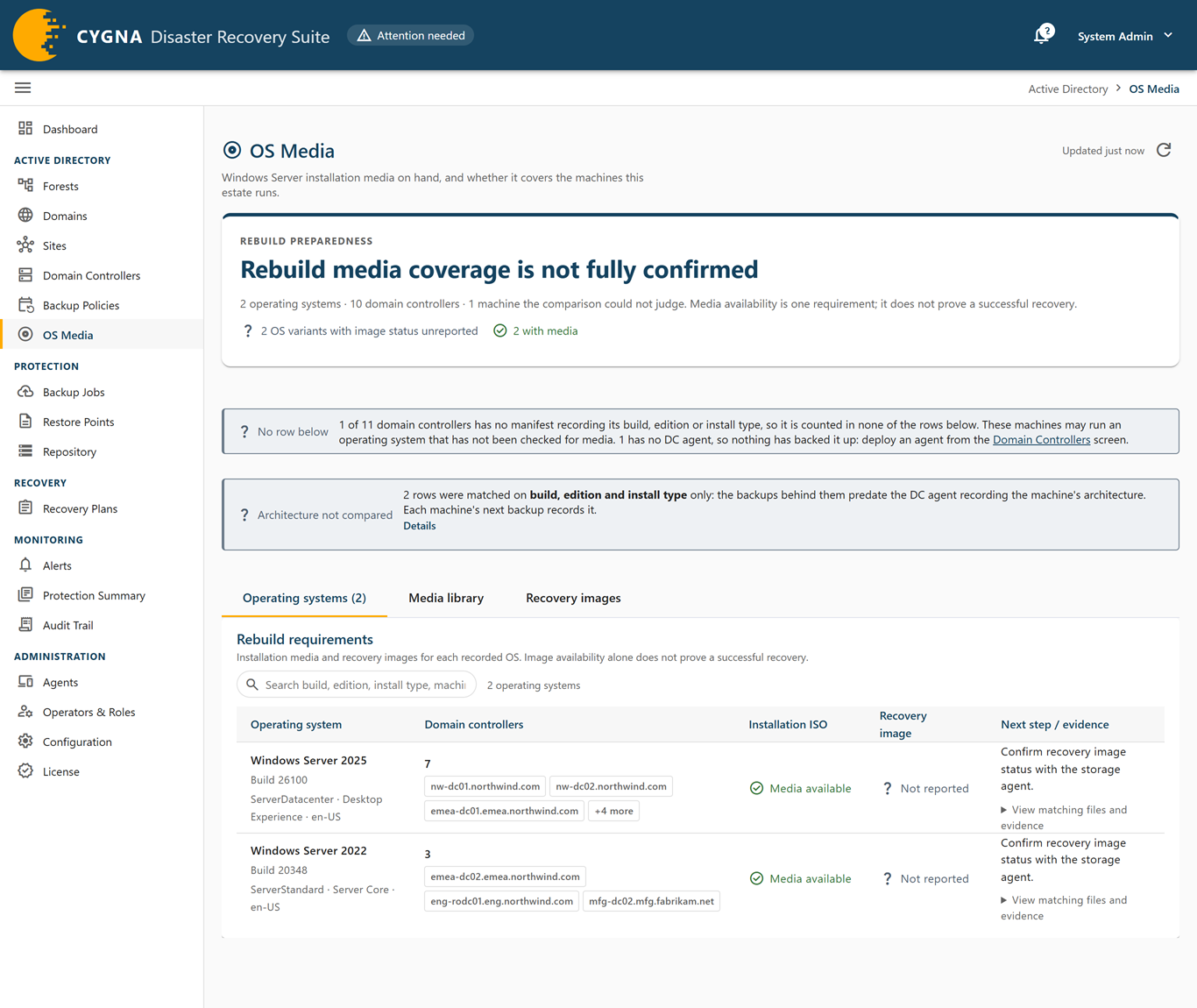
| No row below |
Some domain controllers have no backup recording their build, edition, or install type, so they appear in no row. The notice counts them by cause:
Only domain controllers in scope are counted; the notice says how many excluded domain controllers are not counted. |
| Cannot be matched | Some rows have a build, edition, or install type that was only partly collected, so no media match can be attempted. The next backup fills it in. |
Findings
The Rebuild preparedness panel (described below) lists media findings only when a media library is configured.
| Finding | Severity | What to do |
|---|---|---|
| Operating systems with no installable media | Critical | A domain controller on one of these builds cannot be rebuilt from the media in the library. Add the matching Windows Server ISO to the media folder; build, edition, and install type must all match. |
| Operating systems covered only in another language | Warning | The media installs, but in a language your machines do not run, so tool output during recovery will not match the documentation. Add the ISO in your machines' language. |
| ISOs that could not be read | Warning | Check each file against its published hash and replace any that are truncated or corrupt. Files with no Windows image inside, such as driver discs, are not a fault. |
| Media folders could not be read | Warning | Check that the path exists and that the storage agent's service account can read it. The folder row shows the agent's error. |
Rebuild preparedness
The Rebuild preparedness panel at the top of the screen opens with a headline that sums up whether the media on hand covers a rebuild. It counts operating systems by coverage and shows chips such as with media, with no installable media, in the wrong language only, and new and uncovered (operating systems that appeared recently with no media, as after an in-place upgrade or a new domain controller). Further chips count operating system variants by recovery image status. The panel then lists each finding.
Operating systems tab
The Rebuild requirements card has one row per operating system variant that your domain controllers run, taken from each machine's newest backup: the build, edition, install type, architecture, and language that a restore of that machine would put back.
| Column | Description |
|---|---|
| Operating system | The product name with the build under it (OS not collected if neither was recorded), then the edition, install type (Desktop Experience or Server Core), architecture (x64 or ARM64) when recorded, and language. New marks a variant first seen in a backup within the last 30 days. |
| Domain controllers | How many domain controllers run this operating system, with up to three names. |
| Installation ISO | Whether the library holds matching installation media. See the table below. |
| Recovery image | Whether a domain controller running this operating system can use full system recovery. See the table below. Not reported means the storage agent has not reported a recovery image status for this variant. |
| Next step / evidence | What to do next for this operating system. Expand View matching files and evidence to see the matching ISO files, the recovery image status, the update revision of the most-patched machine on this build against the best matching image, and the newest backup that reports this operating system. The revision is for information only. An ISO is a base image, so media behind the fleet is normal; the revision tells you how much patching a rebuild would need. |
| Installation ISO | Severity | Meaning |
|---|---|---|
| Media available | Good | The library holds an image matching the build, edition, install type, and language, and the architecture where the machines' backups record it. |
| Wrong language only | Warning | The library matches the build, edition, and install type, but not the language. It installs a working domain controller in the wrong display language. |
| No installable media | Critical | Nothing in the library matches, so a machine on this operating system could not be rebuilt from the media on hand. |
| Machine OS unconfirmed | Unknown | The machines' build, edition, or install type was never collected, so no match can be attempted. |
| Library not scanned | Unknown | A media folder is configured and no scan has completed yet. |
| No media library configured | Information | No storage agent has a media folder. The library is optional, so this is not a gap. |
| Recovery image | Severity | Meaning |
|---|---|---|
| Available, image proven | Good | A recovery image exists for this operating system, and at least one has been proven by a completed restore. |
| Available, image untested | Warning | A recovery image exists and is served, but none has been proven by a restore yet. This is the normal state until a full system recovery or a test restore completes with it. With an Isolated Recovery Host and the Prove new recovery images setting on, untested images are test-restored automatically. |
| Unavailable, no image built | Critical | There is no recovery image yet. The storage agent builds one on its next pass. |
| Unavailable, image failed its test | Critical | Every recovery image for this operating system failed its boot test, so none is served. Rebuilding produces the same result; investigate the failure. |
| Unavailable, no media to build from | Critical | No media in the library matches, so no image can be built. Add the matching ISO. |
| Unavailable, no image folder set | Warning | No storage agent has a recovery image folder set, so no image will be built. Set Recovery image folder in Configuration and restart the storage agent. |
| No restore point to recover | Information | No restore point exists for this operating system, so no recovery image is needed. |
| No storage agent has reported | Unknown | No storage agent has reported a recovery image library yet. |
In every unavailable case, DC state recovery of a domain controller that still starts Windows is unaffected.
Media library tab
The Media library tab shows what the storage agents found in their media folders. Nothing here is required for backups to work.
- Media folders—One row per storage agent: the folder and whether it is a Local folder or Network share, the last scan and its outcome (Read successfully, Partly read, Folder unreachable, Access denied, or No folder configured), the number of ISO files and images, and whether the agent is Connected or Offline. A share depends on a network, a server, and a credential the same disaster may have taken, and a local folder is only as available as the storage machine.
- ISO files—Each file, whether it was read (Read, No Windows image inside, Could not be read, Unsupported format, or Not read yet), the images inside, how many of the operating systems in use it covers, its size and SHA-256 hash when computed, when it was modified, and when a scan last listed it. Compare the hash with Microsoft's published hash to confirm the file.
- Images inside the media—Each Windows image in the files: index and name, build, edition, install type, architecture, language, revision, and installed size.
A scan that cannot read the folder removes nothing from the inventory, so a failed scan never makes media look missing.
Recovery images tab
The Recovery images tab shows what each storage agent's recovery image library holds, which images it keeps, and which it retires. Each product build adds a new image for every operating system variant, so the Manager decides what each library keeps and tells the storage agent to delete the rest. For the rule, see Recovery Images.
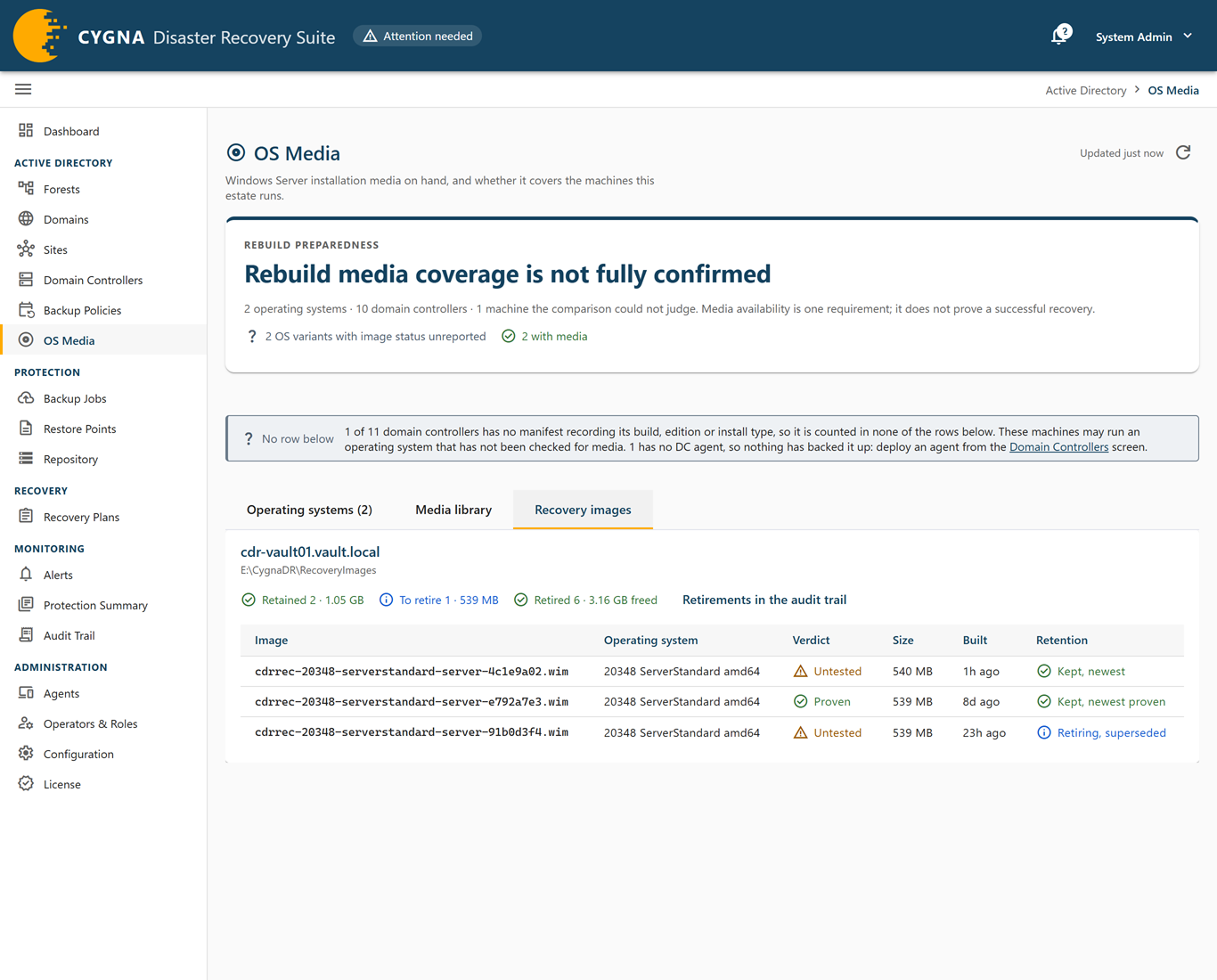
There is one card per library, titled with the storage agent and the library's folder. Chips at the top of the card:
- Retained—How many images are kept, and their size. Per operating system variant the vault needs, these are the newest image and the newest proven one, and any image a restore is using.
- To retire—Images marked for retirement and their size. The storage agent is told straight away while it is connected, otherwise when it reconnects, and the images leave the list after its next report. Shown only when there are any.
- Retired—How many images this library has deleted on the Manager's instruction, and the space that freed.
- Nothing retired—The Manager is not deciding retirement for this library at the moment, and every image counts as retained. Hover to see why, for example when the library's last report did not succeed and the Manager's view of it may be stale.
The image table lists every image in the library:
| Column | Description |
|---|---|
| Image | The image file name. |
| Operating system | The build, edition, and architecture the image serves. |
| Verdict | Proven (a completed restore, including a test restore, has used it), Untested, or Failed. |
| Size | The size of the image file. |
| Built | How long ago the storage agent built it. |
| Retention | What the Manager decided for the image. See the table below. Not decided means no decision has been made for it. |
| Retention | Meaning |
|---|---|
| Kept, newest | The newest image for its operating system variant, whatever its verdict. |
| Kept, newest proven | The newest image for its variant that a restore has proven. |
| Kept, newest usable | The newest image for its variant has failed, so the newest image that has not failed is kept as well. |
| Kept, a restore is using it | A restore that has not ended is using the image. An image in use is never retired. |
| Retiring, superseded | A newer image serves the same variant. |
| Retiring, failed and superseded | The image failed, and a newer one exists. |
| Retiring, no restore point needs it | No restore point in retention runs this operating system variant. |
Images the library has already deleted are counted, not listed. When there are any, Retirements in the audit trail opens the Audit Trail screen filtered to recovery-image.retired, where each one is recorded.
The tab can also show:
- No storage agent has reported a recovery image library.—No storage agent with a recovery image folder has reported yet.
- This library holds no recovery images.—The library is reported but empty.
