Running a Test Restore
A test restore restores one backup version onto a new virtual machine on an Isolated Recovery Host, checks it as a working domain controller in isolation, and deletes the virtual machine. Nothing in production changes. Scheduled test restores run on their own once a host is ready. Start one yourself when you want an answer about a particular backup now, for example before you rely on it in a recovery. For how a test restore works, see Test Restores.
Before you begin
- You need the Restore Operator role, or one operator who can approve and another who can execute.
- An Isolated Recovery Host must be ready. Check its panel on the Administration > Agents screen. See Setting Up an Isolated Recovery Host.
- The backup must be a Full system restore point.
- A recovery image must exist for the domain controller's operating system. Check the OS Media screen.
Start a test restore from the console
To run a test restore:
-
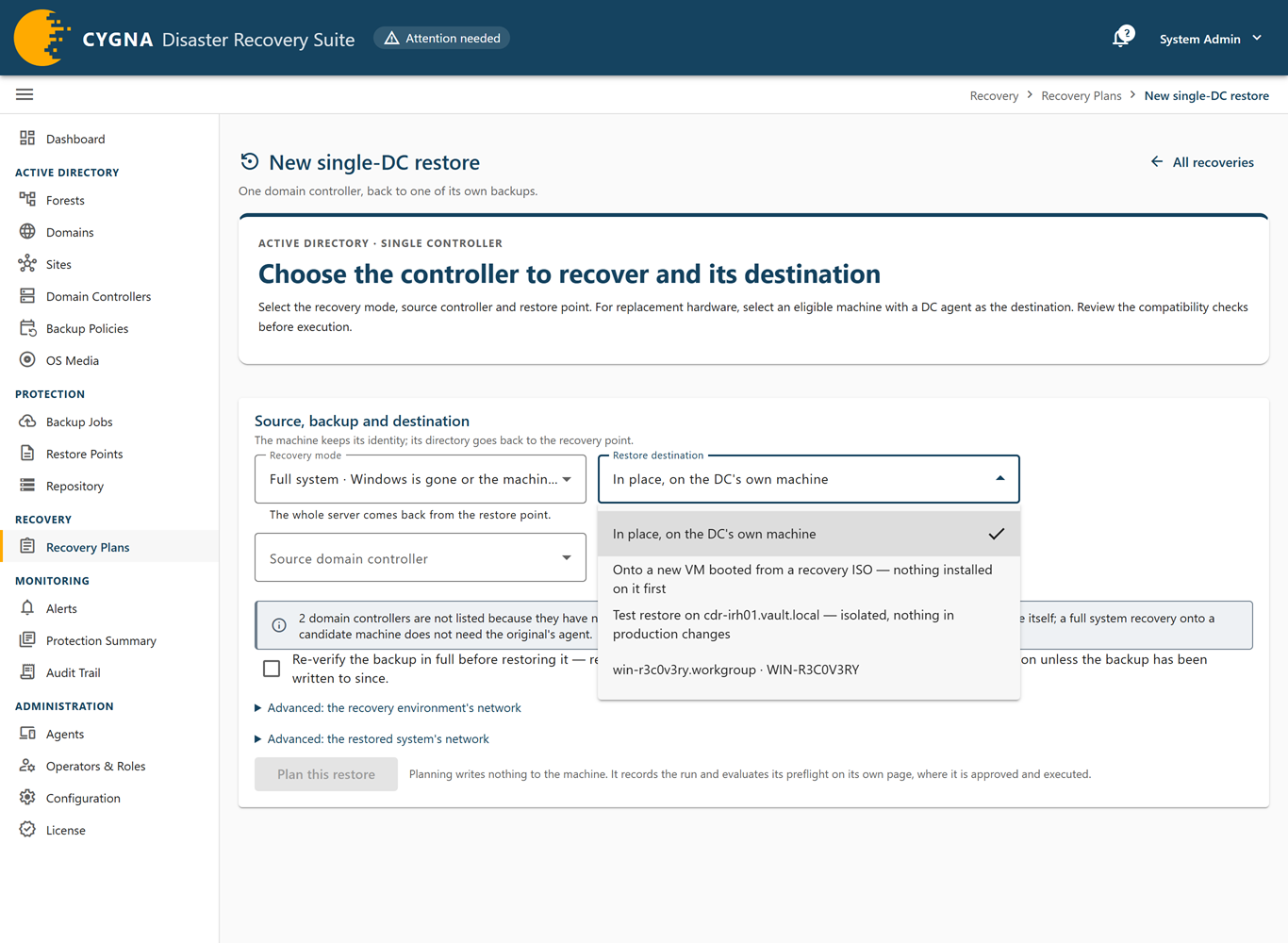
Go to Recovery > Recovery Plans, and under Active Directory recovery, select Single-DC recovery.
-
In Recovery mode, select Full system.
-
In Restore destination, select Test restore on host — isolated, nothing in production changes.
Until a host is connected and ready, the option is unavailable and reads no Isolated Recovery Host is ready.
-
In Source domain controller, select the domain controller, and in Restore point, select the full system restore point to test.
Each restore point shows the result of its latest test restore, if any: test restore verified, test restore failed, test restore running, test restore waiting to start, or test restore inconclusive. The Test restore column of the Restore Points screen shows the same results, so you can find untested or failed versions before you start.
-
Select Plan this test restore.
The run's page opens, titled Test restore of domain controller.
-
Resolve any hard check on the Preflight card, and select Approve this restore.
-
Select Execute…, and in the Test restore machine dialog, select Test NAME now.
The dialog says that the host restores the backup into a new virtual machine on its private switch, checks it, and deletes it, and that the domain controller itself is not touched. You do not type the domain controller's name, as you do for a restore that overwrites one.
Follow the test restore
While the test runs, the recovery banner on other screens reads Test restore in progress — nothing in production changes, unless a real recovery is also running. Select the domain controller's name in the banner to open the run's page.
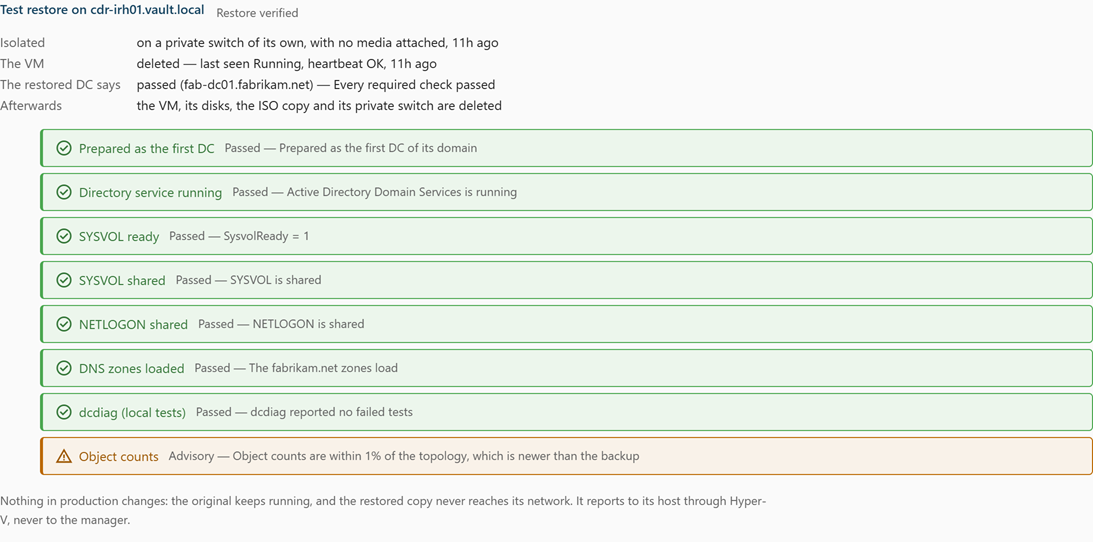
The run's page shows a Test restore on host card while the test runs:
- Isolated—Whether the virtual machine has been moved to its private switch with no media attached. Until then it reads that the restore is still running on the host's recovery network.
- The VM—The virtual machine's state and whether Hyper-V receives its heartbeat. Once the virtual machine has been deleted, it reads deleted, followed by what the host last saw and when.
- The restored DC says—The latest step the restored domain controller reported. While its checks are still running, it says how many required checks pass, which are still failing, and until when it keeps trying.
- As of—Shown only when the host cannot read the virtual machine or has stopped reporting on it. It gives the Manager's account of why, and that the restored domain controller may be further along than the card shows.
- Afterwards—Whether the virtual machine, its disks, the ISO copy, and the private switch were deleted.
Below them, each check is listed with its result, colored by that result: Passed, Failed, Advisory, or Could not be checked. When the test ends, the card shows the verdict, Restore verified or Restore failed, and for a failure, the step it stopped at and why. No verdict yet means the test has not finished, or ended without one; the card then gives the reason.
The What the machine reported card records each change as it happens: when the host is asked to isolate the virtual machine, each check's result as it changes (Restored DC check), changes in the virtual machine's heartbeat between reports (VM heartbeat changed), and the host's own problems, such as The host cannot read the VM, The host stopped reporting on the VM, and The host is reading the VM again.
To stop a test restore, select Ask the machine to stop… on the run's page, or run cdr restore cancel. A test restore can be stopped at any point. The virtual machine is deleted and the backup stays unverified.
From the command line
Plan the test restore, approve it, run it, and follow it:
cdr restore verify dc01.corp.example.com --version 09/08/2026-02:31
cdr restore approve <run-id>
cdr restore run <run-id>
cdr restore show <run-id> --wait
cdr restore verify is the same as cdr restore plan --verify and takes the same options. Use --host to choose the Isolated Recovery Host by its agent ID, when you have more than one, and --image to start from a particular recovery image. cdr recovery-host list shows each host and what stops it running a test restore. For details, see Restore Commands.
If the test restore fails
- Restore failed—The verdict names the step and the reason. Test a newer backup of the same domain controller. If a check failed, investigate the domain controller the backup came from; the same problem may be present in production.
- Restore failed at the first-DC preparation—The check's detail names the cause, for example a Group Policy setting that stops the domain controller serving time. Fix it on the source domain controller: the same cause would stop a real recovery.
- No verdict—The host could not do its part, for example it could not build or isolate the virtual machine, or it stopped reporting on it (step
host). Check the host's panel on the Recovery hosts tab of the Agents screen, fix what it reports, then run the test again. - The plan is refused—No Isolated Recovery Host can run it now. The message says why, for example that the host is not ready or is already running a test restore. Only one test restore runs on a host at a time.
For the checks that can stop a test restore before it starts, see Preflight Check Reference.
